This checklist is for anyone looking to make a desk setup more capable and comfortable, whether you work from home, study, or spend your free time at a computer. It covers six distinct upgrades, from connecting displays and accessories to improving how you type, point, video call, and charge devices.

Get the latest gadgets delivered free — and shop member deals
- Fast, free delivery on millions of items
- Access to Prime Big Deal Days deals on October 6–7
- Prime Video, Amazon Music and more included
The sections are organized by desk function: first connectivity and input, then video calls and lighting, and finally wireless charging. Each one pairs a named pick with practical considerations to help you decide whether it suits your setup.
Before choosing, check what you already own and note the ports, devices, and workspace constraints that matter. Use the look-for points to verify compatibility and fit, then compare the verdict and best-for notes with your priorities. A product name alone does not confirm that it works with every computer or accessory.
USB-C Docking Station
A dock can help bring several desk connections together, making it a useful slot to consider if you regularly attach peripherals or external displays. The named pick is the Plugable 13-in-1 USB-C Docking Station with Triple 4K Display Support. Its product name signals a broad set of connections and triple-display support, but those labels do not tell you which ports your particular setup needs or whether your computer supports the display arrangement you have in mind.
A common mistake is to shop by port count or display headline alone. Start with your computer’s USB-C capabilities, including whether its port supports the data and video functions required by your planned setup. Then list the displays and accessories you intend to connect, and check the dock’s detailed specifications against each one. Confirm supported display resolutions and configurations for your operating system and computer model rather than assuming that “triple 4K” applies universally.
Also check the dock’s physical footprint, cable reach, and placement relative to your laptop and monitors. Make sure its connectors match your existing cables, or account for any adapters you may need. A careful compatibility check can prevent the frustrating mismatch of having a feature-rich dock that doesn’t fit your actual workflow.
What to look for:
- Verify the computer’s USB-C port supports the data and video functions you need.
- Check display support for your computer, operating system, and intended monitor configuration.
- Match the dock’s available ports to your peripherals and cables.
- Confirm power and charging requirements in the full specifications.
- Check dock dimensions, cable reach, and a practical placement spot.
Plugable 13-in-1 USB-C Docking Station with Triple 4K Display Support and 100W C

Connect up to three 4K 60Hz displays, USB accessories, Ethernet, audio, and SD cards through one USB-C connection. The dock provides up to 100W laptop charging and a front USB-C port with up to 20W accessory charging.
Pros:
- Supports up to three 4K 60Hz displays
- Provides up to 100W laptop charging
- Offers broad connectivity through one USB-C connection
- Includes lifetime customer support
Cons:
- macOS requires DisplayLink drivers and Screen Recording permission
- Does not support HDCP-protected streaming content
Best for: People who want to connect several displays and accessories through a dock.
Not ideal for: Setups that need only a basic connection or lack compatible USB-C video support.
Bottom line: Choose this dock only after confirming that its ports and display capabilities match your computer and desk.
Wireless Mechanical Keyboard
A keyboard is one of the most frequently used parts of a desk, so its feel and layout can shape the everyday experience of typing. The pick here is the Logitech MX Mechanical Wireless Illuminated Keyboard Tactile – Graphit. Its name identifies it as a wireless mechanical keyboard with tactile keys and illumination; shoppers should still check the detailed specifications to understand its layout, connection options, and feature behavior.
One easy mistake is assuming that “tactile” means the same thing to every typist. If possible, consider whether you prefer noticeable key feedback or a quieter, lighter typing experience. Also verify the keyboard’s layout and key legends against how you work, especially if you depend on a particular arrangement, language layout, or dedicated keys. Check which devices and operating systems it supports, and confirm that its wireless connection method suits your computer and any other devices you plan to use.
Fit matters beyond typing feel. Compare the keyboard’s dimensions with your desk space and the position of your mouse, and consider whether its height feels comfortable for your posture. If illumination is important, look up how it operates and whether its controls fit your routine. Prioritizing typing preference, layout, and compatibility helps avoid choosing a keyboard based on its feature list alone.
What to look for:
- Confirm the keyboard layout and language match your needs.
- Check supported computers, operating systems, and wireless connection options.
- Consider whether tactile key feedback suits your typing preference.
- Review keyboard dimensions and how it will fit beside your mouse.
- Check illumination controls and operating details in the specifications.
Logitech MX Mechanical Wireless Illuminated Keyboard Tactile – Graphite
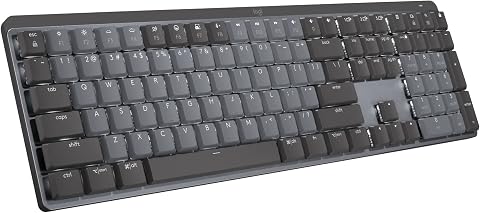
The Logitech MX Mechanical is a wireless keyboard featuring tactile quiet mechanical switches, low-profile keys for comfort, and smart backlit illumination that adjusts automatically. It supports multi-device pairing, customizable keys, and long battery life, making it suitable for efficient, ergonomic typing across multiple operating systems.
Pros:
- Quiet tactile mechanical switches for precise feedback
- Smart backlit keys that automatically adjust to lighting conditions
- Supports multi-device pairing across multiple operating systems
- Long battery life with quick USB-C charging
Cons:
- Premium price may be high for some users
- Requires Bluetooth or Logi Bolt receiver for full functionality
Best for: Typists seeking a wireless mechanical keyboard with illumination.
Not ideal for: People who prefer a different key feel or need a layout this model does not offer.
Bottom line: Match the layout, connection, and tactile feel to your daily typing before choosing this keyboard.
Ergonomic Wireless Mouse
A mouse is a daily contact point, and its shape and controls can affect how naturally it fits into a desk routine. This section’s pick is the Logitech MX Master 4 Ergonomic Wireless Mouse with Haptics – Graphite. The product name calls out an ergonomic design, wireless operation, and haptics, but those details do not establish whether its shape or controls will suit every hand or work style.
A frequent buying mistake is treating “ergonomic” as a universal fit guarantee. Hand size, grip style, and preferred pointer movement vary, so look for dimensions and shape details and consider how you typically hold a mouse. If you can try one in person, assess whether your hand rests naturally and whether the controls are easy to reach. If not, use the manufacturer’s measurements and product documentation to compare the fit with a mouse you already find comfortable.
Compatibility deserves equal attention. Check which computers and operating systems are supported, what wireless connections are available, and whether the mouse’s buttons or haptic features work as expected with your intended software. Also consider your desk surface and whether you want a mouse suited to one computer or a broader device setup. Choosing around hand fit, connection, and control needs is more useful than relying on the ergonomic label alone.
What to look for:
- Compare mouse dimensions and shape with your hand and grip style.
- Check wireless connection options and compatibility with your devices.
- Review how the buttons and haptic features work in the full specifications.
- Confirm support for your operating system and intended software.
- Consider desk surface and how the mouse will fit into your workspace.
Logitech MX Master 4 Ergonomic Wireless Mouse with Haptics – Graphite

The Logitech MX Master 4 is an ergonomic wireless mouse featuring customizable haptic feedback, a dynamic Actions Ring for quick tool access, and a MagSpeed scroll wheel for precise, fast scrolling. It offers up to 70 days of battery life, advanced connectivity options, and sustainable materials, making it ideal for productivity and comfort.
Pros:
- Customizable haptic feedback enhances user interaction
- Fast and precise MagSpeed scroll wheel
- Long battery life with quick charging capability
- Ergonomic design reduces hand stress
Cons:
- Requires Logi Options+ app for advanced customization
- Charging cable not included
Best for: People looking for an ergonomic wireless mouse with haptics.
Not ideal for: Shoppers who need a different shape, grip fit, or control layout.
Bottom line: Prioritize a comfortable hand fit and confirmed device support over the ergonomic label.
4K Webcam
A webcam can be an important part of a desk if video calls, presentations, or recordings are part of your routine. The named pick is the Insta360 Link 2 4K PTZ Webcam. Its title identifies 4K video and PTZ functionality, but shoppers should check the product documentation for exact capabilities, controls, and compatibility rather than assuming every feature works with every app or computer.
A common mistake is selecting a camera by resolution alone. Think about where it will sit, what it needs to frame, and how much space is available above or around your display. Check its mounting and positioning options, connection requirements, and any software or operating-system support needed for the functions you want. If you use a monitor, laptop, or separate stand, confirm that the webcam can be positioned securely and aimed appropriately in that arrangement.
Consider the whole call setup, not just the camera. Review how the webcam connects to your computer and whether your preferred meeting or recording applications support the features you plan to use. Check the documented controls for pan, tilt, and zoom, and verify whether those functions are manual or software-managed. Paying attention to framing, placement, and app compatibility can help you choose a camera that fits your actual calls instead of one that looks capable on paper.
What to look for:
- Verify computer and operating-system compatibility.
- Check support for your preferred video-call and recording applications.
- Confirm mounting options and fit with your monitor or laptop setup.
- Review how pan, tilt, and zoom functions are controlled.
- Check connection requirements and the full specifications for 4K support.
Insta360 Link 2 4K PTZ Webcam

The Insta360 Link 2 is a 4K webcam with a 1/2-inch sensor, HDR, and phase detection autofocus for clear video in varied lighting. Its motorized pan-and-tilt AI tracking, gesture controls, noise-canceling microphone, and DeskView and Whiteboard modes support video calls and streaming.
Pros:
- 4K video with HDR and low-light performance
- AI tracking follows movement around the room
- Noise-canceling microphone helps reduce background noise
- Gesture controls and specialized DeskView and Whiteboard modes
Cons:
- Not compatible with ARM-based Windows systems
- Does not support Windows Hello Face Recognition
Best for: People seeking a 4K webcam with PTZ functionality.
Not ideal for: Setups where the mount, connection, or software support does not fit.
Bottom line: Confirm placement and application support before choosing this PTZ webcam.
Monitor Light Bar
Desk lighting is worth considering when you want a dedicated light source positioned at your display. The pick for this slot is the BenQ ScreenBar Halo 2 LED Monitor Light Bar. Its name identifies it as an LED monitor light bar, but the full product details should guide decisions about how it mounts, how it is controlled, and whether it suits your monitor and desk.
A common mistake is assuming that a monitor light bar fits every screen. Check your monitor’s shape, thickness, and top-edge design against the product’s documented mounting requirements. Pay particular attention to curved or unusually shaped displays, rear housings, and any webcam or accessory already attached near the top edge. Confirm that the bar can sit securely without obstructing your display or conflicting with existing equipment.
Next, consider how you want to use and control the light. Review the available controls and modes in the product documentation, then think about whether they fit your work habits and room setup. Check cable routing and the space available near the monitor so the light bar can be installed without making the desk feel crowded. A careful fit and control check can help avoid buying a light that conflicts with the screen or accessories you already use.
What to look for:
- Check monitor shape, dimensions, and mounting compatibility.
- Review whether the mounting design suits curved or unusual displays.
- Confirm that the bar will not conflict with webcams or other top-edge accessories.
- Check documented lighting controls and modes against your needs.
- Plan cable routing and placement around the monitor and desk.
BenQ ScreenBar Halo 2 LED Monitor Light Bar

This monitor light bar provides adjustable, glare-free front lighting and ambient backlighting to support comfortable screen use. Its wireless controller adjusts brightness, color temperature, and lighting modes, while smart features include ambient light adjustment and automatic monitor-linked operation.
Pros:
- Glare-free front lighting with adjustable ambient backlight
- Wireless controller with display for precise adjustments
- Adjustable brightness and color temperature
- Flicker-free LEDs with CRI > 95
Cons:
- Requires a USB electrical cable for power
Best for: People who want an LED light bar positioned at their monitor.
Not ideal for: Monitors or accessory arrangements that conflict with its mounting fit.
Bottom line: Confirm monitor and accessory clearance before adding this light bar.
Qi2 Wireless Charger
A multi-device charging station can help organize a desk or bedside area, provided it matches the devices you intend to charge. The pick is the Belkin UltraCharge Pro Qi2.2 25W 3-in-1 Wireless Charging Station. The product name identifies Qi2.2, a 25W specification, and three-in-one charging, but shoppers should confirm the full compatibility details for each device rather than assuming every phone or accessory can use every feature.
A common mistake is treating “3-in-1” as a guarantee that all of your devices will fit or charge as intended. List the exact phone, watch, and other accessories you plan to place on the station, then check the product’s supported-device information for each. Confirm whether device cases affect placement or charging, and verify that your phone supports the stated wireless charging standard and performance. Also check what power adapter and cables are included or required.
Physical arrangement matters too. Think about where the station will sit, how many devices you will place on it at once, and whether the charging positions are accessible from your usual seat or bedside spot. Review the station’s footprint and cable route before committing. Checking device support, case fit, and power requirements helps prevent a mismatch between a multi-device charger and the devices you actually own.
What to look for:
- Confirm Qi2.2 compatibility and charging support for your specific phone.
- Check compatibility for every device you plan to charge on the station.
- Verify whether your phone case affects placement or charging.
- Review power-adapter and cable requirements in the full specifications.
- Check the station’s footprint and whether its charging positions fit your space.
Belkin UltraCharge Pro Qi2.2 25W 3-in-1 Wireless Charging Station

This 3-in-1 magnetic charging station simultaneously charges a compatible iPhone or Qi2 device at up to 25W, an Apple Watch, and AirPods at up to 5W. It features ChillBoost active cooling, StandBy support, a weighted chrome base, and compatibility with MagSafe cases up to 5mm, and includes a 45W power supply and 5-foot USB-C cable.
Pros:
- Charges an iPhone, Apple Watch, and AirPods simultaneously
- Delivers up to 25W magnetic wireless charging
- Active cooling helps maintain charging speed
- Includes a 45W power supply and 5-foot USB-C cable
Cons:
- 25W fast charging requires iOS 26 or newer
- Cooling fan may produce a light hum
- Strong magnets can make phone removal harder
Best for: People looking to charge multiple compatible devices wirelessly in one place.
Not ideal for: Device combinations that are not supported by the station’s specifications.
Bottom line: Verify support for each device and the required power setup before choosing this charger.
Start with the upgrade that removes your biggest daily friction, then buy in a practical order: compatibility-critical essentials first, followed by comfort and convenience. For example, confirm dock and charger support before reorganizing your connections, then consider input devices, video, and lighting based on how you use your desk. You do not need to add all six at once; each choice should solve a clear need.
Use the checks in this guide to compare products against your real setup, including device support, physical fit, and available space. A little verification can prevent avoidable mismatches and make each addition feel intentional. Pick the upgrade that matters most to you, check the details carefully, and build a desk that works better for your routine.
Halloween Picks
halloween
As an affiliate, we earn on qualifying purchases.