
To prevent your laptop from overheating, using a cooling pad can substantially lower internal temperatures and enhance performance, especially during intensive tasks. Elevating your device with stands or stacks improves airflow, while regular cleaning of vents and fans keeps dust from blocking heat dissipation. Combining these solutions helps maintain stability, extend your laptop’s lifespan, and reduce noise. Explore more effective cooling methods to keep your device running smoothly and avoid thermal issues.

Get the latest gadgets delivered free — and shop member deals
- Fast, free delivery on millions of items
- Access to Prime Big Deal Days deals on October 6–7
- Prime Video, Amazon Music and more included
Key Takeaways
- Cooling pads with multiple fans or large blades effectively increase airflow and reduce internal temperatures during intensive use.
- Elevating the laptop with stands or stacks enhances ventilation and prevents dust buildup around vents, improving heat dissipation.
- Regularly cleaning vents and fans with compressed air prevents dust accumulation that hampers airflow and causes overheating.
- Monitoring CPU and GPU temperatures allows for adjusting fan speeds and BIOS updates to optimize internal cooling.
- Combining external cooling solutions with proper placement and maintenance extends device lifespan and maintains optimal performance.
How Cooling Pads Reduce Laptop Temperatures and Improve Performance
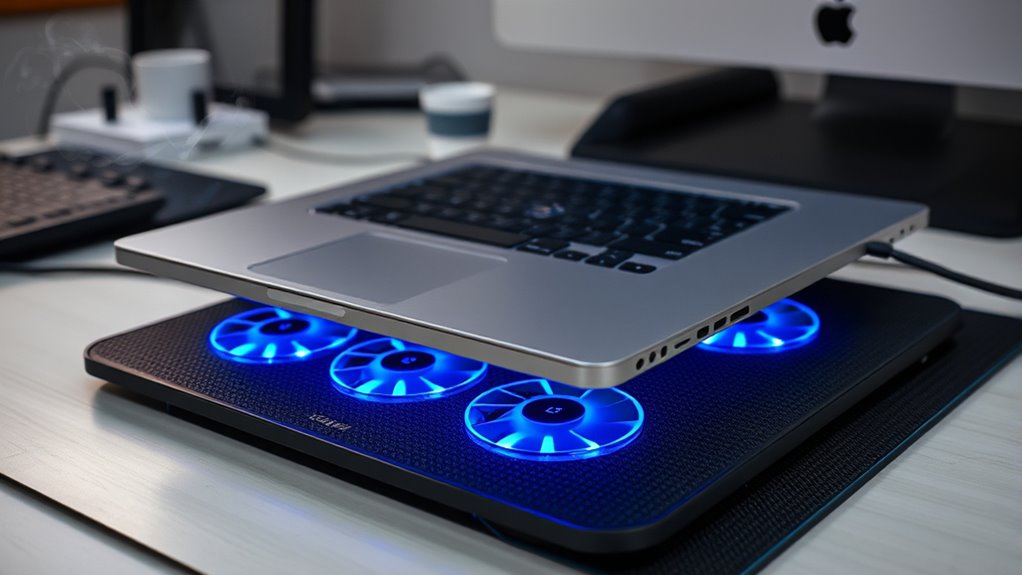
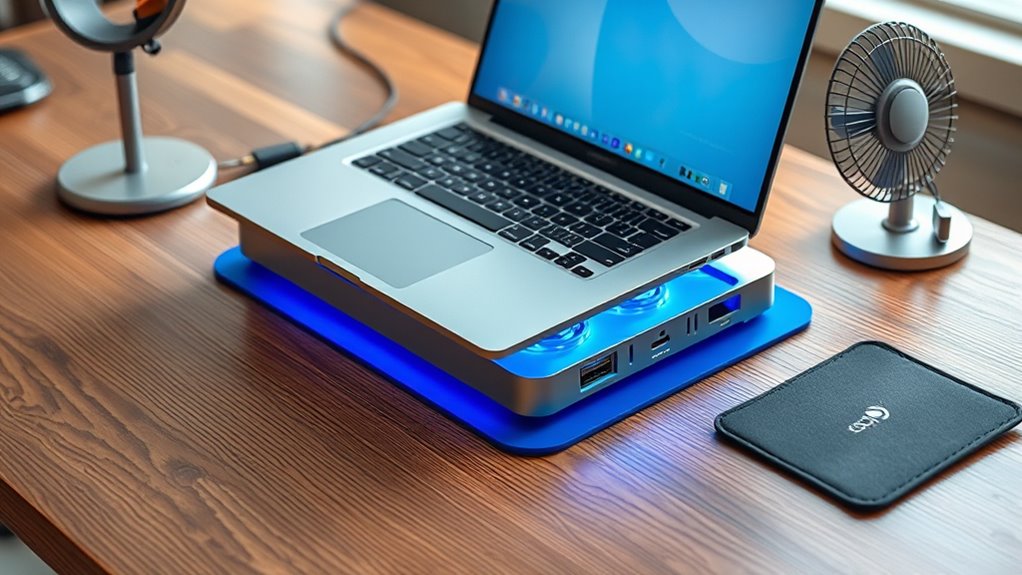
Cooling pads work by increasing airflow beneath your laptop, which helps dissipate heat more effectively. When you place a cooling pad under your device, the fans actively push air into the vents and around the bottom surface, reducing internal temperatures by an average of about 13°F (7°C). Some high-quality models can lower temperatures by as much as 30°F (17°C–20°C) during intensive tasks like gaming. This cooling effect helps prevent thermal throttling, allowing your CPU and GPU to maintain higher clock speeds longer. As a result, your laptop performs better, with smoother gameplay and faster processing. Additionally, lower temperatures help prolong component lifespan and reduce internal fan noise, creating a quieter, more efficient working environment. Proper thermal management is essential for maintaining optimal device performance and longevity. Using temperature monitoring tools can help you track and optimize your laptop’s cooling performance, especially when combined with smart cooling solutions.
Exploring Different Types and Features of Laptop Cooling Pads
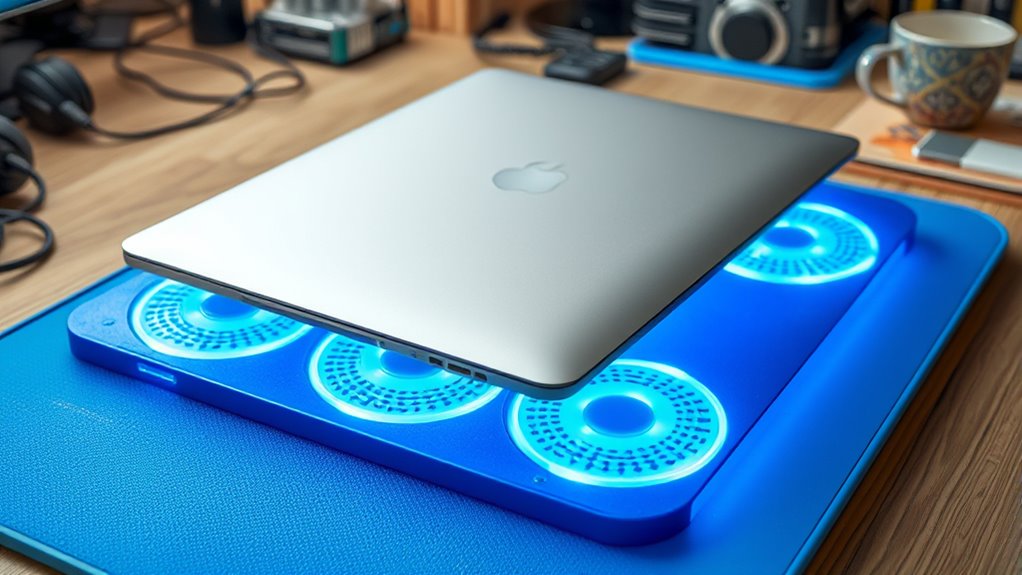
Understanding the different types and features of laptop cooling pads can help you choose the right one for your needs. Cooling pads vary mainly by fan number, size, and airflow capacity. Some models have multiple small fans, while others feature a large central fan up to 230mm that pushes high airflow (near 90 CFM). Adjustable height settings improve comfort and airflow, and higher-end pads include fan speed controllers to balance noise and cooling. Materials impact durability; budget options often use plastic, while premium models feature more robust construction. Many cooling pads also elevate your laptop, enhancing ventilation even without powerful fans, which improves airflow and cooling efficiency. Proper placement of the cooling pad is crucial for optimal performance and to prevent obstructing airflow. An additional consideration is ergonomic design, which can reduce strain during prolonged use and contribute to overall comfort. Consider your workspace and noise tolerance when selecting features to ensure the pad complements your usage style and cooling requirements effectively. Safe installation practices are essential for ensuring your cooling pad operates efficiently and prevents potential damage to your device. Additionally, choosing a pad with adequate size ensures proper support and effective cooling for your specific laptop model.
Simple Strategies to Enhance Laptop Cooling Without Additional Devices
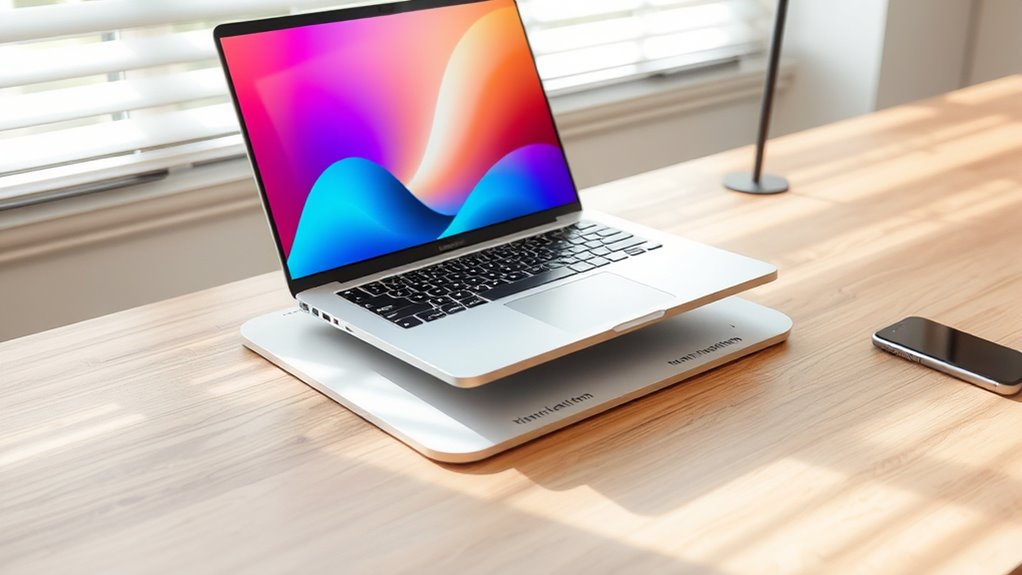
You can boost your laptop’s cooling by elevating it to improve airflow underneath. Regularly cleaning vents and fans prevents dust buildup that traps heat and hampers performance. Additionally, adjusting internal fan settings helps optimize cooling without needing extra devices. Implementing proper ventilation techniques can further enhance heat dissipation and maintain optimal operating temperatures. Ensuring good air circulation around your device can also significantly contribute to better cooling. Incorporating effective airflow management strategies can make a noticeable difference in maintaining safe operating temperatures. Using appropriate cooling solutions, such as cooling pads designed for laptops, can also provide targeted assistance in heat reduction. Moreover, monitoring your device’s temperature with thermal management tools can help identify overheating issues before they become serious.
Elevate Your Laptop Properly
Elevating your laptop is a simple yet effective way to improve its cooling without adding extra devices. By raising the rear of your laptop, you create better airflow underneath, which helps dissipate heat more efficiently. This natural ventilation reduces internal temperatures and minimizes thermal buildup. Use a stand or even a stack of books to tilt your laptop at a comfortable angle, promoting airflow and ergonomic comfort. Elevation also prevents dust accumulation around vents and fans, supporting ideal heat exchange. It’s a cost-effective method that doesn’t involve electronics or noise. Keep in mind, the higher the elevation, the better the airflow, but don’t compromise stability or comfort. Combining elevation with other strategies maximizes cooling and keeps your laptop running smoothly under load. Additionally, choosing appropriate cooling solutions can further optimize heat dissipation and extend your device’s lifespan. Proper ventilation is crucial for maintaining optimal performance and preventing overheating issues. Incorporating natural airflow techniques can further enhance your cooling efforts, especially in well-ventilated spaces. Ensuring your workspace has good air circulation can also significantly impact your laptop’s temperature regulation. Improving airflow efficiency around your device can make a notable difference in preventing overheating.
Regularly Clean Vents and Fans
Regularly cleaning your laptop’s vents and fans is one of the simplest and most effective ways to improve its cooling performance. Dust and debris can accumulate inside, blocking airflow and trapping heat. To clean, turn off your laptop and unplug it. Use compressed air to blow out dust from vents and fans, holding the vents steady to prevent damage. A soft brush can help remove stubborn dirt around vents and fans. Avoid using liquids or vacuum cleaners, which can cause damage. Regular cleaning prevents dust buildup that impairs heat dissipation, lowering internal temperatures. Proper maintenance also enhances cooling efficiency and helps prevent overheating issues. This simple maintenance helps reduce thermal throttling, maintains performance, and prolongs your laptop’s lifespan. Incorporating cleaning into your routine every few months or more often if you notice overheating issues can significantly improve device longevity. Additionally, understanding how airflow management affects heat dissipation can guide you in optimizing your laptop’s cooling setup. Maintaining clear pathways for airflow is crucial for effective heat transfer, which can help keep your device running smoothly. Regular upkeep can also prevent the buildup of dust that impacts performance and durability.
Optimize Internal Fan Settings
Adjusting your internal fan settings can substantially improve your laptop’s cooling performance without the need for extra devices. You can enhance fan behavior to keep temperatures in check and boost performance. Here are some tips:
- Use manufacturer software: Many laptops include built-in tools to control fan speeds. Enable or customize these settings for better airflow.
- Set aggressive fan profiles: Increase fan speeds at lower temperature thresholds to prevent overheating during intensive tasks.
- Monitor temperatures: Use diagnostic tools to track CPU and GPU temperatures, adjusting fan curves accordingly.
- Update BIOS and drivers: Keeping software current ensures ideal fan control and system stability.
Implementing these steps helps maintain cooler internal components, reduces thermal throttling, and extends your laptop’s lifespan.
The Impact of Cooling Solutions on Laptop Longevity and Stability

Keeping your laptop cool helps prevent excessive wear on internal components, extending its lifespan. When temperatures stay low, the risk of thermal throttling drops, ensuring stable performance during demanding tasks. Regular cleaning of dust buildup also plays a vital role in maintaining essential airflow and heat dissipation. Additionally, implementing safe electrical practices can help prevent overheating issues caused by power-related problems. Proper use of cooling pads can significantly reduce internal temperatures, especially during extended use.
Temperature and Component Wear
When your laptop operates at lower internal temperatures, its components experience less thermal stress, which can considerably extend their lifespan. Cooler temperatures reduce the risk of heat-related failures and slow down wear on sensitive parts. Here’s how cooling solutions help:
- They prevent overheating, decreasing the chance of thermal throttling that can cause component stress.
- They maintain stable CPU and GPU clock speeds, ensuring consistent performance.
- They minimize heat-induced corrosion or degradation of internal circuits.
- They reduce fan activity, lowering mechanical wear and noise over time.
Thermal Throttling Effects
Thermal throttling occurs when your laptop’s internal temperatures rise too high, causing the CPU and GPU to automatically reduce their clock speeds to prevent overheating. This slowdown minimizes heat generation but impacts performance, leading to lag or dropped frame rates. Cooling solutions like pads lower temperatures, helping maintain stable clock speeds and preventing throttling. Here’s how different cooling methods influence performance:
| Cooling Solution | Effect on Throttling | Impact on Longevity |
|---|---|---|
| Cooling pads | Reduce temperature spikes | Extend component life |
| Laptop stands | Improve airflow, lower temps | Less wear on parts |
| Internal fans | Optimize heat dissipation | Decrease thermal stress |
| Software controls | Manage fan speeds, temps | Enhance stability |
Effective cooling lessens throttling, ensuring stable performance and prolonging your laptop’s lifespan.
Internal Dust Accumulation
While effective cooling solutions can lower internal temperatures, they can also influence dust accumulation inside your laptop. Using cooling pads or elevating your device may change airflow patterns, potentially drawing in more dust through vents. This buildup can clog fans and vents, reducing cooling efficiency and causing internal temperatures to rise. To manage dust accumulation:
- Regularly clean vents and fans with compressed air.
- Keep your workspace dust-free to minimize particles entering the device.
- Use cooling pads with dust filters when possible.
- Schedule periodic internal cleaning or professional servicing.
Ignoring dust buildup accelerates wear on internal components, risking overheating and instability. Maintaining a clean internal environment ensures your cooling solutions work effectively and prolongs your laptop’s lifespan. Proper airflow management is key to stable performance and device longevity.
Energy Benefits of Effective Cooling Methods for Portable Devices
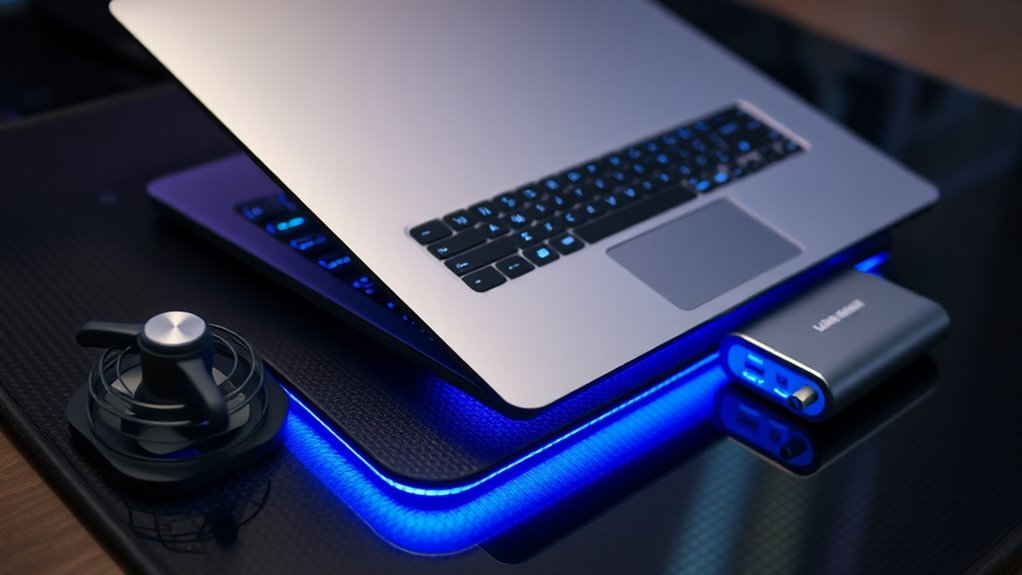
Effective cooling methods for portable devices, such as laptops, can considerably enhance energy efficiency by reducing internal temperatures and minimizing unnecessary power consumption. When your laptop runs cooler, its internal fans don’t need to work as hard, which lowers power draw and extends battery life. Cooler components maintain ideal performance without throttling, saving energy during intensive tasks. Proper airflow and cooling improve overall device efficiency, reducing heat-induced stress on parts that consume additional power.
| Cooling Method | Energy Benefit |
|---|---|
| Cooling pads with high airflow | Lower internal temperatures, less fan work, reduced power use |
| Laptop elevation | Improved ventilation, decreased fan activity |
| Regular cleaning | Better heat dissipation, less energy spent on cooling |
Limitations and Best Practices for Using Cooling Pads
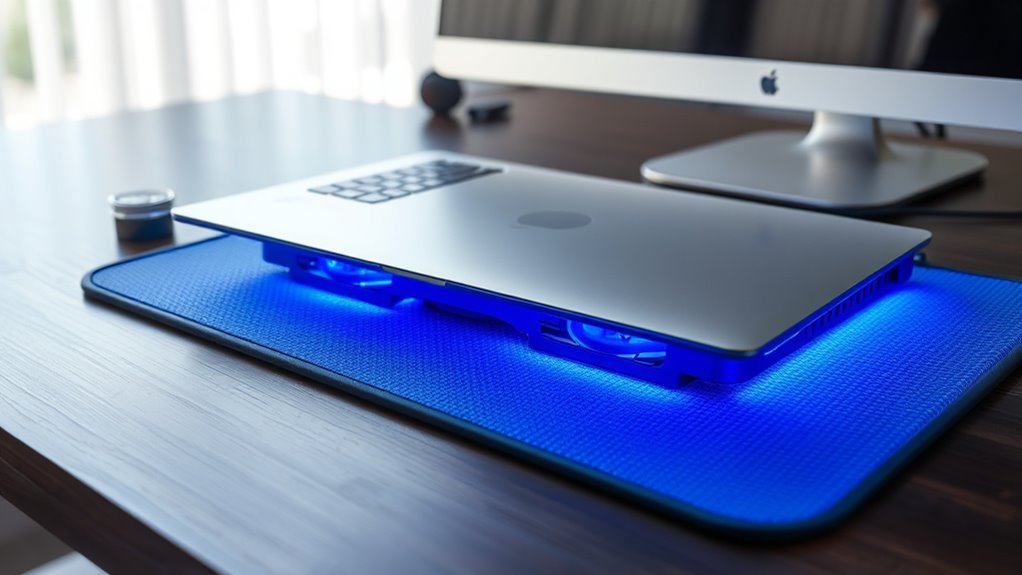
Cooling pads can help manage laptop temperatures, but they aren’t a perfect solution. Their effectiveness varies based on quality, airflow, and your laptop’s design. To get the best results, keep these practices in mind:
- Choose a high-quality pad with robust fans and good airflow capacity.
- Use the pad on a hard, flat surface for ideal airflow.
- Elevate your laptop with the pad and maintain proper ventilation.
- Regularly clean both the pad and your laptop’s vents to prevent dust buildup.
Keep in mind that cooling pads won’t drastically lower temperatures beyond 20°C, especially on poorly ventilated laptops. Relying solely on a pad might not resolve overheating issues—combine it with other cooling strategies for better results.
Combining Cooling Techniques for Optimal Laptop Thermal Management

Combining multiple cooling techniques can considerably enhance your laptop’s thermal management rather than relying on a single method. For example, elevating your laptop increases airflow, while a cooling pad adds direct airflow and surface cooling. Regularly cleaning internal vents reduces dust buildup, improving heat dissipation. Using software to manage fan speeds prevents overheating without excessive noise.
| Technique | Benefit | Best Use Case |
|---|---|---|
| Laptop Elevation | Improves natural airflow | During extended use |
| Cooling Pad | Adds active airflow and surface cooling | Gaming or intensive tasks |
| Internal Cleaning | Maintains internal airflow | Monthly maintenance |
Together, these strategies optimize heat dissipation, boost performance, and prolong your laptop’s lifespan.
Frequently Asked Questions
Do Cooling Pads Work With All Laptop Models Effectively?
Cooling pads work with most laptop models, but their effectiveness varies. If your laptop has good internal ventilation and is well-built, a cooling pad can help reduce temperatures and improve performance. However, budget or older models with poor airflow may see limited benefits. To get the best results, choose a high-quality cooling pad suited to your laptop’s size and airflow needs, and combine it with other cooling strategies.
Can Cooling Pads Improve Battery Life Besides Temperature Reduction?
Sure, cooling pads might just be the secret weapon to extend your battery life—if you believe reducing internal temperatures somehow magically saves power. In reality, they mainly lower temperatures and improve performance, but have little direct impact on battery longevity. If you’re hoping to squeeze more juice out of your device, focus on managing background apps and brightness instead. Cooling pads won’t turn your laptop into a power-saving miracle.
Are There Risks of Damaging My Laptop Using a Cooling Pad?
Using a cooling pad generally doesn’t risk damaging your laptop if you choose a quality model and use it properly. However, if the pad has uneven or unstable support, it could cause physical stress or accidental falls. Also, excessive force or improper placement might damage vents or ports. To stay safe, opt for a well-made cooling pad, guarantee it’s stable, and avoid placing heavy objects on your laptop while using one.
How Do I Choose the Best Cooling Pad for Gaming Laptops?
You should look for a cooling pad with high airflow capacity, large fans, and adjustable height to optimize cooling during gaming. Prioritize models with multiple fans and a sturdy build to handle intense heat. Check user reviews for noise levels and durability. A pad with a good balance of performance and comfort guarantees your gaming laptop stays cool, maintains peak performance, and extends its lifespan.
Do Cooling Pads Consume Significant Additional Power During Use?
Cooling pads do use some additional power because of their fans, but they typically don’t consume a significant amount. Most models range between 2 to 10 watts, which is minimal compared to your laptop’s overall power consumption. While higher-end pads with multiple fans or speed controllers might draw more energy, overall, their extra power use is small, and the benefits of better cooling usually outweigh this minor increase.
Conclusion
Just like a car needs a cool engine to run smoothly, your laptop performs best when it’s properly cooled. I once saw a friend’s laptop overheat during a essential project, causing frustration and delays—reminding me how necessary cooling solutions are. Whether you choose a cooling pad or simple habits, taking care of your device’s temperature keeps it running longer and faster, so you can focus on what truly matters without tech troubles slowing you down.
Fall Picks
fall essentials
As an affiliate, we earn on qualifying purchases.