
You can make your computer feel faster by optimizing your hardware setup, like ensuring components work smoothly together and upgrading to faster storage or more RAM if needed. Keep your system clean by removing unnecessary software and background processes, and regularly update drivers and the operating system. Organize your workflow and close unused applications to improve responsiveness. These tweaks can substantially boost your experience—keep exploring how each element impacts performance for even better results.
Get ready for Prime Big Deal Days — try Prime free
Exclusive member deals on October 6–7, plus fast free delivery. Cancel anytime.
As an affiliate, we earn on qualifying purchases.
Key Takeaways
- Proper hardware optimization ensures smooth data flow and reduces bottlenecks, enhancing responsiveness.
- Regular system maintenance, like disk cleanup and updates, keeps the system running efficiently.
- Minimizing background processes and unnecessary applications improves perceived speed.
- Tailoring hardware to specific user needs, such as high-refresh-rate displays or ample RAM, boosts responsiveness.
- User habits, including organizing workflows and closing unused programs, significantly influence perceived speed.

When it comes to how fast a computer feels, the raw specifications only tell part of the story. Sure, a high-megapixel processor or a large amount of RAM give you a baseline idea of its potential, but how quickly your computer responds in real-life tasks depends heavily on hardware optimization. If the hardware isn’t optimized, even the most powerful components can feel sluggish. This means that your system’s performance isn’t just about the parts it contains but how well those parts work together. Properly optimized hardware ensures that data flows smoothly between the CPU, memory, storage, and graphics, reducing bottlenecks that can slow down your experience. It’s about fine-tuning settings, updating drivers, and selecting compatible components to maximize efficiency, all of which contribute to a snappier, more responsive user experience.
Beyond hardware optimization, the way your operating system and software are configured plays a crucial role. A clean, well-maintained system that minimizes background processes and unnecessary startup programs can dramatically improve perceived speed. When you launch applications or switch between tasks, a streamlined environment responds more instantly, making the machine feel faster. Regular updates and the right system settings ensure that your hardware runs at its best, preventing slowdowns caused by outdated or incompatible software. Additionally, understanding the importance of hardware optimization can help you identify areas for improvement to boost overall responsiveness. Incorporating system maintenance practices, such as disk cleanup and defragmentation, can further enhance performance. Keeping an eye on software bloat and removing unnecessary applications also plays a vital role in maintaining speed. Furthermore, optimizing your system performance settings can help your hardware operate more efficiently under different workloads.
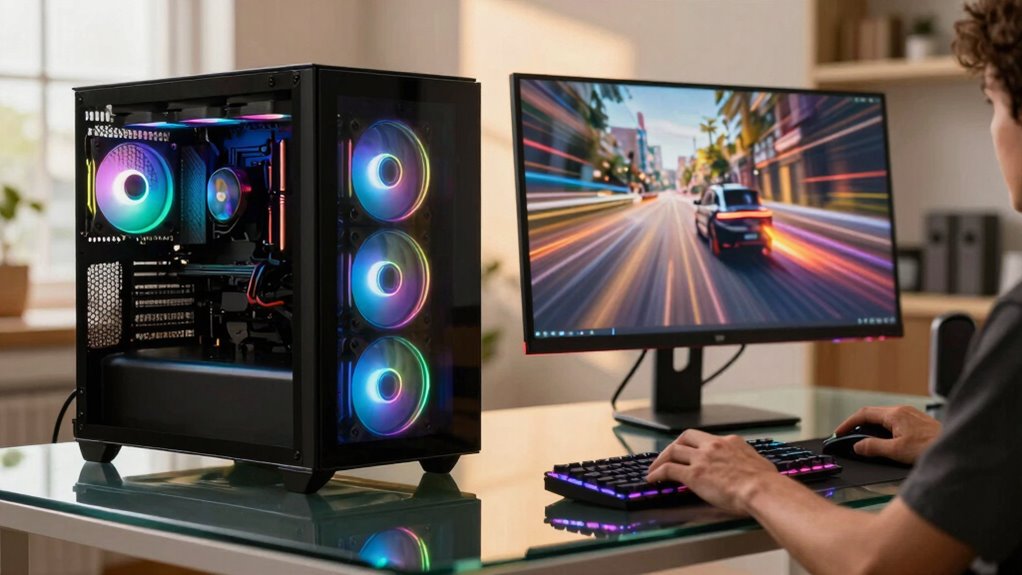
Your user experience is also heavily influenced by how well your hardware aligns with your specific needs. For instance, if you’re a gamer, a high-refresh-rate display paired with a capable GPU creates a noticeably smoother experience. If you work with large files or run intensive programs like video editors, fast SSD storage and ample RAM make a palpable difference. Customizing your setup based on your use case allows the hardware to deliver maximum responsiveness, making everything feel more immediate and less frustrating. Recognizing the significance of system customization can help tailor your device for optimal performance based on your activities.
Finally, user perception plays a significant role. Even if your system is technically fast, if it’s cluttered with unnecessary processes or if you’re used to slow responses, it might still feel sluggish. Improving user experience involves not just hardware but also habits—like organizing your workflow, closing unused applications, and periodically cleaning your system. When all these elements come together—optimized hardware, tailored configuration, and mindful usage—you’ll notice your computer feels faster in everyday use, often more than what raw specs alone suggest.
As an affiliate, we earn on qualifying purchases.
Frequently Asked Questions
How Does User Perception Influence the Feeling of Speed?
Your perception of speed hinges on hardware responsiveness and visual feedback. When your computer responds quickly to commands, it feels faster, even if specs are similar. Clear visual cues, like progress bars and animations, reassure you that tasks are progressing, boosting your sense of speed. Faster hardware and immediate visual feedback create a seamless experience, making you feel like your computer is operating at peak performance, regardless of actual technical specs.
Can Software Optimization Improve Perceived Performance?
Yes, software optimization can notably improve your perceived performance. By tuning hardware settings, reducing network latency, and optimizing code, your system responds faster and feels more responsive. For example, minimizing background processes or streamlining data transfer can make tasks seem quicker. These adjustments help your computer run more smoothly, making it feel faster even if the hardware specs haven’t changed. So, smart software tweaks directly boost your experience.
What Role Does User Interface Design Play in Speed Perception?
You’ll notice a computer feels faster when its user interface design provides clear visual feedback and responsiveness cues. For example, studies show that delays over 100 milliseconds can disrupt perceived speed. When your screen quickly reacts to your actions, thanks to smooth animations or progress indicators, it creates a sense of responsiveness, making the system seem faster. Good UI design bridges the gap between actual performance and your perception of speed.
How Do Background Processes Affect the Feeling of a Fast Computer?
Background processes can considerably impact your perception of a fast computer by increasing background latency, which delays system response times. When too many processes run simultaneously, your system feels sluggish because it struggles to prioritize tasks efficiently. To maintain a sense of speed, you should manage or disable unnecessary background processes, ensuring your system remains responsive and minimizes latency, so your experience stays smooth and quick.
Does Startup Time Impact Perceived Overall System Speed?
Startup time definitely impacts your perception of overall system speed. When you hit the power button, hardware latency causes a brief pause before your screen lights up. If it takes too long, your patience wears thin, making the entire experience feel sluggish. A quick startup creates a smooth, seamless flow, making you feel like your computer is instantly responsive, even if other processes are running efficiently in the background.
As an affiliate, we earn on qualifying purchases.
Conclusion
Ultimately, feeling like your computer is fast isn’t just about raw specs—it’s about how smoothly your tasks flow. Optimizations like quick boot times, responsive shortcuts, and minimal lag make a huge difference. Did you know that a delay of just 100 milliseconds in response time can impact user perception of speed? So, focus on the overall experience, not just the hardware, and you’ll truly feel the difference every time you use your machine.
As an affiliate, we earn on qualifying purchases.
performance optimization tools for Windows
As an affiliate, we earn on qualifying purchases.
As an affiliate, we earn on qualifying purchases.
Fall Picks
fall essentials
As an affiliate, we earn on qualifying purchases.