
To keep your PC malware-free without slowing it down, choose lightweight security software that doesn’t hog resources. Keep your operating system, browsers, and software updated automatically to patch vulnerabilities. Practice safe browsing by avoiding suspicious links and ensuring sites use HTTPS. Limit background processes and startup items, clean up unnecessary files, and enable built-in security features. Maintaining good digital hygiene and using trusted tools can protect your PC efficiently—discover more ways to stay secure without compromise.
Key Takeaways
- Choose lightweight security software and keep all system updates current to prevent malware without impacting performance.
- Practice safe browsing, use secure websites, and keep browsers updated to reduce malware entry points.
- Manage startup programs and background processes to improve speed and minimize vulnerabilities.
- Regularly scan your PC with trusted, resource-efficient antivirus tools and promptly quarantine threats.
- Maintain good digital hygiene by updating passwords, avoiding suspicious links, and removing unnecessary extensions.
Choose Lightweight and Efficient Security Software
Selecting the right security software is essential for keeping your PC malware-free. You want protection that’s strong but doesn’t bog down your system. Look for programs labeled as lightweight and efficient—they use fewer resources, so your PC runs smoothly. Avoid overly bulky security suites that can cause lag or crashes. Instead, choose solutions with minimal impact on performance while still offering real-time scanning, malware removal, and automatic updates. Many modern antivirus options are designed specifically to be unobtrusive, so you get solid security without sacrificing speed. Remember, the goal is to balance protection with performance, ensuring your system stays responsive even while actively defending against threats. Opting for efficient resource management features can further enhance your experience by optimizing security performance without slowing down your PC. Additionally, selecting programs with optimized performance ensures that your security measures do not interfere with your daily tasks. To achieve this, consider resource-efficient algorithms that minimize the impact on system resources while maintaining high detection rates.
Keep Your Operating System and Software Up to Date
Keeping your operating system and software up to date is one of the most effective ways to prevent malware infections. Updates often include security patches that fix vulnerabilities hackers might exploit. Set your OS to update automatically so you don’t miss critical patches, and regularly check for updates for all your software, especially your web browsers and antivirus tools. Outdated software can serve as an entry point for malware, so staying current minimizes this risk. Remember, updates are designed to improve performance and security without slowing down your system. By keeping everything up to date, you ensure your PC remains protected against the latest threats while maintaining smooth operation. Regular updates are a simple but powerful step in your malware prevention strategy. Additionally, software updates often include performance improvements that help your system run more efficiently. Incorporating automated update management can further streamline this process and reduce the chance of forgetting essential patches. Staying informed about security vulnerabilities related to your software can also help you act promptly when urgent updates are released. Regularly reviewing update notifications can help you stay aware of critical security patches as they become available.
Use Browser Extensions for Additional Safety
Choosing trusted browser extensions can add an extra layer of security when browsing. Make sure to regularly update your plugins to patch vulnerabilities and prevent malware. By staying vigilant with your extensions, you strengthen your defenses against online threats. Additionally, extension security practices help ensure that your tools remain safe and effective. Maintaining a clear understanding of privacy policies associated with extensions can prevent unintended data sharing. Regularly reviewing your extensions for potential vulnerabilities further enhances your overall online safety. Implementing trusted sources for extensions reduces the risk of installing malicious software. Being aware of software update practices can help maintain your browser’s security and performance.
Choose Trusted Extensions
Trusted browser extensions can considerably boost your online safety by blocking malicious sites, preventing tracking, and managing passwords. However, it’s essential to choose extensions from reputable sources. Always verify the publisher’s credibility before installing. Look for extensions with high user ratings and positive reviews, and avoid those with excessive permissions that aren’t necessary for their function. Stick to well-known developers and official web stores to reduce the risk of installing malicious or poorly maintained tools. Regularly review your extensions list, removing those you no longer use or trust. By selecting trusted extensions, you minimize the chance of malware infections or privacy breaches, ensuring your browsing remains both safe and efficient without slowing down your PC. Additionally, offensive security practices can help you stay vigilant about potential vulnerabilities and ensure your browser infrastructure remains reliable. Maintaining an updated security posture is also vital for protecting your system from emerging threats. Incorporating security best practices into your routine further enhances your defenses and keeps your digital environment secure.
Regularly Update Plugins
Regularly updating your plugins is a key step in maintaining your browser’s security. Outdated plugins often contain vulnerabilities hackers can exploit. To stay protected, follow these essential steps:
- Check for updates regularly in your browser’s plugin or extension settings.
- Enable automatic updates whenever possible to ensure you never miss critical patches.
- Remove plugins you no longer use or trust to reduce potential attack points.
Regularly Scan Your System With Trusted Tools
To effectively detect and remove malware, you need to scan your system with reliable tools on a regular basis. Choose trusted antivirus or antimalware programs known for thorough scanning without slowing down your PC. Schedule weekly or bi-weekly scans to catch threats early. Make certain your software is up to date so it can recognize the latest malware variants. During scans, close unnecessary applications to improve speed and accuracy. If the tool finds malware, follow its instructions to quarantine or delete the threats immediately. Regular scanning keeps your system secure and prevents infections from spreading or causing damage. Remember, using reputable tools and maintaining a consistent schedule is key to staying malware-free without sacrificing your PC’s performance. Additionally, passive voice detection can help identify areas where your writing may be less clear or direct, improving overall communication. Incorporating system performance optimization techniques can also help ensure that your scans run efficiently and do not impact your PC’s responsiveness. Regularly reviewing your security settings can further enhance protection and streamline your malware prevention efforts. For optimal results, consider real-time threat monitoring to detect malware as it attempts to infect your system. Employing scheduled scans ensures consistent protection without manual intervention.
Practice Safe Browsing Habits
To keep your PC safe, always use secure websites and avoid clicking on suspicious links. Make sure your browser is up to date so you have the latest security features. These simple habits help protect you from malware and online threats.
Use Secure Websites
Using secure websites is essential for protecting your PC from malware. When browsing, guarantee the website’s URL begins with “https://” and displays a padlock icon, indicating a secure connection. This encrypts data between your browser and the server, reducing risks. To further safeguard yourself, follow these steps:
- Verify the website’s authenticity by checking for trust seals and reviews.
- Avoid entering sensitive information on sites with suspicious or missing security indicators.
- Update your browser regularly to benefit from the latest security features and patches.
Avoid Suspicious Links
Even if a link looks legitimate, clicking on suspicious or unfamiliar URLs can put your PC at risk. Cybercriminals often disguise malicious links to trick you into visiting harmful websites or downloading malware. Always hover over links before clicking to see the actual URL, and check for misspellings or strange domain names. Be cautious with shortened links, and avoid clicking on links in unsolicited emails or messages from unknown sources. If something seems off or too good to be true, trust your instincts and skip it. Remember, cybercriminals rely on your curiosity or haste to infect your device. Practicing safe browsing habits by verifying links helps protect your PC without slowing down your experience. Stay vigilant and think before you click.
Enable Browser Updates
Keeping your browser up to date is one of the simplest ways to defend against malware and cyber threats. When you enable automatic updates, you guarantee your browser receives the latest security patches and features. This reduces vulnerabilities that hackers could exploit. To maximize protection, follow these steps:
- Check your browser settings regularly to confirm updates are enabled.
- Enable automatic updates so you don’t have to do it manually.
- Restart your browser after updates to apply new security measures.
Limit Background Processes and Startup Items
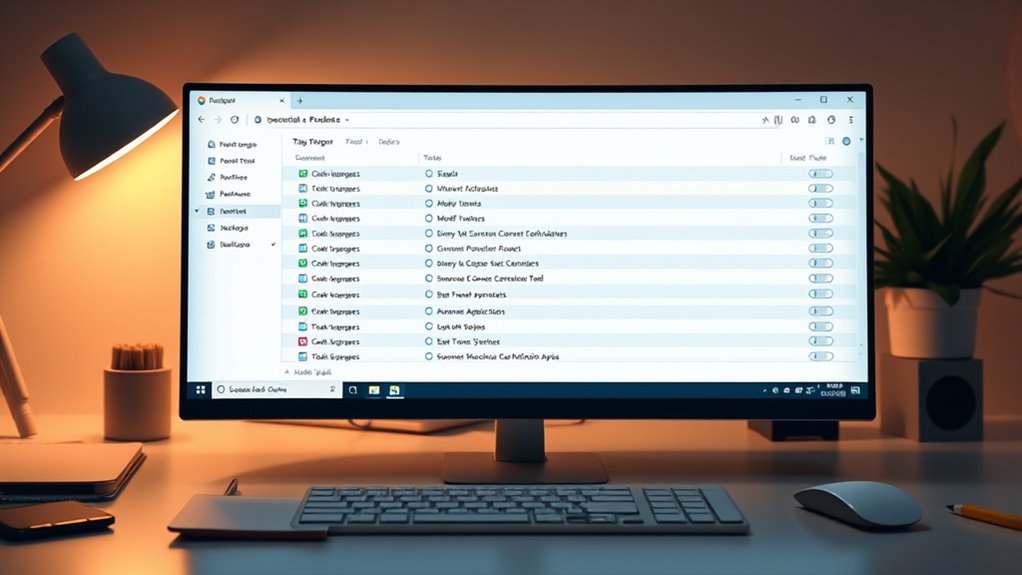
Have you ever noticed your computer slowing down during startup? That’s often because too many background processes and startup items run automatically, consuming resources and increasing vulnerability. To speed things up and keep malware at bay, review which programs launch at startup. On Windows, open Task Manager, then go to the Startup tab to disable unnecessary items. On Mac, go to System Preferences > Users & Groups > Login Items. Limit background processes by closing unused applications and background services. This reduces your system’s attack surface, making it harder for malware to hide or run unnoticed. Regularly reviewing and managing startup items keeps your PC running smoothly and securely without sacrificing performance. A lean startup process helps you avoid slowdowns and potential security risks.
Manage Disk Space and Remove Unnecessary Files
After streamlining startup items and closing unnecessary background processes, your next step is to manage disk space effectively. Clearing clutter prevents malware hiding in unnecessary files and keeps your system running smoothly. Start by:
- Deleting temporary files using built-in tools like Disk Cleanup or third-party apps.
- Uninstalling unused programs to free up space and reduce potential vulnerabilities.
- Organizing and deleting duplicate or large files that no longer serve a purpose.
Regularly performing these actions minimizes disk clutter, improves performance, and reduces the chances of malware hiding in forgotten files. Keep your system lean and secure by maintaining a tidy disk, which helps prevent malware from exploiting unnecessary data and keeps your PC running at peak speed.
Enable Built-In Security Features in Your OS
Enabling your operating system’s built-in security features is a crucial step in protecting your PC from malware. Modern OSes come with tools like Windows Defender or macOS’s XProtect that actively scan for threats and block malicious files. Make sure these features are turned on and up to date, as updates improve their ability to detect new malware. Enable real-time protection so threats are caught immediately. Adjust your settings to perform regular scans without overloading your system, and consider enabling automatic updates to keep security definitions current. These built-in tools are lightweight and designed to run seamlessly in the background, providing essential protection without slowing down your PC. Regularly checking that these features are active is a simple yet effective way to boost your security.
Maintain Good Digital Hygiene and Awareness
Maintaining good digital hygiene and awareness is essential for preventing malware infections. You should stay vigilant and adopt best practices to keep your PC secure. First, always think before clicking on links or downloading attachments, especially from unknown sources. Second, regularly update your passwords, making them complex and unique for each account. Third, familiarize yourself with common scams and phishing tactics so you can recognize suspicious activity. Additionally, avoid using unsecured public Wi-Fi networks for sensitive tasks, and consider employing a VPN for added privacy. By staying informed and cautious, you reduce your risk of malware infiltration. Practicing these habits helps ensure your digital environment remains safe without sacrificing speed or performance.
Frequently Asked Questions
How Can I Identify if My PC Is Infected With Malware?
You can tell if your PC’s infected by noticing unusual behavior, like slow performance, pop-ups, or unknown programs running. Check your task manager for unfamiliar processes and run a reputable antivirus scan. Look for strange network activity or files you didn’t install. Keep an eye on your browser settings and email accounts for suspicious activity. Regular scans help catch malware early and keep your PC safe.
What Are the Signs of a Slow or Compromised System?
If your system feels sluggish, crashes frequently, or programs suddenly close, your PC might be compromised. You could notice unusual pop-ups, new toolbars, or excessive ads even with no browser activity. Files may become corrupted or disappear. You might also experience high CPU or memory usage without reason. These signs suggest malware activity, so run a trusted antivirus scan and check for suspicious programs to protect your system effectively.
Are Free Security Tools as Effective as Paid Ones?
Free security tools can be quite effective if you choose reputable ones. They often provide essential features like malware scanning and real-time protection, which are enough for many users. However, paid tools typically offer more extensive coverage, faster updates, and better customer support. If you’re tech-savvy and cautious, free options might suffice, but investing in paid security usually gives you extra peace of mind and stronger protection.
How Often Should I Perform System Scans?
You should perform system scans at least once a week—yes, even if you think your PC’s perfectly safe. Irony? The more you ignore this, the higher the chance malware slips through. Regular scans catch threats early, keeping your system speedy and secure. Don’t wait for strange pop-ups; make weekly scans a habit. It’s a small effort for big peace of mind and a malware-free PC.
Can Malware Infect My System Even With Good Security Practices?
Yes, malware can still infect your system even if you follow good security practices. Cybercriminals constantly develop new methods to bypass defenses, so no system is completely invulnerable. However, by staying vigilant, updating your software regularly, avoiding suspicious links, and using reliable security tools, you markedly reduce your risk. Remember, staying cautious and proactive is your best defense against malware infections.
Conclusion
By following these tips, you’re building a sturdy shield around your PC, keeping malicious threats at bay. Picture your system as a well-tended garden—regular updates and scans are like watering and pruning, preventing weeds from taking over. Safe browsing habits act as protective fencing, while managing background processes keeps your garden from overgrowth. With these habits, your computer stays lush, healthy, and ready to serve you without slowing down, like a vibrant, thriving landscape.