To stream videos from your PC to your TV, you can connect using an HDMI cable for a wired, high-quality solution, or use wireless options like Miracast, Chromecast, or AirPlay if your devices support them. Make sure your PC and TV are on the same Wi-Fi network for smooth streaming, and optimize your settings for the best picture quality. Want to discover the best setup for your needs? Keep exploring for all the details.

Get the latest gadgets delivered free — and shop member deals
- Fast, free delivery on millions of items
- Access to Prime Big Deal Days deals on October 6–7
- Prime Video, Amazon Music and more included
Key Takeaways
- Use an HDMI cable to connect your PC directly to your TV for high-quality, lag-free streaming.
- Utilize wireless technologies like Miracast, Chromecast, or AirPlay for cable-free streaming options.
- Ensure both your PC and TV or streaming device are on the same Wi-Fi network for seamless wireless connection.
- Adjust display settings on your PC to match your TV’s resolution for optimal picture quality.
- Keep software and device firmware updated to improve compatibility and prevent streaming issues.
Wired Connection Methods for Seamless Streaming
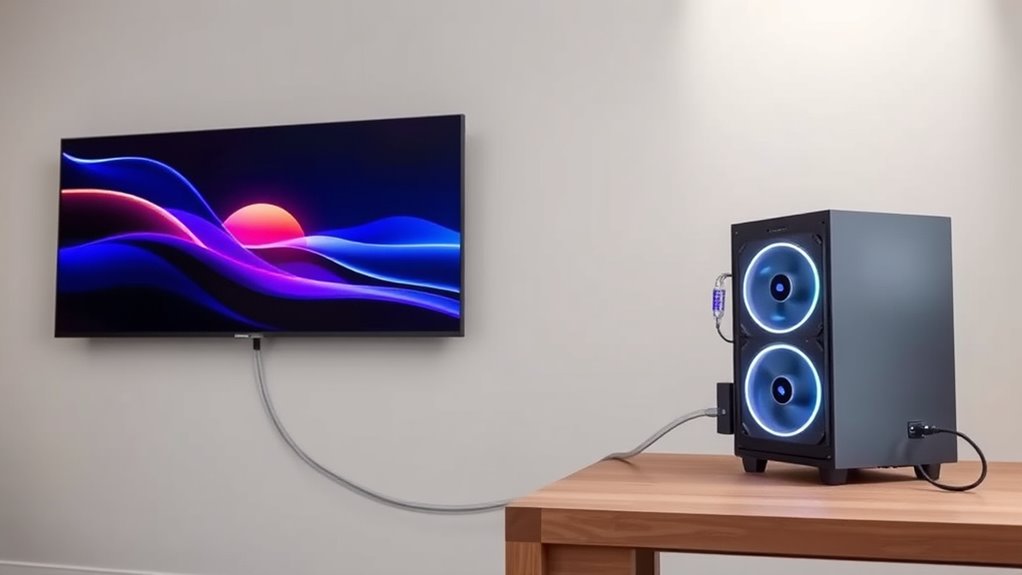
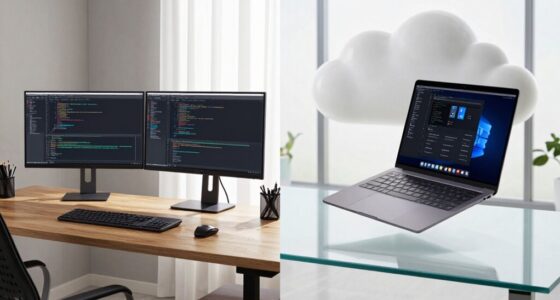
Wired connection methods offer the most reliable way to stream videos from your PC to your TV, guaranteeing a stable and high-quality experience. The most common option is an HDMI cable, which supports high-definition video and audio without lag. You’ll need compatible HDMI ports on both your PC and TV, and a suitable cable. Once connected, you might have to adjust your PC’s display settings to match your TV’s resolution for ideal viewing. This setup delivers smooth, interference-free streaming, making it perfect for gaming, streaming movies, or presentations. Unlike wireless options, a wired connection minimizes latency and ensures consistent performance. It’s a straightforward, dependable solution that guarantees high-quality visuals and sound without interruptions. Additionally, understanding contrast ratio can help you optimize your display settings for the best viewing experience. Employing energy-efficient hardware can further enhance your setup’s sustainability and reduce power consumption during extended streaming sessions. To maximize your setup’s reliability, consider cable quality to prevent signal degradation over longer distances. Furthermore, choosing the right connection type can ensure compatibility with various devices and future upgrades. Selecting the appropriate cable length can also help maintain signal integrity over longer distances without loss of quality.
Wireless Screen Mirroring Technologies Explained

Wireless screen mirroring technologies allow you to stream content from your PC to your TV without cables, providing a clutter-free setup. Miracast is a popular standard that enables direct wireless screen sharing between compatible Windows PCs and Smart TVs, using Wi-Fi Direct for a stable, low-latency connection. Chromecast, a device you plug into your TV’s HDMI port, allows you to cast your screen or specific apps via your Wi-Fi network. AirPlay, used mainly with Apple devices, streams content wirelessly to Apple TV or compatible Smart TVs. All these technologies require both devices to be on the same Wi-Fi network. They offer a convenient way to mirror your PC screen without the mess of cables, but keep in mind that performance can vary depending on your Wi-Fi signal strength. Understanding the importance of secure Wi-Fi connections] can help ensure a more reliable streaming experience.
Popular Software Solutions for PC-to-TV Streaming
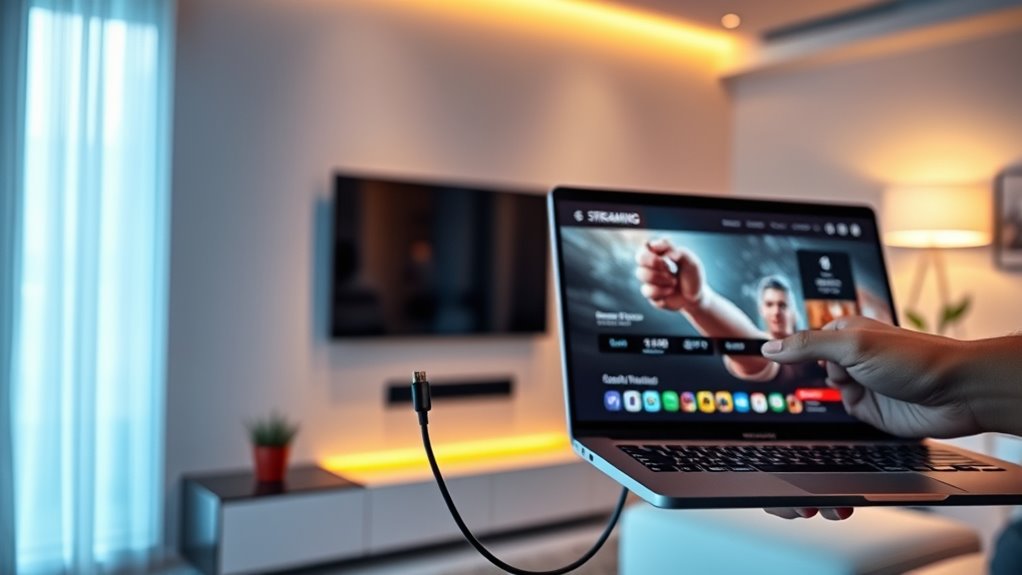
Choosing the right software solutions depends on your devices and streaming needs. Many apps support a variety of compatible devices and offer easy setup options, but optimizing settings is key for smooth playback. Customizing video quality settings can significantly enhance your viewing experience. Additionally, ensuring that the network connection is stable and fast can prevent interruptions and buffering issues during streaming. A properly configured network can make a noticeable difference in stream quality and reliability. Incorporating device compatibility considerations can also streamline the setup process and improve overall performance. We’ll explore popular options and share tips to help you get the best performance from your PC-to-TV streaming setup. To ensure a seamless experience, consider the compatibility and ease of use of each software option before making your choice.
Compatible Devices and Apps
Many software solutions make it easy to stream content from your PC to your TV, regardless of the device you’re using. Apps like Moonlight let you stream games and videos to Android TV, Nvidia Shield, Roku, or Fire Stick. Chromecast app enables wireless streaming by casting your PC screen directly to your TV through a dongle. If you’re an Apple user, AirPlay allows seamless wireless streaming to Apple TV or compatible Smart TVs. These apps typically require installation on both your PC and the streaming device or TV. They support remote control functions and low-latency streaming, making your experience smooth. Compatibility varies depending on your hardware and OS, so check your devices’ specifications before choosing a solution. This guarantees you pick the best app for your setup.
Setup and Optimization Tips
Getting your software setup right is key to achieving smooth PC-to-TV streaming. First, guarantee your streaming applications are downloaded from official sources and updated regularly for peak performance. If you’re using Moonlight or similar apps, verify compatibility with your device and ensure both your PC and TV or streaming device are on the same Wi-Fi network. Adjust display settings on your PC to match your TV’s resolution for sharp visuals. Enable hardware acceleration if available, to reduce lag. For wireless solutions, position your Wi-Fi router centrally to improve signal strength. If you experience lag or buffering, consider wired connections or upgrading your network hardware. Regularly check for software updates and troubleshoot network issues to maintain a seamless streaming experience. Additionally, considering the importance of net worth in personal branding can influence your choice of streaming equipment and setup.
Choosing the Right Streaming Devices for Your Setup
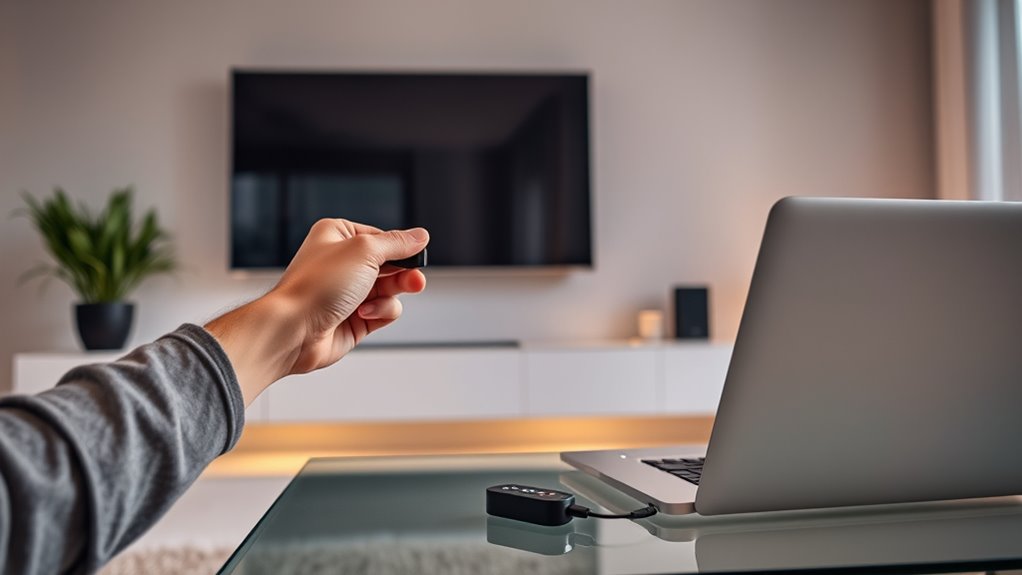
When selecting a streaming device, you need to consider how well it works with your existing gadgets and setup. Your budget influences whether you choose a basic stick or a more feature-rich model, while your desired features guide the best fit. By balancing compatibility, cost, and functionality, you can pick the right device for seamless PC-to-TV streaming.
Compatibility With Devices
Choosing the right streaming device depends on your existing equipment and the streaming protocols your TV supports. If your TV has built-in Miracast, AirPlay, or Chromecast, you may not need external hardware. For example, Apple TVs work seamlessly with AirPlay, while most modern smart TVs support Miracast or Chromecast natively. If your TV lacks these features, adding a compatible device like Chromecast, Roku, or Fire TV Stick guarantees broad app support and protocol compatibility. Check your TV’s specifications to see which protocols it supports and match them with the device’s capabilities. Consider whether your devices are compatible with certain apps or software solutions, like Moonlight or other streaming apps. Compatibility ensures smooth streaming and minimizes setup issues, making your PC-to-TV experience effortless.
Budget and Features
Selecting the right streaming device depends on your budget and the features you need. If you want a simple, affordable option, a Chromecast or Fire TV Stick offers easy wireless streaming and broad app support. These devices are budget-friendly and plug directly into your TV’s HDMI port, making setup straightforward. For higher-end features like better resolution or gaming, consider devices like Nvidia Shield or Apple TV, which provide more powerful hardware and advanced streaming options. Wired connections via HDMI cables deliver the most stable, lag-free experience, especially for gaming or high-definition content. Assess your priorities—whether affordability, ease of use, or performance—to choose a device that fits your setup and enhances your viewing experience without overspending. Additionally, understanding the concept of Free Floating can help you optimize your setup for a more flexible and clutter-free entertainment area.
Being aware of Wireless Signal Strength is also essential to ensure seamless streaming without interruptions.
Compatibility Considerations for Smart TVs and Streaming Options

Smart TVs vary widely in their support for streaming protocols and app availability, making compatibility an essential consideration before attempting to stream videos from your PC. Check your TV’s specifications to see if it supports Miracast, AirPlay, or Chromecast, which are common wireless streaming options. Some TVs have built-in support, while others require external devices like Chromecast, Roku, or Fire TV Stick for full functionality. Ensure your PC and TV are on the same Wi-Fi network for wireless methods. If you prefer a wired connection, confirm that both your PC and TV have compatible HDMI ports. Keep in mind that app availability may differ between brands and models, so research your specific TV to avoid compatibility issues. Properly matching devices guarantees seamless streaming experiences. Additionally, understanding your TV’s wireless streaming capabilities can help you select the most compatible and efficient method for your setup. For optimal performance, also consider network bandwidth to ensure smooth video playback without buffering. Moreover, being aware of device compatibility can help prevent setup frustrations and improve overall streaming quality. Being familiar with your TV’s software updates can also ensure you have the latest features and support for newer streaming technologies.
Optimizing Performance and Ensuring a Smooth Experience

To guarantee smooth streaming from your PC to TV, optimizing your setup for performance is key. First, use a wired connection like HDMI whenever possible, as it offers the most stable, lag-free experience. If you rely on wireless methods, ensure your Wi-Fi network is fast and stable—preferably a 5 GHz band—and keep your devices close to the router. Adjust your PC’s display settings to match your TV’s resolution for clarity and reduce strain on your system. Keep your software and device firmware updated to improve compatibility and performance. Close unnecessary background applications to free system resources, minimizing lag and buffering. Additionally, understanding network stability can help you troubleshoot and improve your connection quality for streaming. Improving Wi-Fi signal strength can also significantly enhance your streaming experience. For optimal results, consider hardware upgrades if you experience consistent issues, ensuring your setup can handle high-definition streaming smoothly. Regularly testing your connection using speed tests can help identify potential issues before they impact your viewing.
Tips for Troubleshooting Common Streaming Issues
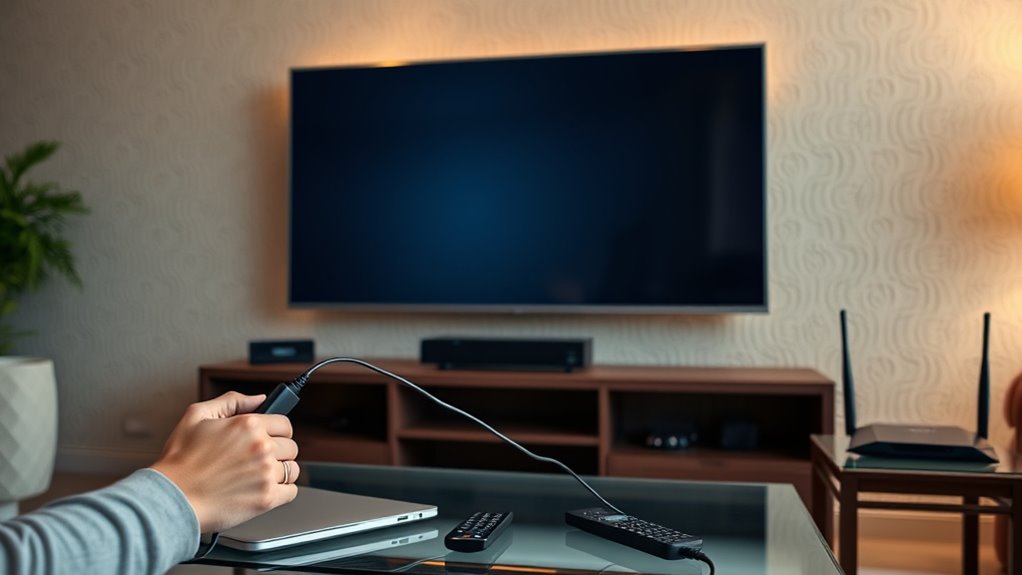
When you experience streaming issues, the first step is to identify whether the problem stems from your connection, device compatibility, or software settings. If the video keeps buffering or stalls, your Wi-Fi might be weak or congested. Try moving closer to your router or switching to a wired Ethernet connection for stability. Check that your devices support the streaming method you’re using—some older Smart TVs or streaming devices may lack full compatibility. Also, verify that software and firmware are up to date on your PC, TV, and streaming devices. Adjust display settings on your PC to match your TV’s resolution and refresh rate. Restarting your devices or resetting network settings can resolve temporary glitches. Troubleshooting systematically helps pinpoint and fix common streaming problems quickly, especially when you understand your device’s compatibility requirements. Ensuring your devices meet essential specifications can prevent many streaming interruptions down the line.
Frequently Asked Questions
Can I Connect My PC to TV Without Any Cables?
Yes, you can connect your PC to your TV without cables by using wireless methods. You can enable Miracast or AirPlay if your devices support these features, allowing you to mirror your screen wirelessly. Alternatively, you can use streaming devices like Chromecast, Roku, or Fire TV Stick, which connect to your TV’s HDMI port and stream content over Wi-Fi. Just guarantee both your PC and TV are on the same network for smooth streaming.
What Is the Best Wireless Method for Gaming Content?
Wireless gaming content is like surfing a calm lake—smooth and responsive. Miracast is your best bet because it offers low latency and direct connection if both devices support it. Alternatively, Chromecast with a stable Wi-Fi network works well for most casual gaming needs. To minimize lag, make certain your devices are on the same network, and keep your firmware updated. This way, you get a seamless gaming experience without wires cluttering your space.
Do I Need Special Apps to Stream From Windows 11?
You don’t necessarily need special apps to stream from Windows 11. Built-in features like Miracast and the Connect app support wireless screen mirroring on compatible devices. For more advanced options, you might use third-party apps like Moonlight or Chromecast, which require installing software on your PC and possibly on your TV or streaming device. Just make certain your devices are on the same Wi-Fi network for smooth streaming.
How Do I Improve Streaming Quality on My Smart TV?
Imagine smooth, crystal-clear images flowing seamlessly from your PC to your smart TV like a gentle stream. To improve streaming quality, first, make certain your Wi-Fi is fast and stable—consider using a wired Ethernet connection for consistency. Update your TV’s firmware and streaming apps, reduce network congestion by limiting other devices, and keep your PC and TV close to your router. Adjust display settings for maximum resolution, and enjoy a flawless viewing experience.
Are There Compatibility Issues Between Different Streaming Devices?
Yes, compatibility issues can happen between different streaming devices. You might find that some devices don’t support certain protocols like Miracast, AirPlay, or Chromecast, which can prevent seamless streaming. To avoid problems, check your device’s specifications and verify your TV and streaming device support the same protocols. Using devices from the same brand or those explicitly compatible can also help ensure smooth streaming without hiccups.
Conclusion
Now that you’re armed with all these streaming options, you’re ready to turn your TV into a portal to endless entertainment. Whether you choose a wired connection or wireless magic, remember that the right setup makes all the difference. Think of your streaming journey as a dance—finding the perfect rhythm guarantees smooth moves and zero hiccups. So go ahead, cut the cable, and let your PC and TV sync in perfect harmony!
Fall Picks
fall essentials
As an affiliate, we earn on qualifying purchases.