To reduce lag in online gaming, start by checking your internet speed and switching to a wired Ethernet connection for stability. Optimize your network settings with QoS and update router firmware. Close background apps and devices that use bandwidth or system resources. Lower in-game graphics and turn off V-Sync to boost performance. Keep your hardware up-to-date and position your router centrally to minimize interference. Keep these tips in mind to enhance your gameplay experience.
Key Takeaways
- Use a wired Ethernet connection and optimize router QoS settings for prioritized gaming traffic.
- Close background applications and pause downloads to free system and network resources.
- Lower in-game graphics settings, disable V-Sync, and cap frame rates for smoother performance.
- Regularly update network drivers, firmware, and graphics drivers to ensure optimal hardware performance.
- Position your router centrally, minimize interference, and limit other devices during gaming sessions.
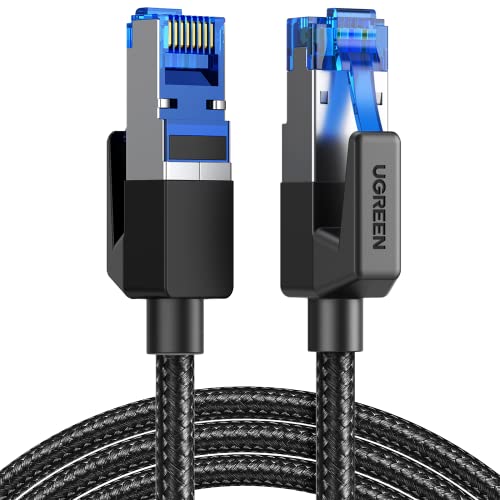
UGREEN Cat 8 Ethernet Cable 6FT, High Speed Braided 40Gbps 2000Mhz Network Cord Cat8 RJ45 Shielded Indoor Heavy Duty LAN Cables Compatible with Gaming PC PS5 PS4 PS3 Xbox Modem Router 6FT
40 Gbps 2000 Mhz High Speed: The Cat 8 ethernet cable support max. 40 Gbps data transfer and…
As an affiliate, we earn on qualifying purchases.
As an affiliate, we earn on qualifying purchases.
Check and Improve Your Internet Connection

Is your internet connection causing lag during your gaming sessions? First, test your connection speed using online tools like Speedtest.net. Aim for a stable ping under 50ms and download speeds of at least 3 Mbps for smooth gameplay. If your ping is high or speeds are sluggish, consider restarting your router to refresh your connection. Connecting via Ethernet instead of Wi-Fi can also reduce latency and improve stability. Make sure no other devices are consuming bandwidth during gaming, such as streaming videos or large downloads. If you’re still experiencing lag, contact your internet provider for assistance or consider upgrading your plan. A reliable, fast connection is essential for a lag-free gaming experience, so take these steps to optimize your setup. Additionally, understanding your projector’s refresh rate can help ensure your visuals are smooth and responsive during gameplay. Proper network management and awareness of network congestion can further enhance your gaming experience by minimizing lag and interruptions. Ensuring your European cloud infrastructure is optimized for gaming traffic can also contribute to a more consistent online experience. Managing background applications and device interference can also significantly reduce latency issues. To further improve your connection, consider optimizing your network settings for gaming-specific traffic.

MSI Radix AXE6600 WiFi 6E Tri-Band Gaming Router, AI QoS, RGB, 1.8GHz Quad-Core Processor, MU-MIMO, Tri Band Gigabit Wireless, 8-Stream, High Speed Long Range Gaming Router
Tri-band 2.4GHz + 5GHz + 6GHz; latest WiFi 6E supports 8-streams on tri-band simultaneously, up to 6.6Gbps speed
As an affiliate, we earn on qualifying purchases.
As an affiliate, we earn on qualifying purchases.
Optimize Your Network Settings and Hardware
To minimize lag, you should optimize your network settings and hardware to guarantee your connection runs as efficiently as possible. Start by updating your network drivers and firmware to ensure compatibility and performance. Use a wired Ethernet connection instead of Wi-Fi, as it offers a more stable and lower-latency link. Adjust your router’s Quality of Service (QoS) settings to prioritize gaming traffic, reducing lag spikes. Clear cache and close unnecessary background processes to free up system resources. Upgrade your hardware components like your router or network card if they’re outdated, as newer models often provide better speeds and lower latency. Additionally, consider enabling adaptive network management features that dynamically allocate bandwidth based on your gaming needs. These features are designed to optimize your network performance, ensuring smoother gameplay. You can also check for interference from other wireless devices that might disrupt your connection. For further stability, ensure your network setup is optimized by positioning your router in a central location free from obstructions. To further improve stability, consider using a gaming VPN that can help reduce latency by optimizing data routes. Finally, disable any bandwidth-heavy applications during gaming sessions to avoid unnecessary network congestion. Optimizing these elements can markedly improve your gaming experience.

Nineplus Wireless USB WiFi Adapter for PC – 1300Mbps Dual 5Dbi Antennas 5G/2.4G WiFi Adapter for Desktop PC Laptop Windows11/10/7, Wireless Adapters for Desktop Computer Network Adapters
Fast 1300Mbps USB WiFi Adapter – Nineplus wifi adapter provides long-range and stable wifi connections,Upgrade your desktop or…
As an affiliate, we earn on qualifying purchases.
As an affiliate, we earn on qualifying purchases.
Close Background Applications and Devices

Have you noticed how your game lags more when multiple applications run in the background? Closing unnecessary apps can free up system resources and reduce lag. Background programs like streaming services, file downloads, or social media apps consume bandwidth and processing power that could be better used for gaming. Additionally, connected devices like printers, smart home gadgets, or extra monitors can interfere with your system’s performance. To improve your gaming experience, consider the following:
Closing background apps and disconnecting unused devices can significantly boost your gaming performance.
- Shut down apps you’re not using
- Disconnect unused devices via USB or Bluetooth
- Pause or cancel ongoing downloads or updates
- Disable automatic backups or cloud syncs during gameplay
- Managing system resources effectively can significantly enhance your gaming performance.
- Regularly updating your device drivers and firmware ensures optimal hardware performance and stability.
- Being aware of energy consumption and managing power settings can also help maintain optimal system performance during gaming sessions.
- Optimizing background processes can lead to smoother gameplay by freeing up vital system resources.
- Additionally, optimizing your system’s performance settings can further help in reducing lag during high-intensity gaming.

ASUS ROG Rapture GT-BE98 PRO First Quad-Band WiFi 7 Gaming Router supports 320MHz, Dual 10G Port, Triple-level Game Acceleration, Mobile Game Mode, Subscription-Free Security, AiMesh, and VPN features
Beyond-fast WiFi 7 (802.11be) with new 320MHz channels in the 6 GHz band and 4096-QAM significantly increases network…
As an affiliate, we earn on qualifying purchases.
As an affiliate, we earn on qualifying purchases.
Adjust In-Game Settings for Better Performance

Adjusting your in-game settings can markedly boost performance by reducing the load on your system. Lowering graphics quality, disabling shadows, and reducing resolution lessen the strain on your GPU and CPU, leading to smoother gameplay. Turn off V-Sync to reduce input lag, and limit the frame rate to match your monitor’s refresh rate for optimal responsiveness. Use the following table to visualize how these settings impact your game:
| High Settings | Low Settings |
|---|---|
| Beautiful textures and shadows | Simplified textures and no shadows |
| High resolution and effects | Reduced resolution and effects |
| V-Sync enabled for visual syncing | V-Sync off for lower latency |
| Unlimited frame rate | Frame rate capped at monitor’s refresh rate |
| Detailed environment features | Minimalist visuals |
Tweaking these options helps your game run more smoothly and reduces lag. Additionally, optimizing your system hardware can further improve gameplay performance by ensuring your components are functioning efficiently. Regularly updating your graphics drivers and closing background applications can also help reduce system lag and improve overall responsiveness. Furthermore, maintaining a clean system environment ensures that background processes do not unnecessarily hinder game performance. Incorporating performance monitoring tools can help identify bottlenecks and optimize settings further. It’s also beneficial to consider network stability as it can significantly impact online gaming experience.
Use Wired Connections and Reduce Network Interference
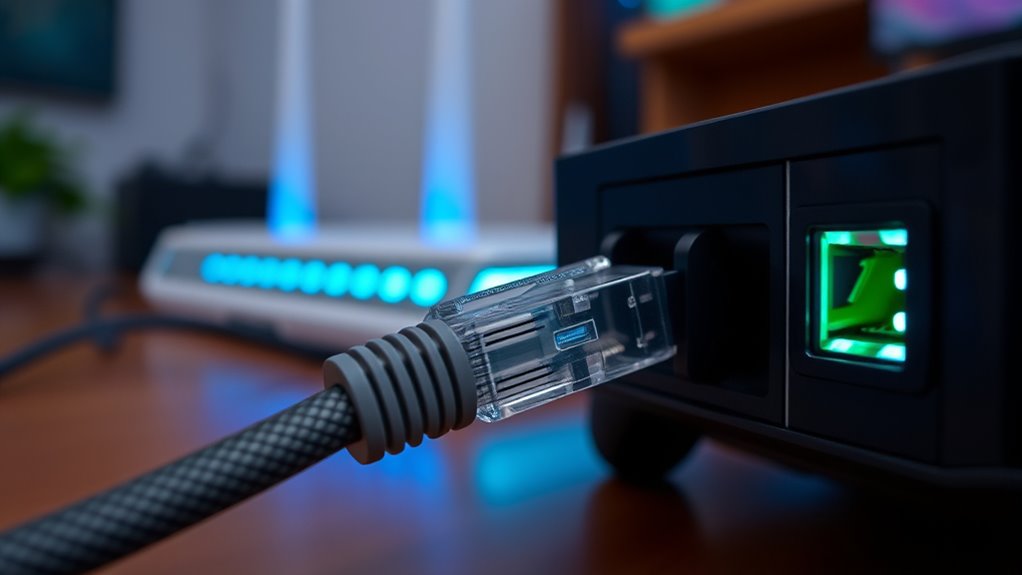
Switching from optimizing your in-game settings to improving your network connection can make a significant difference in reducing lag. Wired connections provide a more stable and faster link than Wi-Fi, minimizing latency spikes. By plugging directly into your router, you eliminate interference from other devices and reduce signal loss. Additionally, reducing network interference helps guarantee your connection stays consistent during gameplay. To maximize your connection, consider these tips:
Wiring directly to your router reduces lag and keeps your connection stable during gaming.
- Use an Ethernet cable instead of Wi-Fi
- Keep your router away from other electronics
- Limit the number of devices connected during gaming
- Restart your router regularly to clear potential issues
- Proper network setup is essential for maintaining a low-latency connection during intense gaming sessions. Ensuring your network configuration is optimized can further prevent lag spikes. Being aware of environmental interference and taking steps to minimize it can enhance your connection stability. Taking these steps can lead to smoother gameplay with less lag, giving you a competitive edge.
Frequently Asked Questions
How Can I Test My Current Internet Speed Effectively?
You can test your internet speed effectively by using online speed test tools like Speedtest.net or Fast.com. Simply close other applications that use bandwidth, connect your device directly to your modem via Ethernet for accuracy, and run the test. Make sure you’re on a stable network, avoid downloading or streaming during the test, and note down your download, upload speeds, and ping to see if they meet your gaming needs.
What Specific Hardware Upgrades Improve Gaming Performance?
Imagine your gaming setup as a sleek race car—powerful hardware boosts your speed and responsiveness. Upgrading your graphics card delivers sharper visuals, while a faster SSD reduces load times, making your game feel smoother. Increasing RAM allows you to handle more data effortlessly, preventing stutters. Consider a high-quality gaming monitor with a fast refresh rate, and a reliable wired Ethernet connection to eliminate lag spikes, giving you the edge to dominate.
Which Background Applications Most Impact Gaming Latency?
Running multiple background applications like streaming software, file-sharing programs, or system updates can greatly impact your gaming latency. These apps consume bandwidth and system resources, causing delays and lag. To improve performance, close unnecessary programs before gaming, disable auto-updates, and monitor your network activity. This way, you guarantee your game has the resources it needs for a smoother experience, reducing lag and enhancing your gameplay.
How Do I Find the Optimal In-Game Settings for My Device?
Think of your device as a racing car—fine-tuning the engine for peak performance. To find your ideal in-game settings, start by lowering graphics quality and resolution; this reduces load on your hardware. Turn off background applications to free resources. Test different combinations of frame rate, textures, and shadows, and note which setup offers smooth gameplay without sacrificing visuals. Adjust until you strike that perfect balance for your device’s capabilities.
What Are the Best Practices to Minimize Wi-Fi Interference?
To minimize Wi-Fi interference, you should keep your router away from electronic devices like microwaves and cordless phones. Use a clear, unobstructed area for your router and position it centrally in your home. Switch to a less congested Wi-Fi channel, especially if many networks overlap nearby. Upgrading to a dual-band or mesh Wi-Fi system can also improve stability, reducing lag and enhancing your gaming experience.
Conclusion
Think of your internet like a race car. Just as a sleek engine needs tuning for maximum speed, your connection needs optimization to keep lag at bay. When you follow these tips—checking your connection, closing background apps, and switching to wired—you’re fueling your game for smoother, faster performance. Imagine crossing the finish line without delay—lag-free gaming feels just as satisfying, turning a frustrating race into a victory lap every time.