

Backups are static copies of your files made periodically to protect against data loss, while sync keeps your files up-to-date across multiple devices in real-time. Cloud storage acts as the platform supporting both processes, but backups focus on security and recovery, whereas sync emphasizes immediate data access everywhere. Understanding these differences helps you manage your data better. If you’re curious about how each works in detail, you’ll find more valuable insights ahead.

Get the latest gadgets delivered free with Prime
- Fast, free delivery on millions of items
- Prime Video, Amazon Music and more included
- Member-only deals all year
Key Takeaways
- Backups are static copies for data security, while sync updates files in real-time across devices.
- Sync ensures current data availability, whereas backups are typically done periodically and are not continuous.
- Cloud storage provides the platform that enables both backups and sync functions.
- Backups focus on safeguarding data; sync emphasizes maintaining up-to-date, consistent files.
- Reliable internet connectivity is essential for effective sync, but backups can be scheduled offline.
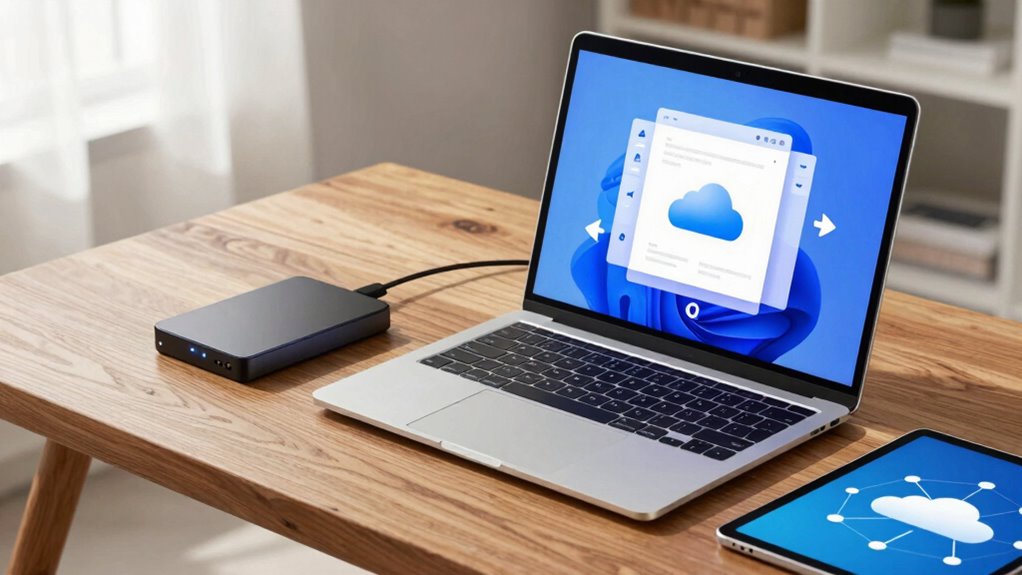
Backups, on the other hand, is about keeping your files safe from accidental loss, hardware failure, or other unforeseen issues. When you edit a document on your phone, it immediately updates on your laptop or tablet, depending on the service you use. This continuous process relies heavily on cloud storage platforms, which act as the backbone for syncing. The user interface plays a vital role here because it determines how smoothly you can manage your synced files—intuitive controls and clear indicators help you understand where your data is stored and whether it’s current. Unlike backups, which are primarily about creating a secure copy, sync ensures that your most recent data is always available everywhere you need it, reducing the risk of working with outdated versions. It also depends on real-time data transfer, which requires a stable internet connection to function effectively. The effectiveness of sync also depends on the reliability of internet connections, which can sometimes be affected by network issues or bandwidth limitations. The frequency of updates in sync services can vary, but most aim for near real-time synchronization to keep your data consistent.
As an affiliate, we earn on qualifying purchases.
Frequently Asked Questions
How Secure Is My Data in Each Service?
Your data’s security varies across services. With backups, encryption protocols protect your stored data, but weak passwords can still be a risk. Sync services often use real-time encryption, but if servers are compromised, data could be exposed. Cloud storage providers implement data redundancy and encryption protocols to safeguard your files. Always use strong passwords and enable two-factor authentication to enhance security across all these services.
Can I Access Backups Offline?
Yes, you can access backups offline if you’ve saved them locally or on an external device. For example, many backup solutions allow you to download copies onto your computer or external drive, enabling offline access. Keep in mind that backup frequency impacts how recent your offline backup is; regular backups ensure you have the latest data available without needing internet access. Always verify your offline backups are up-to-date and accessible.
What Is the Cost Difference Between These Options?
Think of these services as different hotel rooms—some are budget-friendly, others luxurious. Your pricing comparison depends on the service tiers you choose. Backups often cost less per GB, while cloud storage and sync services may include premium features at higher prices. Generally, backups are cheaper for storage, but sync and cloud options offer more flexibility. Consider your needs to find the best balance between cost and features.
How Often Should I Update My Backups?
You should update your backups regularly, ideally using backup scheduling that matches how often your data changes. For critical files, consider daily or even hourly backups to prevent data loss. For less essential data, weekly updates might suffice. This approach guarantees your storage longevity, keeping your backups current and reliable. Consistent updates reduce risks and give you peace of mind knowing your data stays protected over time.
Are There Compatibility Issues With Certain Devices?
Are you worried about compatibility issues? You might face device compatibility problems or storage limitations with certain services. Always check if the app or software supports your device’s operating system before committing. Some cloud services are optimized for specific devices, so verify your device’s hardware and OS are compatible. To avoid issues, choose a platform that clearly states its device compatibility and offers enough storage for your needs.
cloud storage service subscription
As an affiliate, we earn on qualifying purchases.
As an affiliate, we earn on qualifying purchases.
Conclusion
Understanding the difference between backups, sync, and cloud storage helps you protect your data effectively. Did you know that 30% of people have lost important files due to not having proper backups? By choosing the right solution for your needs, you can avoid costly data loss and guarantee your files are always accessible. Take control today—use backups for safety, sync for seamless access, and cloud storage for convenience. Your data’s security depends on it.
As an affiliate, we earn on qualifying purchases.
As an affiliate, we earn on qualifying purchases.
Halloween Picks
halloween
As an affiliate, we earn on qualifying purchases.