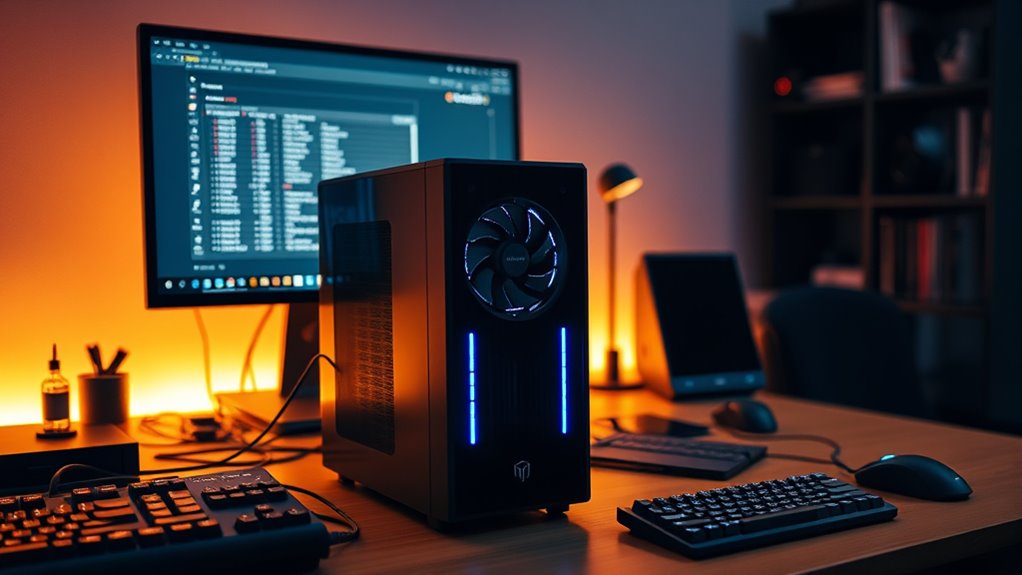
To build a home server for media, backups, or gaming, start by selecting a capable CPU like an Intel Core i5 or better, with at least 8 GB of RAM and SSD storage for your OS. Guarantee your motherboard supports high-speed Ethernet and additional drives for scalability. Choose an OS like Linux for flexibility or Windows for compatibility. Focus on good cooling, reliable components, and a strong network setup. Continue exploring to discover how to optimize your server for seamless performance.
Key Takeaways
- Choose a powerful multi-core processor, at least 8 GB RAM, and SSDs for fast system performance.
- Select a suitable OS, like Linux for flexibility or Windows Server for app compatibility.
- Incorporate high-capacity HDDs for media storage and consider hardware acceleration for media transcoding.
- Ensure reliable, high-speed network interfaces (Gigabit or higher) for seamless streaming and backups.
- Prioritize modular, scalable hardware with good cooling and energy efficiency for future upgrades and longevity.
Choosing the Right Hardware Components for Your Home Server
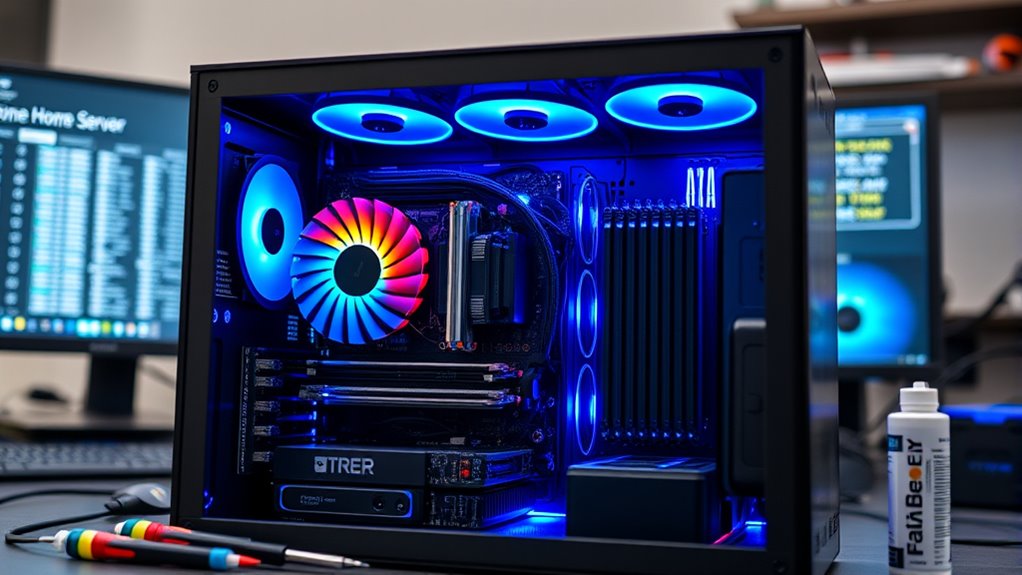
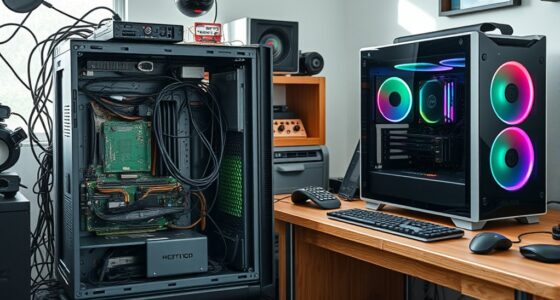
Selecting the right hardware components is essential to building a reliable and efficient home server. You need a processor that handles multitasking smoothly; an Intel Core i5-6500T at 2.5 GHz or better is a good starting point, but aim for 8 cores or more for future-proofing. RAM should be at least 8 GB for basic use, with 16 GB or higher recommended for multiple websites or devices. Opt for SSDs for your system drive to ensure speed and reliability, with a minimum of 2 TB storage for a household of four. A Gigabit Ethernet card is essential for stable network performance, and consider higher speeds like 2.5 Gbps or 10 Gbps if possible. Ultimately, choose a power supply with high efficiency and enough wattage to support your disk array and future upgrades. Additionally, consider a quality cooling system to maintain optimal performance and longevity of your hardware components. Incorporating proper cooling can prevent overheating and extend the lifespan of your hardware, especially during heavy workloads. Furthermore, selecting components that are compatible with current market standards can help ensure easier upgrades and better support over time. Investing in upgradable components can also provide flexibility as your needs evolve.
Selecting an Operating System and Configuring Your Server Environment
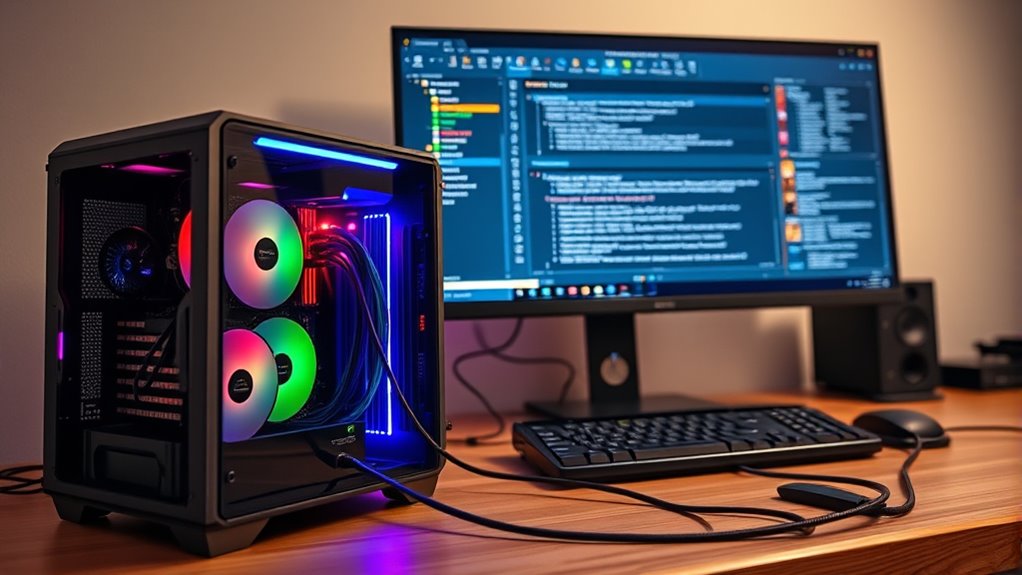
Choosing the right operating system is essential for guaranteeing your home server runs smoothly and meets your specific needs. Your choice impacts compatibility, security, and performance. Consider these key factors:
- Intended Use: Opt for Windows Server if you need seamless integration with Windows-based applications; choose Linux for flexibility and headless setups.
- Ease of Setup: Windows offers user-friendly GUIs, while Linux requires familiarity with command-line interfaces.
- Security Features: Linux distributions often have robust security options out-of-the-box, whereas Windows may need additional configurations.
- Hardware Compatibility: Ensure your OS supports your hardware, especially storage controllers and network interfaces.
- Energy Efficiency: Select operating systems that are optimized for low power consumption to support sustainable and energy-efficient cloud solutions. Energy-efficient OS configurations can help reduce your overall power footprint.
Configure your environment by setting up user permissions, network sharing, and security protocols to optimize performance and safeguard your data.
Optimizing Storage, Networking, and Media Capabilities for Seamless Performance
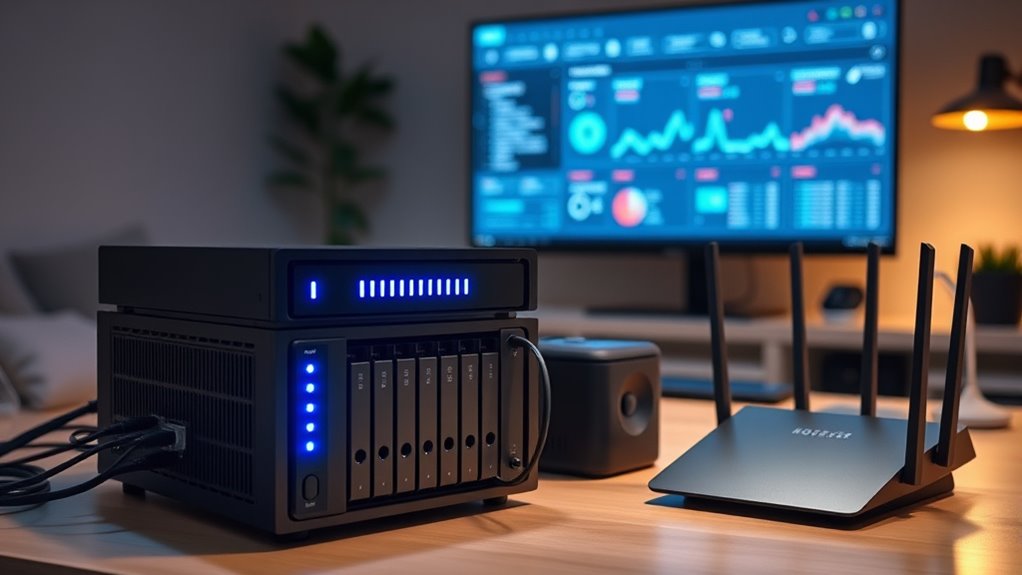
To achieve seamless performance from your home server, focus on optimizing your storage, networking, and media setup by ensuring each component operates efficiently and communicates effectively. Use SSDs for your system and applications to boost responsiveness, while HDDs handle media storage. Prioritize a Gigabit Ethernet or faster network to prevent bottlenecks, and consider VLANs for traffic management. For media, leverage hardware acceleration like Intel Quick Sync for transcoding, and select GPUs suited for your streaming needs. Additionally, selecting components with high compatibility ensures smooth integration and future scalability. Incorporating modular hardware can also facilitate easier upgrades and customization as your needs evolve.
Frequently Asked Questions
How Do I Ensure My Home Server Is Energy-Efficient and Cost-Effective?
To keep your home server energy-efficient and cost-effective, choose a high-efficiency power supply, ideally with an 80 Plus rating. Use energy-saving components like low-power CPUs, integrated graphics, and SSDs over HDDs for faster performance with less power. Implement proper cooling to reduce energy waste, and optimize your network setup to minimize unnecessary data transfer. Regularly monitor your system’s power consumption and upgrade parts as needed for better efficiency.
What Security Measures Should I Implement to Protect My Server and Data?
Imagine your home server is a fortress in an age of dragons—security is key. You should enable strong passwords, keep your OS and software updated, and use firewall rules to block unauthorized access. Implement encryption for sensitive data, set up VPN access for remote connections, and monitor logs regularly. Two-factor authentication adds an extra layer of protection, ensuring your data stays safe from digital marauders.
Can I Upgrade Hardware Components Without Reinstalling the Operating System?
Yes, you can upgrade hardware components without reinstalling your operating system, but it depends on the component. Upgrading RAM, storage drives, or network cards usually doesn’t require a reinstall. However, replacing the CPU or motherboard often means you’ll need to reinstall or reconfigure the OS because of hardware compatibility issues. Always back up your data before upgrading, and check your OS’s hardware support to avoid potential problems.
What Are the Best Practices for Data Backup and Disaster Recovery?
You should implement regular, automated backups across multiple locations, like external drives and cloud storage, to protect your data. Use RAID configurations for redundancy, ensuring data stays safe even if a drive fails. Keep your backup software updated and test restores periodically to confirm reliability. Establish a disaster recovery plan that outlines steps to recover data quickly, minimizing downtime and data loss during unexpected events.
How Do I Set up Remote Access and Manage My Server Remotely?
You can set up remote access in minutes and control your server from anywhere in the universe! Start by enabling remote desktop or SSH, depending on your OS. Use a strong, unique password and activate two-factor authentication for security. Configure port forwarding on your router, and consider dynamic DNS services to access your server with a simple URL, no matter how often your IP changes. Now, your server’s at your fingertips 24/7!
Conclusion
Building your home server is like planting a sturdy tree—carefully choosing your roots (hardware), nurturing with the right environment (OS), and ensuring healthy branches (storage and network) grow strong. With patience and attention, you’ll create a reliable sanctuary for your media, backups, and gaming. As it blossoms, your digital world becomes a resilient, vibrant forest, offering shelter and joy for years to come. Grow your server, and watch your home thrive.