You need to understand that Thunderbolt offers the fastest data transfer, supports multiple high-resolution displays, and lets you daisy-chain devices. USB-C is versatile, handling power, data, and video through a single port, with speeds up to 40 Gbps on USB4. HDMI is mainly for high-quality video and audio output, perfect for connecting monitors or TVs. Knowing how to identify these ports and their symbols helps guarantee you connect devices correctly, and more details await if you explore further.
Key Takeaways
- Thunderbolt ports support up to 40 Gbps speed, daisy-chaining multiple devices, and high-resolution displays, often marked with a lightning bolt icon.
- USB-C is a versatile port that handles power, data, and video, with speeds from 5 Gbps to 40 Gbps depending on the USB standard supported.
- HDMI ports transmit high-quality video and audio only, suitable for connecting displays and entertainment devices, usually marked with an HDMI logo.
- Recognizing port icons and markings helps ensure device compatibility and proper cable selection for optimal performance.
- Choosing the right port depends on your needs: Thunderbolt for high-speed data and multiple displays, USB-C for versatility, HDMI for media output.

Anker HDMI Cable, 4K@60Hz Ultra-Fast Nylon-Braided USB C to HDMI Cord with Advanced Shielding, Thunderbolt 5/4/3, for MacBook, iPad, iPhone, HD TV, and More(3FT,Black)
- Advanced Shielding: Stable screen mirroring with Thunderbolt ports
- 4K@60Hz HDR: Enhanced color and sharpness for streaming
- Plug-and-Play: Instant, stable, clear images for productivity
As an affiliate, we earn on qualifying purchases.
As an affiliate, we earn on qualifying purchases.
Overview of USB-C and Its Capabilities
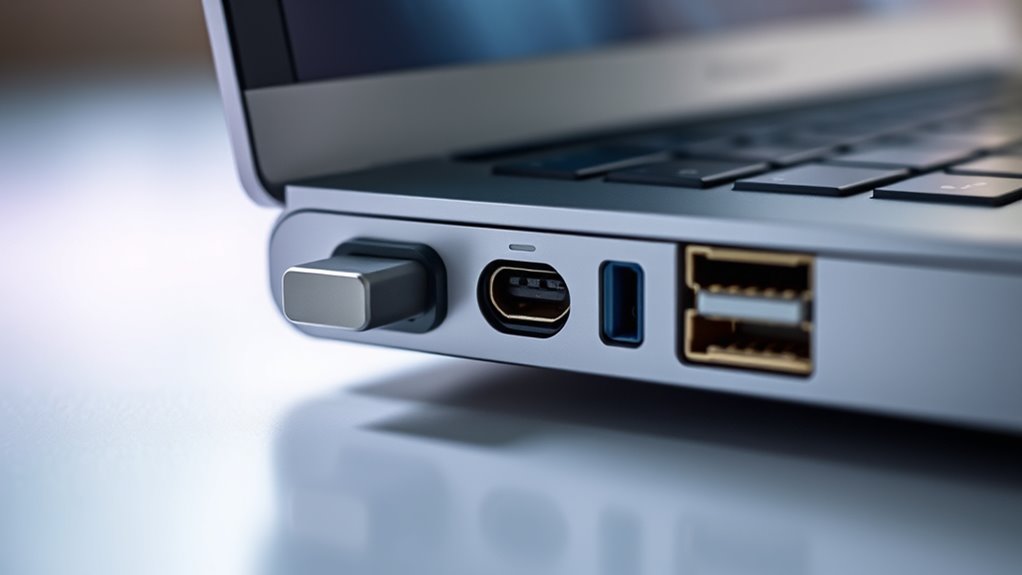
Have you ever noticed how USB-C has become the universal port on modern devices? It’s a versatile connector that handles power, data, and video through a single, reversible port. USB-C supports multiple protocols via alternate modes, including HDMI and DisplayPort, but video quality depends on the specific USB version and mode supported. It can deliver up to 100W of power, allowing you to charge devices while transferring data. Data transfer speeds vary: USB 3.2 Gen 1 supports 5 Gbps, Gen 2 offers 10 Gbps, and USB4 reaches up to 40 Gbps. Widespread and flexible, USB-C is suitable for peripherals, charging, and video needs. However, not all USB-C ports guarantee the highest performance—performance depends on the device and standards supported. Additionally, the compatibility and performance of USB-C connections are influenced by the standards and protocols supported by your device. Understanding USB-C capabilities can help you optimize your device connections and ensure you get the most out of this versatile port.
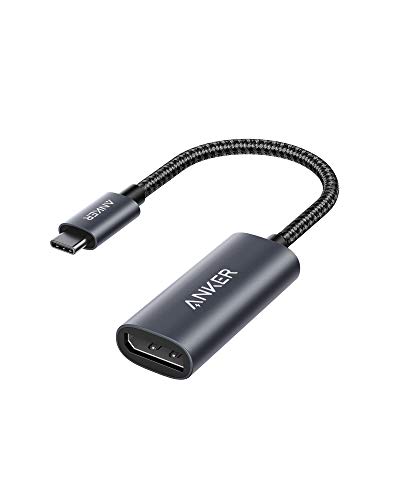
Anker USB C to DisplayPort Adapter, Mirror or Extend up to 4K@60Hz Adapter
- Anker Quality Guarantee: Trusted by over 65 million users
- 4K@60Hz Support: Connect to 4K DisplayPort monitors
- Multiple Display Modes: Mirror or extend your screen
As an affiliate, we earn on qualifying purchases.
As an affiliate, we earn on qualifying purchases.
The Features and Advantages of Thunderbolt Technology

Thunderbolt technology offers significant advantages by combining high-speed data transfer, multiple device support, and versatile connectivity into a single port. It lets you transfer large files quickly, connect several high-resolution monitors, and power devices—all through one cable. Here are some key features:
- Blazing Speeds: Supports up to 40 Gbps, enabling rapid data transfers for large files and complex workflows.
- Daisy-Chaining: Connects up to six devices in sequence, reducing cable clutter and simplifying setups.
- Multi-Display Support: Handles two 4K displays or one 8K, perfect for professional tasks or entertainment. The compatibility with high-resolution displays enhances visual clarity for multimedia applications.
- Power Delivery: Provides up to 100W to charge devices while transferring data, streamlining your workspace and supporting power management capabilities.
- Unified Connectivity: Combines multiple functions into a single ports, simplifying your device setup and reducing the need for multiple cables. Integrating auditory processing considerations into device design can further improve user experience.
These advantages make Thunderbolt ideal for demanding users and multimedia professionals.

LG 27US500-W Ultrafine Monitor 27-Inch 4K UHD (3840×2160) HDR10 IPS Borderless Design Reader Mode Flicker Safe Switch App HDMI DisplayPort – White
- 4K UHD Resolution: 3840×2160 pixels with high contrast
- HDR10 Support: Up to 90% DCI-P3 color gamut
- Onscreen Control: Customize display settings easily
As an affiliate, we earn on qualifying purchases.
As an affiliate, we earn on qualifying purchases.
Understanding HDMI and Its Role in Media Connections
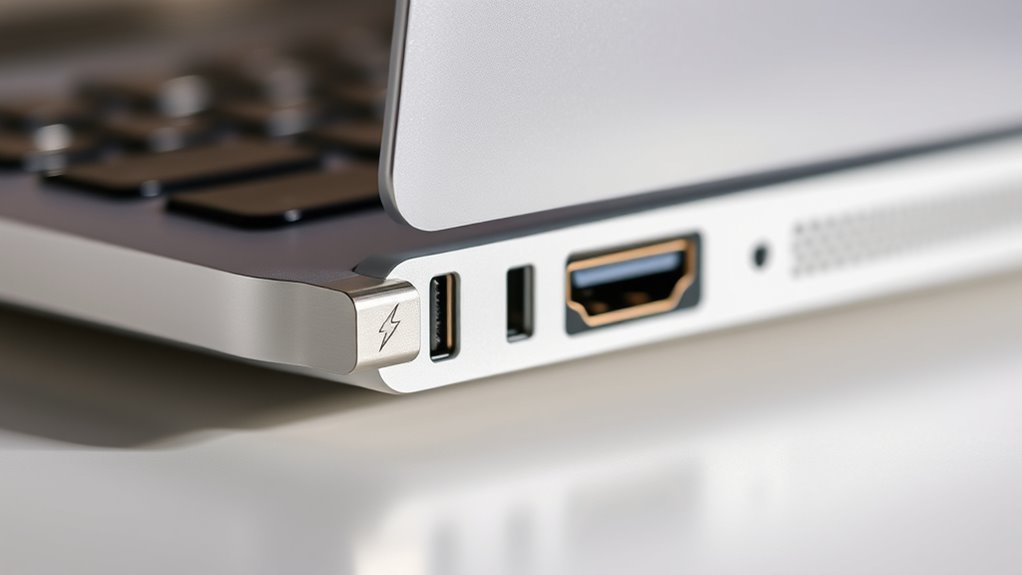
HDMI is the go-to connection for high-quality video and audio between your devices, like TVs, monitors, and projectors. It supports 4K resolution and high refresh rates, ensuring sharp images and smooth playback, but it doesn’t transfer data beyond audio and video signals. Compatibility varies with different HDMI versions and cables, so knowing your device’s HDMI capabilities helps you get the best media experience.
HDMI Video Capabilities
Ever wonder how your devices deliver crisp, high-quality visuals? HDMI plays a key role in this process, supporting a range of resolutions and refresh rates. To understand its capabilities, keep these points in mind:
- HDMI can handle 4K at 60Hz, providing smooth, sharp images ideal for gaming and streaming.
- Newer versions like HDMI 2.1 support 8K resolution and higher frame rates, enhancing visual detail.
- The bandwidth varies with HDMI versions, influencing video quality and features like HDR and VRR.
- HDMI transmits only video and audio signals, so it’s not suitable for data transfer or power delivery.
- Understanding HDMI video capabilities helps you choose the right connection for your media setup.
- Knowing the bandwidth limitations of different HDMI versions can help optimize your media experience.
This dedicated focus on high-quality AV signals makes HDMI the standard for TVs, monitors, and projectors, ensuring excellent media experiences.
Audio Transmission Features
While HDMI is renowned for delivering high-quality video signals, it also plays a vital role in transmitting audio. When you connect a device using HDMI, you’re not just transferring picture; you’re also sending audio signals in sync with the video. HDMI supports various audio formats, including uncompressed PCM, Dolby TrueHD, DTS-HD Master Audio, and even object-based formats like Dolby Atmos. This makes it ideal for home theater systems, gaming setups, and professional audio applications. The audio is transmitted digitally, ensuring clear sound quality without interference. Most modern HDMI connections automatically detect and route audio to your connected speakers or sound system, simplifying setup. Additionally, audio formats supported by HDMI are essential for delivering an immersive multimedia experience, especially with advanced home entertainment systems. The integration of audio and video signals in a single cable enhances convenience and reduces clutter in media setups. This dual capability makes HDMI a versatile choice for media connections, combining high-quality video with immersive audio in a single cable. Moreover, digital audio transmission eliminates the need for separate audio cables, streamlining your media setup even further.
A new sentence to add: Utilizing audio return channel (ARC) technology, HDMI can send audio from your TV back to external speakers or soundbars, simplifying your home entertainment setup.
Connection Compatibility Options
Connecting your devices effectively depends on understanding the compatibility options available with HDMI and other media interfaces. Knowing how HDMI interacts with different ports ensures you get the best video and audio quality without hassle. Here are key considerations:
- HDMI supports high-resolution video, like 4K at 60Hz, ideal for TVs and monitors.
- HDMI cables vary by version (e.g., 2.0 vs. 2.1), affecting bandwidth, HDR, and refresh rates.
- HDMI doesn’t transmit power or data beyond AV signals, so separate connections are needed for peripherals.
- Compatibility depends on both the source device and display; not all HDMI ports support the latest features, so check specifications.
Understanding these options helps you choose the right cables and ports for your media setup.

Plugable Thunderbolt 4 Dock, 100W Charging (96W Certified), Dual HDMI Docking Station for Windows and Mac, Single 8K or Dual 4K 60Hz, 40Gbps, 13 Ports with Ethernet, SD/microSD (TBT4-UD5)
- Award-Winning Thunderbolt 4 Dock: Best Thunderbolt Dock 2025 by Wirecutter
- High-Speed Data Transfer: 40Gbps Thunderbolt 4 performance
- Power Delivery: 100W charging (96W certified)
As an affiliate, we earn on qualifying purchases.
As an affiliate, we earn on qualifying purchases.
Comparing Data Transfer Rates and Video Quality
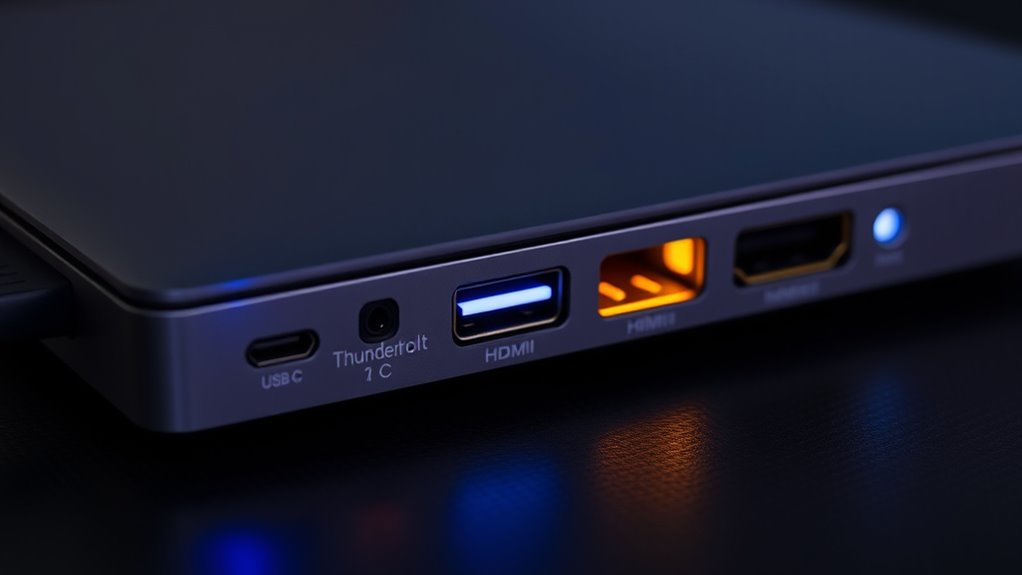
When comparing data transfer rates and video quality across different ports, it’s important to understand how their underlying technologies determine performance. Thunderbolt offers the highest data transfer speeds, reaching up to 40 Gbps, and supports multiple 4K or an 8K monitor, making it ideal for demanding tasks. USB-C speeds vary with the standard—up to 10 Gbps with USB 3.2 Gen 2×1 or 40 Gbps with USB4—suitable for everyday data and video needs. HDMI focuses solely on video and audio, supporting 4K at 60 Hz without data transfer capabilities beyond AV signals. While HDMI and Thunderbolt can deliver similar high-quality visuals, Thunderbolt’s ability to handle multiple high-resolution displays and transfer large files makes it more versatile for intensive setups. Understanding data transfer technology is essential for choosing the right port for your specific needs. Additionally, thermal performance can impact the sustained transfer speeds and display quality during prolonged use.
Recognizing Compatibility and Port Identification

You need to identify your ports correctly to guarantee compatibility with your devices and cables. Look for port icons or markings, like a lightning bolt for Thunderbolt, to recognize their specific features. Knowing the differences between port types helps you choose the right cables and adapters for your setup. Recognizing the community-driven nature of fan trailers can also inspire you to explore creative ways to customize your device connections. Additionally, understanding wiring basics can aid in troubleshooting connection issues and ensuring safe installations. Familiarity with the various port standards can further enhance your ability to select compatible peripherals and avoid potential damage, especially when considering electrical safety practices during setup. Being aware of SWIFT/BIC codes can also be useful when managing financial transactions related to device purchases or repairs.
Port Icons and Markings
Recognizing port icons and markings on your devices is essential for guaranteeing compatibility and making the most of your connections. These symbols quickly tell you what each port supports, saving you time and avoiding connection issues. Here are key markings to look for:
- Lightning bolt icon – indicates Thunderbolt ports, supporting high-speed data and daisy-chaining. Thunderbolt technology enables fast data transfer rates and versatile device connections.
- USB trident symbol – represents regular USB-C ports, suitable for charging and data transfer.
- HDMI logo – shows an HDMI port, dedicated to audio/video output.
- Combined icons – some ports display both symbols, like Thunderbolt with USB-C, indicating support for multiple protocols.
- Understanding these port markings enhances troubleshooting and ensures you select the correct cables for your devices. Being familiar with port icon recognition helps prevent mismatched connections and optimizes your device performance. Additionally, recognizing these symbols can aid in future device upgrades by ensuring compatibility with new accessories. Recognizing these icons also assists in device maintenance by simplifying identification during repairs or upgrades.
Cable and Device Compatibility
Understanding port icons and markings is essential for guaranteeing your cables and devices are compatible. Not all USB-C ports support the same features; some support Thunderbolt, while others only handle basic USB functions. Identifying ports correctly prevents connection issues and maximizes performance. Look for symbols like a lightning bolt for Thunderbolt or a USB logo for standard USB-C. Using incompatible cables can limit data transfer speed or video output. To help, here’s a quick guide:
| Port Type | Compatibility & Features |
|---|---|
| Thunderbolt | Supports high-speed data, daisy-chaining, up to 40 Gbps |
| USB-C | Supports power, data, video (varies by standard) |
| HDMI | Connects to displays; no data transfer or power |
| USB 3.2 | Fast data transfer; supports various peripherals |
Matching icons and labels guarantees you connect the right device for your needs. Additionally, understanding appliance testing and compatibility can help ensure your devices operate safely and efficiently, especially when working with various power standards and outlet types.
Differentiating Port Types
Differentiating port types is essential for guaranteeing compatibility and ideal performance when connecting devices. Recognizing the port’s appearance and markings helps you choose the right cable or adapter. Here are key tips:
- Look for icons: Thunderbolt ports often have a lightning bolt symbol, while USB-C ports may lack markings.
- Check the shape: USB-C and Thunderbolt use the same reversible connector, but HDMI ports are rectangular and non-reversible.
- Note the markings: HDMI ports are labeled with “HDMI,” whereas Thunderbolt ports might include a lightning bolt icon.
- Test compatibility: Use appropriate cables; Thunderbolt cables support higher speeds and daisy-chaining, unlike standard USB-C cables.
Being attentive to these details guarantees you connect devices correctly and maximize performance.
Practical Tips for Choosing the Right Connection for Your Setup
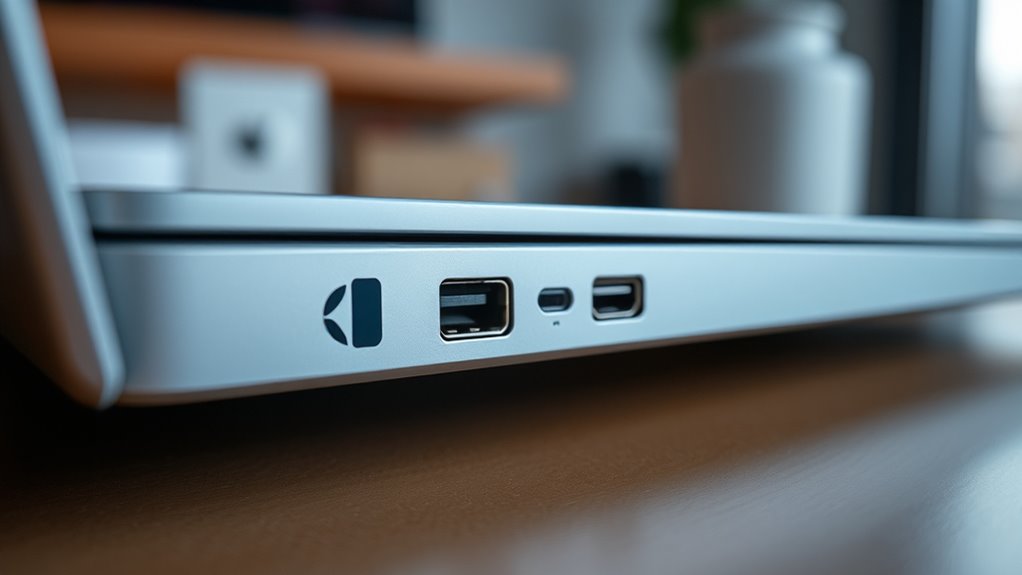
Choosing the right connection for your setup depends on what you need your devices to do. If you require fast data transfer and multiple displays, Thunderbolt is your best option, especially for high-performance tasks like video editing or gaming. For everyday use, such as charging devices, transferring files, or connecting a single monitor, USB-C is versatile and adequate. When your priority is connecting to TVs, projectors, or home entertainment systems, HDMI offers a straightforward, reliable solution. Consider your device’s ports and compatibility—look for symbols like a lightning bolt for Thunderbolt. Also, think about future needs; investing in a Thunderbolt dock can streamline multiple connections. Matching the port type to your specific needs ensures ideal performance and simplifies your setup.
Frequently Asked Questions
Can USB-C Ports Support All Thunderbolt Device Features?
No, USB-C ports can’t support all Thunderbolt device features. While Thunderbolt uses the USB-C connector, it adds extra capabilities like PCIe data transfer, daisy-chaining multiple devices, and supporting higher-resolution displays. If your USB-C port isn’t Thunderbolt-enabled, you won’t get these advanced features. You’ll still be able to connect standard USB-C devices and accessories, but for full Thunderbolt functionality, you need a port specifically marked with the Thunderbolt icon.
Are All HDMI Cables Capable of 4K at 60HZ?
Not all HDMI cables can handle 4K at 60Hz. For example, if you buy a basic HDMI 1.4 cable, it won’t support 4K at 60Hz, only lower resolutions. To guarantee smooth 4K at 60Hz, look for HDMI 2.0 or higher cables, which are designed for higher bandwidth and better performance. Always check the cable specifications before purchasing to avoid issues with video quality.
How Do I Identify if My USB-C Port Supports Thunderbolt?
You can identify if your USB-C port supports Thunderbolt by looking for a lightning bolt icon near the port. If there’s no icon, it likely doesn’t support Thunderbolt features. You can also check your device’s specifications in the user manual or system settings. Sometimes, Thunderbolt ports are labeled explicitly in device documentation or on the manufacturer’s website. Using compatible cables and adapters can also confirm support.
Can I Connect a USB-C Device to an HDMI Port Directly?
You can’t connect a USB-C device directly to an HDMI port. HDMI is designed solely for transmitting video and audio signals, while USB-C handles power, data, and video through different protocols. To connect a USB-C device to an HDMI display, you need an adapter or a cable that converts USB-C to HDMI. Make sure the adapter supports video output to guarantee proper connection and functionality.
Do Thunderbolt Docks Work With Non-Thunderbolt USB-C Ports?
Yes, thunderbolt docks typically work with non-thunderbolt USB-C ports, but only if the port supports the necessary protocols. Think of it as a puzzle piece fitting perfectly—if your USB-C port supports DisplayPort or USB 3.1/3.2, you’ll likely connect and collaborate seamlessly. However, without Thunderbolt support, you won’t access the full features like daisy chaining or ultra-fast data speeds, limiting potential performance and peripheral integration.
Conclusion
Think of your computer’s ports as a bustling city’s transportation system, each with its own route and destination. USB-C, Thunderbolt, and HDMI are like different vehicles, each offering unique speeds and connections. Selecting the right port is like picking the perfect ride for your journey—whether for swift data, stunning visuals, or seamless media. Mastering these connections guarantees your digital voyage is smooth, scenic, and perfectly tailored to your needs.