To choose the right motherboard, first make certain it’s compatible with your CPU’s socket and chipset, which determine features and performance. Consider the form factor to match your case size and expansion needs, and check RAM support to ensure your memory modules are supported. Evaluate the available PCIe slots, USB ports, and storage options for your peripherals and future upgrades. If you keep these factors in mind, you’ll be ready to build a balanced system; exploring these points further will help you make a smarter choice.

Get the latest gadgets delivered free with Prime
- Fast, free delivery on millions of items
- Prime Video, Amazon Music and more included
- Member-only deals all year
Key Takeaways
- Ensure CPU and motherboard socket types match for compatibility and optimal performance.
- Choose the motherboard form factor that fits your case and supports your expansion needs.
- Verify RAM type, capacity, and speed support to ensure compatibility and future upgradeability.
- Check for necessary expansion slots, M.2 NVMe, USB ports, and connectivity features for your peripherals.
- Balance your budget with desired features like PCIe 5.0, DDR5, and future-proofing options.
Products Worth Considering

LG UltraGear 27-Inch QHD OLED Gaming Monitor, 240Hz, 0.03ms, G-SYNC Compatible, FreeSync Premium Pro, HDMI 2.1

Samsung 27-Inch Odyssey QD-OLED G8 4K 240Hz Gaming Monitor

LG 34GX90SA-W 34-inch Ultragear WQHD OLED Curved Gaming Monitor
As an affiliate, we earn on qualifying purchases.
Determining Compatibility: CPU, Socket, and Chipset Choices

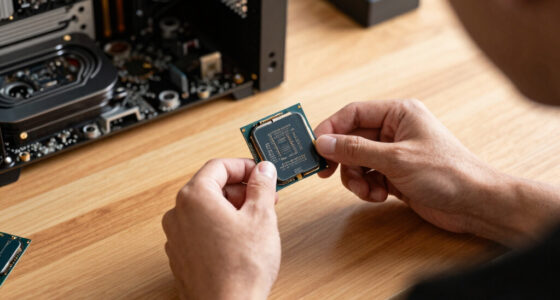
When building or upgrading a PC, determining compatibility starts with selecting the right CPU, socket, and chipset. Your CPU dictates which socket type you’ll need, as processors are designed for specific socket standards. For example, Intel’s latest mainstream CPUs use the LGA 1700 socket, while AMD’s Ryzen 7000 series requires the AM5 socket. The chipset on the motherboard must support your chosen CPU and its features, influencing things like PCIe lanes, overclocking, and connectivity options. Picking incompatible components can prevent your system from booting or limit performance. Always confirm that your CPU matches the socket type on the motherboard, and ensure the chipset supports your processor’s generation and intended use. Additionally, the role of the chipset affects overall system performance and expandability, making it a critical factor to consider. When selecting a motherboard, it’s also important to consider future upgrade potential, which can save you time and money down the line. Choosing a compatible motherboard with the right BIOS compatibility is essential for ensuring your hardware functions correctly from the start. This step sets the foundation for a stable, compatible, and future-proof build.
Selecting the Ideal Form Factor and Physical Dimensions

Choosing the right motherboard form factor directly impacts your build’s size, expandability, and compatibility with your case. If you want a compact build, Mini-ITX boards are ideal, but they limit expansion and RAM slots. For a balance of features and size, Micro-ATX offers more PCIe slots and RAM capacity without needing a larger case. Standard ATX boards are versatile, providing ample expansion options and fitting most mid-tower cases. If you need maximum expansion for multiple GPUs or advanced cooling, E-ATX is suitable, but it requires a larger case. Always check your case’s supported form factors before selecting a motherboard. Your choice influences not just size but also future upgrade potential and cooling options, so consider your current needs and long-term plans carefully. Additionally, understanding motherboard specifications can help you make a more informed decision tailored to your specific components and performance goals. Being aware of power delivery and VRM quality can also ensure your build remains stable under load and supports overclocking if desired. Moreover, selecting a motherboard with robust chipset features can enhance overall system stability and future compatibility. In the context of component compatibility, ensuring your motherboard supports the latest hardware standards can extend the longevity of your PC build.
Understanding Memory Support and RAM Specifications

Understanding memory support and RAM specifications is essential because not all RAM modules are compatible with every motherboard. You need to ensure the motherboard supports the RAM type, whether DDR4 or DDR5, since they’re physically incompatible. Check the maximum RAM capacity and number of DIMM slots to meet your needs. Different motherboards support varying speeds; exceeding the rated speed won’t improve performance unless you enable overclocking. Compatibility also depends on the RAM’s voltage and latency specifications, which can affect stability. For ideal performance, match your RAM modules to what your motherboard supports, and consider future upgrades. Remember, mixing incompatible RAM can prevent your system from booting or cause instability. Always verify your motherboard’s supported memory specifications before purchasing RAM modules. Additionally, understanding Youngster Choice can help you make informed decisions about hardware compatibility and system optimization. Being aware of memory compatibility can prevent potential issues and ensure a smooth building process. Moreover, paying attention to memory voltage can also be crucial for achieving stable overclocking and efficient performance. Keeping in mind the importance of proper installation practices can further enhance system stability and longevity.
Evaluating Expansion Options and Connectivity Features

Evaluating expansion options and connectivity features is essential for guaranteeing your motherboard meets your current and future needs. You should check the types and number of PCIe slots, especially for graphics cards and expansion cards. Modern motherboards often include PCIe Gen 4 or Gen 5 slots, which provide faster data transfer speeds. M.2 NVMe slots are standard for high-speed SSDs, so confirm how many your motherboard offers. USB ports, including USB 3.0, 3.1, and newer standards, determine your connectivity options. Wi-Fi 7 and Bluetooth support can add wireless convenience. Also, consider the number of SATA ports for additional storage devices. By carefully evaluating these features, you ensure your motherboard can support your peripherals, storage, and expansion needs both now and down the line. Understanding modern motherboard technology helps you select features that align with your performance goals and future upgrade plans. Additionally, assessing motherboard compatibility with other components ensures a smooth assembly process and system stability. Recognizing the importance of future-proofing can guide you toward choosing a motherboard that remains relevant as technology advances, especially considering the rapid development of connectivity standards and expansion options. Incorporating upgrade potential into your decision can help extend the lifespan of your build and adapt to evolving hardware trends.
Making the Final Decision: Balancing Budget, Future-Proofing, and Performance

When making your final decision, it’s important to weigh your budget against your performance needs and plans for future upgrades. Prioritize features that match your current requirements, but leave room for enhancements down the line. For example, if you plan to upgrade your CPU later, choose a motherboard with the right socket and chipset for compatibility. Balance high-end features like PCIe 5.0 or DDR5 support with cost considerations. Use this table to compare options:
| Feature | Budget Build | Mid-Range Build | High-End Build |
|---|---|---|---|
| CPU Compatibility | Basic socket, limited overclocking | Good socket, moderate overclocking | Latest socket, full overclocking |
| Expandability | Fewer PCIe and RAM slots | Moderate expansion options | Maximum PCIe and RAM slots |
| Future-Proofing | Basic connectivity, limited upgrade path | Balanced features, some upgrade potential | Top-tier features, long-term support |
Additionally, considering compatibility and future upgrade paths can help ensure your build remains relevant for years to come. Recognizing the importance of natural filtration systems can further enhance the sustainability of your backyard oasis.
Frequently Asked Questions
Can I Upgrade My CPU Without Changing the Motherboard Later?
You can upgrade your CPU without changing your motherboard only if the new processor is compatible with your current socket and chipset. Check your motherboard’s supported CPU list and socket type first. If your motherboard supports multiple generations or future CPUs within the same socket, you might upgrade later. However, for significant upgrades or new generations, you’ll likely need a new motherboard to guarantee compatibility and peak performance.
Are There Compatibility Issues Between Different Brands of RAM and Motherboards?
Did you know that incompatible RAM and motherboards can cause system instability or failure? You might face compatibility issues if the RAM’s standard doesn’t match the motherboard’s supported type, like DDR4 versus DDR5. Always check your motherboard’s specifications for supported RAM types, speeds, and capacity. Using incompatible brands or modules can lead to boot problems, so stick with tested combinations or consult manufacturer compatibility lists for a smooth upgrade.
How Do I Know if My Case Supports Specific Motherboard Sizes?
You can check if your case supports specific motherboard sizes by looking at its specifications for supported form factors like ATX, Micro-ATX, Mini-ITX, or E-ATX. Measure the case’s internal dimensions or consult the manufacturer’s documentation to see which sizes fit comfortably. Also, verify the number of expansion slots and mounting points to ensure compatibility with your chosen motherboard size and plan your build accordingly.
Is Overclocking Supported on All Motherboard Chipsets?
Overclocking is like steering a sports car—only some motherboards are built for the thrill. Not all chipsets support overclocking; high-end Z-series for Intel and X-series for AMD are your best bets. Budget chipsets like B-series or H-series usually lock you out of overclocking features. So, if you want to push your system to the limit, choose a motherboard with the right chipset designed for overclocking.
Do I Need Special BIOS Updates for New CPU Releases?
Yes, you often need special BIOS updates for new CPU releases. Manufacturers release BIOS updates to add compatibility and optimize performance for the latest processors. Before upgrading, check your motherboard’s support page to see if a BIOS update is necessary. Updating BIOS guarantees your new CPU functions correctly and benefits from the latest features, so don’t skip this step to avoid compatibility issues or boot problems.
Conclusion
Choosing the right motherboard is like finding the perfect foundation for your dream house—it sets the stage for everything else. By understanding compatibility, form factors, memory support, and connectivity, you guarantee your build stands strong today and adapts tomorrow. Remember, this isn’t just about specs; it’s about creating a reliable, future-proof masterpiece. So, trust your research and build with confidence—your ideal PC is waiting to come to life!