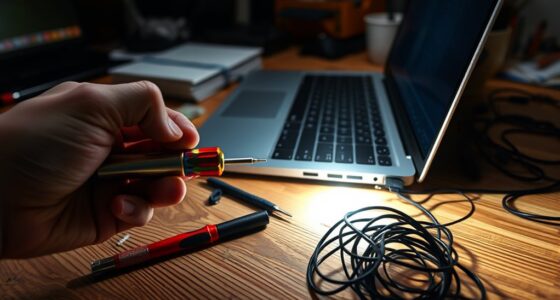
To clean and maintain your PC effectively, start by evaluating its current condition and gathering essential tools like compressed air, microfiber cloths, isopropyl alcohol, and an anti-static wrist strap. Power down, unplug, and clear your workspace before gently cleaning external surfaces and peripherals. Carefully open the case to remove dust from internal components. Regularly update software and drivers, run antivirus scans, and schedule routine checks. Keep your system optimized—covered in detail, you’ll learn more to keep your PC performing its best.
Key Takeaways
- Regularly assess hardware condition, clean dust from internal components, and inspect vents for airflow obstruction.
- Power down, unplug, and prepare a clutter-free workspace before cleaning or opening your PC.
- Use appropriate tools like compressed air, microfiber cloths, and anti-static wrist straps for safe internal and external cleaning.
- Keep software, drivers, and system updates current to ensure optimal performance and security.
- Establish routine maintenance schedules including hardware checks, dust removal, virus scans, and system optimization.
Assessing Your PC’s Current Condition
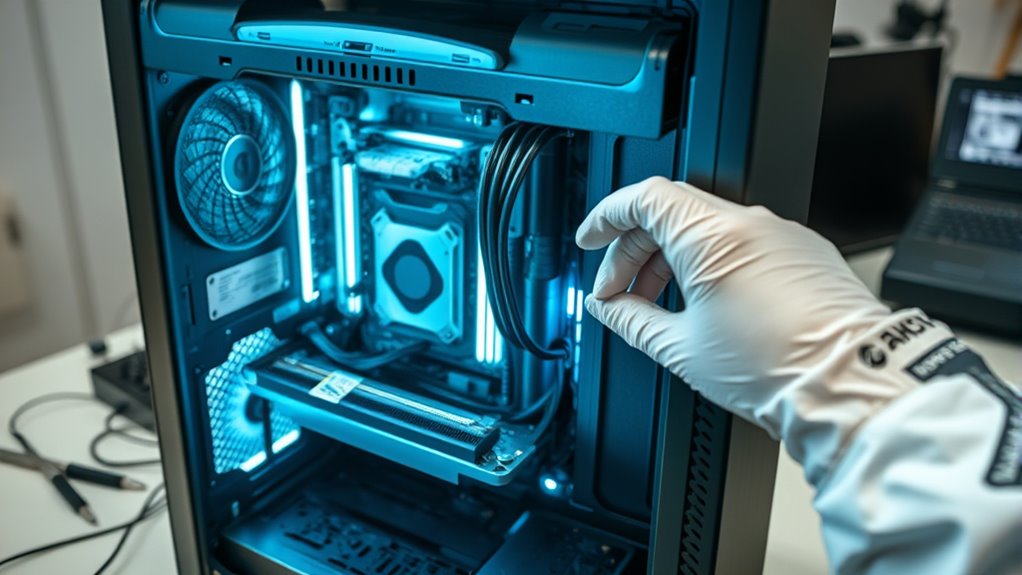
Before you begin cleaning and maintaining your PC, it’s important to assess its current condition. Start by turning it on and checking for any unusual noises or overheating. Observe how it performs—if it’s slower than usual or crashes frequently, there might be underlying issues. Open the case carefully and inspect visible components for dust buildup or signs of damage. Check the vents and fans to see if dust is blocking airflow. Run a diagnostics tool or system health check to identify potential hardware problems. Note any irregularities or areas that seem particularly dirty or worn. Additionally, consider the impact of Free Floating debris or dust particles in your environment, which can affect your PC’s performance and longevity. This assessment helps you understand what needs immediate attention and guides your cleaning process effectively, ensuring you don’t overlook critical issues during maintenance. Regularly monitoring your PC’s performance can prevent minor issues from developing into major repairs and can also help you identify if any components require replacement or professional servicing. Also, staying aware of hardware deterioration signs can save you time and money in the long run by addressing problems early.
Gathering the Right Cleaning Tools and Supplies

To effectively clean and maintain your PC, you need to gather the right tools and supplies beforehand. Having the proper equipment ensures you can clean safely and effectively without risking damage. First, pick up some compressed air cans to blow out dust from tight spaces and vents. Second, get soft microfiber cloths to wipe surfaces without scratching. Finally, have gentle cleaning solutions, like isopropyl alcohol (70% or higher), for disinfecting components and removing grime. These essentials will help you reach every corner of your PC and keep it spotless. Additionally, consider small brushes for stubborn dust and antistatic wrist straps to prevent static buildup. Proper dust removal techniques and the use of anti-static precautions also involve routine cleaning to extend its lifespan and optimize image quality. Incorporating proper cleaning procedures can further enhance your cleaning effectiveness and protect sensitive components. Preparing these tools in advance makes your cleaning process smoother and more efficient, setting a solid foundation for a thorough and safe PC maintenance routine.
Powering Down and Preparing Your Workspace

Before you start cleaning, save any open files and shut down your PC to prevent data loss. Unplug all power cables and peripherals to avoid electrical hazards. Clear your workspace area so you have plenty of room to work safely and efficiently. Additionally, consider powering down your PC properly to ensure all components are safely shut off before cleaning. Remember that cybersecurity is essential when handling your device to protect your personal information during any maintenance process. Using appropriate cleaning tools can help prevent damage and ensure thorough maintenance. Being aware of toilet flushing mechanisms can also remind you to avoid introducing unnecessary waste or liquids into sensitive electronic components. Incorporating proper device shutdown procedures can further safeguard your hardware during maintenance.
Save Open Files
Have you saved all your open files before shutting down your PC? If not, you risk losing important data or work-in-progress. Before powering down, double-check any documents, spreadsheets, or projects you’re working on. Save them to guarantee your progress isn’t lost during the cleaning process. Additionally, close all running programs to prevent accidental data loss or corruption. Taking these steps keeps your files safe and your workspace organized. Remember, shutting down properly also helps avoid software glitches or issues when you restart. To make sure everything is in order, user privacy policies emphasize the importance of managing your data responsibly. Understanding how to protect your data can help you make informed decisions about your online activities. Properly managing your data and understanding cookie categories can enhance your overall online experience, ensuring your privacy preferences are respected. Being aware of affiliate disclosures can also help you understand how your interactions support website operations. Being mindful of security best practices when closing your PC can further help prevent unauthorized access or data breaches. This simple routine protects your data and makes cleaning easier.
Unplug Power Cables
Unplugging power cables is a crucial step in safely shutting down and preparing your workspace for cleaning. First, turn off your PC using the operating system’s shutdown option to guarantee all processes stop properly. Once powered down, locate the power cable at the back of your PC or monitor. Carefully grasp the plug and disconnect it from the power outlet, making sure your hands are dry. This prevents accidental electrical shocks and avoids damaging your equipment. If your setup includes surge protectors or extension cords, unplug those as well. Doing this ensures no power runs through the system while you’re cleaning, reducing the risk of short circuits or electrical hazards. Always double-check that all cables are disconnected before proceeding to clean your workspace thoroughly. Being aware of safe electrical practices can help you recognize and protect yourself from unseen manipulation in your environment. Additionally, understanding the importance of European cloud security standards can guide you in maintaining a secure and compliant workspace. Remember that using proper tools designed for electronics cleaning can further prevent damage during maintenance. Incorporating proper grounding techniques can also help prevent static buildup that might harm sensitive components.
Clear Workspace Area
To effectively prepare your workspace for cleaning, start by powering down your PC and any connected devices. Unplug all cables to prevent electrical issues and accidental damage. Clear the area around your workspace to create a safe, clutter-free zone. This makes it easier to access all parts of your PC and reduces the risk of knocking over objects or causing damage.
Consider these steps:
- Remove any loose items, papers, or decorations from your desk.
- Move peripherals like keyboards, mice, and speakers away.
- Ensure good lighting and ventilation to make cleaning safer and more effective.
A tidy workspace helps you work efficiently and keeps your PC safe during cleaning. Taking these precautions sets the stage for a thorough and safe maintenance process.
Cleaning External Surfaces and Peripherals
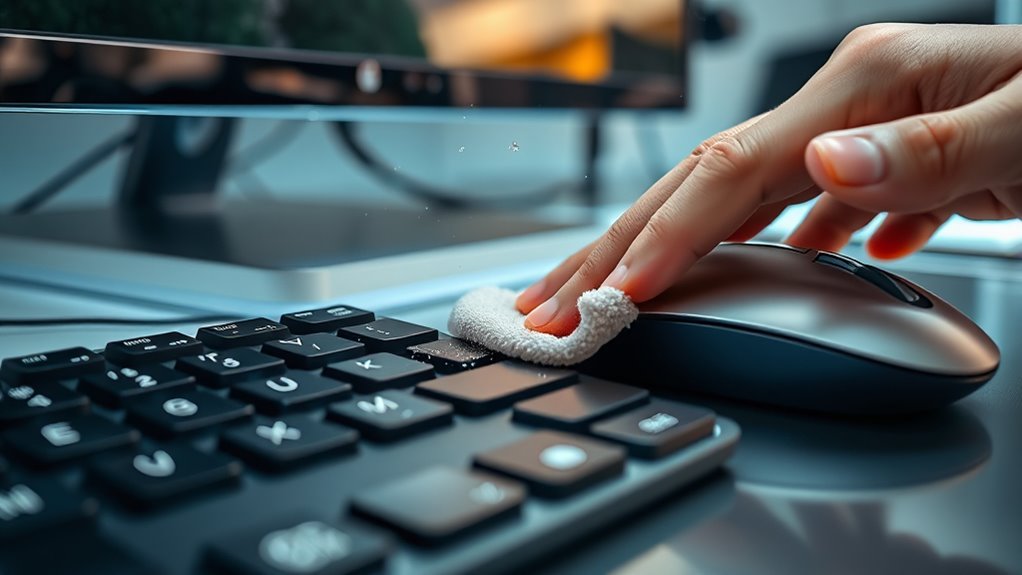
Cleaning external surfaces and peripherals is essential for maintaining your PC’s appearance and performance. Start by turning off your device and unplugging all cables. Use a soft, lint-free microfiber cloth slightly dampened with water or a gentle electronics cleaner to wipe down the surfaces. Be careful around ports and vents, avoiding excess moisture. For stubborn dirt or fingerprints, a small amount of isopropyl alcohol on the cloth works well. Clean your keyboard by turning it upside down and gently shaking out debris, then wipe the keys with a damp cloth. For the mouse, wipe the entire surface, including the scroll wheel. Regular cleaning keeps your PC looking professional and prevents buildup that can affect peripherals’ responsiveness.
Opening the Case and Removing Dust Buildup

After cleaning the external surfaces and peripherals, it’s time to access the interior of your PC. Opening the case allows you to see where dust has accumulated and needs removal. First, power down and unplug your PC to prevent any damage. Next, remove the side panel—usually by unscrewing a few screws at the back. Once open, you can spot dust on fans, heatsinks, and filters. Be gentle to avoid damaging sensitive parts. Use compressed air to blow out dust from these areas, making sure to hold fans in place while cleaning. Remember, never touch internal components with your hands or a cloth. Properly opening and inspecting your case sets the stage for thorough, safe cleaning.
- Unscrew and remove the side panel
- Identify dusty areas inside
- Use compressed air carefully
Cleaning Internal Components Safely
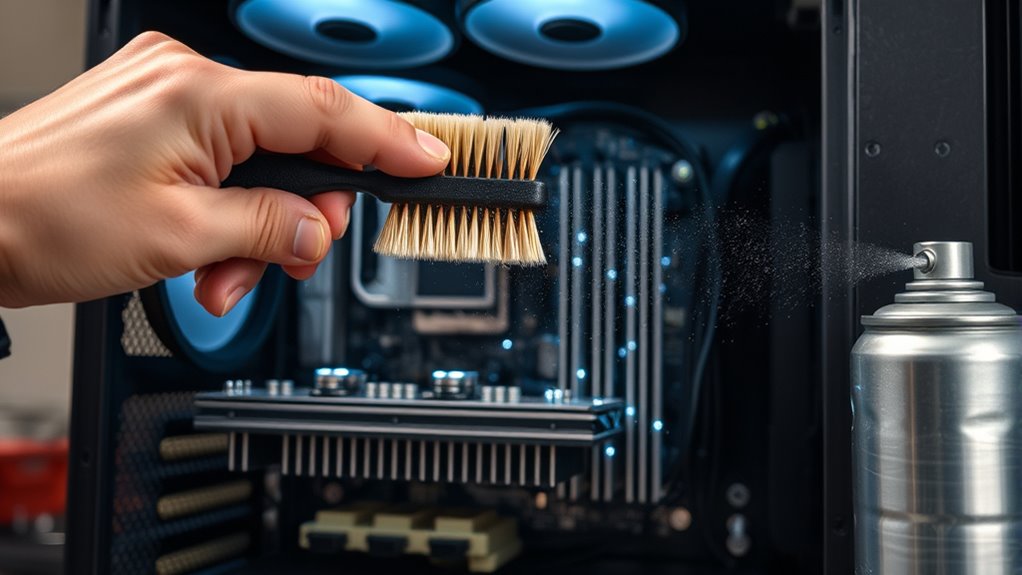
Before you start cleaning internal components, make sure your PC is completely powered off and unplugged. This prevents any electrical shocks or damage. Use an anti-static wrist strap to avoid static electricity that can harm sensitive parts. Handle components by the edges, avoiding contact with circuitry. Use compressed air to blow dust from fans, heatsinks, and PCBs—hold fans in place to prevent spinning. Never use liquids or abrasive materials. Keep a clean workspace, and work in a well-ventilated area. Here’s a quick overview:
| Step | Tip |
|---|---|
| Power off & unplug | Prevent electrical shocks |
| Use compressed air | Remove dust safely |
| Handle components carefully | Avoid static and damage |
Updating Software and Drivers for Optimal Performance
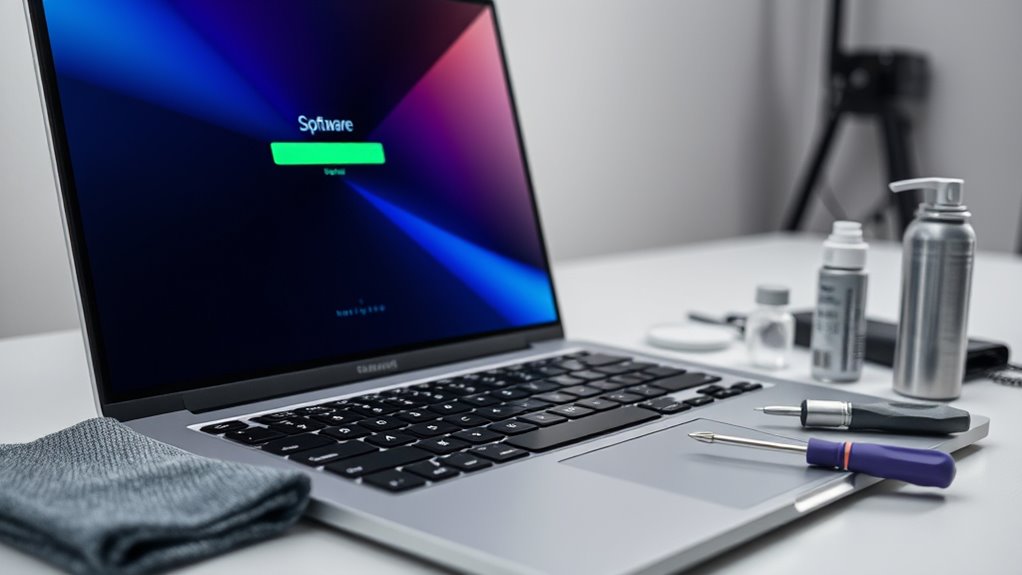
Keeping your software and drivers up to date is essential for ensuring your PC runs smoothly and securely. Updates fix bugs, improve compatibility, and patch security vulnerabilities, preventing potential threats. To stay current, regularly check for updates through your operating system or device manufacturer’s website. Automate updates whenever possible to save time and avoid missing critical patches.
Keep your PC secure and smooth by regularly updating software and drivers.
Remember these key points:
- Enable automatic updates for your OS and apps to stay protected.
- Visit manufacturer websites for the latest driver downloads.
- Use trusted tools or software to manage driver updates safely.
Performing Routine Maintenance and Checks
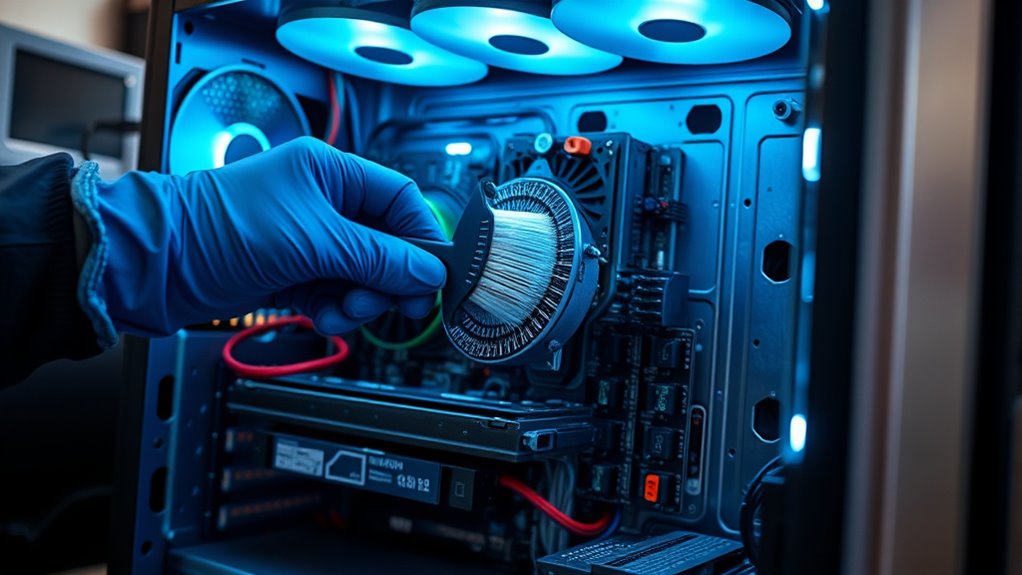
Regularly performing routine maintenance and checks is essential to keep your PC running efficiently. Start by inspecting your system for dust buildup, especially around vents and fans, and clean them with compressed air to prevent overheating. Check that all cables and connections are secure, ensuring no loose or damaged wires. Run antivirus scans to detect malware or viruses that could slow down performance or cause errors. Monitor your system’s disk space and delete unnecessary files or uninstall unused programs. Use built-in tools to check the health of your hard drive or SSD, and verify that your system updates are current. Regular checks like these help catch issues early, improve speed, and extend your PC’s lifespan.
Establishing a Regular Maintenance Schedule

To keep your PC running smoothly, you should set regular dates for maintenance tasks. Keep track of what you’ve done and when to stay organized. Don’t forget to adjust the frequency if your usage habits change or issues arise.
Set Routine Dates
Establishing routine dates for PC maintenance guarantees you stay ahead of potential issues and keep your system running smoothly. By setting specific days to perform tasks like cleaning, updates, and backups, you create a consistent habit that prevents neglect. Consistency ensures dust doesn’t accumulate excessively, software stays current, and you catch problems early. To make this easier, consider:
- Scheduling monthly cleaning and software updates
- Setting quarterly backups to an external drive or cloud
- Marking annual hardware checks to identify wear and tear
Using calendar reminders or apps can help you stick to your schedule. Regular maintenance not only prolongs your PC’s lifespan but also improves overall performance. Stick to these routine dates, and you’ll maintain a reliable, efficient system with less stress.
Track Maintenance Tasks
Keeping track of your maintenance tasks guarantees you follow through on your scheduled routines and don’t overlook important steps. Use a planner, digital calendar, or maintenance app to log each task and date. This helps you stay organized and ensures nothing slips through the cracks. Mark off completed tasks to see your progress and stay motivated. Regularly review your logs to identify patterns or missed routines. Setting reminders or alerts can also prompt you when it’s time to perform specific maintenance activities. By tracking everything, you create a clear record of your PC’s upkeep, making it easier to maintain consistent care. Staying organized minimizes the risk of neglecting essential tasks, prolonging your computer’s lifespan and optimizing its performance.
Adjust Frequency Periods
Creating a regular maintenance schedule means setting specific intervals for each task based on your PC’s usage and manufacturer recommendations. This helps prevent issues before they become serious and keeps your system running smoothly. To determine your schedule, consider how often you use your PC and the environment it’s in. For example, heavy gaming or video editing may require more frequent cleaning.
Here are some tips to adjust your frequency periods:
- Clean dust from vents and fans every 3-6 months if you use your PC daily.
- Update drivers and perform software scans monthly to keep everything optimized.
- Check hardware connections and perform system backups quarterly to prevent data loss.
Frequently Asked Questions
How Often Should I Replace Thermal Paste on My CPU?
You should replace your CPU’s thermal paste every 2 to 3 years, or sooner if you notice your system overheating or experiencing thermal throttling. Regularly check your CPU temperatures to catch any issues early. When you reapply, clean off the old paste thoroughly with isopropyl alcohol before applying a fresh, thin layer. Doing this guarantees efficient heat transfer and keeps your CPU running smoothly.
What Are Signs My PC Needs Immediate Cleaning?
You notice your PC overheating, fans roaring louder, and the air around it feeling warmer than usual. Dust bunnies cling to vents, and your screen flickers or stalls. These signs indicate your PC needs immediate cleaning. You might also see increased noise, sluggish performance, or strange smells. If you spot these, it’s time to open up your case, gently remove dust, and guarantee cooling components are clear for peak performance.
Can I Use Household Cleaners on My PC Components?
You should never use household cleaners on your PC components. These cleaners contain chemicals and abrasives that can damage delicate parts, cause corrosion, or leave residues. Instead, use a soft, lint-free cloth slightly dampened with isopropyl alcohol or specialized electronics cleaner. Gently wipe surfaces and avoid spraying liquids directly onto components. Proper cleaning guarantees your PC remains safe and functions efficiently without risking damage from harsh household products.
Is It Safe to Clean My PC With Compressed Air?
Yes, using compressed air is safe for cleaning your PC, as long as you do it correctly. Hold the can upright to avoid spraying liquid propellant and keep a safe distance from components. Use short bursts to blow dust away from fans, heatsinks, and vents. Avoid shaking the can or tilting it, and never use compressed air directly on delicate parts like the CPU or RAM.
How Do I Prevent Static Electricity When Cleaning Internal Parts?
Did you know static electricity can damage up to 20% of your PC components? To prevent static, you should wear an anti-static wrist strap or touch a grounded metal object before opening your PC. Avoid working on carpets or static-prone surfaces. Keep your workspace dry and use an anti-static mat if available. These steps help make sure safe cleaning and protect your valuable hardware from static discharge.
Conclusion
By caring for your PC with regular, gentle attention, you nurture its longevity and keep it running smoothly. A clean, well-maintained machine not only performs better but also becomes a trusted companion in your daily digital journey. When you prioritize its well-being, you guarantee it continues to serve you faithfully, quietly supporting your endeavors. Embrace these simple steps, and your computer will reward you with silent loyalty and enduring reliability.