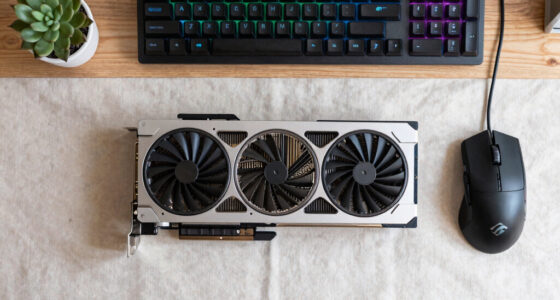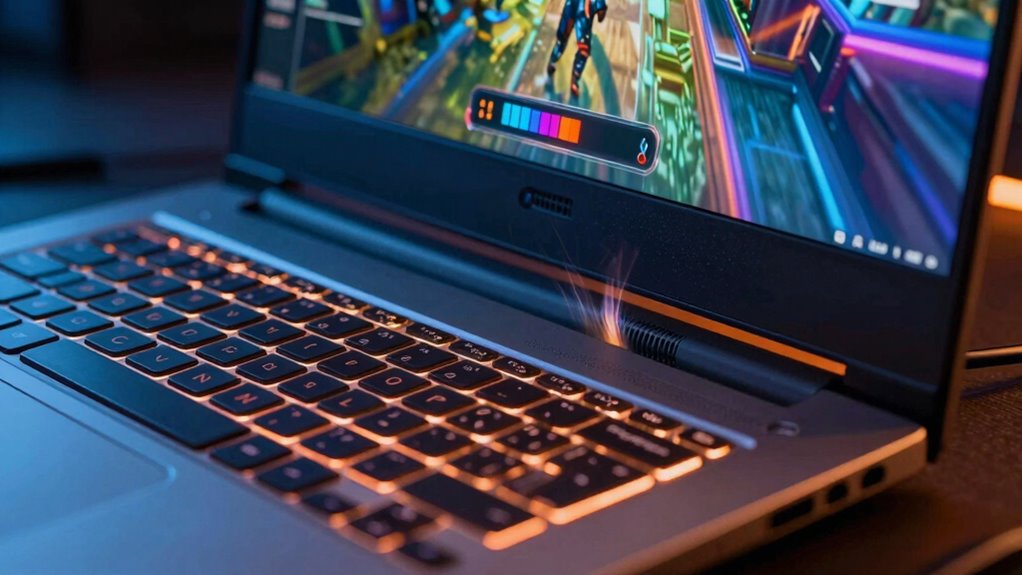

When your computer slows down during heavy tasks, it’s likely experiencing thermal throttling. This safety feature kicks in to prevent overheating by reducing your CPU or GPU’s speed when temperatures get too high. Overclocking or inadequate cooling can make this happen more often. Fans might spin faster or become loud as they try to cool things down. If you’re curious about how to stop this from happening and keep your system running smoothly, there’s more to explore below.

Get the latest gadgets delivered free — and shop member deals
- Fast, free delivery on millions of items
- Access to Prime Big Deal Days deals on October 6–7
- Prime Video, Amazon Music and more included
Key Takeaways
- Thermal throttling is a safety feature that reduces CPU or GPU speed to prevent overheating.
- It activates when critical temperature thresholds are reached during intensive tasks.
- Overclocking and inadequate cooling increase the likelihood of thermal throttling.
- Rising temperatures cause fans to speed up, often resulting in increased noise.
- Proper cooling, cleaning, and tuning can help prevent sudden slowdowns caused by thermal throttling.
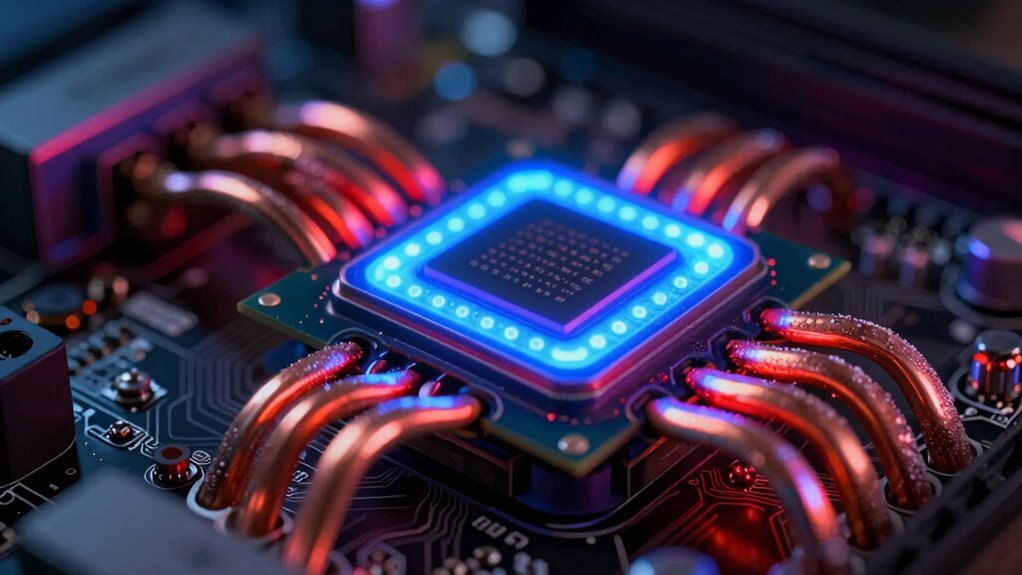
Ever wondered why your computer slows down during intensive tasks? It’s a frustrating experience, especially when you’re in the middle of a work project or gaming session. The culprit often lies in thermal throttling, a safety mechanism your system employs to prevent overheating. When your CPU or GPU reaches a critical temperature, the hardware automatically reduces its speed to lower heat output. This slowdown is a protective response, but understanding why it happens can help you troubleshoot and improve performance.
One common reason for thermal throttling is overclocking challenges. Overclocking pushes your processor beyond its factory settings to boost performance, but it also raises the risk of generating excessive heat. If your system isn’t adequately cooled, it can quickly reach thermal limits, causing the hardware to throttle back. Overclocking requires careful tuning of voltage and clock speeds, but many users overlook these adjustments or fail to upgrade cooling solutions, leading to frequent thermal throttling. This not only hampens performance but can also stress your components over time. Proper hardware temperature management is crucial to prevent overheating and maintain optimal performance.
Overclocking boosts performance but increases heat, risking thermal throttling without proper cooling and tuning.
Fan noise issues often go hand in hand with thermal throttling. When your system detects rising temperatures, the fans ramp up to dissipate heat more effectively. If your fans are malfunctioning, clogged with dust, or simply not powerful enough, they won’t circulate air efficiently. As a result, internal temperatures climb rapidly, triggering thermal throttling sooner than expected. You might notice your fans running loudly during intense tasks, indicating they’re working overtime to keep temperatures down. Conversely, if your fans are silent but your system still overheats, it could suggest a problem with fan control settings or hardware failure. Ensuring adequate cooling solutions can significantly reduce the likelihood of thermal throttling and extend your hardware’s lifespan. Additionally, understanding how thermal management techniques impact overall system performance can help you optimize your setup for both longevity and efficiency.
As an affiliate, we earn on qualifying purchases.
Frequently Asked Questions
Can Thermal Throttling Damage My Hardware Permanently?
Thermal throttling itself doesn’t directly damage your hardware permanently, but frequent overheating can affect your hardware’s longevity over time. When your system hits high temperatures, it reduces performance to protect components, which may cause long-term wear if cooling solutions aren’t adequate. To prevent damage, guarantee effective cooling solutions are in place, like clean fans and proper airflow, helping your hardware stay cooler and last longer without risking permanent harm.
How Can I Tell if My CPU Is Thermal Throttling?
Your CPU might be playing hide and seek with thermal throttling if it suddenly slows down. Look for signs like sudden heat spikes or inconsistent performance. Check your temperature sensors and cooling solutions—if your processor hits high temperatures despite good cooling, it’s likely throttling. Use monitoring software to see real-time temps; if they reach critical levels, thermal throttling is probably the culprit behind your slowdown.
Does Thermal Throttling Occur During Gaming or Only in Heavy Workloads?
Thermal throttling can happen during gaming or heavy workloads when your GPU overheats. When temperatures rise too high, your system automatically reduces performance to protect components, causing slowdowns. To prevent this, you need effective cooling solutions, like better fans or liquid cooling. Keep an eye on temperatures, especially during intense gaming sessions, and guarantee your cooling setup is adequate to avoid thermal throttling and maintain smooth performance.
Are There Software Tools to Monitor Thermal Throttling in Real-Time?
Did you know over 70% of gamers use software to monitor their system’s thermal management? Yes, there are tools for real-time monitoring that help you track thermal throttling as it happens. Programs like HWMonitor, MSI Afterburner, and SpeedFan give you instant insights into temperature and performance, allowing you to prevent overheating and optimize your cooling solutions. These tools empower you to keep your system running smoothly during intense workloads.
Can Overclocking Increase the Chances of Thermal Throttling?
Yes, overclocking increases the chances of thermal throttling because it pushes your CPU or GPU beyond stock speeds, generating more heat. This extra heat elevates the risk of overheating, especially if your cooling solutions aren’t adequate. To prevent throttling, invest in better cooling solutions like liquid cooling or high-performance fans, and carefully monitor temperatures. Overclocking risks include thermal throttling, system instability, and potential hardware damage if not managed properly.
As an affiliate, we earn on qualifying purchases.
Conclusion
So, now you know that thermal throttling is like your computer’s way of playing superhero—sacrificing speed to save itself from overheating disaster. If your device suddenly slows down, it’s not magic; it’s your machine’s desperate attempt to prevent meltdown. Keep an eye on those temperatures and clean your vents, or risk your computer turning into a sluggish, overheating beast. Stay vigilant—your tech’s survival depends on it, and trust me, you don’t want your PC to become a slow-motion disaster!
As an affiliate, we earn on qualifying purchases.
As an affiliate, we earn on qualifying purchases.
Fall Picks
fall essentials
As an affiliate, we earn on qualifying purchases.