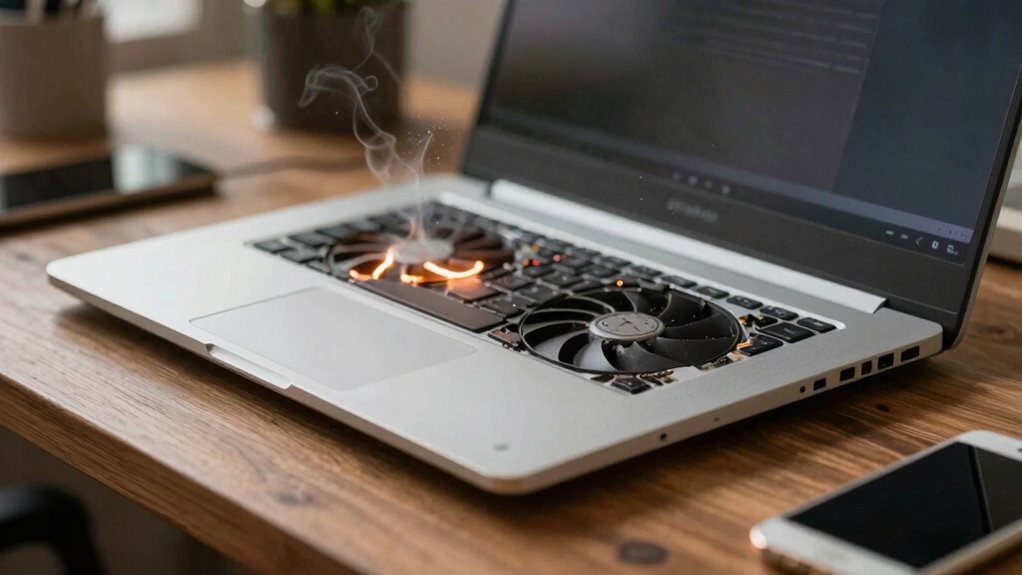

Laptop cooling matters more than most people realize because overheating can cause your device to slow down, overheat components, and potentially damage hardware, shortening its lifespan. Proper airflow and heat dissipation keep your laptop running smoothly during demanding tasks. Dust buildup and poor ventilation make overheating worse. Using cooling pads or elevating your laptop helps maintain performance. If you want to learn how to keep your laptop cool and protect your investment, there’s more to discover below.

Get the latest gadgets delivered free — and shop member deals
- Fast, free delivery on millions of items
- Access to Prime Big Deal Days deals on October 6–7
- Prime Video, Amazon Music and more included
Key Takeaways
- Proper cooling prevents thermal throttling, maintaining optimal laptop performance during intensive tasks.
- Effective heat dissipation extends hardware lifespan and reduces the risk of permanent damage.
- Improving airflow through cleaning and accessories enhances cooling efficiency and prevents overheating.
- Using laptops on suitable surfaces and in cooler environments helps sustain safe operating temperatures.
- Good thermal management reduces hardware failures and ensures consistent device functionality over time.
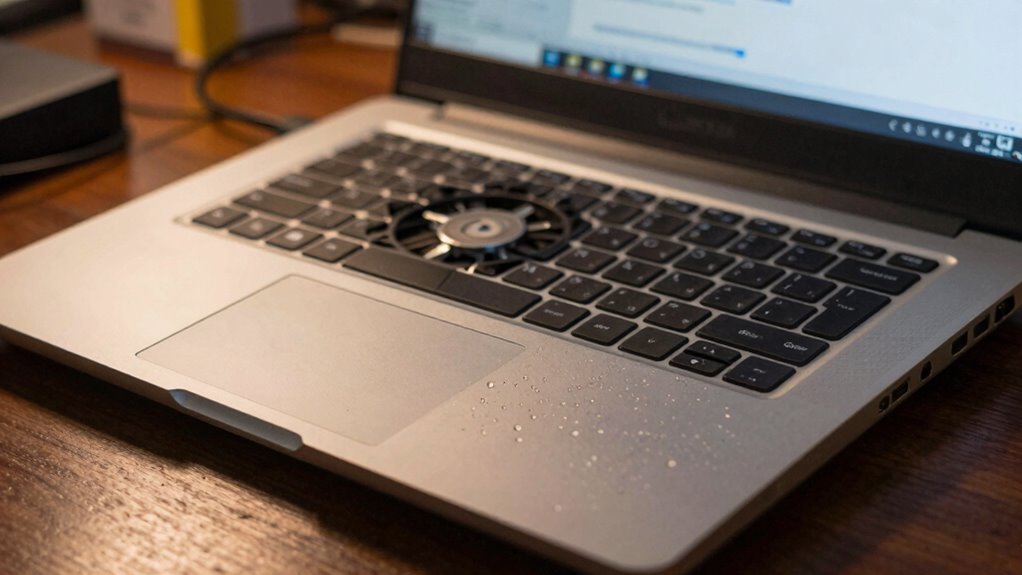
Have you ever noticed your laptop slowing down or overheating during intense tasks? If so, you’re not alone. Many users overlook the importance of proper cooling, but effective thermal management plays a vital role in maintaining your device’s performance. When your laptop gets too hot, it can throttle its processor to prevent damage, which slows down everything you’re trying to do. To avoid this, you need to focus on enhancing airflow and guaranteeing heat dissipates efficiently. Proper airflow optimization helps keep internal components cool, reducing the risk of overheating and prolonging your laptop’s lifespan.
Think about how your laptop’s design impacts heat flow. Dust buildup, blocked vents, or cluttered fans can drastically diminish airflow, trapping heat inside. Regularly cleaning your vents and fans can make a significant difference. Additionally, elevating your laptop slightly or using a cooling pad creates better airflow underneath, allowing heat to escape more easily. This simple step enhances thermal management, so your device stays cooler during demanding tasks like gaming, video editing, or running multiple applications simultaneously. Incorporating effective cooling solutions can further optimize heat dissipation and prevent thermal throttling.
Regularly clean vents and use a cooling pad to improve airflow and keep your laptop cooler during demanding tasks.
You should also pay attention to your environment. Using your laptop on soft surfaces like beds or couches restricts airflow, trapping heat and leading to overheating. Instead, opt for a hard, flat surface that allows air to circulate freely around the device. Managing your workspace temperature is equally important; a cooler room helps your laptop maintain a steady temperature, preventing thermal stress. Recognizing how airflow impacts heat dissipation is crucial for effective cooling. In addition, understanding the role of thermal management in maintaining optimal device performance can help prevent costly hardware failures. Proper ventilation techniques are essential for maintaining internal temperatures and ensuring your laptop runs efficiently.
Laptop cooling pad with adjustable fan
As an affiliate, we earn on qualifying purchases.
As an affiliate, we earn on qualifying purchases.
Frequently Asked Questions
How Do I Know if My Laptop Is Overheating?
You’ll notice your laptop overheating if it becomes unusually slow or if the fan noise increases considerably. Thermal throttling kicks in to protect your device, causing performance drops, and you might see warning alerts. Keep an eye out for excessive heat, slow response times, or loud, constant fan noise. These signs indicate your laptop is struggling to cool itself and needs better ventilation or cleaning to prevent damage.
Can Using a Cooling Pad Damage My Laptop?
Using a cooling pad generally won’t damage your laptop if you choose one with external fans designed for compatibility. However, if you apply thermal paste improperly or block vents, it could cause overheating or damage. Cooling pads help improve airflow, but make certain they don’t obstruct vents or interfere with internal components like thermal paste. Proper use and maintenance protect your laptop’s health while maximizing cooling efficiency.
How Often Should I Clean My Laptop’s Cooling System?
You should clean your laptop’s cooling system at least every three to six months to prevent dust buildup from turning your device into a miniature volcano of heat! Regular fan maintenance keeps airflow smooth and cooling efficient, stopping your laptop from overheating and crashing like a malfunctioning spaceship. Don’t wait for your laptop to scream in protest—stay ahead and keep it cool with routine cleaning.
Does Ambient Temperature Affect Laptop Cooling Efficiency?
Yes, ambient temperature considerably affects your laptop’s cooling efficiency. When the surrounding air is warmer, it becomes harder for your laptop’s cooling system to dissipate heat, causing it to overheat more easily. Conversely, cooler ambient temperatures help your laptop stay within ideal operating ranges. To maintain cooling efficiency, use your laptop in a cool, well-ventilated environment, and avoid hot, humid conditions that hinder heat dissipation.
Are There Specific Laptop Models That Run Hotter?
Think of your laptop as a race car—some models zoom faster and generate more heat, especially those with aggressive laptop design. Gaming laptops and high-performance workstations often run hotter due to intense thermal management needs. Their robust components demand better cooling systems, but if neglected, overheating can throttle performance. So, always check how a laptop’s thermal management is engineered—it’s the key to keeping your device running smoothly under pressure.
As an affiliate, we earn on qualifying purchases.
Conclusion
Taking care of your laptop’s cooling isn’t just about avoiding the obvious hiccups; it’s about nurturing a quiet, steady harmony within your device. When you prioritize proper cooling, you help prevent subtle wear and tear that can quietly chip away at performance over time. Think of it as tending to a delicate garden—paying attention to the small details guarantees your laptop remains a trusted companion, quietly supporting your daily pursuits with grace and resilience.
As an affiliate, we earn on qualifying purchases.
As an affiliate, we earn on qualifying purchases.
Fall Picks
fall essentials
As an affiliate, we earn on qualifying purchases.