To extend your smartphone’s battery life, lower your screen brightness and enable auto-brightness to adapt to your environment. Shorten the screen timeout so the display turns off sooner when not in use. Manage app activity by closing unused apps and restricting background processes, especially for power-hungry ones. Activate battery saver modes and turn off Wi-Fi, Bluetooth, or GPS when you don’t need them. Keep exploring for more tips to keep your battery lasting longer.

Get the latest gadgets delivered free — and shop member deals
- Fast, free delivery on millions of items
- Access to Prime Big Deal Days deals on October 6–7
- Prime Video, Amazon Music and more included
Key Takeaways
- Reduce screen brightness, enable auto-brightness, and shorten screen timeout to save power.
- Close unused apps and restrict background activity for apps not needed constantly.
- Enable battery saver modes and disable Wi-Fi, Bluetooth, and GPS when not in use.
- Limit background app refresh and disable unnecessary location services to prevent battery drain.
- Regularly update software and optimize device settings for improved battery efficiency.
Adjust Your Screen Brightness and Timeout Settings
Reducing your screen brightness and shortening the timeout duration can markedly extend your smartphone’s battery life. When your screen is dimmer, your device consumes less power, especially during prolonged use. Adjust the brightness to a comfortable level that’s not too high, and whenever possible, enable auto-brightness to adapt to ambient lighting conditions automatically. Additionally, setting a shorter timeout period means your screen turns off sooner when you’re not actively using your phone, preventing unnecessary battery drain. This simple tweak ensures that your display isn’t wasting power when it’s not needed. Keep in mind that a brighter screen and longer active times greatly impact battery life, so making these adjustments can make a noticeable difference in how long your phone lasts between charges. Optimizing display settings can further enhance your battery conservation efforts, and understanding how power management features work can help you maximize your device’s longevity. You can also explore battery saver modes, which are often built into your device to optimize power use automatically. Being aware of background app activity and limiting unnecessary processes can also contribute to extending your battery life.
Manage App Usage and Background Activities

Since many apps continue running in the background even when you’re not using them, managing their activity can substantially boost your battery life. You can do this by closing unused apps regularly or restricting background activity for apps you don’t need constantly running. This prevents unnecessary power drain and keeps your battery healthier longer. To help you decide, here’s a quick look at app types and their impact:
| App Type | Impact on Battery |
|---|---|
| Social Media Apps | High; refresh often, drain power |
| Utility Apps | Moderate; often run in background |
| Games | Variable; only when playing |
| Productivity Apps | Low; mostly active when used |
Being mindful of background activity ensures your battery lasts through your day without constant recharging.
Optimize Your Device’s Power Settings and Features
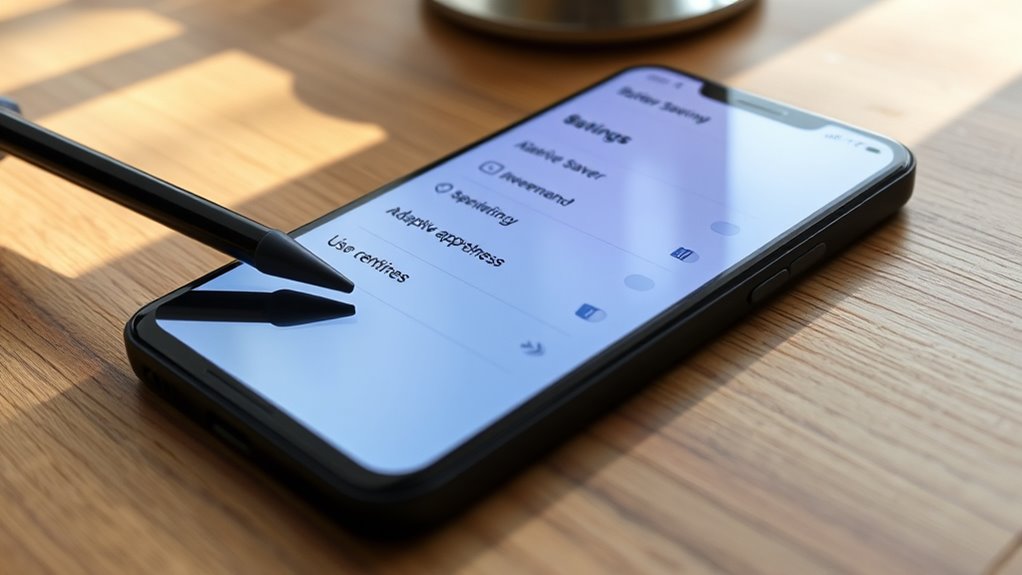
Adjusting your device’s power settings and enabling built-in features can substantially extend your battery life. Start by activating battery saver modes to limit background activity and reduce energy consumption. Lowering screen brightness and shortening the screen timeout also helps conserve power. Additionally, disable Wi-Fi, Bluetooth, and GPS when they’re not needed. To ensure your safety and avoid potential issues, it’s also wise to familiarize yourself with your device’s electrical safety features, which can help prevent damage and prolong battery health. Being aware of your device’s power management options can further optimize performance and longevity. For example, understanding how to use load calculations and monitor charging speeds can help you maintain your device’s battery in optimal condition. Regularly updating your device’s software can also include important battery optimization improvements. Here are three key steps:
- Enable battery saver mode and adjust display brightness.
- Limit background app refresh and location services.
- Turn off Wi-Fi, Bluetooth, and NFC when unused.
Frequently Asked Questions
Can I Extend My Battery Life by Turning off Wi-Fi and Bluetooth?
Yes, turning off Wi-Fi and Bluetooth can extend your battery life. When you disable these features, your phone doesn’t constantly search for connections, which saves power. If you’re not using them, it’s a smart move. Just remember to turn them back on when needed. This simple step reduces background activity, helping your battery last longer throughout the day without sacrificing functionality when you need it.
Do Battery Saver Modes Negatively Affect Device Performance?
Battery saver modes can somewhat impact your device’s performance, but it’s usually minimal and worth the trade-off for longer battery life. You might notice slower app updates or reduced background activity, but essential functions still work well. If you need maximum performance, turn them off. However, for everyday use, these modes help you conserve power without substantially hindering your experience.
How Does Using Airplane Mode Impact Battery Longevity?
Imagine your phone as a busy city, lights flickering everywhere. When you turn on airplane mode, it’s like turning off all the city’s power lines—no signals, no data, no drain. This markedly reduces battery consumption because your device isn’t constantly searching for networks or syncing. Using airplane mode, especially in low-signal areas or during sleep, helps your battery last longer and keeps your phone ready when you need it most.
Are There Specific Apps That Drain Battery Faster Than Others?
Some apps drain your battery faster than others. Social media apps like Facebook, Instagram, and TikTok tend to use a lot of power due to constant updating and background activity. Streaming services such as YouTube and Netflix also consume significant battery when streaming videos. Additionally, GPS-based apps like Google Maps and ride-sharing apps like Uber continuously use location services, which can quickly deplete your battery. Regularly check your battery usage to identify and limit these power-hungry apps.
Does Updating My Phone’s Software Improve Battery Life?
Yes, updating your phone’s software can actually improve battery life, even though it often feels like just another chore. Developers optimize performance and fix bugs that cause unnecessary power drain. So, instead of ignoring those updates, embrace them—they’re designed to make your device more efficient. It’s ironic how the very updates meant to improve your experience can also help extend your battery life, saving you from constant charging.
Conclusion
Think of your smartphone as a garden that needs careful tending. By adjusting brightness, managing apps, and optimizing settings, you’re watering and pruning it to thrive longer. With each smart choice, you’re preventing unnecessary drain and letting your device flourish. Keep nurturing it wisely, and your battery will bloom beautifully, providing you lasting power whenever you need it. Just like a well-tended garden, a little effort now guarantees vibrant, healthy performance every day.
Fall Picks
fall essentials
As an affiliate, we earn on qualifying purchases.