To collaborate in the cloud using Google Drive or OneDrive, you share files with team members, set permissions, and work on documents simultaneously. Both platforms offer real-time editing, version control, and secure sharing options. Google Drive works best with Google Workspace apps, while OneDrive integrates deeply with Microsoft 365. They also support offline access and mobile collaboration. Keep exploring to discover which tool fits your team’s needs and how to maximize their features.

Get the latest gadgets delivered free — and shop member deals
- Fast, free delivery on millions of items
- Access to Prime Big Deal Days deals on October 6–7
- Prime Video, Amazon Music and more included
Key Takeaways
- Utilize real-time co-authoring features in Google Drive and OneDrive for seamless simultaneous editing.
- Set specific permissions and sharing links with expiration dates or passwords to control access.
- Use version history to track changes and revert to previous versions when needed.
- Synchronize files across devices for offline access and automatic updates when reconnected.
- Integrate with Google Workspace or Microsoft 365 apps to enhance collaboration within familiar environments.
Comparing Storage Options and Pricing Structures
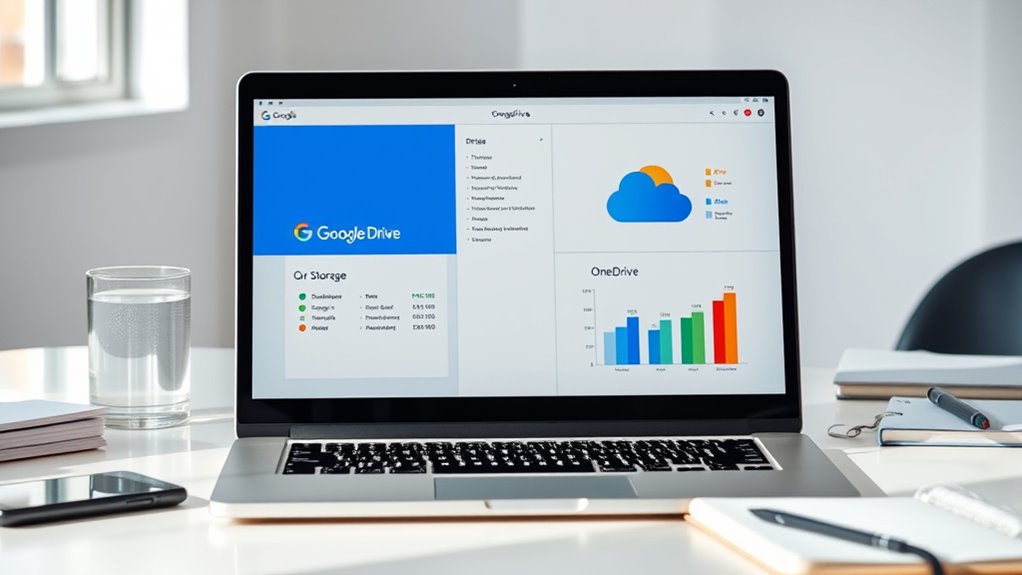
When comparing storage options and pricing structures, it’s important to recognize that Google Drive offers a generous 15 GB of free storage, which is considerably larger than OneDrive’s initial 5 GB. This makes Google Drive more attractive if you need more space without immediate costs. Paid plans for Google Drive start around $6 per month per user, providing additional storage and features through Google One. OneDrive’s paid options begin at about $5 per month per user, often bundled with Microsoft 365 subscriptions that include Office apps. Both services allow you to purchase larger storage increments as your needs grow. However, OneDrive’s plans are often tailored for enterprise use, emphasizing compliance and security, while Google Drive’s pricing is more straightforward for individual and small business users. European cloud innovation emphasizes the importance of secure and sustainable solutions, which can influence your choice based on compliance and data sovereignty considerations.
Seamless Integration With Productivity Suites

Your choice of cloud platform directly impacts your workflow, especially when it comes to app ecosystem compatibility. Google Drive works seamlessly with Google Workspace apps for real-time editing, while OneDrive integrates tightly with Microsoft 365 for smooth collaboration. Both platforms support cross-platform access, ensuring you can stay productive whether you’re on Windows, macOS, or mobile devices. A strong understanding of projector resolution and display technology can further enhance your visual presentations and content sharing. Additionally, knowing how cloud storage security is maintained can help you safeguard your important data across these platforms.
App Ecosystem Compatibility
Google Drive and OneDrive are designed to work seamlessly within their respective ecosystems, offering tight integration with their native productivity suites—Google Workspace and Microsoft 365. This integration streamlines your workflow by allowing you to create, edit, and share files directly within the platform. With Google Drive, you can access Docs, Sheets, Slides, and Gmail without switching apps, enabling real-time editing and collaboration. Similarly, OneDrive connects deeply with Word, Excel, PowerPoint, and Teams, making document management intuitive and efficient. Both services support third-party add-ons to extend functionality, but their native integrations provide the most fluid experience. This ecosystem compatibility guarantees your files are accessible, editable, and shareable within familiar environments, reducing friction and improving productivity. Additionally, Free Floating principles can be incorporated effortlessly into these platforms to enhance collaborative and creative workflows.
Real-Time Co-Authoring Features
Both Google Drive and OneDrive offer robust real-time co-authoring capabilities that enhance collaboration within their native productivity suites. With Google Drive, you can edit documents, spreadsheets, and presentations simultaneously with others, seeing each other’s changes instantly. It also provides granular sharing controls, so you decide who can view, comment, or edit. OneDrive supports real-time co-authoring within Microsoft 365 apps like Word, Excel, and PowerPoint, with integrated comments and version history. Changes appear instantly, and you can chat or leave notes for collaborators directly in the document. Both platforms streamline teamwork by allowing multiple users to work on the same file at once, reducing version conflicts. These features make collaboration seamless, keeping everyone on the same page without delays or confusion.
Cross-Platform Accessibility
Seamless integration with productivity suites considerably enhances cross-platform accessibility, allowing you to work effortlessly across different devices and operating systems. Google Drive’s web-first design guarantees compatibility on Windows, macOS, Linux, Android, and iOS, enabling you to create, edit, and share files from any device. Its native integration with Google Workspace apps—Docs, Sheets, Slides—means real-time collaboration is smooth, regardless of your platform. Meanwhile, OneDrive works seamlessly with Windows and integrates deeply with Microsoft 365 apps like Word, Excel, and PowerPoint. Its native Windows file explorer integration makes syncing and accessing files straightforward. Both services offer mobile apps that provide consistent functionality, enabling you to stay productive on the go. This cross-platform flexibility ensures you’re always connected and able to collaborate efficiently, no matter your device or operating system.
Collaborating in Real-Time: Features and Capabilities

When working together online, you’ll notice how both platforms support simultaneous editing, allowing you and your team to make changes at the same time. You can control who has access and set permissions to view, comment, or edit, ensuring your files stay secure. Plus, features like change tracking and version history help you keep track of edits and revert to previous versions if needed. Additionally, navigation and mapping features enable users to efficiently locate and organize files within complex folder structures.
Simultaneous Editing Capabilities
Real-time editing is a core feature that enables multiple users to work on the same document simultaneously, drastically improving collaboration efficiency. With this capability, you can see others’ changes instantly, reducing version conflicts and streamlining teamwork. Google Drive supports real-time editing in Docs, Sheets, and Slides, allowing multiple users to edit, comment, and chat within the document. OneDrive offers co-authoring in Word, Excel, and PowerPoint, with live updates and integrated comments. Both platforms synchronize edits seamlessly, but OneDrive’s faster sync speeds reduce lag during high-volume editing. Additionally, real-time collaboration enhances productivity by providing immediate feedback and reducing delays. Passive voice detection tools can help identify and correct passive constructions to make your writing clearer.
Sharing permissions and controls play a crucial role in how effectively you can collaborate using cloud storage services. They determine who can view, comment, or edit your files, ensuring you maintain the right level of access. Google Drive offers simple sharing options with link sharing, but it lacks advanced security features like password protection or expiration dates. You can set permissions for individuals or groups easily. OneDrive provides more granular control with options such as link passwords, expiration times, and restricted permissions, making it suitable for sensitive or corporate use. Both platforms allow you to change permissions anytime, giving you flexibility over your shared files. Clear permissions prevent accidental edits or access breaches, helping you collaborate securely and efficiently. Additionally, Vetted – Witbeck Vacuums highlights that understanding the features of your tools can lead to more effective teamwork.
Change Tracking & Versioning
Change tracking and versioning are essential tools that allow you to monitor edits and restore previous versions of your documents as you collaborate. They help you keep track of modifications, avoid accidental data loss, and review changes over time. Google Drive automatically saves version history, letting you see who made edits and revert to earlier versions with a click. OneDrive offers similar functionality, with detailed version logs and the ability to restore any previous state. Both platforms enable you to compare versions side-by-side. Here’s a quick overview: version control systems, which are fundamental for maintaining document integrity during collaborative editing.
Synchronizing Files and Accessing Offline Content
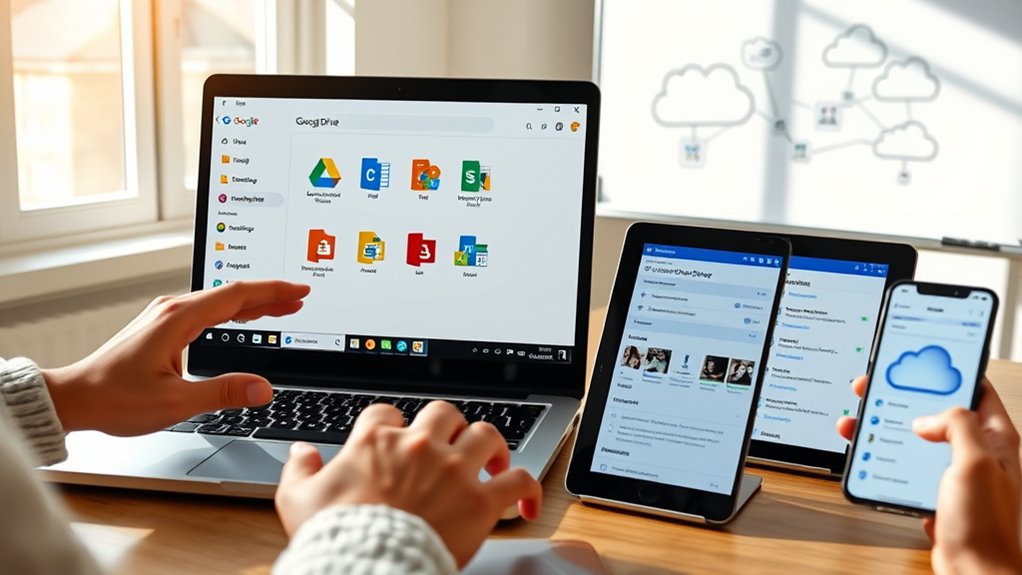
To guarantee seamless workflow across devices, syncing files efficiently is essential. OneDrive uses block-level copying, which speeds up synchronization and reduces bandwidth, making it ideal for large or frequently updated files. It automatically syncs files across desktops, mobile devices, and the cloud, ensuring you always have the latest version. Offline access is built into OneDrive, allowing you to manage files without an internet connection and sync changes when you’re back online. Offline access is also supported by Google Drive through its offline extensions, letting you view and edit documents without an internet connection. While Google Drive’s sync process involves uploading entire files upon changes, it remains reliable for most tasks. Both platforms keep your files synchronized, but OneDrive’s faster sync speeds give it an edge for frequent updates and large files. Synchronization methods are continually improving to enhance user experience, with features like real-time syncing providing smoother collaboration.
Ensuring Security and Compliance in Cloud Collaboration

Ensuring security and compliance in cloud collaboration requires understanding the robust features offered by platforms like Google Drive and OneDrive. You should leverage encryption both during transfer and storage to protect your data from unauthorized access. Multi-factor authentication adds an extra layer of security, preventing unauthorized login attempts. Use detailed permission settings to control who can view, comment, or edit files, and take advantage of link expiration and password protection where available. Both platforms provide audit logs, helping you track access and changes for compliance purposes. For sensitive information, consider OneDrive’s personal vaults or Google Drive’s advanced sharing controls. Encryption methods are critical in safeguarding data across cloud platforms. Regularly reviewing permissions and maintaining strong, unique passwords are essential steps to keep your data secure and meet regulatory standards. Additionally, understanding affiliate disclosure policies can help you recognize potential biases in platform features and recommendations. Incorporating cloud security best practices can further enhance your protection and ensure ongoing compliance. Being aware of data privacy regulations can also help you align your cloud usage with legal requirements and avoid potential penalties. Maintaining awareness of necessary cookies and their role in site functionality can improve your overall security awareness while navigating these platforms.
Navigating User Interfaces and Mobile Functionality

Both Google Drive and OneDrive prioritize user-friendly interfaces that simplify navigation and file management. Google Drive offers a clean, intuitive layout with customizable views like list or grid, making it easy to locate and organize files quickly. Its powerful search feature helps you find documents fast, even if you have thousands stored. On the other hand, OneDrive’s interface closely follows Windows’ design, providing seamless integration with File Explorer, which feels natural for Windows users. Both platforms have mobile apps for Android and iOS, allowing you to access, upload, and organize files on the go. Google Drive’s mobile app supports real-time collaboration and editing, matching the desktop experience. OneDrive’s app emphasizes fast sync and offline access, ideal when working remotely or without internet connectivity.
Choosing the Right Platform for Your Team Needs

Choosing the right cloud platform depends on your team’s specific needs and workflow preferences. If your team requires large storage upfront and seamless Google app integration, Google Drive is ideal. It’s perfect for real-time collaboration on documents, spreadsheets, and presentations within Google Workspace. On the other hand, if your team relies heavily on Microsoft Office tools and needs advanced security features, OneDrive is a better fit. Its native Windows integration and faster sync speeds benefit users managing large files or working offline frequently. Consider your security requirements—OneDrive offers more granular control, while Google Drive provides evolving AI and data management tools. Evaluating your cloud infrastructure can help you better assess the reliability and performance of each platform for your specific needs. Additionally, understanding collaboration tools can assist in choosing a platform that fosters seamless teamwork and productivity. Recognizing security features is also crucial in safeguarding your team’s data and maintaining compliance standards. Conducting a thorough security assessment can ensure that the chosen platform aligns with your organization’s compliance and data protection policies. Exploring water-related features like file versioning and access controls can further enhance your ability to manage team projects securely and efficiently.
Frequently Asked Questions
How Do Google Drive and Onedrive Handle Large File Uploads Differently?
You’ll notice that OneDrive handles large file uploads more efficiently because it uses block-level copying, which uploads only the changed parts of files, speeding up the process. Google Drive, on the other hand, uploads entire files when changes occur, which can take longer for big files. If you work with large files frequently, OneDrive’s faster sync speeds make it the better choice.
Can I Migrate Files Easily Between Google Drive and Onedrive?
Yes, you can migrate files easily between Google Drive and OneDrive using third-party tools like MultCloud, Cloudsfer, or Mover.io. These services simplify the process by connecting both accounts, allowing you to transfer files directly without downloading and re-uploading. Just authorize both services, select your files, and start the transfer. This way, you save time and avoid manual effort, ensuring a smooth progression between the two platforms.
What Are the Best Practices for Managing Shared Permissions Securely?
Imagine sharing a project with your team and wanting to keep it secure. You should set permissions carefully: assign only necessary access levels, like view or comment, and avoid giving everyone editing rights. Regularly review shared links and revoke access when no longer needed. Use password protection and expiration dates for sensitive files. These best practices help prevent unauthorized access and keep your shared data safe.
Do Both Platforms Support Third-Party App Integrations Seamlessly?
Yes, both platforms support third-party app integrations seamlessly. You can connect Google Drive with various apps via the Google Workspace Marketplace, enabling workflow automation, asset management, and more. Similarly, OneDrive integrates smoothly with Microsoft 365 and other third-party tools through the Microsoft AppSource. You’ll find that these integrations enhance productivity, streamline tasks, and expand functionality, making it easier to customize your workflow and collaborate effectively across platforms.
How Do Offline Editing and Synchronization Vary Across Devices?
You’ll find that OneDrive offers faster synchronization thanks to block-level copying, making it ideal for large files and frequent updates. Google Drive supports offline editing through its Chrome extensions and offline mode, allowing you to work without internet. On devices, OneDrive’s offline feature is seamless, especially on Windows, while Google Drive excels across platforms with web-based offline access. Both enable offline editing, but synchronization speed and device integration differ.
Conclusion
Choosing between Google Drive and OneDrive might feel overwhelming, but remember, you’re wielding powerful tools that can transform your teamwork into a well-oiled machine. Whether you prioritize seamless integration, real-time collaboration, or robust security, the right platform can elevate your productivity to legendary heights. Don’t settle for less—embrace the cloud and watch your collaboration capabilities soar beyond the stars, turning your team’s potential into unstoppable greatness.
Fall Picks
fall essentials
As an affiliate, we earn on qualifying purchases.