
Discover the hidden gems in Windows 11, like Snap Layouts to boost multitasking, customizable widgets for quick access, and Focus Sessions to cut distractions. You can also access PowerToys for advanced tools, manage multiple desktops easily, and tweak privacy settings for better security. Plus, explore secret context menu options and hidden dark mode tweaks for specific apps. Stay tuned, because these tips will help you unlock the full potential of Windows 11.
Key Takeaways
- Use Hidden Snap Layouts (Win + Z) for quick multitasking and organizing windows into complex split-screen layouts.
- Access PowerToys tools like FancyZones and PowerRename to streamline workflows and boost productivity.
- Customize and pin widgets in the Widgets Panel for quick access to weather, news, and your favorite apps.
- Enable Clipboard History (Win + V) to manage multiple copied items and enhance data management.
- Right-click with Shift held to reveal advanced context menu options, simplifying file management and troubleshooting.
Hidden Snap Layouts for Efficient Multitasking

While Windows 11 offers standard window management tools, it also features hidden Snap Layouts that can considerably boost your multitasking efficiency. When you hover over the maximize button or press Win + Z, a grid of layout options appears, letting you quickly organize your open windows. These layouts allow you to split your screen into multiple sections, so you can work on several tasks simultaneously without clutter. You can easily snap a window to the left or right, or choose a more complex layout with three or four windows arranged precisely. This feature saves you time by reducing manual resizing and repositioning, making multitasking smoother. Exploring Snap Layouts helps you work more productively, especially when juggling multiple apps or documents. Additionally, understanding the contrast ratio of your display can enhance your viewing experience by providing deeper blacks and brighter whites, improving visual clarity during multitasking. Recognizing energy-efficient features in Windows 11 can also contribute to a more sustainable computing experience by reducing power consumption. To further optimize your workflow, customizing snap assist settings can make managing multiple windows even more seamless. Moreover, utilizing virtual desktops allows you to organize different workflows or projects in separate spaces, further increasing your efficiency.
Customizing the New Widgets Panel

You can easily personalize your Widgets panel by rearranging layouts to suit your preferences. Adding custom widgets allows you to access the information most relevant to you instantly. Let’s explore how to customize and enhance your Widgets experience. You can also incorporate smart home integrations into your widget setup to monitor and control your devices directly from the panel. Transforming your sleep environment by optimizing your digital workspace can contribute to better overall well-being. Additionally, customizing your workspace features can help create a more comfortable and productive home office, supporting your body and workflow more effectively. Understanding privacy policies and managing cookies can also improve your overall online experience and customization options. Incorporating device security settings ensures your digital environment remains safe while you personalize your workspace for optimal comfort.
Personalize Widget Layouts
To make the Windows 11 widgets panel more useful and visually appealing, you can customize its layout to suit your preferences. Start by arranging widgets in the order you prefer—simply drag and drop them within the panel. Resize widgets to better fit your view by clicking and dragging their edges. You can also pin your most-used widgets to the top for quick access. If some widgets aren’t relevant, remove them by clicking the three-dot menu and selecting “Remove widget.” Additionally, you can collapse or expand the widget section to save space when needed. These options let you tailor the panel to your daily needs, ensuring quick access to your favorite information while maintaining a clean, personalized interface. For a more personalized experience, you can also explore advanced customization options that enhance the widget panel’s functionality, such as creating custom widget groups or adjusting refresh intervals. Understanding how to optimize your widget layout can significantly improve your overall productivity, especially when you learn about customization options that further refine your interface and make your Windows 11 experience more efficient. Incorporating user preferences into your layout can also help you achieve a more cohesive and intuitive workspace.
Add Custom Widgets
Adding custom widgets to the Windows 11 widgets panel allows you to personalize your experience even further. You can create or add widgets that suit your specific needs, whether it’s weather updates, news feeds, or quick shortcuts. To do this, click the “Add Widgets” button and select from available options or develop your own. Custom widgets can be pinned, moved, or removed easily, giving you full control over your panel layout. Here’s a quick overview:
| Widget Type | Purpose |
|---|---|
| News | Stay updated on current events |
| Calendar | Keep track of appointments |
| To-Do List | Manage tasks efficiently |
With these options, you customize your experience for maximum productivity and convenience.
Using Focus Sessions to Minimize Distractions
Focus Sessions in Windows 11 help you minimize distractions by customizing your focus periods and blocking notifications. You can track your focus time to see how productive you’ve been and even integrate Focus Sessions with tasks to stay on track. These features work together to create a more focused and efficient work environment.
Customizing Focus Sessions
Customizing focus sessions in Windows 11 allows you to tailor your distraction-minimizing experience to fit your needs. You can set specific start and end times to align with your schedule, ensuring you stay focused when needed most. Adjust notifications to block alerts during your session, so you aren’t interrupted by unnecessary pop-ups. You also have the option to choose which apps and contacts are allowed to reach you, helping you prioritize important communications. Additionally, you can customize your focus session sounds and visuals, creating a calming environment that promotes concentration. These settings give you control over how your focus time is structured, making it easier to maintain productivity without feeling isolated or disconnected. Incorporating power management techniques can help optimize your overall workflow and ensure your system remains reliable during focused work periods.
Tracking Focus Time
Ever wonder how much time you actually spend in focused work during your sessions? Windows 11’s Focus Sessions now include a built-in tracking feature that helps you monitor your productivity. When you start a Focus Session, it automatically records how long you stay focused without interruptions. After completing a session, you can review your focus time in the Settings or the Clock app, giving you clear insights into your work habits. This data helps you identify patterns, such as when you’re most productive or prone to distractions. By tracking your focus time, you can set realistic goals to improve your concentration. Overall, this feature empowers you to manage your sessions better and stay aware of how effectively you’re minimizing distractions. Additionally, the integration of automation in Windows 11 allows for seamless adjustments to your environment, further enhancing your focus. Incorporating habit-tracking techniques can also support your efforts to build consistent focus routines. Knowing your productivity patterns can help you optimize your workflow and reduce burnout.
Integrating With Tasks
By integrating Focus Sessions with your task management, you can effectively minimize distractions and stay on track. When you set up a Focus Session, it syncs with your calendar and task list, helping you dedicate specific time blocks to important tasks. You’ll receive reminders to start and end your session, encouraging you to stay committed. During a Focus Session, notifications are temporarily silenced, so you won’t be pulled away by interruptions. This integration keeps your workflow streamlined, ensuring you allocate focused time for work and breaks. By aligning Focus Sessions with your tasks, you create a clear structure that boosts productivity and helps you avoid multitasking. Over time, this approach improves your concentration and keeps distractions at bay, making your tasks more manageable.
Accessing the PowerToys for Enhanced Functionality
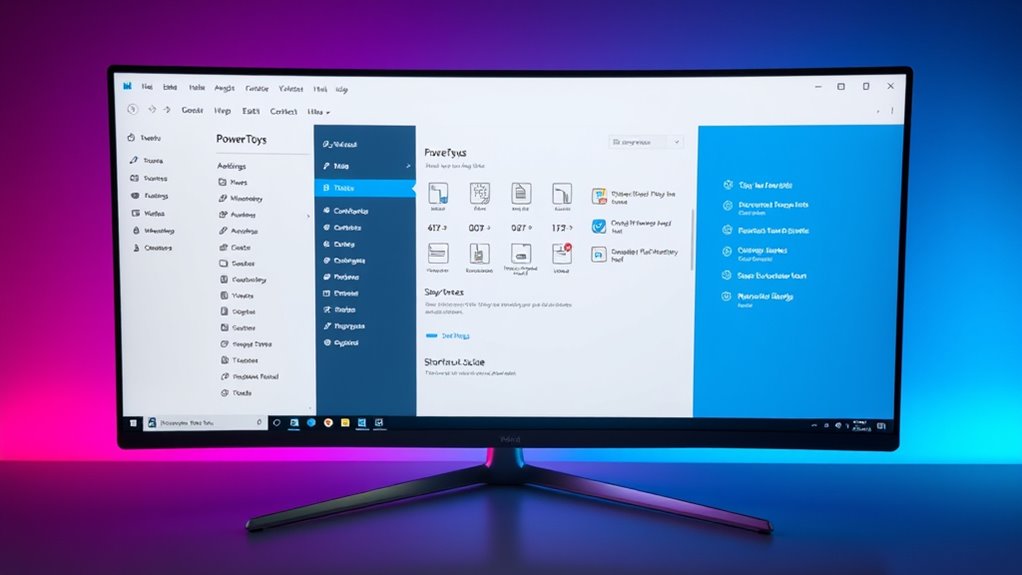
To unlock powerful features that can boost your productivity, you need to access Windows PowerToys. First, download PowerToys from the official GitHub repository. Once installed, launch it from the Start menu or system tray. PowerToys offers tools like a FancyZones window manager, a quick image resizer, and a color picker, all designed to streamline your workflow. Imagine this setup:
| Your Workspace | PowerToys Features |
|---|---|
| Multiple apps open | FancyZones for arrangement |
| Repetitive tasks | PowerRename for bulk renaming |
| Frequent screenshots | Image Resizer tool |
| Color adjustments | Color Picker for precise hues |
These tools transform how you interact with Windows, making complex tasks simple and efficient.
Managing Multiple Desktops With Ease
You can switch between multiple desktops quickly to stay organized and multitask efficiently. Customizing desktop settings lets you personalize each workspace to suit your needs. Mastering these features helps you navigate Windows 11 more smoothly and productively.
Switch Between Desktops
Managing multiple desktops in Windows 11 allows you to stay organized and switch seamlessly between different workspaces. To do this quickly, press Windows key + Tab to view all your desktops or use the Task View button on the taskbar. You can also switch directly between desktops by pressing Windows key + Ctrl + Left or Right arrow. This shortcut moves you to the previous or next desktop instantly, saving you time. If you want to move a window between desktops, open Task View, then drag and drop the window onto the desired desktop. These shortcuts make managing multiple desktops effortless, helping you stay focused and organized without interrupting your workflow. Additionally, customizing keyboard shortcuts can further streamline your desktop management experience. Use these features regularly to maximize your efficiency in Windows 11. Incorporating essential oils into your routine can also help improve focus and reduce stress during work, enhancing your overall productivity. Exploring multitasking features can help you work more efficiently across multiple desktops and applications, especially when combined with desktop customization options to tailor your workspace to your needs. For example, virtual desktops can be tailored to specific projects or tasks to further boost your productivity.
Customize Desktop Settings
Customizing your desktop settings in Windows 11 makes switching between multiple desktops even more efficient. You can personalize each desktop by changing wallpapers, icons, and backgrounds to suit different tasks or moods. To do this, right-click on the desktop, select “Personalize,” and explore the options available. Use the Settings app to adjust themes, colors, and layout options, ensuring each desktop has a distinct look. You can also assign specific apps to certain desktops for better organization. Additionally, customizing your taskbar to show or hide icons on each desktop helps reduce clutter. These adjustments make managing multiple desktops seamless, allowing you to switch contexts quickly and maintain focus. With personalized settings, your Windows 11 experience becomes more intuitive and tailored to your workflow.
Enabling and Using the Clipboard History
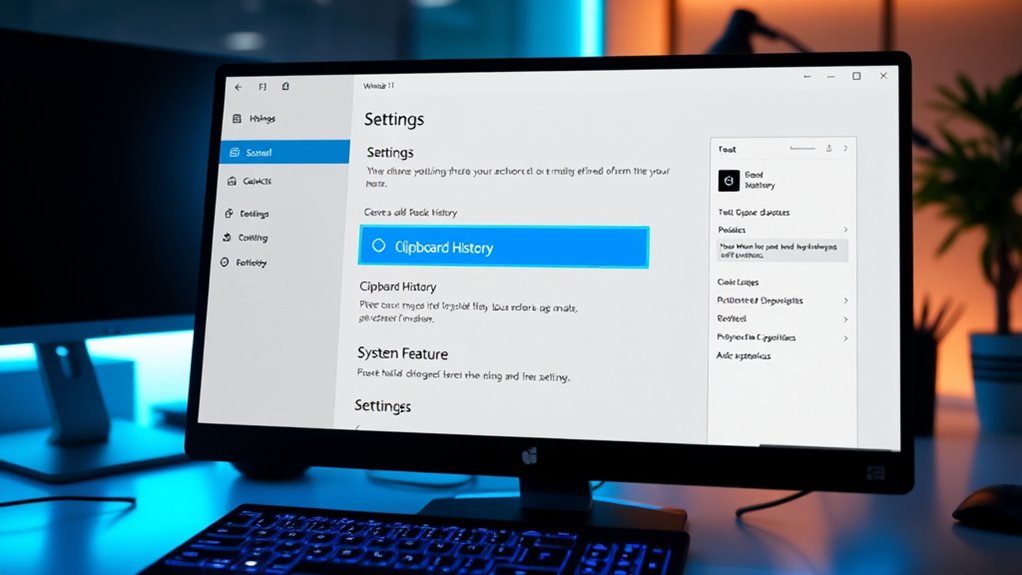
Enabling the Clipboard History feature in Windows 11 allows you to easily access and manage multiple copied items, boosting your productivity. To turn it on, press Windows key + V. A prompt will appear, prompting you to enable Clipboard History—simply click “Turn on.” Once activated, you can copy multiple items as usual, and they’ll be saved in the clipboard history. To access your saved items, press Windows key + V again. A list will pop up showing recent clips, from text to images. Click any item to paste it directly into your document or app. You can also pin important clips to keep them saved permanently in your history. This feature streamlines copying and pasting, making multitasking smoother and more efficient.
Exploring the Advanced Privacy Settings
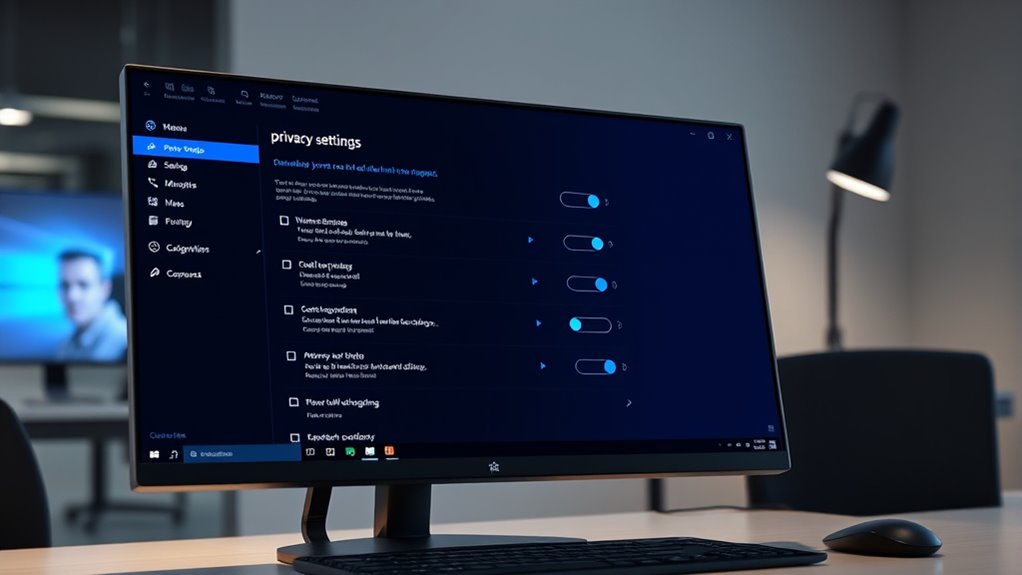
To better protect your personal information, exploring the advanced privacy settings in Windows 11 is essential. These options give you control over what data is shared and how your device interacts with Microsoft. Start by opening Settings > Privacy & security, then review each section carefully. Turn off features like “Diagnostics & feedback” to limit data sent to Microsoft. Manage app permissions to restrict access to your camera, microphone, location, and contacts. You can also disable tailored experiences that use your data for personalization. Additionally, check the “Activity history” to prevent Windows from collecting your activity data. Taking these steps guarantees your privacy remains intact, giving you peace of mind and more control over your digital footprint.
Utilizing the Hidden Dark Mode for Specific Apps
While Windows 11 doesn’t offer a built-in way to apply Dark Mode to individual apps directly through system settings, you can still achieve this by using hidden features and tweaks. This approach lets you customize app appearances for a more comfortable viewing experience. Here’s how you can do it:
- Use third-party tools like “WindowBlinds” or “Dark Reader” to force Dark Mode on specific applications.
- Enable Developer Mode in Windows settings to access experimental features.
- Modify the app’s compatibility settings via Properties to force a dark theme, if supported.
- Adjust individual app settings, where available, to toggle Dark Mode manually.
These techniques give you more control, helping you reduce eye strain and improve focus in your favorite apps.
Tuning Performance With the New Power Management Options
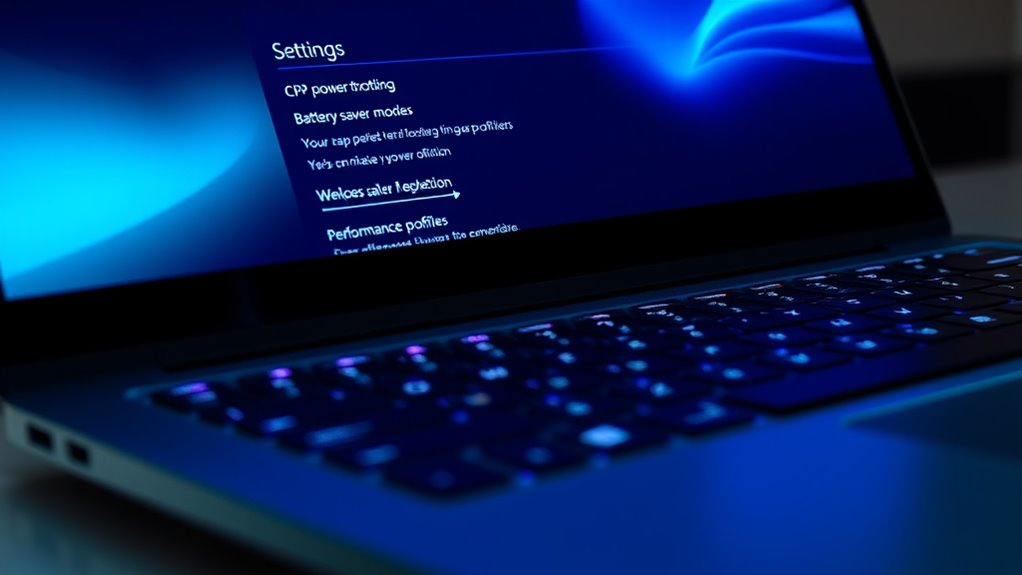
Windows 11 introduces new power management options that let you optimize your device’s performance and battery life more effectively. You can access these options through the Settings app under Power & Battery, where you’ll find tailored modes like Power Mode and Battery Saver. Power Mode allows you to choose between Best Performance, Balanced, and Best Energy Efficiency, adjusting system resources accordingly. Battery Saver minimizes background activity to extend your battery life when needed. Additionally, advanced settings let you fine-tune processor power management, enabling you to set maximum and minimum processor states. These features give you greater control over how your device balances performance and energy consumption, helping you customize your experience based on your current tasks—whether you’re gaming, working, or on the go.
Discovering the Secret Context Menu Options
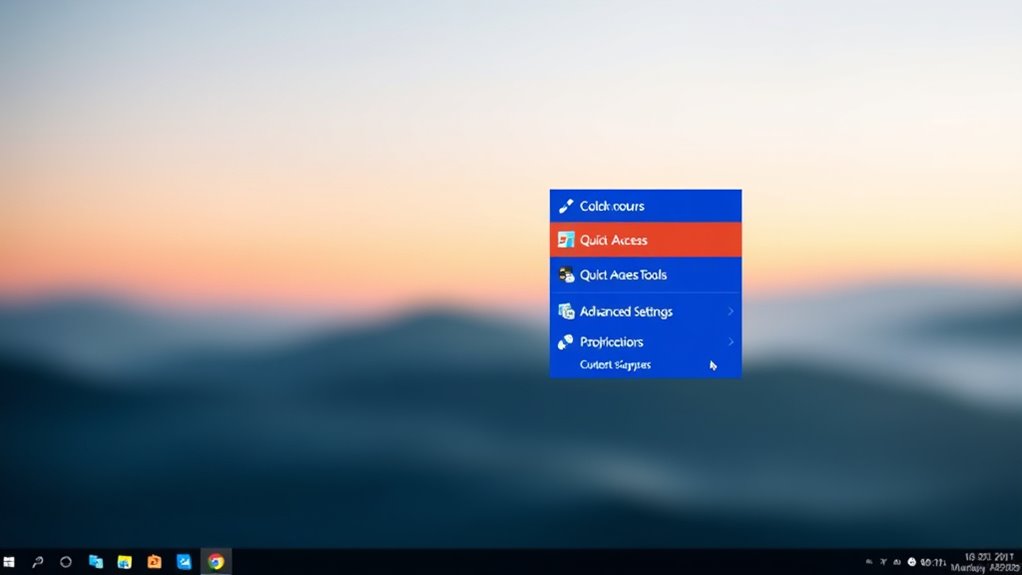
Did you know that your right-click context menu holds hidden options that can reveal new ways to customize and troubleshoot your Windows 11 experience? By exploring these secret features, you can access advanced tools quickly. To uncover these options, hold down Shift while right-clicking, revealing additional commands not normally visible. For example:
- Copy as path – Easily copy the full file path for scripting or troubleshooting.
- Open PowerShell window here – Launch PowerShell directly in the selected folder.
- Pin to Quick Access – Add folders instantly for faster navigation.
- Scan with Windows Defender – Quickly run security scans on specific files or folders.
Using these hidden options streamlines your workflow and enhances your control over Windows 11’s capabilities.
Frequently Asked Questions
How Can I Customize Snap Layouts for Specific Apps?
You can customize snap layouts for specific apps by opening the app, then clicking and dragging the window to your preferred screen edge or corner. When the snap layout options appear, select your desired layout. You can also adjust the size of the snapped window by dragging its edges. Windows 11 remembers these settings, so next time you open the app, it will automatically snap to your preferred layout.
Are There Shortcuts to Toggle Hidden Dark Mode Quickly?
A stitch in time saves nine, so let’s act fast. You can quickly toggle dark mode in Windows 11 by pressing Win + A to open Action Center, then clicking the moon icon. You can also create a custom shortcut using a third-party app like AutoHotkey for even faster access. These shortcuts help you switch modes effortlessly, saving time and keeping your workspace comfortable.
Can I Assign Custom Names to Multiple Desktops?
Yes, you can assign custom names to multiple desktops in Windows 11. To do this, open the Task View by clicking the Task View button or pressing Win + Tab. Then, right-click on a desktop thumbnail and select “Rename.” Enter your preferred name and press Enter. This helps you organize your desktops better, especially when juggling different tasks or projects, making it easier to switch between them quickly.
How Do I Access Advanced Privacy Settings Easily?
Think of your privacy settings as a fortress—you want to keep the gates tight. To access advanced privacy settings easily, click the Start menu and select Settings. Then go to Privacy & Security. Scroll down to find “Advanced privacy settings” or similar options, and click on them. This way, you can fine-tune permissions and controls, guarding your digital castle with the precision of a skilled sentry.
Is There a Way to Automate Focus Sessions?
Yes, you can automate focus sessions in Windows 11 using the Focus Assist feature. To do this, open Settings, go to System, then Focus Assist. Click on “Automatic rules” and enable options like during specific times, when duplicating your display, or when you’re playing a game. Customize these rules to automatically activate Focus Assist, helping you stay focused without manual intervention.
Conclusion
So, after uncovering these hidden Windows 11 tricks, you might think you’ve revealed the ultimate tech secret. But don’t get too comfortable—these features are just the tip of the iceberg. Keep exploring, and you’ll find there’s always something new hiding just beneath the surface, waiting to surprise you. Who knew that a system so familiar could still keep you on your toes? Happy exploring—your Windows journey has only just begun!