
To expedite your Windows 11 PC without installing programs, start by adjusting visual effects for better performance through System Properties. Manage startup programs in Task Manager to reduce boot times, and clean up your hard drive with Disk Cleanup to free space. Optimize power settings for efficiency by choosing performance modes, and make certain Windows stays up to date for bug fixes and improvements. Continue exploring these tips for more ways to boost your system’s speed and responsiveness.
Key Takeaways
- Disable unnecessary visual effects and animations via System Properties for smoother performance.
- Manage startup programs in Task Manager to reduce boot time and improve responsiveness.
- Use Disk Cleanup to remove junk files and free up storage space, speeding up system access.
- Adjust power settings to prioritize performance and limit background activity for quicker response.
- Keep Windows 11 updated regularly to benefit from system optimizations and security improvements.
Adjust Visual Effects for Better Performance

To improve your Windows 11 PC’s speed, start by adjusting visual effects. These effects, like animations and shadows, enhance appearance but can slow performance. To disable them, press Windows key + R, type “sysdm.cpl,” and hit Enter. In the System Properties window, go to the Advanced tab and click Settings under Performance. Choose “Adjust for best performance” to disable all effects or select “Custom” to pick specific ones. Turning off unnecessary visual effects reduces the workload on your graphics processor and speeds up your system. This simple tweak makes your PC more responsive without sacrificing essential functionality. Remember, you can always re-enable effects later if you want a more polished look, but for speed, prioritizing performance is key. Additionally, optimizing contrast ratio settings can further enhance your system’s visual efficiency and responsiveness. Adjusting display settings to match your monitor’s capabilities can also contribute to overall system performance and stability. Proper hardware maintenance, such as keeping your system free from dust and ensuring adequate system cooling, can prevent thermal throttling, which can slow down your PC during intensive tasks.
Manage Startup Programs to Reduce Boot Time
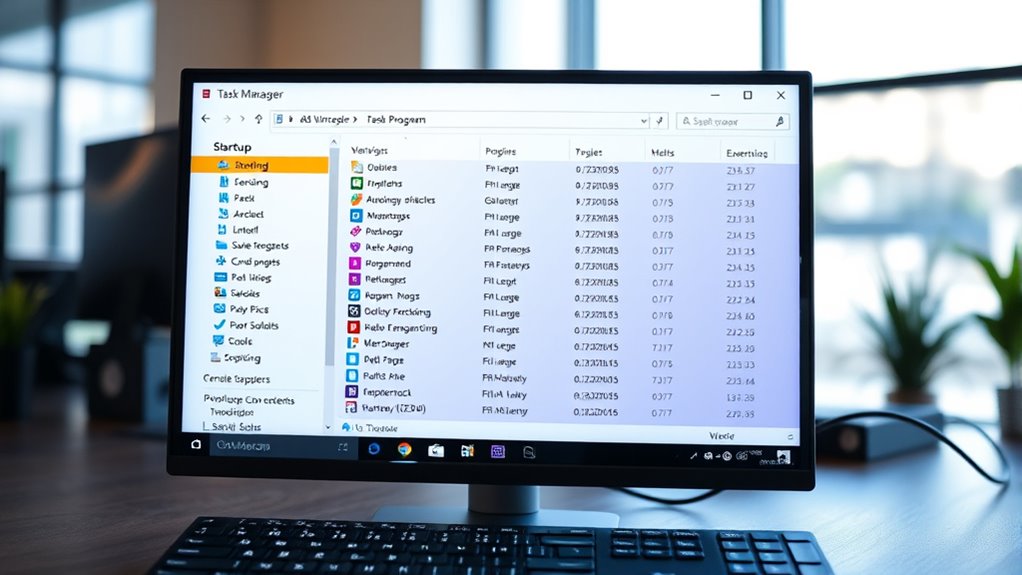
Ever wonder why your Windows 11 PC takes so long to start up? The culprit is often unnecessary startup programs running in the background. You can improve boot times by managing these apps. To do this, press Ctrl + Shift + Esc to open Task Manager, then click the Startup tab. Disable programs you don’t need immediately when your PC boots. To help you decide, here’s a quick overview:
| Program | Impact on Boot Time | Keep or Disable |
|---|---|---|
| Cloud Storage App | High | Disable |
| Messaging Apps | Medium | Keep if needed |
| Antivirus Software | Low | Keep |
| Streaming Tools | High | Disable |
Additionally, understanding the impact of cookies on your browsing experience can help you maintain better privacy and performance while managing your system settings. Being aware of how cloud infrastructure influences your data management can also contribute to a more efficient and secure workflow.
Clean Up Your Hard Drive for Increased Speed

After managing startup programs, your next step should be cleaning up your hard drive to boost your PC’s speed. Over time, junk files, temporary data, and old downloads can clutter your storage, slowing everything down. Use the built-in Disk Cleanup tool by searching for it in the Start menu. Select the drive you want to clean, then choose files to delete—like system cache, temporary files, and empty Recycle Bin. Removing unnecessary files frees up space and allows Windows to operate more efficiently. You can also optimize your storage by uninstalling unused apps or moving files to an external drive. Regular cleanup prevents your hard drive from becoming overwhelmed, ensuring faster access and smoother performance without needing to install any new programs. System optimization is key to maintaining your PC’s overall health and speed. Plus, keeping your system optimized can help prevent issues with family photoshoot fails, which often happen due to system slowdowns. Additionally, performing regular disk cleanup can improve the overall system performance by reducing the workload on your hard drive and processor.
Optimize Power Settings for Enhanced Efficiency

Adjusting your power settings can considerably improve your Windows 11 PC’s efficiency and performance. To do this, go to Settings > System > Power & Battery. Select a power plan optimized for performance instead of balanced or power saver modes. You can customize settings like screen timeout, sleep, and processor power management for better speed.
Here’s a quick overview:
| Power Setting | Impact on Speed | Recommended Choice |
|---|---|---|
| Screen timeout | Reduces unnecessary activity | Shorter duration |
| Sleep mode | Saves power, reduces background tasks | Adjust based on use |
| Processor power management | Limits CPU throttling for responsiveness | Maximum performance |
| Background apps | Minimizes background activity | Turn off unnecessary |
| Display brightness | Less power consumption, faster response | Lower brightness |
Optimizing these settings helps your PC run smoother without extra software. Additionally, power plan customization allows you to tailor performance settings specifically for your workload, further enhancing efficiency. Being aware of hardware capabilities, such as your CPU and memory, can also help you set realistic performance expectations and adjustments. Regularly reviewing and adjusting these settings ensures your system remains responsive and efficient over time.
Keep Windows 11 Updated for Optimal Functionality
Keeping your Windows 11 system updated guarantees it runs smoothly and securely. Regular updates fix bugs, patch security vulnerabilities, and improve performance, which can directly speed up your PC. To stay current, open Settings, then go to Windows Update, and click Check for updates. Enable automatic updates so your system installs important patches without delay. Skipping updates can leave your PC vulnerable and cause slowdowns due to unresolved issues. Staying up-to-date also ensures compatibility with the latest features and drivers, reducing system conflicts. By maintaining current software, you help ensure your PC runs efficiently and securely, preventing unnecessary slowdowns. Make it a habit to check for updates periodically, and your Windows 11 experience will be faster, safer, and more reliable.
Frequently Asked Questions
How Can I Identify Which Background Processes Slow Down My PC?
You can identify which background processes slow down your PC by opening Task Manager. Press Ctrl + Shift + Esc, then click the Processes tab. Look for processes using high CPU, memory, or disk resources. Sort by these columns to see the most demanding processes at the top. If a process seems unnecessary or suspicious, you can right-click and end it to free up resources and improve performance.
What Are the Best Ways to Free up Memory on Windows 11?
You can free up memory on Windows 11 by closing unnecessary apps and browser tabs, which gobble up resources like hungry monsters. Use Task Manager to end high-memory processes that aren’t essential. Disable startup programs that launch automatically and slow down your system. Clear temporary files and system cache regularly to make your PC breathe easier. These simple steps release your PC’s full speed, transforming it into a sleek, turbocharged machine!
How Do I Troubleshoot Performance Issues Caused by Hardware Limitations?
You can troubleshoot hardware limitations by first checking your Task Manager to identify resource-heavy processes. Make sure your drivers are up to date, especially for your graphics and storage devices. Adjust your power settings to optimize performance, and disable unnecessary hardware components in Device Manager. If issues persist, consider upgrading hardware components like RAM or switching to an SSD, as these can substantially improve overall system responsiveness.
Can Adjusting Virtual Memory Improve System Speed Without Extra Software?
Adjusting virtual memory is like expanding your desk space to handle more papers—your system can manage more tasks efficiently. By increasing virtual memory, you give Windows extra room to work with when RAM fills up, speeding up performance. Simply go to Settings, System, Advanced system settings, then Performance, and adjust the virtual memory size. This tweak helps your PC run smoother without installing additional software.
How Do I Optimize Network Settings for Better Online Performance?
You can optimize your network settings for better online performance by prioritizing your connection, updating your network driver, and disabling background apps that consume bandwidth. Make sure your Wi-Fi or Ethernet connection is secure and stable. Clear your DNS cache, switch to a faster DNS server like Google DNS, and disable any unused network adapters. These steps help reduce latency and improve overall internet speed without needing extra software.
Conclusion
Remember, a well-maintained PC runs smoother and lasts longer. By adjusting visual effects, managing startup programs, cleaning your drive, optimizing power settings, and keeping Windows updated, you can markedly boost your Windows 11 performance. Don’t wait for trouble to come knocking—prevention is better than cure. As the saying goes, “A stitch in time saves nine.” Take these simple steps now, and enjoy a faster, more responsive computer every day.