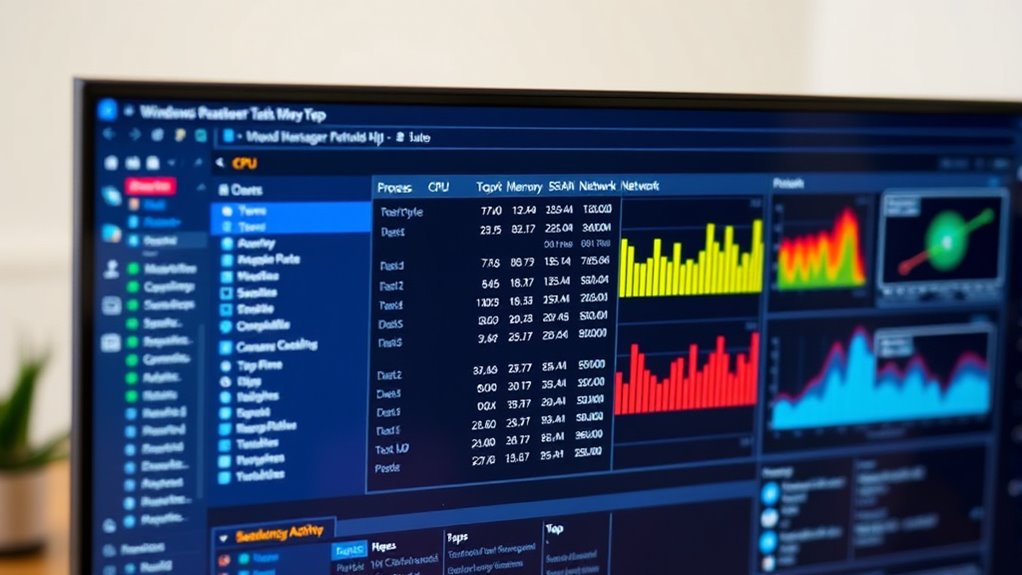

To find what’s slowing down your PC using Task Manager, quickly open it with shortcuts like Ctrl + Shift + Esc or by right-clicking the Start icon. Check the Performance tab to monitor real-time CPU, memory, and disk use. Identify resource-heavy apps in the Processes tab, then manage or end unnecessary ones. You can also tweak app priorities, disable startup programs, and analyze disk or network activity. Keep exploring these features to keep your system running smoothly.
Key Takeaways
- Access Task Manager quickly using keyboard shortcuts (Ctrl + Shift + Esc) or via the Start menu for instant monitoring.
- Use the Performance tab’s resource graphs to identify spikes in CPU, memory, disk, or network usage.
- Sort processes by resource consumption in the Processes tab and end unnecessary or high-usage processes.
- Adjust process priorities and CPU affinity in the Details tab to optimize system performance.
- Manage startup programs and monitor disk/network activity to locate and resolve bottlenecks affecting speed.
How to Access Task Manager Quickly and Easily

Wondering how to open Task Manager quickly? You can do it in several simple ways. The fastest method is pressing Ctrl + Shift + Esc; it launches Task Manager instantly. Alternatively, right-click the Start icon and select Task Manager from the menu. You can also press Ctrl + Alt + Delete and choose Task Manager from the options screen. If you prefer, hit Win + R to open the Run dialog, then type “taskmgr” and hit Enter. These methods work across all modern Windows versions, including Windows 10 and 11. Using keyboard shortcuts is usually the fastest, especially when troubleshooting or checking system performance on the fly. Familiarize yourself with these options so you can access Task Manager whenever you need it—quick, easy, and hassle-free. Additionally, understanding system performance can help you identify resources that might be slowing down your PC. Knowing how to quickly access and interpret Task Manager is a valuable skill for maintaining optimal system efficiency and troubleshooting issues promptly.
Monitoring Your System’s Performance in Real Time

When you monitor your system’s performance, pay close attention to the resource graphs in the Performance tab to spot any unusual activity. Sudden spikes in CPU, memory, or disk usage can signal problems or resource-heavy processes. Interpreting this data helps you maintain peak performance and troubleshoot issues quickly. Understanding how different processes interact can be enhanced by knowing about system resource management and its impact on overall stability. Additionally, recognizing passive voice in your analysis can help ensure your explanations are clear and direct. Incorporating insights from personality assessments, such as the 16PF or MBTI, can also provide a deeper understanding of how background processes or user behaviors influence system performance.
Reading Resource Graphs
Reading resource graphs in Task Manager helps you quickly assess your system’s current performance and identify potential issues. The Performance tab displays real-time graphs for CPU, memory, disk, network, and GPU usage. Look for spikes or sustained high levels—these can indicate bottlenecks or resource hogs. For example, CPU usage above 80% during idle suggests background processes or malware. Memory graphs help you see if RAM is fully utilized; high or steadily increasing usage may slow down your system. Disk activity should generally stay low unless you’re copying files or running intensive tasks. Network graphs reveal data transfer rates, helping spot unusual activity. Monitoring these graphs regularly enhances troubleshooting and can help you catch problems early and take targeted actions to optimize your PC’s performance. Detecting passive voice in your writing can also improve clarity and engagement.
Spotting Usage Spikes
Monitoring your system’s performance in real time is essential for spotting usage spikes that may cause slowdowns or instability. Keep an eye on the Performance tab’s graphs for CPU, memory, disk, and network activity. Sudden jumps or sustained high usage indicate resource bottlenecks. For example, a spike in CPU or disk activity could signal a background process or application consuming excessive resources. Hover over graphs to see detailed stats like core usage and read/write speeds. If you notice unusual spikes that persist or occur frequently, investigate which processes are responsible by sorting the Processes tab by resource consumption. Recognizing these spikes quickly helps you identify problematic applications, malware, or unnecessary background tasks before they impact your system’s performance.
Interpreting Performance Data
Interpreting performance data helps you understand how your system responds to different tasks and identify potential issues early. When you monitor resource graphs, look for patterns and anomalies that signal bottlenecks. For example, high CPU spikes during simple tasks suggest background problems. Keep an eye on memory usage; if it exceeds 80%, your system might slow down. Disk activity should stay low unless you’re copying files or installing software. Network spikes could indicate downloads or malware activity. GPU usage is relevant for gaming or graphic-intensive tasks. Additionally, system cooling plays a crucial role; if your components overheat, performance can degrade unexpectedly.
Spotting Resource-Intensive Applications and Processes
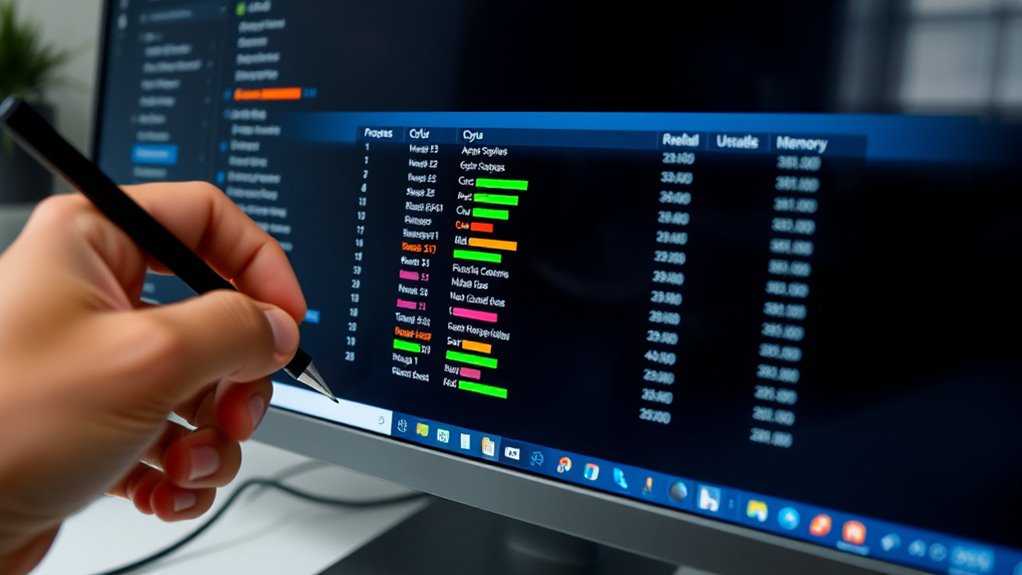
Are you aware of which applications are hogging your system resources? Open Task Manager and go to the Processes tab. Click on the CPU, Memory, or Disk column headers to sort processes by their resource consumption. Look for programs that use an unexpectedly high amount of CPU, RAM, or disk activity—web browsers with many tabs, video editing tools, or games often top the list. Keep an eye out for background processes or apps you don’t recognize, as they may be malware or unnecessary updates. Hover over the graphs in the Performance tab for detailed stats. Identifying these resource-heavy processes helps you decide which applications to close or manage, ultimately improving your PC’s speed and responsiveness. Being aware of resource management metrics can also help you better understand system optimization techniques and maintain your hardware efficiently.
Managing Startup Programs for Faster Boot Times
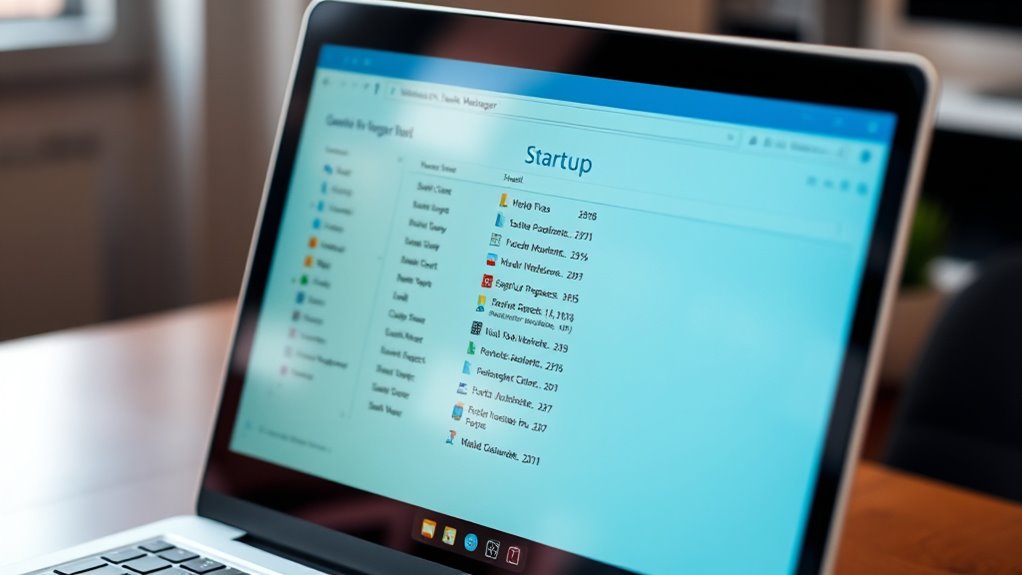
Want to speed up your Windows startup? Managing startup programs can make a big difference. When your PC boots, many apps launch automatically, slowing down the process. To improve this, open Task Manager and navigate to the Startup tab. Review the list of programs and their impact ratings. Disabling unnecessary apps helps reduce boot time and frees system resources.
- Identify high-impact apps slowing startup
- Disable non-essential programs
- Keep essential services enabled (antivirus, system tools)
- Right-click apps and select Disable
- Regularly review startup items for new entries
Using the Details Tab for Advanced Process Control

Have you ever needed to troubleshoot a specific process or prioritize resource allocation? The Details tab gives you advanced control over running processes. You can see detailed info like Process IDs, CPU, Memory, Disk, and Network usage for each process. To manage a process, right-click it to access options like End Process, End Process Tree, or Set Priority. Setting a process to High or Realtime priority allocates more resources, but do so carefully—over-prioritizing can cause system instability. You can also assign CPU affinity, choosing specific cores for a process to optimize performance. Use these tools to fine-tune resource distribution, troubleshoot problematic processes, or temporarily boost specific applications. The Details tab is a powerful way to gain more control over your system’s performance beyond basic task management.
Adjusting Process Priorities to Optimize Performance
You can improve your system’s performance by adjusting process priority levels in Task Manager. Setting a process to higher or lower priority helps allocate resources more effectively, especially for demanding tasks. Additionally, managing CPU affinity allows you to assign specific cores to processes, further fine-tuning performance. Proper management of processes and resources can significantly impact overall system efficiency. For example, understanding how system performance factors influence task execution can help you make more informed adjustments. Being aware of hardware limitations ensures adjustments are made within the optimal capacity of your system. Awareness of electric bike horsepower and other hardware specifications enables more precise resource allocation and performance tuning. Recognizing how hardware specifications interact with system performance factors can lead to better optimization decisions.
Setting Priority Levels
Adjusting process priorities in Task Manager allows you to allocate system resources more effectively based on your current needs. By changing a process’s priority, you can give important tasks more CPU time or reduce resources for less critical ones. To do this, right-click a process in the Details tab, select “Set Priority,” and choose a level like High, Normal, or Low. Keep in mind, setting priorities too high may cause system instability, and Realtime should be used cautiously. Here are some key ideas:
- Prioritize resource-heavy applications during specific tasks
- Avoid setting critical system processes to High or Realtime
- Use Low priority for background tasks to free resources
- Change priorities temporarily for troubleshooting
- Revert to Normal for regular operation
Managing CPU Affinity
Managing CPU affinity allows you to assign specific CPU cores to individual processes, helping optimize system performance. By doing this, you can prevent resource contention and ensure critical applications get enough processing power. To adjust affinity, open Task Manager, go to the Details tab, right-click the process, and select “Set affinity.” You’ll see a list of CPU cores; check or uncheck cores to allocate or restrict them for that process. For example, if a background app is slowing down your system, you can limit its cores. Be cautious, though—restricting cores might cause instability if essential processes are affected. Use affinity settings primarily for advanced troubleshooting or performance tuning. Proper management helps balance workload distribution across your CPU cores, improving overall responsiveness. Additionally, understanding core allocation can help you make more informed decisions to enhance your computer’s performance. Our recommendations aim to help you cut through tech clutter and make smarter choices for your hardware.
Terminating Unnecessary or Malicious Processes Safely

Ever wonder how to safely stop unnecessary or malicious processes that slow down your system? First, identify resource-heavy processes in the Processes tab. Right-click the process and select End Task to terminate it. However, be cautious—terminating critical system processes can cause instability. To stay safe:
Identify and safely end resource-heavy processes to keep your system running smoothly.
- Confirm the process isn’t essential for Windows or known legitimate apps
- Avoid ending processes with suspicious or unfamiliar names
- Use the Details tab for more information before ending a process
- End processes only when your system is stable
- Run a malware scan if you suspect malicious activity
- Be aware that vetted processes are less likely to be harmful or unnecessary. Understanding power tools and heavy-duty equipment can help you recognize legitimate system operations and avoid stopping essential processes mistakenly.
Always double-check before terminating, especially if unsure about a process’s purpose. When in doubt, research or consult IT support to prevent unintentional system issues.
Analyzing Disk and Network Usage for Bottleneck Identification

To identify bottlenecks caused by disk and network usage, start by opening the Performance tab in Task Manager. Here, you’ll see real-time graphs displaying disk read/write speeds and network activity. If you notice your disk usage consistently spikes near 100%, it indicates your drive is struggling, possibly slowing down overall performance. Similarly, high network usage can cause internet lag or slow data transfers. Look for processes that correspond to these resource spikes—such as large file transfers or cloud syncs—and determine if they’re necessary. If you find persistent high usage from unknown processes, it might be a sign of background activity or malware. Monitoring these graphs helps you pinpoint which applications or processes create bottlenecks, enabling you to take targeted action. Recognizing modern performance metrics allows for more effective diagnosis and optimization. Additionally, understanding hardware limitations can help set realistic expectations and guide hardware upgrades if needed.
Tips for Maintaining a Healthy and Responsive System

Regularly monitoring disk and network usage can help you catch performance issues early. By keeping an eye on resource graphs in Task Manager, you can identify unusual activity before it impacts your system. To maintain a healthy and responsive PC, consider these tips:
- Disable unnecessary startup programs to reduce boot time.
- Close unused applications to free up system resources.
- Regularly update Windows and drivers for peak performance.
- Run periodic antivirus scans to prevent malware from slowing down your system.
- Clear cache and temporary files to improve speed and free space.
- Understanding local attractions and regional specialties can help you optimize your system for specific tasks related to travel planning or content creation.
These simple practices help prevent bottlenecks, keep your system running smoothly, and extend its lifespan. Staying proactive ensures your PC remains responsive and efficient for everyday tasks.
Frequently Asked Questions
How Can I Identify Malware Using Task Manager?
To spot malware with Task Manager, look for unfamiliar or high-resource processes you don’t recognize. Check the Processes tab and sort by CPU or memory usage; malware often runs in the background consuming lots of resources. Right-click suspicious processes and choose “Open file location” to verify their origin. If you suspect malware, end the process and run a full system scan with your antivirus software to guarantee your system stays protected.
Can I Recover a Process I Accidentally Ended?
Once you accidentally end a process, you can’t directly recover it through Task Manager. Instead, you need to restart the application or service manually. If it’s a critical system process, reboot your PC to restore normal operation. For less essential apps, just reopen the program or reload the task that was terminated. To prevent future issues, save your work before ending processes and use caution when closing system-critical tasks.
How Do I Interpret CPU and Memory Usage Spikes?
Oh, those glorious CPU and memory spikes—nature’s way of saying, “Hey, something’s up!” When you see sudden jumps, it’s often a sign of resource-hogging apps, background updates, or malware throwing a tantrum. Keep an eye on which processes spike wildly, and if a browser tab or app is the culprit, close or troubleshoot it. Spikes usually mean your PC’s throwing a mini-fit—time to calm it down.
What Are Safe Ways to Modify Process Priorities?
You can safely modify process priorities by right-clicking a process in the Details tab and selecting Set Priority. Choose options like Low, Normal, or High based on your needs. Avoid setting processes to Realtime, as it can cause system instability. Only change priorities for applications you’re familiar with, and revert them if you notice any performance issues. This helps allocate resources effectively without risking system stability.
How Does Disabling Startup Programs Affect System Stability?
Disabling startup programs can improve your system’s boot time and responsiveness, but it might affect stability if you disable essential apps or services. You should only disable non-critical programs, like unnecessary background tools or third-party apps. Always double-check what a startup item does before disabling it, and avoid turning off core Windows services. If you notice issues after disabling, re-enable those programs to restore stability.
Conclusion
Just like a seasoned detective uncovers clues to solve a case, mastering Task Manager helps you identify what’s slowing your PC. With a few quick steps, you can troubleshoot issues, manage resources, and keep your system running smoothly. Think of it as your digital heartbeat monitor—keeping everything in sync. Take control, stay vigilant, and guarantee your computer’s performance remains as sharp as a well-tuned orchestra.