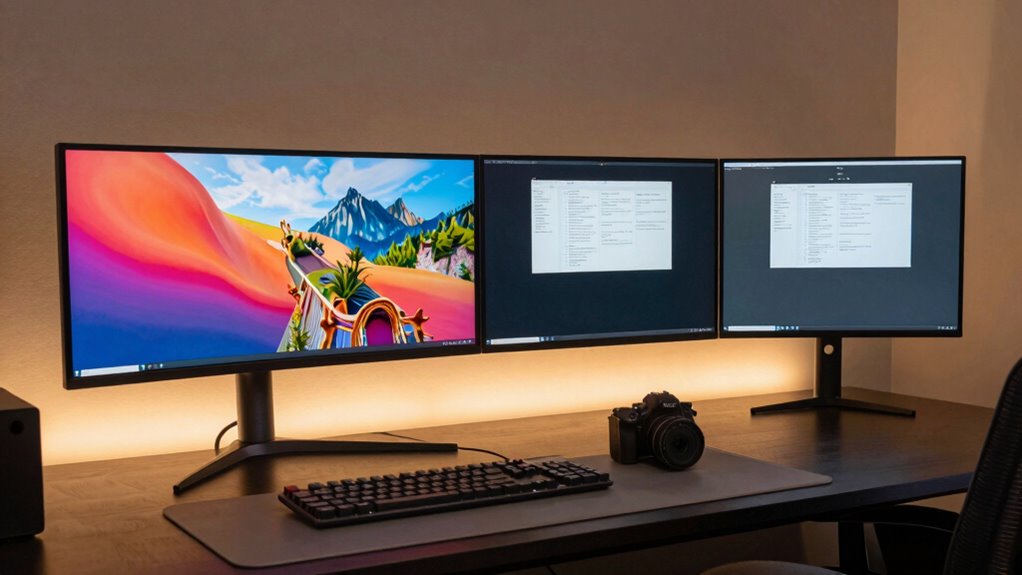

Choosing between an ultrawide and dual monitors depends on what you need. If you’re into immersive gaming and prefer a sleek, seamless display, an ultrawide offers a continuous, bezel-free view that enhances engagement. But if your focus is multitasking, work flexibility, or space optimization, dual monitors provide independent screens for different applications. Consider your workspace and priorities; explore further to find the setup that best fits your style and needs.
Key Takeaways
- Ultrawide monitors offer seamless, immersive displays ideal for gaming and media, while dual monitors excel in multitasking and application separation.
- Dual monitors provide flexible arrangement options and are better suited for handling multiple tasks simultaneously.
- Ultrawides save desk space by eliminating multiple stands and cables, creating a cleaner, unified workspace.
- Dual monitors enable independent operation of applications, improving productivity for specific or varied tasks.
- The best setup depends on your primary use—immersive gaming/media or multitasking and workflow efficiency.
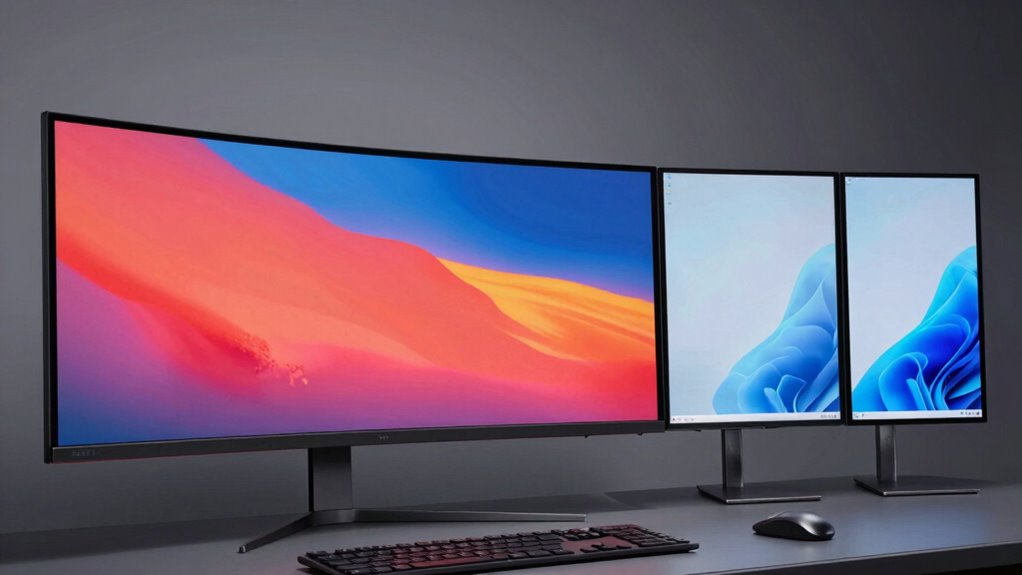
Are ultrawide monitors truly better than dual monitors for your workspace? It depends on what you need and how you work. Ultrawide monitors offer a seamless, expansive display that can enhance gaming immersion, making you feel more connected to the action. When you’re gaming, the wide field of view can eliminate the distraction of bezels and create a more immersive experience, as if you’re inside the game itself. This setup is especially appealing if you want to immerse yourself in immersive titles or enjoy streaming movies without interruptions. On the other hand, dual monitors give you flexibility by allowing you to examine screens for specific tasks. You can have your email open on one side and your design workspace on the other, without constantly switching windows.
Choosing between ultrawide and dual monitors depends on your gaming, multitasking, and workspace needs.
Desk space optimization is another factor to weigh. Ultrawide monitors tend to take up more horizontal space, which can be a challenge if your desk is limited. However, they eliminate the clutter of multiple stands and cables that come with dual setups, streamlining your workspace. Dual monitors, while consuming more physical space overall, can be arranged in various configurations to fit your desk. You might find that stacking them vertically or angling them improves your ergonomics and saves space. If your desk is small, a single ultrawide might be a more practical choice, but if you have room to spare, dual monitors could give you more overall screen real estate and flexibility.
Performance and productivity also differ between the two setups. Ultrawides provide a continuous, undivided workspace, which is great for multitasking and working on large spreadsheets or video editing timelines. You won’t have to deal with the interruption of a bezel dividing your screens, making for a more fluid workflow. Dual monitors, however, let you work on separate applications independently, which can be more efficient if your tasks are distinct. For example, you could have a video editing program open on one screen and your reference materials on the other, switching between them easily. Additionally, understanding monitor resolution can help you determine how well each setup supports your visual needs and clarity.
Ultimately, the choice hinges on your priorities. If you crave immersive gaming and prefer a sleek, minimal setup, an ultrawide monitor could be the better choice. If you need flexibility, multitasking efficiency, or already have space for multiple screens, dual monitors might serve you better. Both setups have their advantages, so reflect on how you work and what environments you prefer to create.

CRUA 34 Inch 165Hz UWQHD IPS Ultrawide Gaming Monitor, Speakers, PIP/PBP
- Size and Resolution: 34-inch UWQHD (3440×1440) ultrawide display
- Enhanced Screen Space: 33% more horizontal real estate
- Wide Viewing Angle: 178° consistent color from any seat
As an affiliate, we earn on qualifying purchases.
As an affiliate, we earn on qualifying purchases.
Frequently Asked Questions
Do Ultrawide Monitors Affect Gaming Performance More Than Dual Monitors?
Ultrawide monitors can slightly affect gaming performance compared to dual monitors, mainly due to increased gaming latency caused by higher GPU demands. However, they boost visual immersion, making gameplay more engaging. If your hardware can handle the wider field of view smoothly, you’ll enjoy seamless visuals. Otherwise, dual monitors might be better for performance, but ultrawides excel in delivering an immersive experience without the bezel interruptions.
Can Ultrawide Screens Replace Multiple Monitors for Video Editing?
Ultrawide screens can replace multiple monitors for video editing, boosting your multitasking efficiency with a seamless workspace. They often provide better color accuracy, which is essential for editing high-quality videos. You’ll appreciate fewer bezels disrupting your workflow and a more immersive view. However, make sure the ultrawide monitor offers professional-grade color calibration if color precision is critical for your projects.
How Does Desk Space Requirement Differ Between Ultrawide and Dual Setups?
An ultrawide monitor generally requires less desk space than dual monitors, making it ideal for space optimization. With a single large screen, you can avoid the gaps and overlaps that come with multiple monitors, streamlining your desk arrangement. However, dual setups might need more room to accommodate two screens side by side. If space is limited, an ultrawide offers a cleaner, more efficient solution for your workspace.
Are There Ergonomic Differences Affecting User Comfort With Each Setup?
You’ll notice ergonomic differences that impact your comfort with each setup. An ultrawide monitor encourages ergonomic posture by reducing neck strain since you don’t need to turn your head as much. However, dual monitors can cause discomfort if not positioned correctly, leading to poor visual comfort and increased eye strain. Adjusting monitor height and angle for both setups is essential to maintain good ergonomic posture and guarantee long-term user comfort.
Which Setup Is More Cost-Effective Overall for Professional Use?
Sure, spending less is always ideal, but a dual monitor setup often wins in cost comparison and maintenance considerations. While ultrawides seem like a sleek, all-in-one solution, they can be pricier upfront and harder to repair if something breaks. Dual monitors might seem more cumbersome, but they usually cost less initially and are easier to upgrade or replace individually, making them more budget-friendly for professional use in the long run.

HUANUO FlowLift™ Dual Monitor Stand, Fully Adjustable Gaming Monitor Desk Mount for 13–32″ Computer Screens, Full Motion VESA 75×75/100×100 with C-Clamp & Grommet Base, Each Arm Holds 4.4 to 19.8 lbs
- Monitor Compatibility: Supports 13-32 inch, 4.4-19.8 lbs, VESA 75×75/100×100
- Desk Compatibility: Fits wooden desks 0.59-3.54 inches thick
- Secure Mounting: Dual C-clamp and grommet options for stability
As an affiliate, we earn on qualifying purchases.
As an affiliate, we earn on qualifying purchases.
Conclusion
Choosing between ultrawide and dual monitors depends on your workflow and preferences. If you value seamless, immersive viewing, an ultrawide might be your best bet. But if you need flexibility and multitasking, dual monitors could serve you better. Notably, a recent survey found that 56% of professionals prefer ultrawide setups for creative work, highlighting how the right choice can boost productivity and comfort. Ultimately, pick what aligns best with your needs for a more efficient workspace.
ultrawide curved monitor 34 inch
As an affiliate, we earn on qualifying purchases.
As an affiliate, we earn on qualifying purchases.
dual monitor setup for multitasking
As an affiliate, we earn on qualifying purchases.
As an affiliate, we earn on qualifying purchases.