

To boost your old laptop’s battery life, start by lowering screen brightness and enabling power-saving mode in settings. Close unused applications and background processes to reduce energy drain. Turn off Wi-Fi, Bluetooth, and external devices when not needed. Keep your system and drivers updated for peak efficiency. Practice battery-friendly habits like avoiding full discharges and maintaining a charge between 20-80%. Continued tips can help you get even more out of your device’s power.

Get the latest gadgets delivered free — and shop member deals
- Fast, free delivery on millions of items
- Access to Prime Big Deal Days deals on October 6–7
- Prime Video, Amazon Music and more included
Key Takeaways
- Enable power-saving mode and reduce screen brightness to lower energy consumption.
- Close unused applications and background processes to prevent unnecessary battery drain.
- Turn off Wi-Fi, Bluetooth, and disconnect peripherals when not in use to save power.
- Keep your operating system and drivers up to date for optimal battery management.
- Avoid full discharges; maintain charge levels between 20% and 80% for better battery health.
As an affiliate, we earn on qualifying purchases.
Effective Tips to Extend Your Old Laptop’s Battery Life
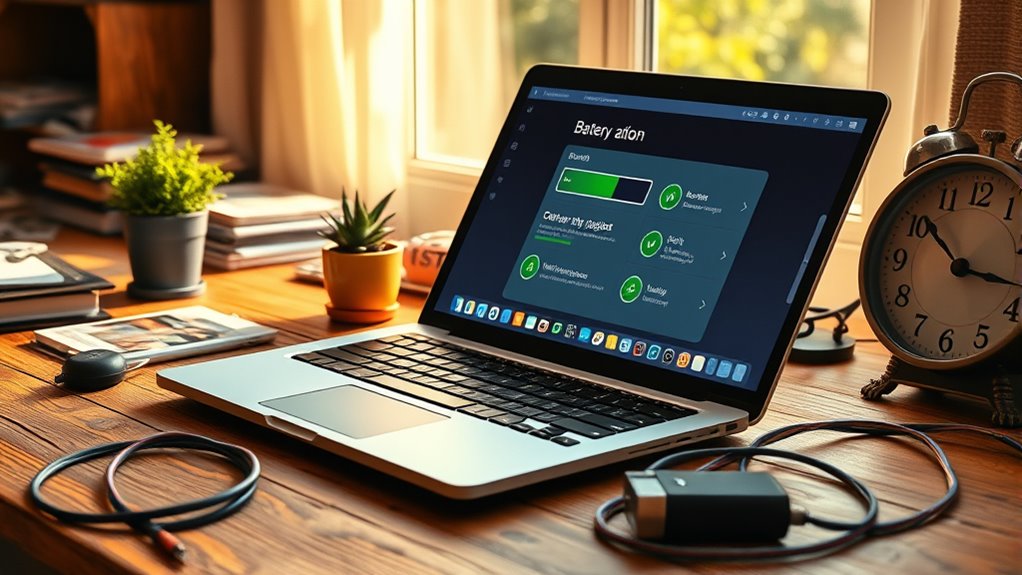
If your old laptop’s battery no longer holds a charge like it used to, there are practical steps you can take to extend its life. First, adjust your power settings to maximize efficiency. Most laptops have built-in options that reduce screen brightness, lower CPU performance, and disable unnecessary background activities. Turning down screen brightness alone can cut power consumption considerably. Access your control panel or system preferences and set your power plan to a power-saving mode. This simple change can make your battery last longer during everyday tasks.
Adjust power settings and reduce screen brightness to extend your old laptop’s battery life.
Next, close any applications or browser tabs you’re not actively using. Many programs run in the background, consuming CPU and memory resources, which drain your battery faster. Use your task manager to identify and quit unnecessary processes. Also, disable any startup programs that aren’t essential. The fewer apps running in the background, the less energy your laptop uses, helping the battery last longer.
You should also consider turning off Wi-Fi and Bluetooth when you’re not using them. Wireless connections are power-hungry, especially if your laptop is constantly searching for networks or devices. If you’re working offline, disabling these features can save a surprising amount of energy. Additionally, disconnect external peripherals like USB drives, external mice, or keyboards when they’re not in use. These devices draw power from your laptop, further draining the battery.
Another effective approach is to keep your laptop’s software up to date. Manufacturers often release updates that improve power management and fix bugs that may cause excessive battery drain. Check for the latest updates for your operating system and drivers, and install them regularly. Also, if your laptop has a battery management utility, use it to calibrate or optimize battery performance. Many manufacturers provide tools specifically designed to extend battery life or recalibrate the battery sensors for more accurate readings. Being aware of your laptop’s battery health status can help you identify when it’s time for a replacement and maintain optimal performance.
Being aware of your laptop’s display technology can help you make smarter choices for energy conservation, as certain types consume less power than others. Many laptops now feature energy-efficient screens that can significantly reduce power drain during use. Furthermore, adjusting the screen timeout settings so your display turns off sooner when idle can save additional power. Additionally, managing background processes and background synchronization can contribute to overall energy savings, especially with cloud services running in the background. Understanding your device’s power consumption patterns can also help you tailor energy-saving strategies more effectively.
Lastly, avoid letting your battery completely discharge frequently. Instead, aim to keep the charge level between 20% and 80%. Fully discharging your battery can reduce its overall lifespan over time. If your laptop has a battery health feature, monitor its condition to know when it’s time to replace the battery for better performance. Taking these steps consistently can help you squeeze more life out of your old laptop’s battery, keeping it functional for longer and postponing the need for a costly replacement.
As an affiliate, we earn on qualifying purchases.
Frequently Asked Questions
Can Replacing the Battery Improve Performance Significantly?
Replacing the battery can substantially improve your old laptop’s performance, especially if the current battery no longer holds a charge well. When the battery is fresh, your laptop runs more efficiently, reducing strain on the system. This upgrade can extend your device’s usability, prevent unexpected shutdowns, and boost overall speed. So, if your battery is worn out, investing in a new one is a smart move to keep your laptop functioning at its best.
How Do Background Apps Affect Battery Life?
Background apps are like silent leeches draining your laptop’s energy without you noticing. They run in the shadows, gobbling up battery life and slowing down performance. You can tame these energy vampires by closing unnecessary apps and disabling background processes in settings. Doing so frees up your laptop’s power, allowing it to breathe easier and last longer, giving you more time to enjoy your work or entertainment without the charging cord always lurking nearby.
Is It Better to Keep the Laptop Plugged in All the Time?
It’s generally better not to keep your laptop plugged in all the time, as this can reduce battery lifespan over time. Instead, you should unplug it once it’s charged to about 80-90%. Regularly cycling the battery helps maintain its health. If you need to keep it plugged in for long periods, consider removing the battery if possible or using power management settings to prevent overcharging.
Do Specific Operating Systems Drain Batteries Faster?
Yes, some operating systems can drain your battery faster. Windows, for example, often runs more background processes that consume more power, especially if you have multiple apps open. macOS tends to be more optimized for battery life, but it still uses resources that can drain your battery quicker under heavy use. To extend your battery life, keep your OS updated, close unnecessary apps, and adjust power settings accordingly.
How Often Should I Calibrate My Old Laptop’s Battery?
You should calibrate your old laptop’s battery every 3 to 6 months. It might seem like a hassle, but it actually helps you get a more accurate reading of your battery’s health. By doing so, you guarantee your laptop’s battery life is maximized and avoid unexpected shutdowns. Think of calibration as a simple tune-up that keeps your old device running smoothly—because ignoring it just delays the inevitable.
laptop battery calibration tools
As an affiliate, we earn on qualifying purchases.
As an affiliate, we earn on qualifying purchases.
Conclusion
By following these simple tips, you can squeeze more life out of your aging laptop’s battery—making it feel like it’s from a different era, perhaps even a time when batteries lasted longer. Remember, just like a trusty steed, your laptop needs care and attention to perform its best. So, keep these tricks in mind, and enjoy your device running smoothly, even if it’s not quite the jetpack-powered marvel of tomorrow. Your patience will surely pay off!
USB peripherals power management
As an affiliate, we earn on qualifying purchases.
As an affiliate, we earn on qualifying purchases.
Halloween Picks
halloween
As an affiliate, we earn on qualifying purchases.