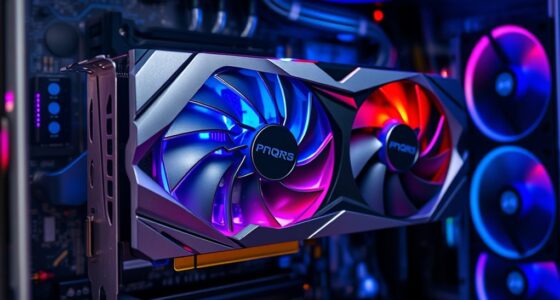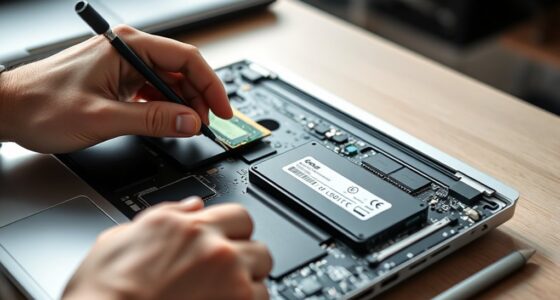
Your computer overheats mainly because dust buildup, blocked airflow, or running demanding programs trap heat inside, causing system slowdown or crashes. Poor ventilation and cluttered vents make things worse, while intense applications increase heat output. Regularly clean dust, make sure proper ventilation, and avoid obstructing airflow to cool your system effectively. If overheating persists despite these steps, professional help can prevent damage—keep exploring to discover more ways to keep your computer safe and cool.
Key Takeaways
- Blocked airflow, dust buildup, and cluttered environments hinder heat dissipation, causing overheating.
- Running intensive programs or multiple applications increases CPU load and heat output.
- Fans or sensors malfunctioning can reduce cooling efficiency, leading to higher system temperatures.
- Regularly clean dust from vents and fans, ensure proper ventilation, and use cooling peripherals to lower heat.
- Consider upgrading cooling components or seeking professional help if overheating persists despite maintenance.
Common Causes of Computer Overheating
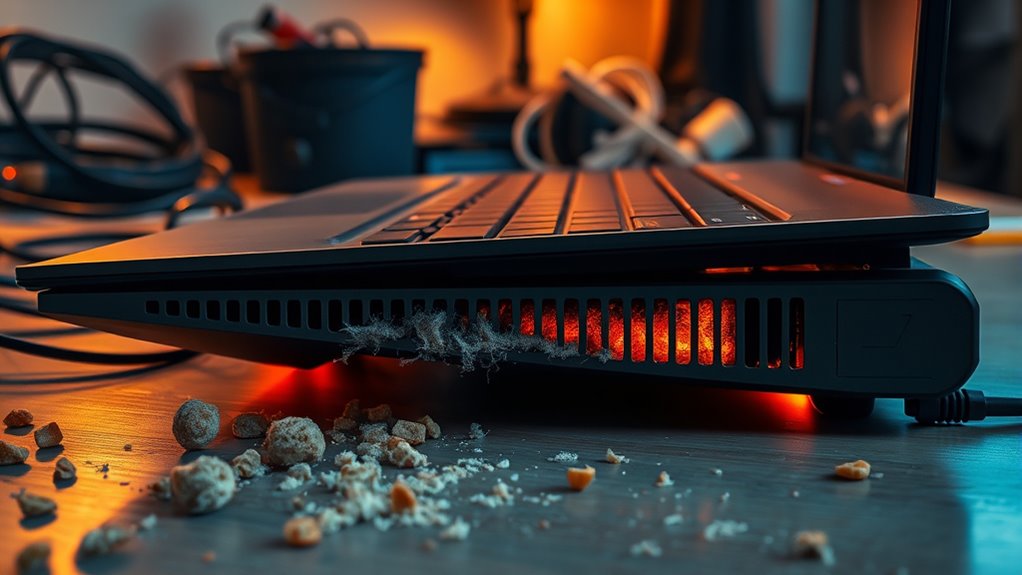
Computer overheating often results from blocked airflow, which prevents heat from dissipating effectively. Dust buildup inside your computer can clog vents and fans, reducing cooling efficiency. If your computer is in a cluttered or warm environment, it struggles to stay cool. Running intensive applications or multiple programs at once can cause components to generate excessive heat. Poorly applied thermal paste between the CPU and its heatsink also hampers heat transfer, leading to higher temperatures. Using outdated or malfunctioning fans can fail to circulate air properly. Additionally, overclocking your hardware pushes components beyond their normal limits, producing more heat than your cooling system can handle. Proper maintenance and regular cleaning help prevent dust accumulation and improve airflow. Ensuring your cooling system is adequate for your hardware setup can significantly reduce overheating issues. Identifying these causes helps you address the root issues and prevent overheating, ensuring your computer runs smoothly and reliably.
Signs Your Computer Is Overheating
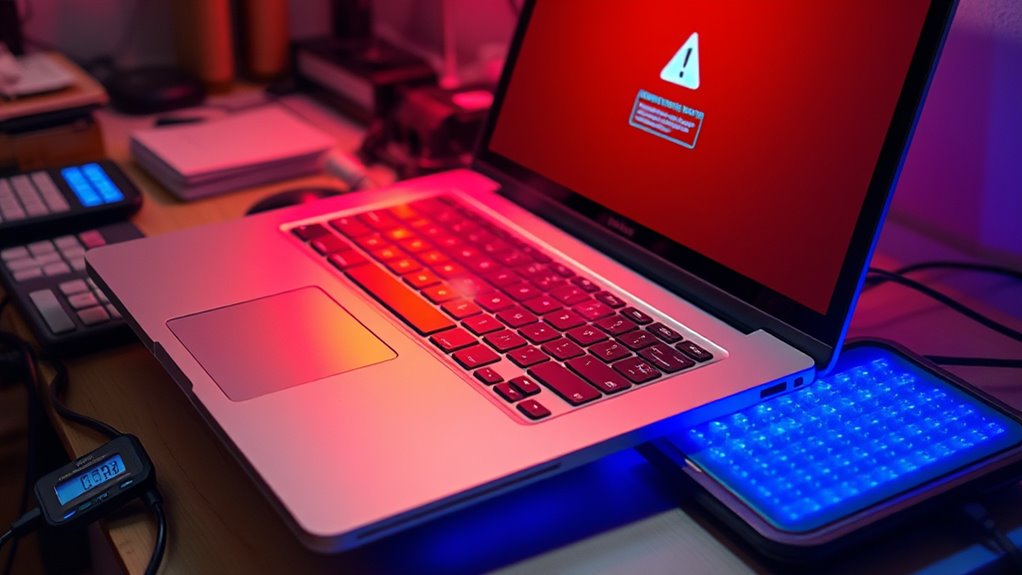
If your computer starts acting differently, like freezing or crashing unexpectedly, it could be a sign of overheating. You might also notice the fans running louder than usual, which indicates they’re working harder to cool the system. Paying attention to these signs can help you catch overheating early and prevent damage. Using proper cooling solutions, such as ensuring your computer’s ventilation system is free of dust and obstructions, is also essential for maintaining optimal temperature levels. Additionally, investing in energy-efficient cloud servers can help reduce overall heat generation and improve system reliability. Incorporating free floating cooling methods, such as placing your computer in well-ventilated areas, can further enhance temperature regulation. Implementing proper maintenance routines can extend the lifespan of your hardware and ensure consistent performance.
Unusual System Behavior
When your system starts to overheat, it often shows subtle signs before more serious issues occur. You might notice your computer running slowly, as it throttles performance to reduce heat. Apps could freeze or crash unexpectedly, indicating the system is struggling to manage temperature. You may also experience frequent system errors or warnings about thermal issues. Sometimes, the screen might flicker or display distorted visuals. These behaviors aren’t normal and suggest your hardware is overheating. If your system feels unusually sluggish or unstable, it’s a clear sign to check your cooling setup. Ignoring these signs can lead to hardware damage or data loss. Pay close attention to these unusual behaviors—they’re your computer’s way of alerting you to overheating problems. Additionally, smart cooling systems can help monitor and regulate temperature more effectively, preventing overheating before it becomes critical. Regularly cleaning dust from vents and fans is also an important maintenance task that can improve airflow and cooling efficiency. To optimize your cooling system, consider proper airflow setup and ensure fans are functioning correctly to enhance heat dissipation. Implementing thermal monitoring tools can provide real-time insights into your system’s temperature, helping you address issues proactively.
Excessive Fan Noise
Have you noticed your fans running louder than usual? This is a common sign your computer is overheating. When your system gets too hot, it ramps up fan speed to cool down components. If the noise persists or becomes more intense, it’s time to pay attention. Excessive fan noise can also be a sign of dust buildup or failing fans, both of which hinder proper cooling. Ignoring this noise could lead to hardware damage or system crashes. To troubleshoot, check for dust in vents, ensure fans are running smoothly, and reduce workload if possible. Keeping your computer well-ventilated and clean helps prevent overheating, reducing fan noise and protecting your hardware’s longevity.
The Importance of Proper Ventilation
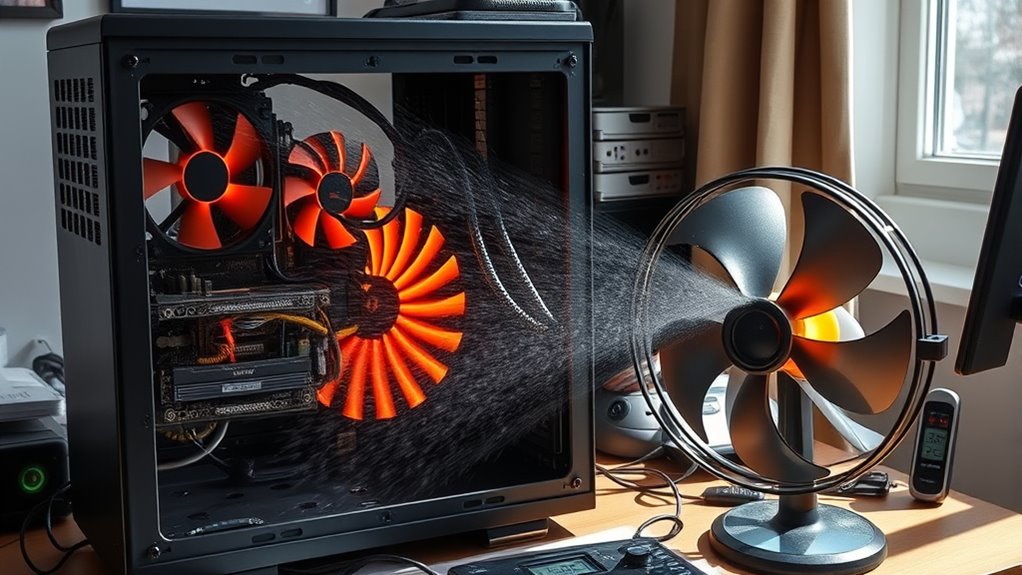
Proper ventilation is essential for preventing your computer from overheating, as it guarantees heat can escape efficiently. Without enough airflow, internal components trap heat, causing temperatures to rise rapidly. Make sure your computer is placed on a hard, flat surface and not in enclosed spaces like cabinets or against walls, which block airflow. Keep vents clear of obstructions and avoid covering them with objects. Regularly check that fans are working properly and aren’t clogged with dust. Good ventilation promotes consistent airflow, helping to maintain safe operating temperatures. Additionally, monitoring internal temperatures can help you identify overheating issues before they cause damage. Being aware of computer hardware specifications can assist in choosing appropriate cooling solutions. Checking system temperature readings regularly allows for early detection of thermal issues. If your computer feels hot to the touch or shuts down unexpectedly, it’s a sign you need to improve ventilation. Proper airflow is a simple, effective way to extend your computer’s lifespan and ensure reliable performance. Ensuring proper airflow management not only prevents overheating but also improves overall system stability. Using thermal paste effectively can also help improve heat transfer from components to heat sinks, further aiding in cooling.
How Dust and Debris Affect Cooling
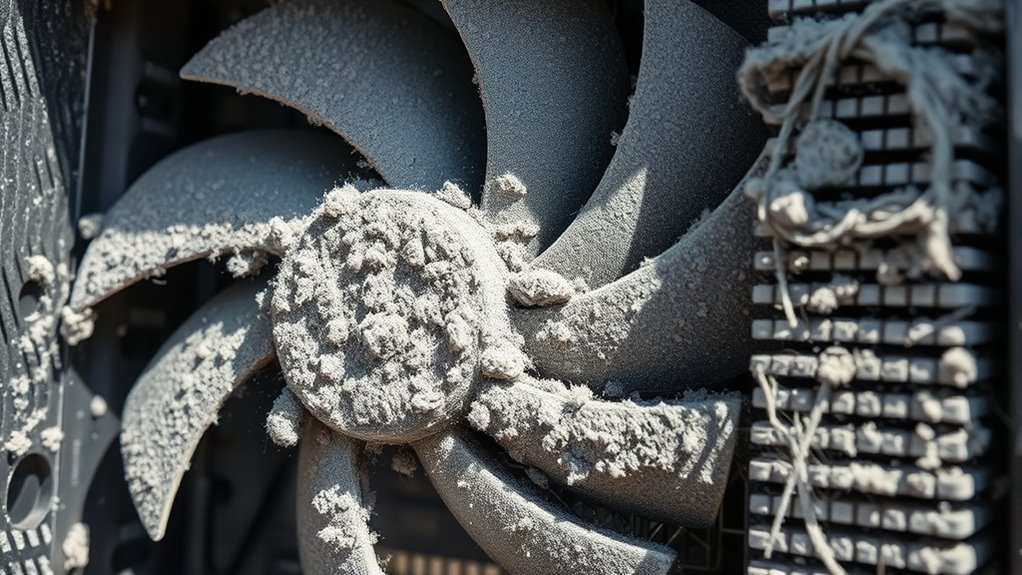
Dust and debris can substantially hinder your computer’s cooling ability by clogging fans and settling on heat sinks, reducing airflow and heat dissipation. When dust accumulates on fans, they struggle to spin properly, lowering the amount of cool air entering your system. Debris on heat sinks acts as an insulator, trapping heat and preventing it from escaping efficiently. Over time, this buildup causes internal temperatures to rise, increasing the risk of overheating. Regular cleaning helps maintain ideal airflow and heat transfer. Use compressed air or a soft brush to remove dust from vents, fans, and heat sinks. Keeping these components clean ensures your cooling system works effectively, helping your computer stay at a safe operating temperature during extended use. Additionally, understanding feature buddies can help you optimize your system’s maintenance and performance. Properly managing dust and debris is a fundamental part of hardware maintenance that can prolong your system’s lifespan and prevent costly repairs.
Impact of Running Intensive Applications
When you run intensive applications, your CPU works harder, leading to higher CPU load. This increased activity causes your computer to draw more power, which adds to the heat generated. As a result, your system can overheat more quickly if not properly cooled. Understanding how hardware components respond to increased stress can help you better manage overheating risks. Additionally, thermal management techniques are essential to prevent damage and maintain optimal performance during demanding tasks.
Higher CPU Load
Running intensive applications puts a significant strain on your CPU, causing it to work harder and generate more heat. When you run demanding software like video editing tools or gaming programs, your CPU’s workload increases dramatically. This higher load means the processor has to execute more calculations simultaneously, pushing it to its limits. As a result, the CPU produces more heat, which can cause your system to overheat if not managed properly. You might notice your computer slowing down or fans running at full speed to compensate. To prevent overheating, avoid running multiple heavy applications at once, and consider closing unnecessary programs. Monitoring CPU usage helps you identify when your system is under excessive load and taking steps to reduce it. Additionally, understanding style and hardware compatibility can help optimize cooling solutions and prevent overheating issues. Being aware of your system specifications can also guide you in choosing the most effective cooling methods for your setup. Implementing proper cooling solutions can further help in maintaining optimal operating temperatures and avoiding thermal shutdowns.
Increased Power Usage
Intensive applications demand more power from your CPU and other hardware components, leading to increased energy consumption. When you run demanding programs like video editors or gaming software, your system works harder, drawing more electricity. This extra power generates additional heat, pushing your cooling system to its limits. As power consumption rises, the components produce more heat, which can cause your computer to overheat if not managed properly. High energy usage also strains your power supply, potentially reducing its lifespan. To prevent overheating, monitor your system’s workload and close unnecessary applications. Consider upgrading your hardware for better efficiency or adding cooling solutions to handle the increased power demands. Managing power usage effectively helps keep your computer running smoothly and prevents thermal issues. Additionally, understanding AI ethics is becoming increasingly important for developers designing systems that manage energy consumption responsibly.
Best Practices for Cooling Your Computer
To effectively keep your computer cool, adopting best practices can make a significant difference. Ensure your workspace is well-ventilated and avoid blocking air vents. Regularly clean dust from fans and filters, as dust insulates components and traps heat. Position your computer on a hard, flat surface to allow proper airflow. Use quality cooling pads or external fans if needed. Additionally, monitor your system’s temperature and close unnecessary apps during intensive tasks. Here’s a quick reference:
| Practice | Benefit |
|---|---|
| Keep vents unobstructed | Enhances airflow and cooling |
| Regular cleaning | Prevents dust buildup and overheating |
| Use cooling peripherals | Provides extra cooling support |
| Proper placement | Ensures ideal airflow |
| Monitor temperatures | Detects overheating early |
Following these practices helps maintain ideal temperatures and prolongs your computer’s lifespan.
Effective Hardware Maintenance Tips
Regular hardware maintenance is essential for keeping your computer running smoothly and preventing overheating. Start by cleaning dust from vents, fans, and heat sinks regularly using compressed air. Dust buildup blocks airflow, causing components to overheat. Check that all fans are spinning freely and replace any that are malfunctioning. Keep cables tidy to avoid obstructing airflow inside the case. Ensure your computer’s interior is free of debris and clean it periodically. Also, verify that thermal paste between the CPU and heat sink isn’t dried out; reapply if necessary. Finally, update your device drivers and BIOS, as manufacturers often release updates that improve hardware efficiency and cooling performance. Consistent maintenance prolongs your computer’s lifespan and keeps it running at ideal temperatures.
Upgrading Your Cooling System
Upgrading your cooling system can substantially improve your computer’s ability to stay cool under heavy loads. Consider replacing stock fans with high-performance, quieter fans to increase airflow and reduce noise. Installing a larger or more efficient heatsink can help dissipate heat more effectively from your CPU or GPU. For advanced cooling, you might switch to liquid cooling systems, which transfer heat more efficiently than air-based options. Make certain your case supports these upgrades and has sufficient ventilation. Regularly cleaning dust from fans, filters, and heatsinks is also vital for peak performance. When upgrading, prioritize compatibility with your hardware and aim for components that match your cooling needs. These improvements can greatly lower temperatures and boost your system’s stability.
When to Seek Professional Help
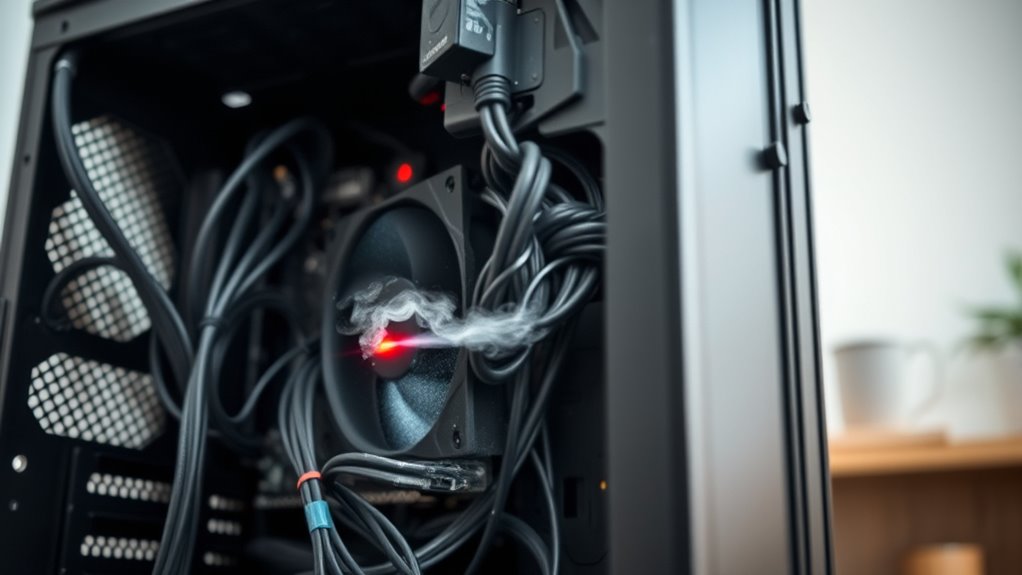
Sometimes, despite your efforts to cool down your computer, temperatures remain dangerously high or fluctuate unpredictably. If you’ve tried cleaning vents, replacing thermal paste, and improving airflow without success, it’s time to seek professional help. Overheating can signal underlying hardware issues, such as failing fans, faulty sensors, or damaged components. Ignoring these signs can lead to permanent damage or data loss. A technician can diagnose the root cause accurately and recommend effective repairs or replacements. Don’t delay if your computer overheats during normal use or crashes frequently. Professional assistance ensures your device gets the proper attention, restoring safe operation and preventing costly repairs down the line. Trust experts to handle complex problems beyond basic troubleshooting.
Frequently Asked Questions
Can Overclocking Cause My Computer to Overheat?
Yes, overclocking can cause your computer to overheat. When you push your CPU or GPU beyond their recommended speeds, they generate more heat. Without proper cooling, this excess heat can lead to overheating, which may throttle performance or damage components. To prevent this, guarantee you have adequate cooling solutions in place, like better fans or liquid cooling, and monitor temperatures regularly to keep your system safe.
How Do Ambient Room Temperature and Humidity Affect Cooling?
Think of your computer’s cooling system like a car engine; if the air around it is hot and humid, it’s harder to keep cool. High room temperature slows heat dissipation, while humidity causes moisture buildup, trapping heat inside. I once worked in a humid summer room, and my laptop overheated faster. Keeping the room cool and dry helps your computer stay at ideal temps, preventing overheating and performance issues.
Are There Software Tools to Monitor CPU and GPU Temperatures?
Yes, you can use software tools to monitor your CPU and GPU temperatures. Programs like HWMonitor, MSI Afterburner, and Core Temp provide real-time temperature readings, helping you identify overheating issues. You simply install the software, run it, and keep an eye on the temperature readings. These tools give you valuable insights, allowing you to take action before overheating causes damage or performance drops.
Does Using a Laptop Cooler Improve Overheating Issues?
Using a laptop cooler can markedly improve overheating issues. It helps by increasing airflow and reducing internal temperatures, keeping your device cooler during heavy use. You’ll notice better performance, fewer crashes, and extended lifespan for your laptop. Just make sure to position your cooler properly and keep vents clear. Combining a cooler with good maintenance habits will give you the best results in preventing overheating.
Can Malware or Background Processes Increase System Temperature?
Yes, malware and background processes can increase your system temperature. They often run unnoticed, consuming CPU resources and causing your computer to work harder than necessary. This extra workload generates more heat, leading to overheating. To prevent this, you should regularly scan for malware, close unnecessary processes, and keep your software updated. Doing so helps maintain peak performance and prevents overheating caused by malicious or background activity.
Conclusion
By keeping your computer cool, you’re like a gardener watering delicate plants in a warm sun—preventing burnout and ensuring healthy growth. Imagine the internal components as tiny engines, each needing invigorating air to run smoothly. When you give your PC proper ventilation, remove dust, and upgrade when needed, you’re creating a invigorating breeze inside that keeps everything running at its best. Stay attentive, and your computer will stay cool and reliable for years to come.