
To boost your gaming PC’s performance for smoother gameplay, start by lowering graphics settings like shadows and anti-aliasing and turning off visual effects such as motion blur. Keep your drivers and system software updated, and close unnecessary background apps. Adjust your Windows power plan to high performance and enable Game Mode. Regularly clean your hardware and monitor temperatures. If you want detailed steps, there’s more to uncover to optimize your setup fully.
Key Takeaways
- Lower in-game graphics settings like shadows, textures, and effects to improve frame rates.
- Keep drivers and system software updated for optimal compatibility and performance.
- Manage background processes and disable unnecessary startup programs to free system resources.
- Set power plans to high performance and enable Windows Game Mode for smoother gameplay.
- Regularly clean hardware components and monitor thermal performance to prevent overheating.
Optimize Your Graphics Settings for Better Performance

To get the most out of your gaming PC, you should start by optimizing your graphics settings. Lowering settings like shadows, anti-aliasing, and texture quality can considerably boost your frame rates. Turn off unnecessary visual effects such as motion blur or V-Sync if they cause lag. Many games have preset options like “Performance” or “Low”—choose these to prioritize smooth gameplay. Adjust resolution to match your monitor’s native display but consider reducing it if performance lags. You can also tweak in-game options like draw distance or particle effects for better performance. Remember, the goal is to strike a balance between visual quality and smooth gameplay. Regularly experimenting with settings helps you find the optimal balance for your specific hardware. Leveraging European cloud servers can further enhance your gaming experience by providing secure and energy-efficient cloud solutions for game streaming and data backups.
Keep Your Drivers and System Software Up to Date

Keeping your drivers and system software up to date is a key step in maintaining ideal gaming performance. Outdated drivers can cause crashes, lag, or graphical glitches, while outdated system software may limit hardware efficiency. To stay current, regularly check for updates from your GPU manufacturer, motherboard, and Windows. Additionally, updating your graphics card drivers can improve visual fidelity and overall game stability. Here are three essential tips:
- Enable automatic updates for your graphics card and system software to ensure you never miss critical patches.
- Visit manufacturer websites periodically for the latest driver releases and install them promptly.
- Use trusted software tools to scan for outdated drivers and automate updates when possible. Regular updates also help mitigate security vulnerabilities, which can affect system stability during intensive gaming sessions. Staying informed about driver compatibility ensures your hardware and software work seamlessly together, minimizing potential conflicts.
Staying updated keeps your hardware running smoothly, reduces bugs, and boosts overall game performance.
Manage Startup Programs and Background Processes

Managing startup programs and background processes is essential for optimizing your gaming PC’s performance. When unnecessary apps run in the background, they consume CPU, RAM, and disk resources, slowing down your system during gameplay. To improve performance, open Task Manager by pressing Ctrl+Shift+Esc, then navigate to the Startup tab. Disable programs that you don’t need launching at startup, especially those unrelated to gaming. Additionally, review processes in the Processes tab and close any that aren’t essential while gaming. Be cautious not to end critical system processes. Regularly managing these programs guarantees your CPU and memory are dedicated to your game, reducing lag and improving overall smoothness. This simple step can make a noticeable difference during intense gaming sessions. **Monitoring background processes helps identify resource-hungry applications that could impact your gaming experience.**
Adjust Windows for Gaming: Power Settings and Visual Effects
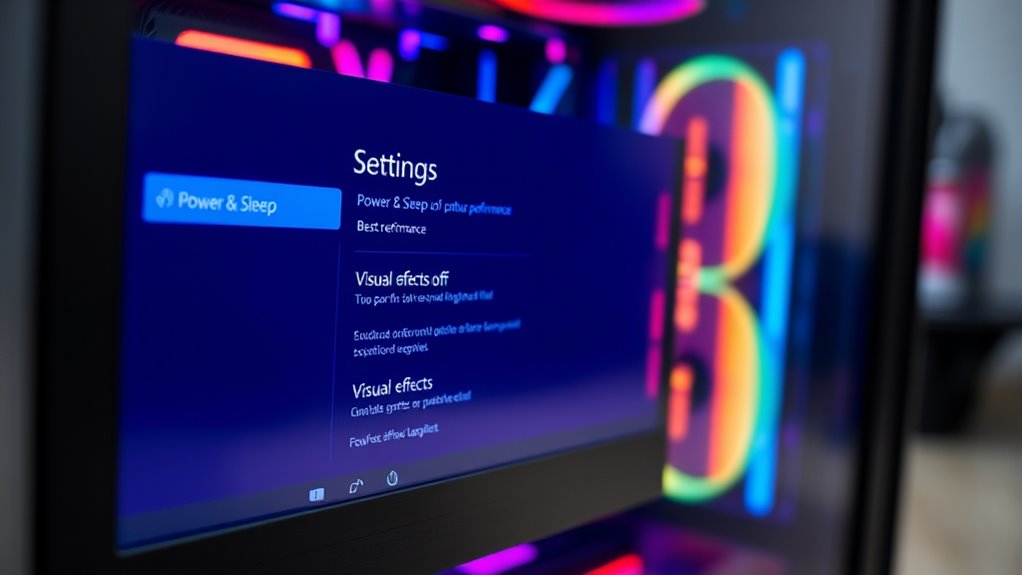
Adjusting your Windows settings can considerably boost gaming performance by making certain your system prioritizes resources where they matter most. To do this, optimize power options and visual effects. First, set your power plan to “High Performance” to prevent your PC from throttling CPU speeds during gameplay. Second, disable unnecessary visual effects like animations and shadows that drain system resources, which you can do through the “Performance Options” menu. Third, toggle “Game Mode” on in Windows settings to prioritize gaming processes and minimize background activity. These tweaks help your hardware focus on the game, reducing lag and increasing frame rates. By fine-tuning these settings, you ensure your PC runs smoother and more efficiently during your gaming sessions.
Regularly Clean and Maintain Your Hardware
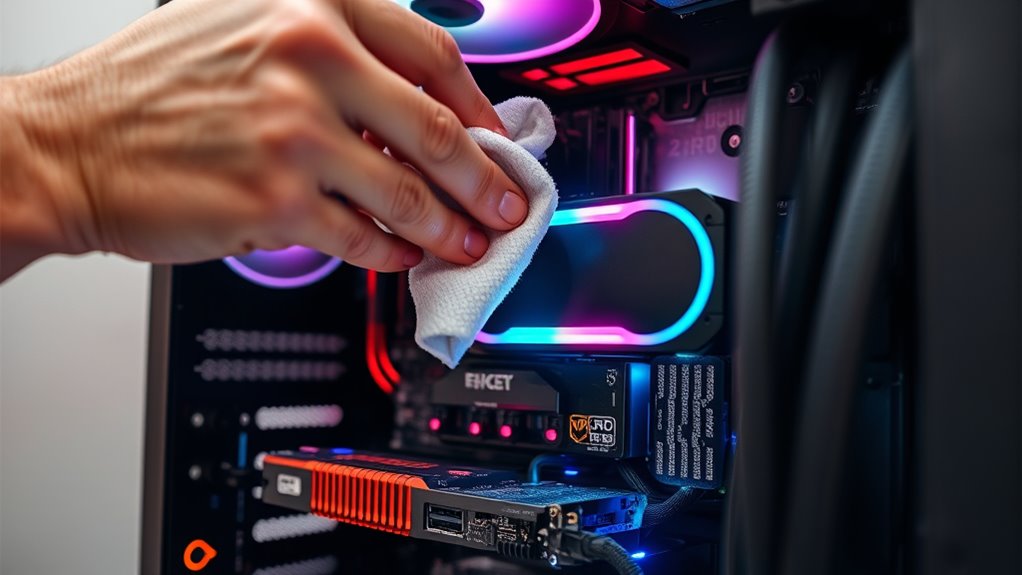
Regular maintenance is essential to guarantee your gaming PC performs at its best. Dust buildup inside your case can block airflow, causing components to overheat and throttle performance. Regularly open your PC and carefully clean dust from fans, heatsinks, and filters using compressed air. Check and tighten loose cables, ensuring proper connections for maximum power delivery and data transfer. Inspect your hardware for signs of wear or damage, like swollen capacitors or frayed wires. Keep your BIOS and drivers up to date to ensure compatibility and stability. Additionally, replace thermal paste periodically to improve heat transfer between your CPU and heatsink. Staying proactive with these steps minimizes overheating, extends hardware lifespan, and keeps your system running smoothly for the best gaming experience. Regularly monitoring your system’s thermal performance can help you catch issues early and maintain optimal operation. Incorporating smart monitoring tools can further assist in maintaining your hardware’s health and performance over time, making system diagnostics easier and more accurate.
Use Game Mode and Performance-Enhancing Software
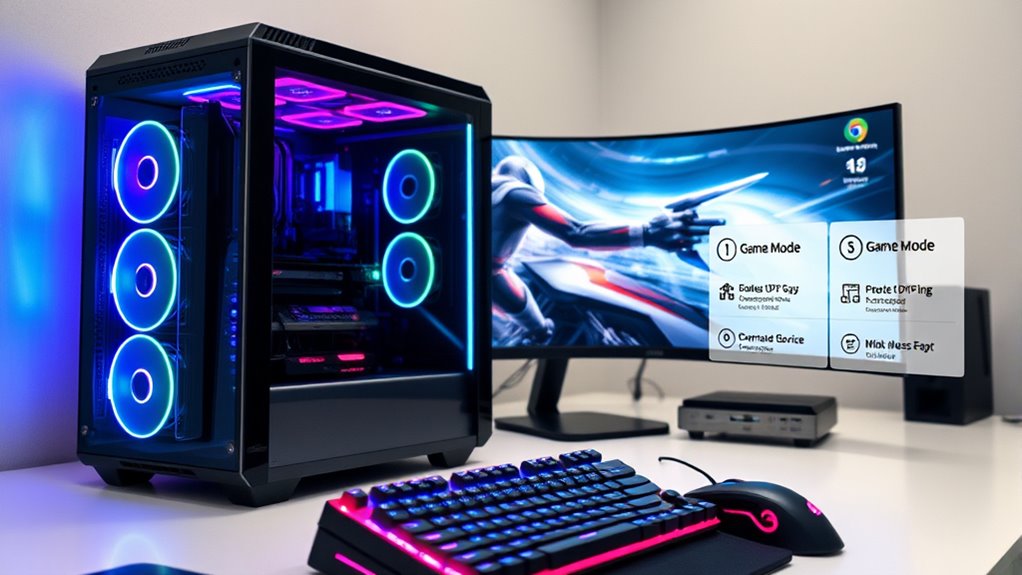
Turning on your PC’s built-in Game Mode can free up resources and reduce background interruptions. You should also tweak software settings and consider using performance boosters to get the most out of your system. These tools can make a noticeable difference in your gaming experience.
Enable Built-in Game Mode
Enabling the built-in Game Mode on your PC can considerably improve gaming performance by prioritizing system resources for your game. This feature helps reduce background processes and allocates more CPU and GPU power to your game, resulting in smoother gameplay. To turn it on, go to Settings > Gaming > Game Mode and toggle it on. Once enabled, your PC will better focus on gaming tasks, minimizing interruptions. Additionally, system resource allocation can be optimized further by adjusting settings in your GPU control panel for even better performance. Consider these additional tips to maximize its benefits:
- Keep your Windows updated to guarantee Game Mode functions at its best.
- Close unnecessary background applications that might interfere.
- Adjust in-game settings for better resource allocation without compromising quality.
- Regularly monitor your system’s power settings to ensure they are configured for maximum performance during gaming sessions.
- Using performance-boosting software can further enhance your gaming experience by optimizing system performance dynamically.
- Utilizing dedicated gaming hardware, such as high-performance SSDs and RAM, can also contribute to smoother gameplay and reduced lag.
Activating Game Mode is a simple step that can make a noticeable difference during intense gaming sessions.
Optimize Software Settings
After activating Game Mode, you can further enhance your gaming experience by adjusting software settings and using performance-boosting tools. Start by disabling unnecessary background apps, which frees up system resources. Use your operating system’s power plan to prioritize performance. Consider installing software that manages startup programs to prevent slow boots. You can also enable hardware acceleration in compatible apps for smoother rendering. Here’s a quick overview of key software adjustments:
| Setting | Benefit |
|---|---|
| Disable background apps | Reduces CPU and RAM usage |
| Change power plan | Boosts overall system responsiveness |
| Manage startup programs | Decreases boot time and resource drain |
| Enable hardware acceleration | Improves graphics performance |
| Update drivers and software | Ensures ideal compatibility |
Fine-tuning these settings helps your PC run games more smoothly.
Use Performance Boosters
Using performance boosters like Game Mode and specialized software can considerably improve your gaming experience by allocating system resources more efficiently. These tools prioritize CPU and RAM for your game, reducing background processes and lag. To maximize benefits, consider these options:
- Enable Windows Game Mode to automatically optimize resource allocation during gameplay.
- Use software like Razer Cortex or MSI Afterburner to monitor performance and tweak settings.
- Install game-specific optimizers that disable unnecessary features, freeing up system power. Additionally, optimizing system resources through these tools can lead to more stable and smoother gameplay.
Frequently Asked Questions
How Can Overclocking Improve Gaming Performance Safely?
Overclocking can improve your gaming performance by increasing your CPU or GPU speeds, leading to faster processing and smoother gameplay. To do this safely, you should gradually raise clock speeds, monitor temperatures, and guarantee proper cooling. Using reliable software and staying within recommended limits helps prevent hardware damage. Always back up your data and test stability after each adjustment to enjoy enhanced performance without risking your system’s health.
What Impact Does RAM Capacity Have on Gameplay Smoothness?
You might notice that having more RAM makes your gameplay smoother, especially during intense scenes or multitasking. When your RAM capacity is sufficient, your system can quickly access game data without delays, reducing stutters and lag. However, if you’re constantly running out of RAM, upgrading it can dramatically improve performance. So, ensuring you have enough RAM for your games not only prevents slowdowns but also keeps your gaming experience seamless and enjoyable.
Are There Specific Tools to Monitor Real-Time System Performance?
Yes, there are several tools you can use to monitor real-time system performance. You might try Task Manager on Windows for quick insights, or more advanced options like MSI Afterburner, HWMonitor, or CPU-Z for detailed data on CPU, GPU, and memory usage. These tools let you see what’s happening in real-time, helping you identify bottlenecks and optimize your gaming experience effectively.
How Does Network Latency Affect Gaming Experience?
Network latency directly impacts your gaming experience by causing delays between your actions and the game’s response. High latency results in lag, making gameplay choppy and frustrating, especially in fast-paced games. You might experience delayed movements, missed shots, or teleporting characters. To improve this, use a wired connection, close background apps, and choose game servers closer to your location. Lowering latency creates smoother, more responsive gameplay, giving you a competitive edge.
Can Customizing Fan Curves Enhance Hardware Longevity and Performance?
Yes, customizing fan curves can definitely enhance your hardware’s longevity and performance. By setting fans to run faster during high loads, you keep components cooler, reducing thermal stress and preventing overheating. This proactive cooling helps your CPU and GPU perform better and last longer. You maintain a quieter system during light use, while ensuring ideal cooling during gaming or intensive tasks. Overall, it’s a smart way to protect and maximize your PC.
Conclusion
By following these tips, you’ll transform your gaming experience from sluggish to lightning-fast. Keep your system optimized, drivers current, and hardware clean, and you’ll unlock performance levels that feel almost supernatural. Don’t settle for lag when you can dominate every game with ease. Remember, your PC’s potential is like a hidden treasure—waiting to be unleashed. Take action now, and watch your gameplay reach legendary heights you never thought possible!