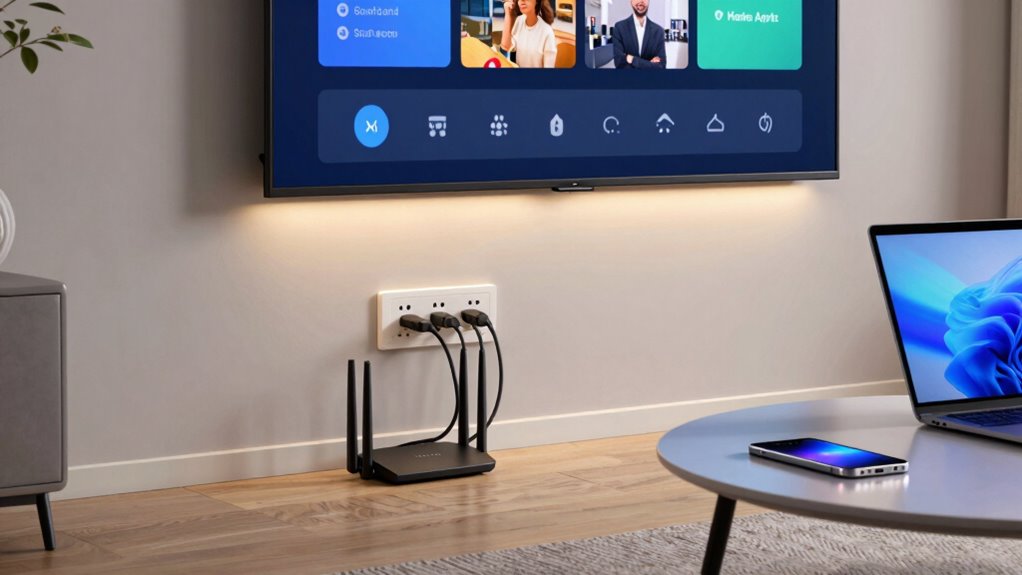

Many people realize too late that securing their home Wi-Fi is vital for protecting personal data and preventing unauthorized access. You should use strong, unique passwords, enable the latest encryption like WPA3, and regularly update your router’s firmware. Monitoring your network for unusual activity and adjusting security settings can prevent hacks. If you’re unaware of these basics, your home network remains vulnerable. Continue exploring to discover how simple steps can keep your network safe and private.
Key Takeaways
- Many overlook changing default passwords, leaving networks vulnerable to unauthorized access.
- Delaying firmware updates can expose networks to known security flaws.
- Failing to enable strong encryption like WPA3 compromises data privacy.
- Ignoring network monitoring allows threats to go unnoticed until damage occurs.
- Not customizing default security settings often creates weak points for attackers.
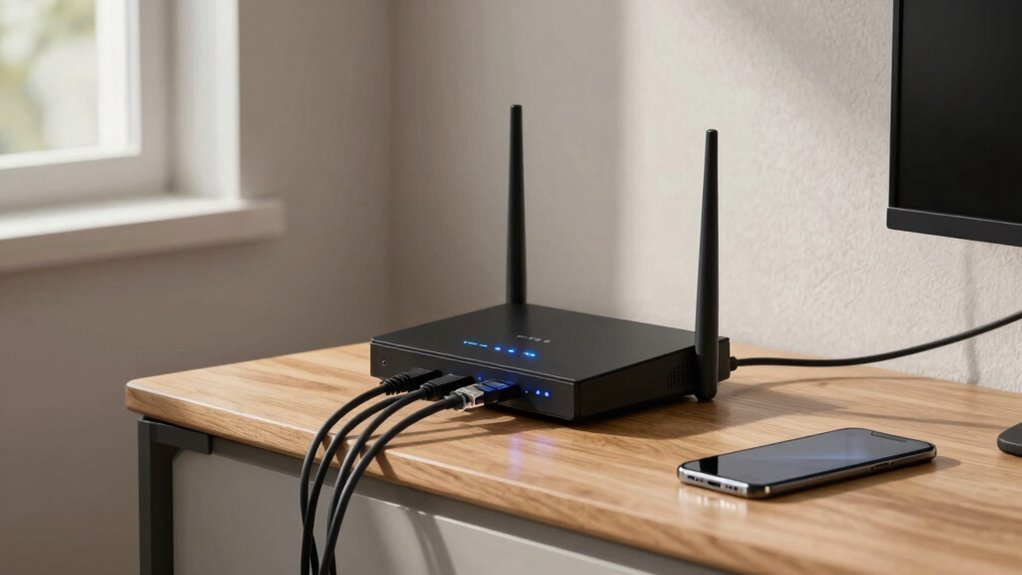
Setting up a home network might seem intimidating, but understanding a few basics can make it straightforward. One of the most important aspects is securing your wireless connection. Wireless security isn’t just about avoiding neighbors piggybacking on your Wi-Fi; it’s about protecting your personal data from hackers and unauthorized access. You should always use a strong, unique password for your Wi-Fi network—something complex enough to resist guessing. Enabling WPA3 encryption, if available, adds an extra layer of protection, making it much harder for intruders to break in. Regularly updating your router’s firmware is also essential, as manufacturers often release security patches that close vulnerabilities. Many people overlook these updates until it’s too late, but staying current can save you from potential breaches. Understanding encryption methods can help you grasp how your data remains protected during transmission. Additionally, reviewing your network security settings periodically ensures you’re aware of and can modify any default or insecure configurations. Properly configuring router security features can further strengthen your network’s defenses against intrusion attempts. Being aware of potential network vulnerabilities can help you proactively address weak points before they are exploited. Moreover, investing in a network monitoring tool can help you detect unusual activity early, further safeguarding your network.

TP-Link AX1800 WiFi 6 Router (Archer AX21 V5) – Dual Band Wireless Internet, Gigabit, Easy Mesh, Works with Alexa – A Certified for Humans Device, Free Expert Support
- Dual-Band WiFi 6: Faster speeds and reduced congestion
- AX1800 Speed: Up to 1.8 Gbps total bandwidth
- Connect More Devices: Supports multiple devices simultaneously
As an affiliate, we earn on qualifying purchases.
As an affiliate, we earn on qualifying purchases.
Frequently Asked Questions
How Often Should I Update My Home Network’s Firmware?
You should update your home network’s firmware as often as the manufacturer recommends, typically every few months or when a new update is released. Regular firmware updates are essential for maintaining network stability, fixing bugs, and patching security vulnerabilities. By staying current, you guarantee your devices run smoothly and stay protected from potential threats, ultimately providing a more reliable and secure home network experience.
What Is the Best Placement for Wi-Fi Routers?
You should place your Wi-Fi router in a central, elevated spot, avoiding thick walls and metal objects. Proper router placement minimizes signal interference and guarantees better coverage. Keep it away from cordless phones, microwaves, and large metal appliances that can disrupt the signal. By positioning your router thoughtfully, you’ll enjoy faster, more reliable internet throughout your home, reducing dead zones and improving overall Wi-Fi performance.
How Can I Secure My Home Wi-Fi From Intruders?
To secure your home Wi-Fi from intruders, start by changing your default password to a strong, unique one and enable WPA3 or WPA2 encryption protocols. Regularly update your router’s firmware for security patches. Use password management tools to keep track of your Wi-Fi credentials securely. Disable remote management and Wi-Fi guest networks if unnecessary. These steps help prevent unauthorized access and keep your network safe.
What Is the Difference Between a Modem and a Router?
Think of a modem as the gatekeeper that connects your home to the internet, translating signals from your provider. The router is the traffic cop, directing data across your network and assigning network addresses to each device. While the modem handles the connection, the router manages data encryption and traffic flow, ensuring your information stays secure and organized. Both work together to keep your home network running smoothly.
How Do I Prioritize Bandwidth for Specific Devices?
To prioritize bandwidth for specific devices, you need to set up device prioritization through your router’s Quality of Service (QoS) settings. Access your router’s admin panel, locate bandwidth management options, and assign high priority to devices like your work laptop or streaming device. This guarantees they get the bandwidth they need, improving performance. Regularly review and adjust these settings to optimize device prioritization as your network needs change.

Cinnado Security Camera Indoor-2K 360° WiFi Cameras for Home Security,Pet/Dog/Baby Camera with Phone app, 2-Way Audio, Night Vision, 24/7 SD Card Storage, Works with Alexa & Google Home (2.4Ghz)-D1
- Resolution and Coverage: 2K FHD with 360° pan and tilt
- Night Vision: 940nm IR lights for clear night view
- Motion Detection: Smart alerts and automatic recording
As an affiliate, we earn on qualifying purchases.
As an affiliate, we earn on qualifying purchases.
Conclusion
Understanding home networking basics early can save you frustration and improve your digital experience. Did you know that over 70% of households experience connectivity issues at least once a month? By learning simple setup tips and security measures now, you’ll stay connected, safe, and efficient. Don’t wait until problems arise—taking proactive steps guarantees your network runs smoothly and securely, making your home smarter and more reliable for everyday life.
As an affiliate, we earn on qualifying purchases.

WTF is My Password?: Internet Password Book/Keeper with Alphabetical Tabs | Site Name | Web Address | User ID | Website Log Book
As an affiliate, we earn on qualifying purchases.
As an affiliate, we earn on qualifying purchases.