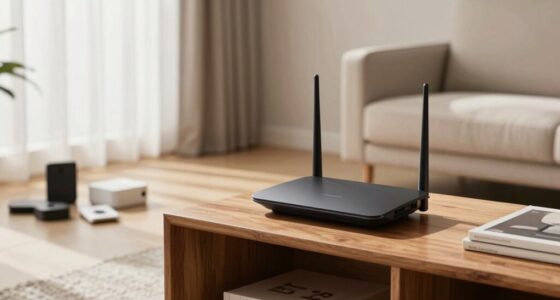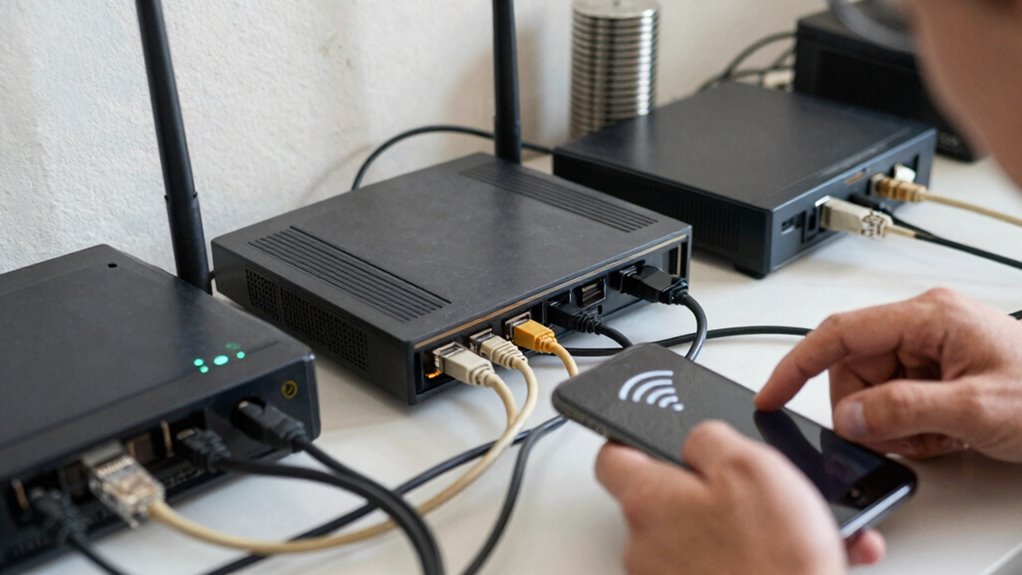

One of the biggest mistakes you make with home Wi-Fi is placing your router in hidden spots like closets or behind furniture, which weakens your signal. Failing to update firmware, choosing crowded channels, or using default passwords also leaves your network slow and vulnerable. Poor placement and security errors can cause frequent disconnects and slow speeds. Keep in mind, fixing these issues can drastically improve your Wi-Fi quality—stay tuned to discover how to optimize your network effectively.

Get the latest gadgets delivered free — and shop member deals
- Fast, free delivery on millions of items
- Access to Prime Big Deal Days deals on October 6–7
- Prime Video, Amazon Music and more included
Key Takeaways
- Placing the router in hidden or enclosed spaces weakens signal strength and coverage.
- Neglecting regular firmware updates leaves the network vulnerable and less efficient.
- Using default network names and passwords exposes the Wi-Fi to security threats.
- Ignoring interference from other devices and improper channel selection can slow speeds.
- Failing to optimize or prioritize network traffic leads to poor performance during peak usage.
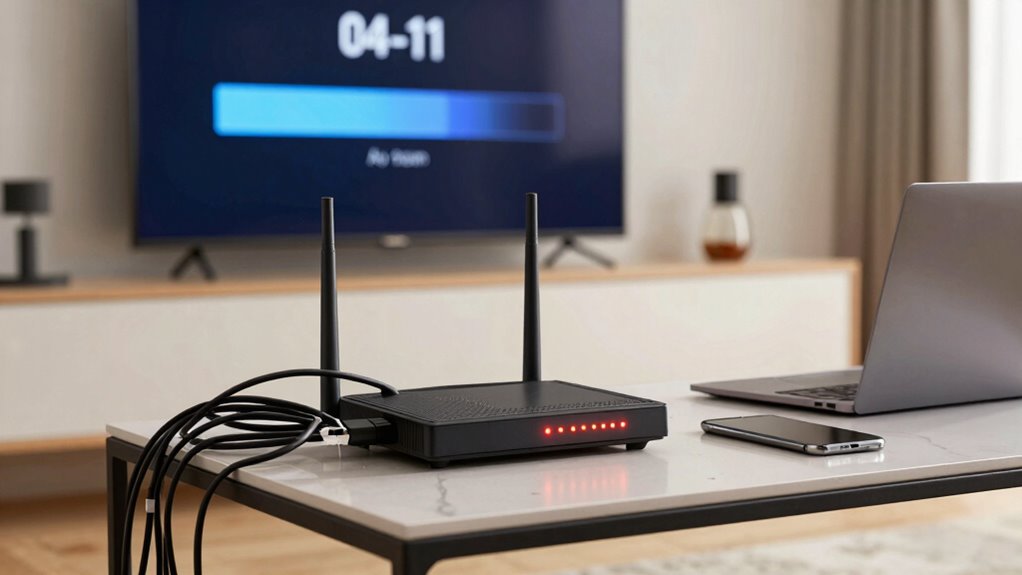
Many homeowners unknowingly compromise their Wi-Fi performance by making common mistakes that are easy to overlook. One of the biggest errors is poor router placement. If your router sits tucked away in a closet, on a basement shelf, or behind thick furniture, it can greatly reduce your signal strength. Instead, you want to position your router in a central, open spot—preferably high off the ground—to maximize coverage across your home. Avoid placing it near metal objects or appliances that emit electromagnetic interference, like microwaves or cordless phones. When you choose the right spot, your devices can connect more reliably and experience faster speeds, reducing frustrating buffering or dropped connections. Regularly updating your router’s firmware is also crucial, as manufacturers often release updates that improve security and performance, and ignoring these can leave your network vulnerable and sluggish. Additionally, router placement can significantly impact overall Wi-Fi quality, so experimenting with different locations can help optimize coverage. Proper channel selection can also reduce interference from neighboring networks, further enhancing your Wi-Fi experience. Setting up quality of service (QoS) features can prioritize critical devices and applications, further improving your network performance during high usage. Make sure to also monitor your network regularly to identify and resolve potential issues early on. Set a reminder to check for updates periodically, or enable automatic updates if your device supports it. Another mistake involves neglecting network management. Many users stick with default network names and passwords, making it easier for intruders to identify and attack their network. Customizing your SSID (network name) and hiding it from public listings adds an extra layer of security. Also, enabling encryption protocols like WPA3 or WPA2 ensures your data stays protected during transmission.
As an affiliate, we earn on qualifying purchases.
Frequently Asked Questions
How Often Should I Update My Wi-Fi Firmware?
You should update your Wi-Fi firmware whenever a new firmware update becomes available, ideally every few months. Firmware updates improve your router’s performance, security, and compatibility with the latest Wi-Fi standards. Check your device’s manufacturer website or app regularly for updates. Maintaining your firmware current guarantees you benefit from the latest Wi-Fi standards and protections, reducing vulnerabilities and enhancing your overall home network experience.
Can Multiple Devices Cause Wi-Fi Interference?
Yes, multiple devices can cause Wi-Fi interference, mainly due to device congestion and frequency overlap. When many devices connect simultaneously, they compete for bandwidth, slowing down your network. Additionally, if devices operate on the same frequency band, like 2.4 GHz, they can interfere with each other, leading to signal disruptions. To reduce this, try limiting connected devices or switching to a less congested frequency, like 5 GHz.
What’s the Ideal Wi-Fi Router Placement?
Did you know that improper router placement can reduce your Wi-Fi speed by up to 50%? To optimize your signal, place your router in a central, elevated location away from thick walls and metal objects. Keep it off the floor and away from large appliances. Avoid signal obstructions like furniture and appliances that can block Wi-Fi signals, ensuring you get the best coverage and performance throughout your home.
How Do I Secure My Wi-Fi Network?
To secure your Wi-Fi network, start by creating a strong, unique password combining letters, numbers, and symbols. Use the latest encryption protocol, like WPA3, to protect your data from hackers. Avoid default passwords and regularly update your router’s firmware. Enable network hiding features if available, and consider disabling remote management. These steps help safeguard your network from unauthorized access and keep your personal information safe.
Is a Mesh Network Better Than a Single Router?
When it comes to mesh vs. single routers, a mesh network usually wins out. It covers a larger area more evenly, reducing dead zones and keeping your connection strong in every corner. While a single router might be enough for small spaces, a mesh system is better for bigger homes or multi-story setups. Think of a mesh network as having a team rather than just one player, ensuring seamless coverage everywhere.
As an affiliate, we earn on qualifying purchases.
Conclusion
Remember, your home Wi-Fi is the lighthouse guiding your digital journey. When you neglect its signals—forgetting to update passwords or placing it in the shadowed corner—you risk losing your way in the fog of slow connections and security threats. By shining a spotlight on these mistakes, you restore clarity and strength to your network. Keep your lighthouse bright and centered, and your digital seas will stay calm, secure, and always within your reach.
Wi-Fi router firmware update tool
As an affiliate, we earn on qualifying purchases.
As an affiliate, we earn on qualifying purchases.
Wi-Fi security encryption devices
As an affiliate, we earn on qualifying purchases.
As an affiliate, we earn on qualifying purchases.
Fall Picks
fall essentials
As an affiliate, we earn on qualifying purchases.