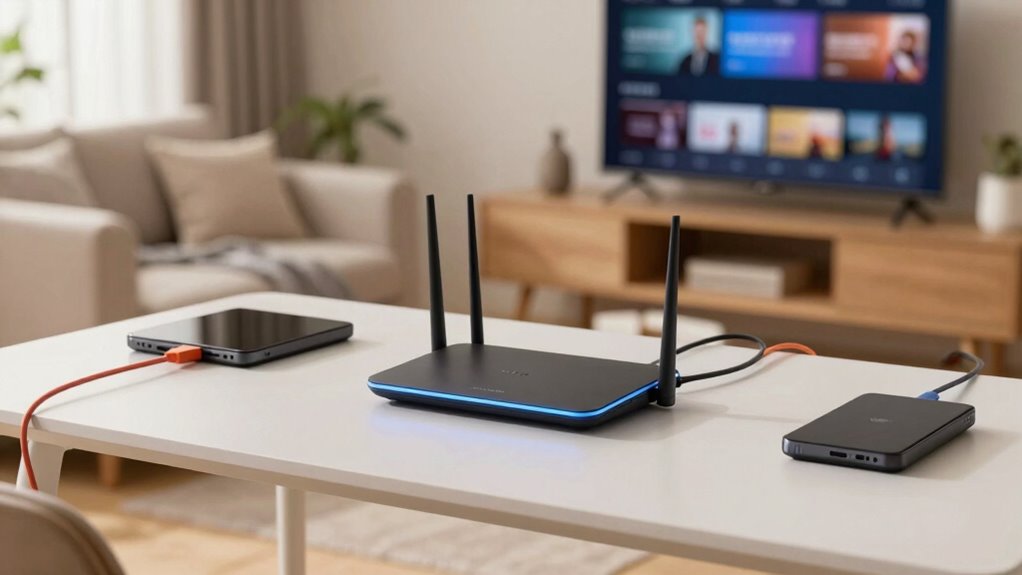

To make your home network feel fast, guarantee your Wi-Fi signal is strong and stable by placing your router centrally and reducing interference from devices like microwaves or cordless phones. Keep your hardware up to date with the latest standards and firmware. Manage traffic by limiting device usage during busy times and prioritizing essential activities with QoS settings. Monitoring performance and making small tweaks can greatly improve speed—stick around if you want to learn more about optimizing your network.

Get the latest gadgets delivered free — and shop member deals
- Fast, free delivery on millions of items
- Access to Prime Big Deal Days deals on October 6–7
- Prime Video, Amazon Music and more included
Key Takeaways
- Upgrading to modern, high-speed Wi-Fi standards like Wi-Fi 6 enhances overall network performance.
- Minimizing interference by placing the router centrally and away from electronic devices improves signal quality.
- Managing network traffic with QoS settings prioritizes critical activities and reduces congestion.
- Regularly updating firmware and hardware ensures optimal device compatibility and security.
- Choosing an internet plan with sufficient bandwidth supports faster, more reliable connections for multiple devices.
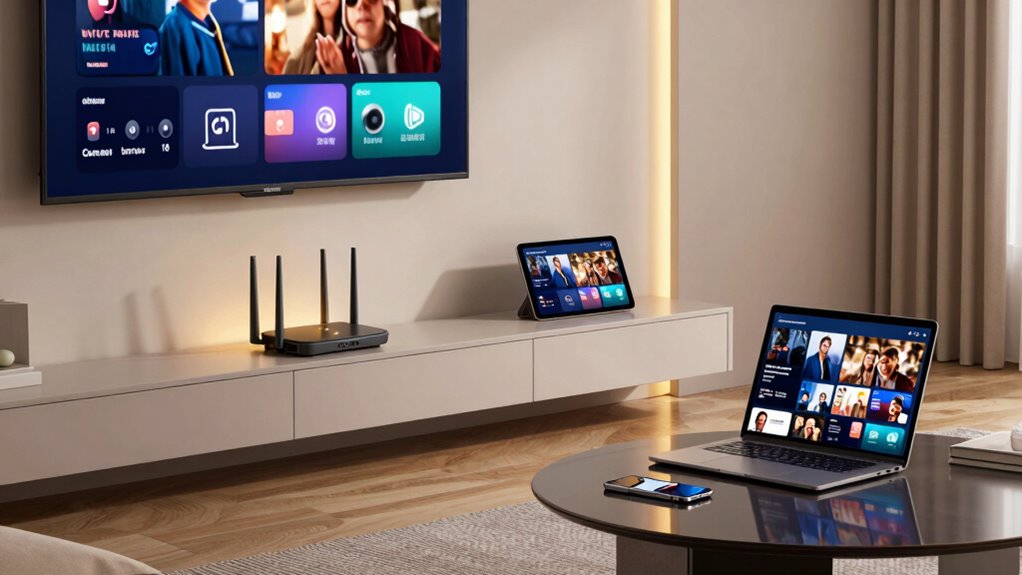
A fast and reliable home network is essential for seamless streaming, gaming, and working from home. When your internet feels sluggish, it’s often because something is slowing down the connection—whether it’s wireless interference or outdated hardware. To make your network feel truly fast, you need to identify and address these issues directly.
Wireless interference is a common culprit that can significantly impact your network’s speed. Devices like cordless phones, baby monitors, microwave ovens, and other Wi-Fi networks nearby can interfere with your signal, causing lag and buffering. To combat this, you should ensure your router is operating on the clearest channel. Many modern routers automatically select the best channel, but you can also manually switch channels through your router’s settings. Additionally, placing your router in a central, open location away from electronic devices can reduce interference and improve signal strength across your home.
Reduce wireless interference by placing your router centrally and choosing the clearest channel for better signal strength.
Hardware upgrades play a crucial role in making your network feel faster in real life. If your router is old or doesn’t support the latest Wi-Fi standards, you’re likely not getting the full speed your internet plan offers. Upgrading to a dual-band or tri-band router that supports Wi-Fi 6 can deliver faster speeds, better range, and improved handling of multiple devices. Consider replacing outdated modems or adding range extenders or mesh Wi-Fi systems if your signal struggles to reach certain areas. These hardware improvements ensure that your devices connect more efficiently and experience fewer drops or slowdowns. Plus, staying informed about network performance factors can help you make better hardware choices that maximize your internet experience. Regularly monitoring your network’s performance metrics can also help you identify bottlenecks and areas for improvement. Keeping your firmware and software up to date is another way to ensure optimal performance and security.
Beyond hardware and interference, your network’s perceived speed depends on other factors like your device’s capabilities and your internet plan. Make sure your devices support the latest Wi-Fi standards and that your subscription plan provides the bandwidth you need for your activities. Regularly updating your device firmware and router software can also optimize performance, patch security vulnerabilities, and unlock new features.
You should also manage your network’s traffic wisely. Limit the number of devices streaming or downloading simultaneously, especially during critical work hours or high-demand gaming sessions. Using quality of service (QoS) settings on your router can prioritize bandwidth for essential activities, making your network feel faster when you need it most. Ensuring your network hardware is up-to-date and compatible with current standards is a key performance factor that can improve your overall experience. Additionally, understanding network congestion can help you plan your usage to avoid peak times when the network might feel sluggish.
As an affiliate, we earn on qualifying purchases.
Frequently Asked Questions
How Does Device Placement Affect Network Speed?
Device placement greatly impacts your network speed by influencing signal strength and reducing device interference. Keep your router in a central, elevated spot away from thick walls, metal objects, and electronics that emit interference. Position devices closer to the router for better connection quality. Proper placement minimizes interference and boosts signal strength, ensuring faster, more reliable internet. This simple step can greatly enhance your overall network performance in everyday use.
Can Network Congestion Slow Down My Wi-Fi?
Imagine a bustling highway during rush hour, with cars merging and slowing—your Wi-Fi faces the same chaos. Yes, network congestion can slow down your Wi-Fi, caused by limited bandwidth allocation and signal interference. When too many devices share the same network, data traffic increases, leading to delays. To speed things up, reduce interference and prioritize bandwidth for essential devices, clearing the way for faster, smoother connections.
What Role Does Router Firmware Play in Speed?
Router firmware plays a vital role in your network speed. Keeping it updated guarantees you’re benefiting from the latest performance improvements and security enhancements. Firmware updates often fix bugs, optimize data routing, and improve device compatibility, which can lead to faster, more reliable connections. Regularly checking for and installing firmware updates keeps your router running smoothly, helping your home network feel faster and more responsive during everyday activities.
Do Wired Connections Always Outperform Wi-Fi?
Wired connections generally outperform Wi-Fi because they provide consistent bandwidth management and are less prone to signal interference. With a wired setup, your data travels directly through cables, reducing latency and avoiding issues like congestion or interference from other devices. While Wi-Fi offers convenience, a wired connection guarantees a more stable, faster experience, especially for demanding activities like gaming or streaming high-definition videos.
How Do Background Apps Impact Network Performance?
Background apps and updates can slow your network because they consume bandwidth without you realizing. When these processes run, they compete for your connection’s resources, causing delays and buffering. While you’re streaming or gaming, background processes quietly update apps or sync files, which can substantially impact performance. To improve speed, close unnecessary apps and schedule updates during off-peak hours, ensuring your network stays fast and responsive.
As an affiliate, we earn on qualifying purchases.
Conclusion
So, are you ready to enjoy a faster, more reliable home network? By optimizing your Wi-Fi setup, upgrading your equipment, and reducing interference, you can make your online experience smoother and more responsive. Don’t settle for sluggish connections—take action today and see the difference it makes. After all, isn’t a seamless internet experience worth a little effort? Your faster, more efficient home network is just a few steps away.
As an affiliate, we earn on qualifying purchases.
As an affiliate, we earn on qualifying purchases.
Fall Picks
fall essentials
As an affiliate, we earn on qualifying purchases.