
You might not be using your smartphone’s hidden features that can boost privacy, efficiency, and comfort. For example, adjusting notification settings helps you control alerts, while hidden screen recording allows capturing tutorials or moments without extra apps. You can switch to one-handed keyboard modes, access quick camera tools, and enable dark mode to save battery and reduce eye strain. Voice commands and privacy controls protect your data. Keep exploring these options—there’s more to discover that can transform your device experience.
Key Takeaways
- Access hidden multitasking features like split-screen mode and app switcher gestures for faster app management.
- Enable hidden camera shortcuts, such as burst mode or quick mode switching, for capturing moments efficiently.
- Use accessibility tools like screen magnifiers, high-contrast modes, and color inversion to enhance visibility and comfort.
- Customize notification settings, including priority alerts and Do Not Disturb exceptions, to manage distractions effectively.
- Activate voice commands and gestures for hands-free control and quicker navigation across your device.
Customizing Your Notification Settings for Better Control

To gain better control over your smartphone’s notifications, start by customizing your settings to suit your preferences. Open your device’s notification settings and review app-specific options. You can choose which apps send alerts, decide whether notifications appear on the lock screen, or enable silent alerts. Adjust the sound, vibration, and banner styles for each app to prevent unnecessary disruptions. Consider setting priority notifications for essential apps, so you’re only alerted when necessary. Use Do Not Disturb mode during focus times or at night, customizing exceptions for important contacts or alerts. By tailoring these settings, you reduce clutter, stay focused, and ensure you receive only the notifications that matter most to you. Additionally, understanding how cookie categories impact your browsing experience can help you better manage your privacy and personalization preferences. Being aware of notification management options allows you to optimize your device’s performance and minimize distractions, leading to a more productive and less interrupted digital life. Exploring app permissions can further help you control what data apps access, enhancing your overall privacy. This simple step considerably enhances your overall device experience and can improve your user privacy by allowing you to control which data is collected and used.
Using Hidden Screen Recording Features
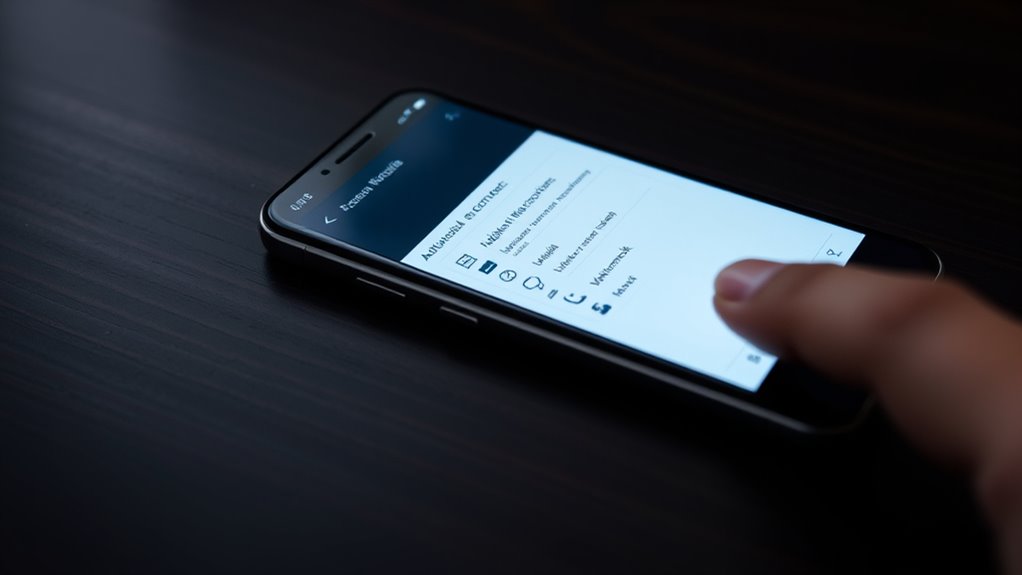
Did you know many smartphones come with hidden screen recording features you might not be aware of? These tools let you capture your screen effortlessly. To access them, you might need to enable a shortcut or tweak settings. Once activated, imagine:
- Swiping down from the top to reveal a hidden recording icon.
- Tapping it and seeing a countdown before recording begins.
- Watching as your phone captures everything on the screen—gameplays, tutorials, or chats—without extra apps.
Some devices even let you record audio or include touches on-screen, making tutorials clearer. This feature is perfect for saving important video content or troubleshooting issues. Explore your device’s settings, and you might find this powerful, yet discreet, tool ready to use whenever you need it. Additionally, enabling accessibility features can sometimes enhance your recording experience, making it more versatile. Understanding how to use built-in features can help you maximize your device’s capabilities without relying on third-party apps. Being aware of these hidden functionalities can help you make the most of your smartphone’s potential in various situations. For example, some phones allow you to customize shortcuts for quick access to recording, streamlining your workflow. Exploring these built-in options can lead to a more efficient and seamless user experience.
Mastering One-Handed Keyboard Modes

Have you ever struggled to type comfortably on your smartphone’s keyboard? If so, mastering one-handed keyboard modes can make a big difference. Most devices offer a simple way to shift the keyboard to one side, making it easier to reach all keys with your thumb. On Android, you can usually activate this by holding the spacebar or enter key and selecting the one-handed option, then choosing left or right. iPhones have a similar feature called Reachability, which slides the entire screen downward when you double-tap the home button or swipe down on the gesture bar. Once enabled, these modes allow you to type more efficiently with one hand, reducing strain and improving accuracy. Practicing switching between modes can help you find what works best for your hand size and typing style. Additionally, understanding energy-efficient cloud solutions can optimize your device’s performance and battery life during prolonged use. Exploring smartphone accessibility features can further enhance your overall user experience and make device operation more comfortable, especially when using single-handed modes regularly.
Accessing Advanced Camera Features Quickly
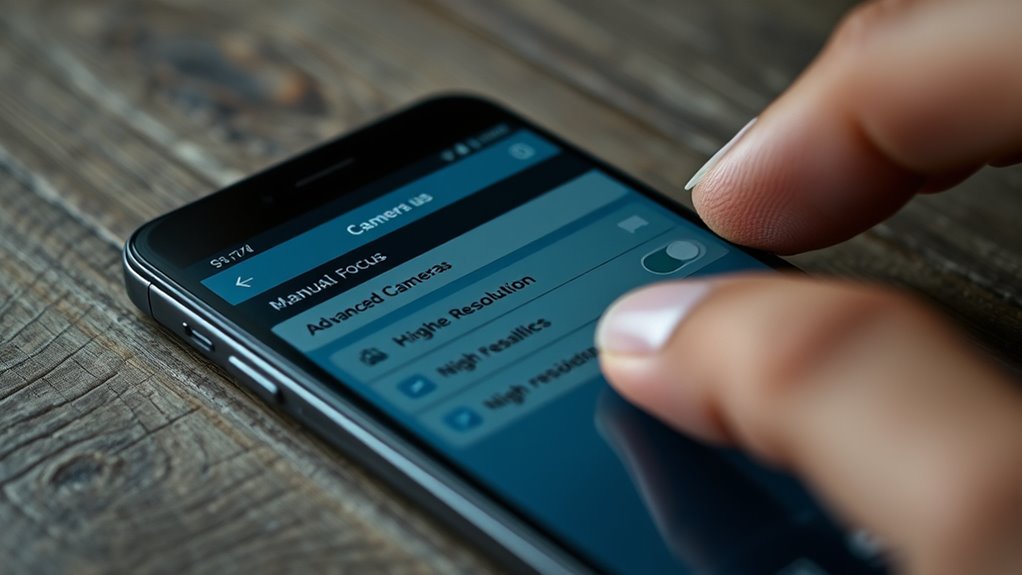
Accessing advanced camera features quickly can substantially enhance your photography experience. Instead of digging through menus, learn these shortcuts:
- Double-tap the shutter button to instantly switch to burst mode, capturing fast-moving action.
- Swipe left or right on the camera screen to toggle between modes like panorama, portrait, or night shot, making the perfect shot effortless.
- Press and hold the volume button to take a quick photo or start recording a video, so you’re ready without fumbling for icons.
- Learning about net worth of celebrities can give you insights into their success and financial independence, enhancing your understanding of their public personas.
These shortcuts let you seize fleeting moments or switch modes seamlessly, ensuring you don’t miss a shot. Mastering these quick-access techniques turns your smartphone into a capable, professional-grade camera, ready when inspiration strikes.
Enabling Dark Mode for Battery Saving and Eye Comfort

Enabling Dark Mode on your smartphone can substantially extend battery life and reduce eye strain, especially in low-light conditions. When you switch to dark themes, your display uses less power, particularly on OLED screens where black pixels are off. This not only conserves energy but also helps in reducing blue light exposure, which can improve sleep quality. This can be particularly beneficial during late-night usage, aligning with health-conscious habits that promote better sleep hygiene. This means your device lasts longer between charges. Additionally, dark mode minimizes glare and blue light exposure, making it easier on your eyes during nighttime use. To activate it, go to your device’s display settings, find the Dark Mode or Night Mode option, and toggle it on. Some apps also support dark themes, so explore app settings to enable this feature across your favorite platforms. Using dark mode not only conserves battery but also enhances visual comfort, helping you to use your phone more comfortably in any environment. Incorporating dark mode also aligns with the air quality concept by reducing screen brightness and blue light, which can contribute to stress and discomfort, much like poor indoor air quality can impact your well-being. Moreover, adopting dark mode can support support breakfast by encouraging healthier screen habits and promoting overall well-being. Adjusting your device’s display settings for visual comfort can lead to better focus and less fatigue during extended usage.
Taking Advantage of Quick App Switcher and Multitasking

You can switch between apps quickly and smoothly with the app switcher, saving you time and effort. Using gestures for multitasking makes managing multiple tasks more intuitive and efficient. Mastering these features helps you stay productive and reduces interruptions on your device. Additionally, exploring smartphone settings can reveal hidden options that further enhance your multitasking capabilities.
Seamless App Transitions
Seamless app handoffs make multitasking effortless by allowing you to quickly switch between tasks without missing a beat. When you master this, you’ll notice your workflow becoming smoother. To take advantage, familiarize yourself with your quick app switcher, which lets you:
- Swipe up or double-tap to reveal recently used apps, instantly bringing up your previous task.
- Tap on an app thumbnail to jump directly into where you left off, saving time.
- Drag and hold app cards to close or reorganize them, maintaining a clutter-free multitasking view.
Visualize flipping through a deck of cards, each representing an app. With these features, your transitions feel natural, keeping you focused and efficient without interruption.
Multitasking With Gestures
Mastering gestures on your smartphone enhances your multitasking efficiency by making app switching faster and more intuitive. You can quickly access the app switcher with a swipe or a specific gesture, allowing seamless movement between apps. This saves time and keeps your workflow smooth. To optimize, familiarize yourself with gesture commands like swiping up from the bottom to view recent apps or swiping left/right to switch between them. Different devices may have variations, so check your settings. Here’s a quick overview:
| Gesture | Action | Tips |
|---|---|---|
| Swipe up from bottom | Opens app switcher | Use with multitasking in mind |
| Swipe left/right | Switches between recent apps | Practice for speed |
| Long press + swipe | Opens split-screen mode | Use for multitasking |
Master these gestures to boost your productivity effortlessly.
Utilizing Voice Commands for Hands-Free Control

Have you ever wished you could control your smartphone without touching it? Voice commands make that possible. With just a few words, you can:
- Play your favorite playlist or skip tracks effortlessly.
- Send messages or make calls without fumbling for your phone.
- Set reminders or check the weather without interrupting your day.
- Use voice control to manage your device’s functions more securely and efficiently, especially when integrated with smart home systems or wellness devices. This technology also enhances safety features by allowing you to operate your device more discreetly while driving or working. Additionally, mastering voice command systems can improve your overall user experience by making interactions more intuitive and hands-free. Proper setup and understanding of voice assistant capabilities can further optimize your device’s performance for everyday use.
To get started, activate your voice assistant—say “Hey Siri,” “Hey Google,” or “Hey Alexa,” depending on your device. Speak clearly and be specific with your commands. For example, say “Play jazz music,” or “Send a message to John.” These features help you stay hands-free, safe, and efficient, especially when multitasking or on the go. Mastering voice control turns your smartphone into a powerful, voice-activated assistant.
Managing App Permissions for Privacy and Security

You should regularly review your app permissions to make sure your privacy stays protected. Limiting location access and managing microphone and camera permissions can prevent unnecessary data sharing. Taking control of these settings helps keep your information secure and your device safe.
Review App Permissions Regularly
Regularly reviewing app permissions is essential for maintaining your privacy and security. When you check permissions, you control what data apps can access. Imagine:
- Scanning through your list of apps and pinpointing those asking for unnecessary permissions.
- Tapping on each app to revoke access to features like your microphone, camera, or contacts.
- Confirming only trusted apps retain the permissions needed for their functionality.
This process prevents apps from collecting data you don’t want shared. It also reduces potential security risks if an app is compromised. Making it a habit ensures your device stays private and secure. Set a reminder monthly or quarterly to review permissions, so you stay in control of your digital privacy.
Limit Location Access
Ever wondered how much your apps really need to know about your location? You can take control by managing app permissions. On most smartphones, you can set location access to “While Using the App,” “Never,” or “Always.” For better privacy, restrict apps from accessing your location in the background unless absolutely necessary. Review permissions regularly in your settings to make certain apps don’t have more access than they need. Some apps only require your location temporarily, so turn off permissions once you’re done using them. This not only protects your privacy but can also save battery life. By limiting location access, you reduce the risk of unwanted tracking and data sharing, keeping your personal information safer and more secure.
Manage Microphone & Camera
Managing app permissions for your microphone and camera is essential for maintaining your privacy and security. When you control these permissions, you prevent apps from accessing your device’s sensors without your consent. To do this effectively, follow these steps:
- Open your device settings and navigate to the app permissions section.
- Review which apps have access to your microphone and camera.
- Revoke permissions for any app that doesn’t need access or seems suspicious.
Imagine a messaging app trying to secretly listen or a game accessing your camera without reason—these risks are real. By managing permissions, you keep unwanted eyes and ears away, ensuring your personal space stays private and protected.
Finding Hidden Emojis and GIFs in Your Keyboard
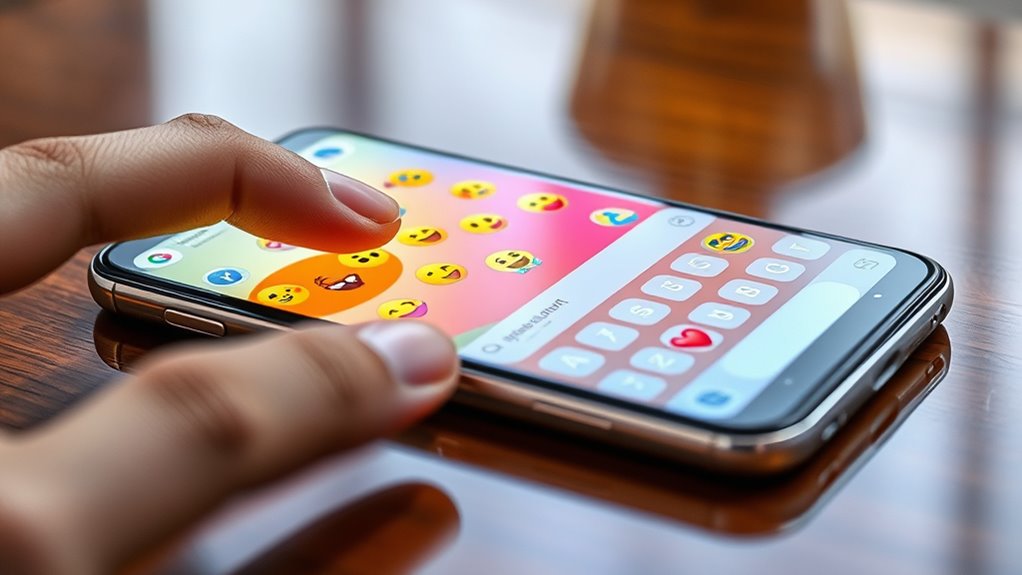
Have you ever wondered if your keyboard hides more emojis and GIFs than you’ve discovered? Many keyboards include hidden collections that aren’t immediately obvious. To access them, try tapping the emoji or GIF icon, then explore different categories or swipe left/right for more options. Some keyboards also have a search feature—type keywords like “happy” or “dance” to find specific emojis or GIFs quickly.
Here’s a quick look at some hidden categories:
| Category | How to Access |
|---|---|
| Rare Emojis | Tap the emoji icon, then swipe sideways |
| Animated GIFs | Tap GIF icon, then browse or search |
| Special Stickers | Explore sticker packs or emoji menus |
Unlock these hidden treasures and express yourself more vividly!
Using Built-In Screen Magnifiers and Accessibility Tools
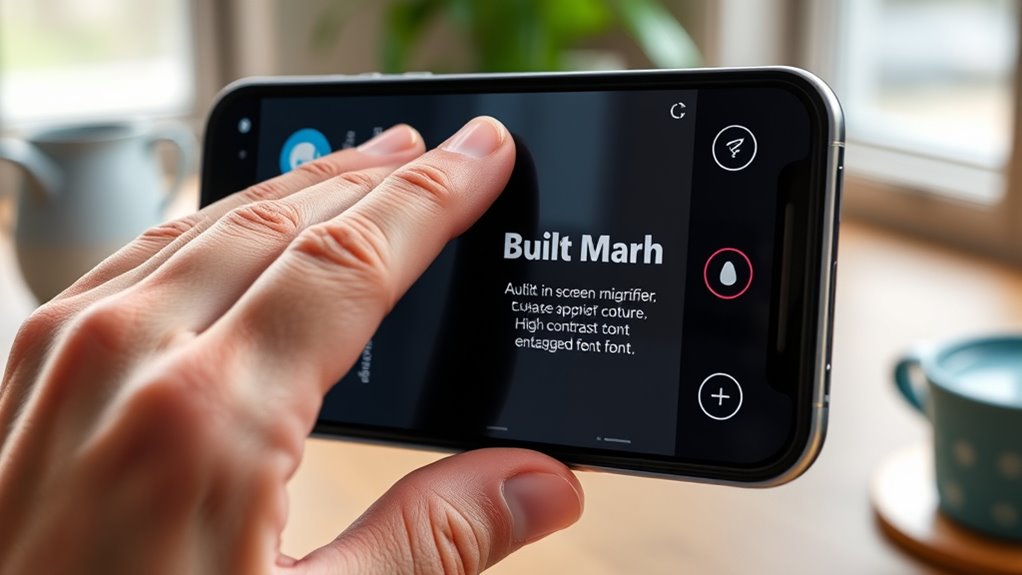
You can easily improve text visibility on your smartphone by using built-in screen magnifiers and accessibility tools. These features let you customize settings to suit your needs, making reading easier and reducing eye strain. Exploring these options can make your device more comfortable and accessible for everyday use.
Enhancing Text Visibility
To make text easier to read on your smartphone, built-in screen magnifiers and accessibility tools offer powerful options. These features help you see content clearly without straining your eyes. For example, you can:
- Tap the screen multiple times with three fingers to instantly zoom into text, enlarging it for easy reading.
- Enable high contrast or color inversion modes, making text stand out against backgrounds, perfect for low-light conditions.
- Use voice commands to have your device read out loud what’s on the screen, reducing the need to focus on tiny text.
These tools are designed to adapt your device to your visual needs, improving readability and reducing eye fatigue. Exploring these options can make your smartphone much more user-friendly.
Customizing Accessibility Settings
Customizing accessibility settings on your smartphone allows you to tailor the device’s features to suit your specific visual needs. Built-in tools like screen magnifiers and accessibility shortcuts make it easier to see content clearly. For example, you can activate a magnifier to zoom in on text or images instantly, helping you read small fonts or view details more easily. Accessibility tools also include high-contrast modes, color adjustments, and voice-over features that read out on-screen items. By customizing these settings, you improve your overall experience and reduce strain. You can typically find these options in your device’s accessibility menu, where toggling features on or off is straightforward. Adjusting these tools empowers you to navigate your smartphone confidently and comfortably every day.
Frequently Asked Questions
How Can I Customize My Notification Sounds and Vibration Patterns?
You can customize your notification sounds and vibration patterns by going into your phone’s Settings, then selecting Sound or Notifications. From there, choose the specific app or system notifications you want to customize. Tap on Sound or Vibration, and you’ll be able to select new tones or create custom vibration patterns. This way, you personalize alerts to better suit your preferences, making your device more tailored and functional.
Are There Any Secret Gestures to Quickly Access Certain Features?
Oh, absolutely—your phone’s secretly conspiring to make your life easier. You can swipe from the edges, double-tap the back, or pinch in unexpected ways to access features faster. Many devices also have hidden gestures like screen recording or quick toggles. So, next time you’re fumbling for that elusive app, try a secret gesture—your phone’s probably been hiding it just to keep you guessing.
How Do I Enable or Disable Developer Options on My Device?
To enable developer options, go to Settings, tap About Phone, then tap Build Number seven times until you see a message confirming activation. To disable them, return to Settings, find Developer Options, and toggle it off. This process works on most Android devices. Keep in mind, disabling developer options is just as simple—just toggle the switch off, and your device will revert to normal settings.
Can I Improve Battery Life Using Hidden Settings or Features?
Improving your battery life is like tuning a car engine—it runs smoother when optimized. You can disable background apps, reduce screen brightness, and turn off unnecessary location services in hidden settings. Also, explore your device’s battery usage stats to identify power-hungry apps. Enabling power-saving modes or adjusting refresh rates can make a significant difference, giving your phone a longer, healthier battery life without sacrificing too much functionality.
What Are the Best Ways to Troubleshoot App Crashes or Glitches?
You should start by force closing the app and reopening it. If that doesn’t work, clear the app’s cache or data through your settings. Make sure your device software and app are both updated to the latest versions. Restart your phone to refresh system resources. If problems persist, uninstall and reinstall the app. Finally, check for conflicting apps or settings that might be causing the glitches, and consider resetting your device if needed.
Conclusion
Did you know that over 80% of smartphone users miss out on these hidden features? Accessing just a few can make your device more efficient, private, and fun. By exploring options like advanced camera tools or customizing notifications, you’ll work smarter, not harder. So, take a few minutes to explore your settings—you’ll be surprised at how much your phone can do. Your smarter, more capable device is just a tap away!