To use your phone as a Wi-Fi hotspot, activate the hotspot feature in your device’s settings, set a strong password, and choose a secure security type like WPA3 if available. Limit connected devices and disable the hotspot when not in use to avoid data overages. Keep your device updated and monitor your data regularly to prevent unexpected charges. For detailed tips and security essentials, explore more on managing your hotspot effectively.
Key Takeaways
- Enable hotspot securely by setting a strong password and using WPA2 or WPA3 encryption.
- Limit connected devices to reduce data usage and prevent unauthorized access.
- Monitor data consumption regularly through device settings or carrier apps to avoid overages.
- Turn off the hotspot when not in use to save battery and prevent unintended connections.
- Keep your device’s software updated to ensure optimal performance and security.
How to Enable Hotspot on Android Devices
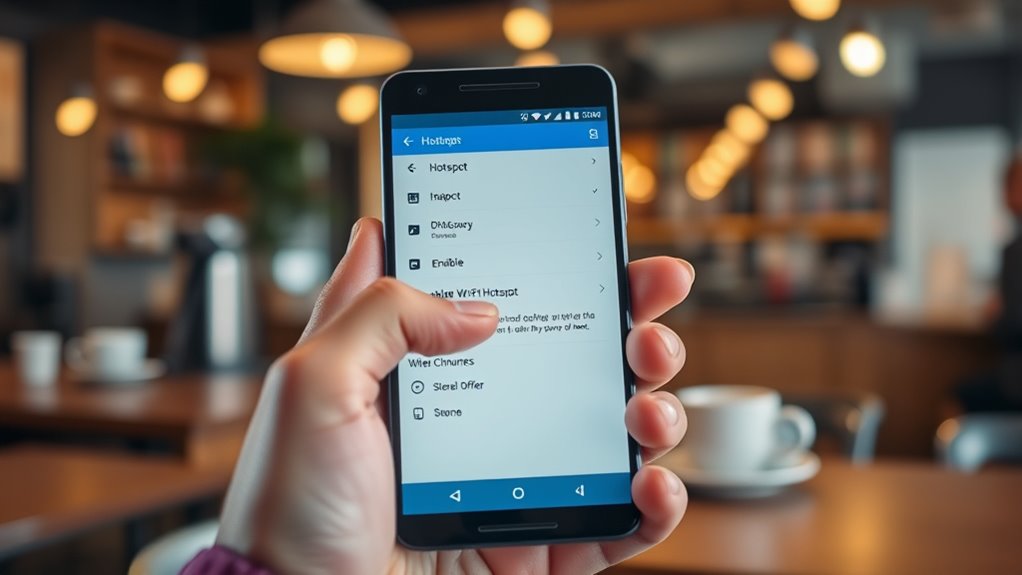
Enabling a hotspot on your Android device is straightforward. First, open your Settings app and navigate to Network & internet or Connections. Find and tap on Hotspot & tethering or Mobile Hot Hotspot and Tethering. Then, toggle the Wi-Fi hotspot switch to turn it on. You can customize your hotspot’s name, password, and security type in the settings menu to keep your connection secure. For quicker access, swipe down from the top of your screen to open the Quick Settings panel and tap the Hotspot icon. This method allows you to activate or deactivate your hotspot easily. Always confirm your cellular data is active before enabling the hotspot, and remember to turn it off when you’re done to save data and battery life. When using your phone as a hotspot, be mindful of data usage to avoid unexpected charges. Additionally, monitoring your data consumption can help prevent overage fees and ensure you stay within your plan’s limits. Understanding your cellular data plan can help you manage your hotspot more effectively. Being aware of your data limits can help you avoid service interruptions or additional fees. Moreover, staying informed about energy-efficient technologies can enhance your device’s battery life during hotspot use.
Setting up Personal Hotspot on Your Iphone
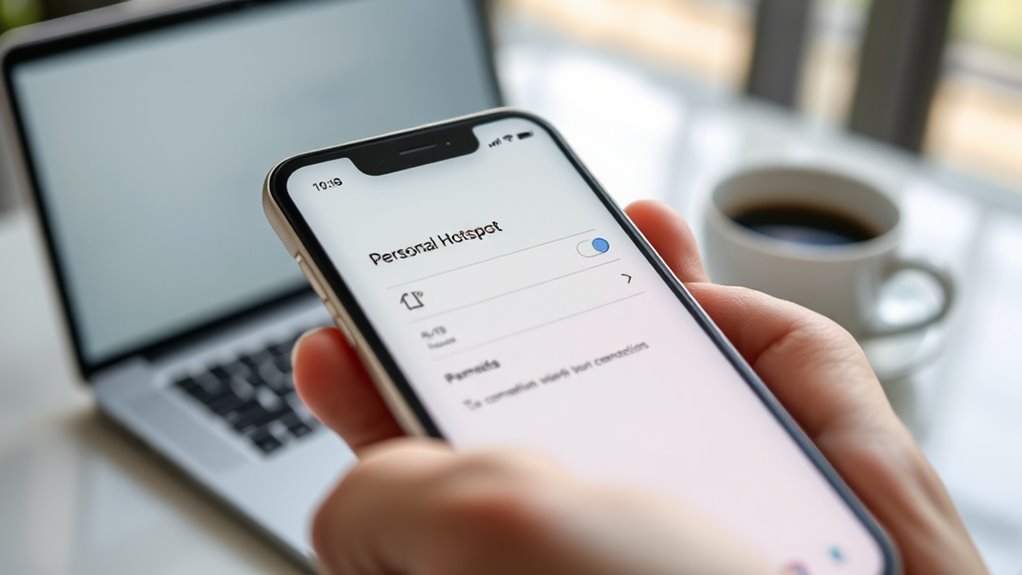
To set up your personal hotspot on an iPhone, start by opening the Settings app and maneuvering to either Personal Hotspot or Cellular > Personal Hotspot. Once there, toggle on Allow Others to Join. You’ll see a Wi-Fi password that you can change—make sure it’s strong to keep unauthorized users out. After enabling the hotspot, connect your devices via Wi-Fi, Bluetooth, or USB tethering. To quickly activate or deactivate the hotspot, swipe down to access the Control Center and tap the Hotspot icon. Keep an eye on connected devices to monitor usage and ensure security. Remember, your hotspot’s functionality depends on your cellular plan, so confirm that hotspot sharing is included and active with your carrier. Connected equipment can enhance your experience by integrating with smart home gym technology to monitor data usage and optimize your workouts. Additionally, be aware that using your phone as a hotspot can significantly impact your data plan, so monitoring your data usage helps avoid unexpected charges. Also, be mindful of network security to prevent unauthorized access to your connection.
Managing Data Usage When Using Your Phone as a Hotspot
To prevent unexpected charges, keep a close eye on your data consumption while using your phone as a hotspot. Limiting high-bandwidth activities like streaming or large downloads can help preserve your data plan. Regularly monitoring your usage ensures you stay within your limits and avoid throttling or extra fees. Incorporating data management techniques can also help optimize your connection and manage data more effectively. Using analytics cookies can provide insights into your usage patterns, helping you make informed decisions about your data consumption. Additionally, being aware of how different air purifier features and maintenance practices impact energy and data usage can help you make more efficient choices. Understanding your data plans and their limitations is essential for avoiding overage charges and ensuring a smooth hotspot experience.
Monitor Data Consumption Regularly
Keeping a close eye on your data consumption is essential when using your phone as a hotspot, especially if you have limited cellular data. Regular monitoring helps prevent unexpected charges and throttling. To stay on top of your usage:
- Check your device’s data usage settings frequently to track daily and monthly totals.
- Use carrier apps or website dashboards for detailed reports and alerts.
- Set data warnings or limits within your device or carrier app to be notified before reaching your cap.
- Being aware of data management strategies can help optimize your usage and avoid overage fees, and understanding how device compatibility affects hotspot performance can also be beneficial.
- Additionally, reviewing security zone information related to your device can ensure your hotspot remains protected from unauthorized access.
- Understanding the importance of network infrastructure can also provide insights into maintaining consistent and reliable connection quality.
Limit High-Bandwidth Activities
Monitoring your data usage is just the first step; actively limiting high-bandwidth activities can substantially extend your hotspot’s lifespan. Streaming videos, playing online games, or downloading large files consume significant data quickly. To conserve your allowance, avoid streaming HD videos or using data-heavy apps when possible. Instead, download content over Wi-Fi beforehand or switch to audio-only streams. Limit the number of devices connected at once, as each adds to your data load. Close background apps that use data without your knowledge. Prioritize essential tasks, and disable automatic updates or cloud backups while tethering. Be aware of data management best practices to optimize your usage. Managing your device’s thermal behavior can also help prevent unnecessary data usage caused by overheating or sluggish performance. Additionally, turning off automatic app updates can prevent unexpected data consumption. Recognizing how network congestion impacts your data flow can further help in planning your activities. Efficiently managing your device’s background processes can further reduce unnecessary data drain. By managing your activities carefully, you prevent data overages and keep your hotspot running smoothly longer, saving you money and avoiding throttled speeds.
Enhancing Security for Your Mobile Hotspot
Securing your mobile hotspot is essential to prevent unauthorized access and protect your personal data. Start by setting a strong, unique password that isn’t easy to guess, and avoid default or common passwords. Use WPA2 or WPA3 security protocols if your device supports them, as they provide better encryption. Limit the number of connected devices to reduce vulnerabilities and monitor connections regularly. Also, disabling the hotspot when you’re not using it helps prevent unintended connections. Additionally, understanding the Gold IRA Markets can help investors make informed choices about their retirement portfolios. Here are key steps to enhance security: 1. Create a complex, unique password for your hotspot. 2. Use the latest security protocols like WPA3. 3. Turn off the hotspot when not in use to block unauthorized access. 4. Regularly check for firmware updates to ensure your device has the latest security features. Keeping your device’s software up to date is another vital step to prevent vulnerabilities.
Understanding Carrier Limitations and Device Compatibility
Understanding carrier limitations and device compatibility is key to making the most of your mobile hotspot. Not all plans include unlimited hotspot data; some have caps that can slow your connection or incur extra charges. Carrier restrictions may also limit how many devices can connect simultaneously. Device compatibility matters—older phones might lack support for 5 GHz bands or advanced security features, affecting speed and security. Certain carriers require plan upgrades for hotspot access, so check your plan details. Additionally, USB and Bluetooth tethering depend on your device’s hardware capabilities.
| Carrier Limitation | Device Compatibility | Connection Types |
|---|---|---|
| Data caps | Supports 5 GHz Wi-Fi | Wi-Fi |
| Device limits | Security protocols | Bluetooth |
| Plan restrictions | USB tethering support | USB |
Troubleshooting Common Hotspot Connectivity Issues
If your hotspot isn’t working, start by double-checking that your cellular data is enabled and working correctly. Restart your device and the connecting devices to clear any temporary glitches, and consider resetting network settings if problems persist. Also, make sure your device’s software is up to date, as updates often fix connectivity issues.
Verify Cellular Data Settings
Before troubleshooting hotspot connectivity, make sure cellular data is activated on your device. If it’s off, your hotspot won’t work, regardless of other settings. To verify, check your device’s network settings.
- Confirm cellular data is toggled on in your device’s settings.
- Ensure you have a strong signal; weak or no signal can prevent hotspot activation.
- Check your data plan for restrictions or outages that could block data usage.
If cellular data isn’t working, disable and re-enable it, or toggle airplane mode on and off. Confirm you’re connected to the correct network. Ensuring these basics are in place helps eliminate common issues before diving into more complex troubleshooting.
Restart and Reset Devices
When your hotspot isn’t connecting properly, restarting and resetting your device can often resolve the issue. First, turn off your phone completely, wait a few seconds, then turn it back on. This simple step clears temporary glitches that might affect connectivity. If that doesn’t work, try resetting network settings. On most devices, this option is in the Settings under Network & Internet or General Management. Keep in mind, resetting network settings will erase saved Wi-Fi networks, Bluetooth pairings, and VPN configurations, so be prepared to re-enter those passwords. If problems persist, consider performing a factory reset as a last resort. Before doing so, back up your data. Restarting and resetting often fix common issues and get your hotspot working smoothly again.
Update Device Software
Updating your device software can resolve many hotspot connectivity issues caused by outdated or buggy firmware. When your device runs the latest software, it benefits from bug fixes, security patches, and improved compatibility. To update:
- Check for updates in your device’s Settings under Software Update or System Update.
- Download and install any available updates, ensuring your device stays connected to Wi-Fi or cellular data.
- Restart your device after updating to apply changes fully.
Keeping your device current helps prevent issues like slow connection, dropped hotspots, or failed device recognition. Outdated software can cause conflicts with your hotspot settings or network modules, so regular updates are essential for smooth operation. Make it a habit to check for updates whenever troubleshooting hotspot problems.
Best Practices for Safe and Efficient Hotspot Use
Using your phone as a Wi-Fi hotspot can be incredibly convenient, but it’s important to follow best practices to keep your data secure and your connection efficient. Always set a strong, unique password to prevent unauthorized access. Limit the number of connected devices to reduce congestion and conserve your data allowance. Turn off the hotspot when not in use to avoid unintended data charges and security risks. Use WPA2 or WPA3 security protocols if available for better protection. Monitor your data regularly to prevent overages, especially if your plan has caps. Keep your device’s software updated to fix security vulnerabilities and improve performance. Finally, avoid streaming high-bandwidth content or downloading large files unless necessary, as these activities quickly drain your data and slow your connection.
Monitoring and Controlling Connected Devices
Monitoring and controlling the devices connected to your hotspot is essential for maintaining security and managing data usage. You need to keep track of who’s connected and disconnect unauthorized devices promptly.
To do this effectively:
- Regularly check your device’s hotspot settings or status panel to see a list of connected devices.
- Limit the number of connections by setting a cap in the hotspot settings or disconnecting devices manually.
- Enable notifications or alerts if your device supports them, so you’re alerted when new devices connect.
Frequently Asked Questions
Can I Use My Hotspot Abroad Without Extra Charges?
You can use your hotspot abroad without extra charges if your carrier’s plan includes international data or roaming perks. Check your plan beforehand, as some providers offer unlimited or included data in certain countries. Be aware that using your hotspot internationally might still slow down speeds or trigger roaming fees if your plan doesn’t cover it. Always verify your carrier’s policies and monitor your data usage to avoid unexpected charges.
How Do I Prioritize Devices for Hotspot Connection?
You can prioritize devices for your hotspot connection by managing connected devices through your phone’s settings. On Android, go to your hotspot settings and disconnect or block lower-priority devices, or limit the number of simultaneous connections. On iPhone, monitor connected devices in Control Center, and disconnect any unnecessary ones. Keep device priorities in mind to guarantee your main device gets the best connection speed and stability.
Is It Possible to Extend Hotspot Battery Life?
Yes, you can extend your hotspot’s battery life. Keep the hotspot turned off when not in use, and avoid running it continuously. Use Wi-Fi instead of Bluetooth tethering, as it consumes less power. Keep your device cool and reduce screen brightness to save energy. Consider carrying a portable power bank, and disable unnecessary background apps that drain battery. These steps help maximize your hotspot’s battery lifespan.
What Are the Best Security Settings for Public Hotspots?
You should always use WPA2 or WPA3 security protocols to protect your hotspot on public networks. Set a strong, unique password, avoiding default or easily guessable ones. Limit connected devices to reduce risk, and disable the hotspot when you’re not using it. Avoid sharing your hotspot without encryption, and monitor connected devices regularly. These steps help keep your data safe from unauthorized access and potential cyber threats.
How Do I Track My Hotspot Data Usage Accurately?
To track your hotspot data usage accurately, start by checking your device’s built-in data monitor in settings—on Android, find it under Network & internet; on iPhone, look in Cellular settings. Many carriers also offer dedicated apps or online accounts to monitor your data in real-time. Regularly review these tools, especially when streaming or downloading large files, to prevent overage charges and stay within your plan limits.
Conclusion
Using your phone as a hotspot is simple, empowering, and convenient. Just enable, manage, and secure your connection to stay productive, protect your data, and enjoy seamless internet access. Keep an eye on your usage, troubleshoot issues promptly, and follow best practices to maximize efficiency. Stay safe, stay connected, and make the most of your mobile hotspot experience—because when you control your connection, you control your productivity, your privacy, and your peace of mind.