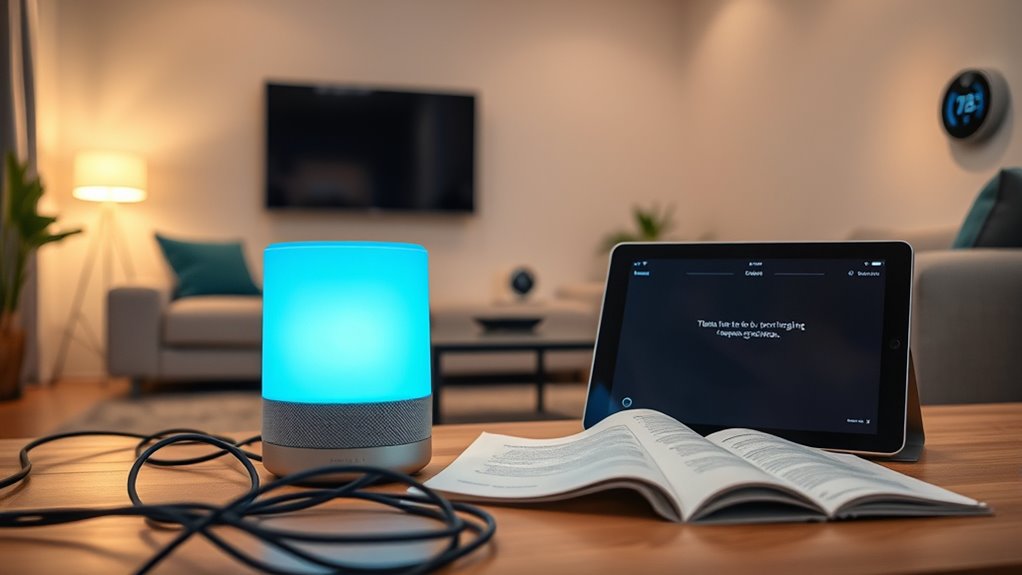

When your smart devices act up, start by checking your Wi-Fi signal and restarting your router to refresh the connection. Confirm all devices are updated and properly configured, and verify compatibility with your ecosystem. Keep batteries charged, and reset devices if needed. Make sure firmware is current, and secure your network with strong passwords. Troubleshooting these common issues can restore normal function, and if you keep exploring, you’ll find even more useful solutions.

Get the latest gadgets delivered free — and shop member deals
- Fast, free delivery on millions of items
- Access to Prime Big Deal Days deals on October 6–7
- Prime Video, Amazon Music and more included
Key Takeaways
- Restart your router and devices to refresh connections and resolve temporary glitches.
- Check Wi-Fi signal strength and reduce interference for stable device connectivity.
- Verify automation rules are active and correctly configured to ensure proper device operation.
- Keep device firmware and app software up-to-date to fix bugs and improve performance.
- Reset or re-sync devices experiencing issues, and confirm compatibility with your smart home ecosystem.
Diagnosing Connectivity Problems

Connectivity problems are the most common source of frustration with smart home devices, affecting nearly 87% of users. When your devices stop responding or drop offline, it’s often due to unstable Wi-Fi signals or network interference. Start by checking your internet connection; ensure your router is working properly and has a strong signal where your devices are located. Restart your router to refresh the connection. Keep your devices within range of your Wi-Fi network and reduce obstacles like thick walls or electronic interference. Update your device firmware and network settings regularly to prevent glitches. If you have multiple devices, consider creating a dedicated network or using a mesh Wi-Fi system to improve coverage. Regularly monitoring your network’s signal strength can help identify areas with weak coverage and prevent connectivity issues. Understanding and optimizing your wireless network setup can significantly improve overall device reliability. Additionally, reviewing your network security settings can prevent unauthorized access that might disrupt your network. Being aware of interference sources such as other wireless devices or appliances can help you troubleshoot and improve your connection stability. You might also consider scheduling routine network checks to catch potential issues early and keep your smart home running smoothly. Troubleshooting these issues can restore seamless connectivity and make your smart home more reliable.
Simplifying Device Setup

When setting up your smart devices, clear instructions make the process much easier. Always check compatibility first to verify your new device works seamlessly with your existing system. Doing these simple steps upfront saves time and prevents frustration later on.
Clear Instructions Matter
Clear instructions are essential for a smooth smart home setup. When setup guides are straightforward and easy to follow, you’re less likely to run into frustration or mistakes. Read each step carefully, and don’t skip ahead. If instructions mention specific apps or firmware updates, complete those before proceeding. Keep your device nearby and ensure your Wi-Fi is active. If a step isn’t clear, consult the manufacturer’s website or support resources for clarification. Simplified, well-written instructions help you avoid errors, reduce setup time, and ensure your device functions properly from the start. Clear guidance also minimizes the chance of compatibility issues caused by incorrect configurations. Paying attention to device troubleshooting tips and understanding the science behind smart technology can save you time if problems arise during setup or operation. Additionally, having a basic understanding of smart home protocols can help you resolve minor connectivity problems more efficiently. Being familiar with network security measures can also prevent potential vulnerabilities during device installation.
Check Compatibility First
Checking compatibility before setting up your smart devices can save you time and frustration later on. Start by reviewing the device specifications and verify they work with your existing smart home ecosystem, whether it’s Alexa, Google Home, or Apple HomeKit. Confirm that your Wi-Fi network supports the device’s requirements, such as frequency bands or security protocols. Avoid mixing brands that aren’t compatible, as this often leads to connectivity issues or control problems. Read reviews and manufacturer guidelines to verify seamless integration. If you’re unsure, visit the manufacturer’s website or contact customer support to confirm compatibility. Taking these steps upfront prevents headaches, ensures smooth setup, and helps your devices work together effortlessly from the start. Additionally, understanding smart device compatibility and ecosystem integrations can help you make informed choices for a more reliable smart home system. Being aware of ecosystem compatibility can also prevent future compatibility issues as your smart home expands. Ensuring network requirements are met is crucial, since inadequate network support can undermine device performance. For example, understanding Wi-Fi specifications can help you select the right router settings to optimize device connectivity. Recognizing the importance of interoperability standards can further enhance your smart home’s reliability and expandability.
Managing Compatibility Across Brands

Managing compatibility across different smart home brands can be be a real challenge, especially since many devices don’t work seamlessly together. To minimize issues, stick to devices within the same ecosystem whenever possible. For example, choose Amazon Alexa-compatible devices if you already use Alexa, or go with Google Home-compatible devices for the Google ecosystem. When mixing brands is unavoidable, check for compatibility statements and supported integrations before purchasing. Use universal hubs or smart home controllers, like Samsung SmartThings or Hubitat, which can bridge multiple brands and protocols. Keep your firmware updated and review device documentation regularly to ensure ongoing compatibility. Understanding device compatibility is crucial for maintaining a reliable smart home setup. Additionally, staying informed about interoperability standards can help you make better choices when expanding or troubleshooting your system. Regularly reviewing device manufacturer updates can prevent unexpected compatibility issues and enhance your system’s stability. Staying aware of protocol compatibility can also help you troubleshoot issues more effectively when problems arise. If issues persist, consider resetting and reconfiguring devices or consulting manufacturer support to troubleshoot specific compatibility problems. This approach keeps your smart home running smoothly.
Extending Battery Life

To extend your smart device’s battery life, start by checking its battery status regularly to catch early signs of drain. Next, optimize device settings to reduce unnecessary power usage, like dimming lights or lowering refresh rates. Finally, activate power-saving modes when possible to maximize battery longevity and minimize frequent replacements. Incorporating Free Floating techniques can also help in reducing energy consumption by avoiding constant device activity. Additionally, understanding how Dark Psychology tactics influence device behavior can help you recognize and prevent manipulative apps or features that drain energy unexpectedly. Being aware of battery health can further aid in maintaining optimal device performance over time.
Check Battery Status Regularly
Regularly monitoring the battery status of your smart devices is essential for extending their lifespan and maintaining reliable performance. When you keep an eye on battery levels, you can replace or recharge batteries before they completely drain, preventing device failures. Many devices send low-battery alerts, so stay alert to these notifications. Checking battery status also helps identify patterns of rapid drain, indicating potential issues or the need for firmware updates. Avoid neglecting battery checks, as dead batteries can cause connectivity issues or reset device settings. By staying proactive, you ensure your devices stay powered, reducing interruptions and frustration. Regular checks are simple but crucial steps to maximize battery life and keep your smart home running smoothly. Additionally, understanding battery health can help you assess whether your device’s batteries are functioning optimally and plan for timely replacements. Monitoring battery performance can also reveal when a battery is nearing the end of its usable life, prompting replacement before failure occurs. Incorporating routine battery diagnostics can further enhance your ability to maintain device reliability.
Optimize Device Settings
Optimizing your device settings is a straightforward way to extend battery life and guarantee your smart home runs smoothly. Start by reducing screen brightness and disabling unnecessary notifications or features that drain power. Adjust sensor sensitivity and set devices to operate at lower power levels when possible. Turn off Wi-Fi or Bluetooth when not in use, especially on battery-powered devices. Limit the frequency of updates and data syncing to conserve energy. Disable automatic updates if they’re not essential, as they can cause unnecessary activity. Keep your device firmware up-to-date to improve efficiency and fix bugs that might cause excessive battery drain. By fine-tuning these settings, you minimize power consumption and prolong your device’s operational time, reducing the frequency of battery replacements or recharges.
Use Power-Saving Modes
Using power-saving modes is one of the most effective ways to extend your smart device’s battery life. These modes reduce background activity, lower screen brightness, and limit sensor usage to conserve energy. To activate them, check your device’s settings menu—most smart devices have an option labeled “Battery Saver” or “Power Saving Mode.” Turning it on disables non-essential features, allowing your device to run longer between charges. You can also customize the settings to prioritize important functions while shutting down less critical processes. Remember, enabling power-saving modes may temporarily limit device responsiveness or slow some features, but it’s a small trade-off for prolonged battery life. Use these modes during long periods without charging or when you notice your device’s battery draining quickly.
Securing Your Smart Home Network

Securing your smart home network is essential to protect your devices and personal data from cyber threats. If you don’t, hackers could access your cameras, locks, or personal info. To strengthen your network security, consider these steps:
- Change default passwords on your router and smart devices.
- Enable WPA3 or WPA2 encryption for your Wi-Fi.
- Regularly update your device firmware and router software.
- Create a separate network for your smart devices.
- Turn off remote access unless necessary, and use strong, unique passwords.
Troubleshooting Automation Failures

Automation failures can be frustrating, especially when your routines don’t trigger as expected. First, check your device connections and make certain everything is online. Sometimes, a simple restart or re-sync can resolve the issue. Confirm that your firmware is up to date—outdated software can cause routines to break. Verify that the automation rules are correctly configured and active. If a routine isn’t triggering, test individual steps to identify where it’s failing. Consider the timing; if your devices rely on specific conditions like location or time, verify those are accurate. Network stability is vital—interference or outages can disrupt automation. In the end, review your automation logs if available; they often provide clues about what went wrong, guiding you toward a quick fix.
Fixing Device Reset and Settings Loss

When your smart device resets or loses its settings, start by checking the power connection to make certain it’s stable. Then, update the device’s firmware to fix bugs and improve performance. Finally, reconfigure your settings to restore your preferred setup and prevent future resets.
Check Power Connection
Have you noticed your smart device resetting or losing its settings unexpectedly? The culprit is often a power connection issue. First, verify the device is plugged in securely and the outlet is working correctly. Check for loose cables or damaged power cords that might cause interruptions. If it runs on batteries, confirm they’re installed properly and have enough charge. Power fluctuations or outages can also cause devices to reset, so consider using a surge protector. Keep an eye on indicator lights—if they flicker or turn off unexpectedly, power issues are likely. To troubleshoot:
- Test the outlet with another device
- Replace worn or damaged power cables
- Use a surge protector for stability
- Ensure batteries are fresh and seated properly
- Unplug and replug the device after a few seconds
Update Firmware Regularly
Updating your device’s firmware regularly is one of the best ways to prevent resets and loss of settings. Firmware updates fix bugs, improve stability, and patch security vulnerabilities that can cause devices to restart or lose configurations. To keep your devices running smoothly, check for updates through the manufacturer’s app or website often. Enable automatic updates if available to ensure you don’t miss critical patches. Before updating, back up your device settings if possible, so you can restore them easily if needed. Avoid interrupting the update process, as incomplete updates can cause further issues. Keeping firmware current minimizes the risk of unexpected resets, improves device performance, and enhances security—helping your smart home operate reliably and securely.
Reconfigure Device Settings
Reconfiguring device settings is essential when your smart home devices reset or lose their configurations. This process ensures your devices work properly and stay integrated into your system. To do this effectively:
- Check if the device firmware is up to date, then reapply your preferred settings.
- Reset the device to factory settings if it’s stuck or malfunctioning.
- Reconnect the device to your Wi-Fi network, ensuring a stable connection.
- Re-enter your custom routines or automation rules after reconfiguration.
- Save backups of your device settings regularly to restore quickly if issues occur.
Addressing Power Outages and Fluctuations

Power outages and fluctuations can disrupt your smart home’s performance and compromise its security. When power drops unexpectedly or fluctuates, your devices may turn off, lose settings, or malfunction. To minimize these issues, consider installing an uninterruptible power supply (UPS) for critical devices like security cameras and smart locks, ensuring they stay operational during outages. Check your circuit breakers and power sources to identify and fix any faults. If your smart devices are connected to a fluctuating power supply, using surge protectors can prevent damage and resets. After a power outage, verify that your devices reboot correctly and reconnect to your network. Consistent power management helps maintain device stability, security, and smooth operation in your smart home.
Updating Firmware and Software

After addressing power issues, ensuring your devices run smoothly often depends on keeping their firmware and software up to date. Regular updates fix bugs, improve performance, and patch security vulnerabilities, preventing potential problems. To keep your devices current, check for updates frequently through your device’s app or settings menu. Enable automatic updates if available, so you don’t miss critical patches. Be cautious when updating; ensure your device stays powered and connected. Sometimes, a restart after updates helps apply changes properly. Outdated firmware can lead to connectivity issues or device malfunctions. Staying current minimizes compatibility problems and enhances security. Remember, manufacturers release updates to improve reliability, so it’s worth making this a regular part of your smart home maintenance routine.
- Check for updates via device app or settings
- Enable automatic software updates if possible
- Keep devices powered during updates
- Restart devices after installing updates
- Regularly review firmware versions to stay current
Protecting Privacy and Data Security

Protecting your privacy and data security is essential as smart home devices become more integrated into daily life. You should start by changing default passwords to strong, unique ones for each device. Regularly update your firmware and software to patch security vulnerabilities. Enable two-factor authentication whenever possible to add an extra layer of protection. Be cautious about sharing voice commands or video feeds and review privacy settings on each device. Use a separate, secured Wi-Fi network for your smart devices to isolate them from your main network. Turn off features you don’t use, like voice recording or cloud storage, to reduce data exposure. In conclusion, monitor device activity logs regularly to identify any suspicious activity, and stay informed about security updates from manufacturers.
Frequently Asked Questions
How Can I Improve My Smart Home Wi-Fi Signal?
To improve your smart home Wi-Fi signal, start by placing your router in a central, open location away from walls and interference. Use a Wi-Fi extender or mesh network to boost coverage in dead spots. Reduce congestion by limiting devices on your network and update your router’s firmware regularly. Resetting your router can also help, ensuring a stable, faster connection for all your smart devices.
What Are the Best Practices for Integrating New Devices?
Think of integrating new devices like adding pieces to a puzzle—you want them to fit perfectly. Start by choosing devices from the same ecosystem to avoid compatibility headaches. Update their firmware before setup, and connect them to a strong, stable Wi-Fi network. Follow manufacturer instructions carefully, and keep your apps and firmware current. This approach makes your smart home seamless, letting new gadgets work harmoniously from the start.
How Do I Identify Which Device Causes Connectivity Issues?
You should start by disconnecting all devices and reconnecting them one by one, testing each after reconnecting. Check your Wi-Fi signal strength with each device to identify weak spots. If a particular device consistently disconnects or malfunctions, it’s likely the culprit. Updating firmware and resetting that device can also help confirm if it’s causing the connectivity issues, helping you pinpoint the problematic device quickly.
Can I Automate Device Updates to Prevent Security Vulnerabilities?
Yes, you can automate device updates to prevent security vulnerabilities. Set your devices to update automatically whenever possible, ensuring they stay secure without manual intervention. Regularly check for firmware and software updates through your device’s app or settings. Enable automatic updates in your smart home hub or app, so security patches and improvements install seamlessly, safeguarding your system from cyber threats and keeping your smart home safe and secure.
What Steps Should I Take if My Smart Device Is Unresponsive?
If your smart device is unresponsive, start by unplugging it and then plugging it back in to reset. Check your Wi-Fi connection to verify it’s stable; a weak signal can cause issues. Update the device’s firmware through the app, and make sure it’s synchronized with your hub or ecosystem. If it still doesn’t respond, try factory resetting the device and re-adding it to your system.
Conclusion
Think of your smart home as a symphony, each device playing its part. When issues arise, it’s like a discord disrupting the harmony. By troubleshooting smartly, you’re tuning the instruments, restoring the melody. With patience and a bit of know-how, you’ll keep your home’s tech orchestra running smoothly—music to your ears. Embrace these tips, and watch your smart devices dance in perfect unison, turning chaos into a seamless, smart sanctuary.
Fall Picks
fall essentials
As an affiliate, we earn on qualifying purchases.