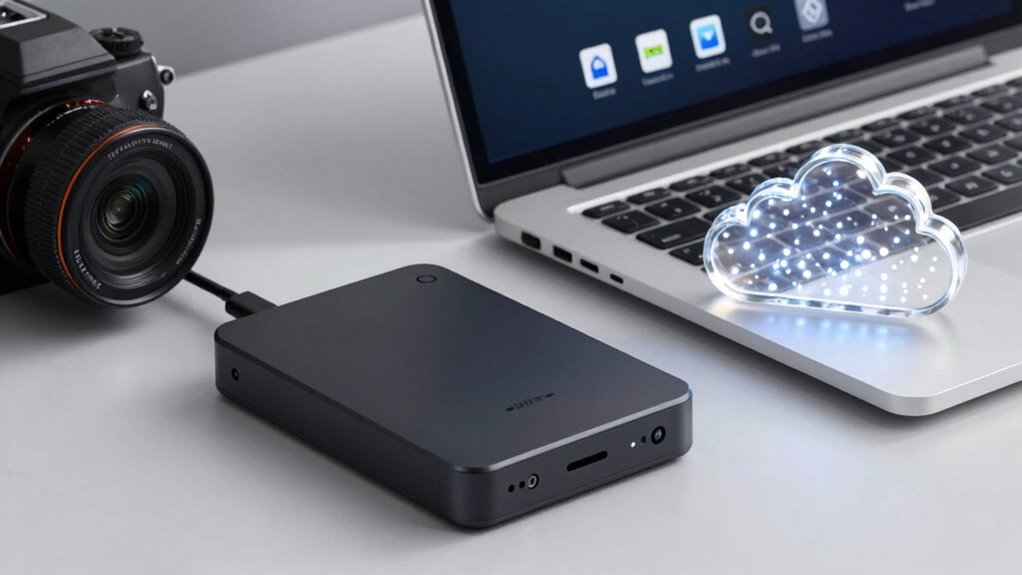

Backups create copies of your data for recovery after loss or damage, acting as a safety net. Sync automatically updates files across multiple devices in real-time to keep everything consistent. Cloud storage stores large amounts of data remotely, giving you online access and easy scalability. While backups protect your data, sync keeps your files current across devices, and cloud storage offers flexible online space. Keep exploring to understand how to combine these methods for better data security.

Get the latest gadgets delivered free — and shop member deals
- Fast, free delivery on millions of items
- Access to Prime Big Deal Days deals on October 6–7
- Prime Video, Amazon Music and more included
Key Takeaways
- Backups create copies of data for recovery, while sync updates files across devices in real-time.
- Cloud storage provides remote, scalable data access without automatically syncing or backing up files.
- Backups are stored offline or separately for safety, whereas sync and cloud storage involve online data sharing.
- Sync ensures continuous, real-time updates, whereas backups are typically scheduled and stored separately.
- Cloud storage relies on provider security policies, while backups and sync require local security measures.
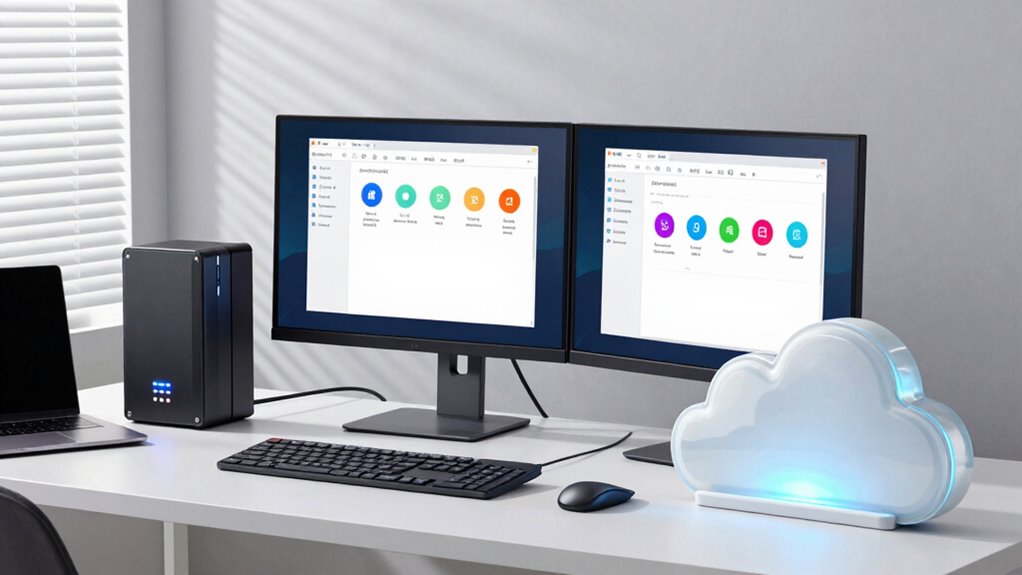
In today’s digital world, protecting your data is more important than ever, and understanding the differences between backups, sync, and cloud storage is key to doing so effectively. Each plays a vital role in data management, but they serve different purposes and involve distinct strategies to keep your information safe. When it comes to securing your data, features like data encryption and user access control become essential. Data encryption transforms your data into a secure format that’s unreadable without the right key, preventing unauthorized access even if someone intercepts your files. User access control, on the other hand, limits who can view or modify your data, ensuring only authorized individuals have access. These security measures are crucial regardless of whether you’re using backups, sync, or cloud storage.
Securing your data with encryption and access control is essential across backups, sync, and cloud storage.
Backups are designed to create copies of your data that you can restore if the original files are lost, damaged, or compromised. They serve as a safety net, often stored offline or on separate servers, so that you can recover your information quickly after hardware failures, accidental deletions, or malware attacks. When setting up backups, it’s vital to incorporate data encryption to protect your files during storage and transfer. Strong user access control ensures only trusted users can access or restore these backups, reducing the risk of data breaches. Additionally, understanding cloud security practices can help you select reliable backup solutions that prioritize your data’s safety. Implementing data redundancy further enhances your protection by ensuring multiple copies exist in different locations. Incorporating data lifecycle management can also optimize storage efficiency and security throughout the lifespan of your data. A comprehensive security approach should also consider the horsepower of your backup hardware, especially for large or complex data sets, to ensure efficient restoration when needed. Moreover, choosing solutions with automated backup processes can minimize human error and ensure consistent data protection.
Sync, or synchronization, automatically updates your files across multiple devices, maintaining consistency so that changes made on one device appear on others almost instantly. This seamless sharing is convenient but can also introduce vulnerabilities if not managed carefully. To safeguard synced data, encryption should be applied during transfer and storage, preventing interception by malicious actors. User access control becomes equally important here, as you want to make sure only authorized devices and users are syncing data, especially in environments where multiple users access shared folders or accounts.
Cloud storage combines elements of backups and sync but emphasizes online access and scalability. It allows you to store vast amounts of data remotely and access it from any device with an internet connection. While cloud providers typically implement robust data encryption and user access controls, it remains your responsibility to choose providers with strong security policies. You should also configure permissions carefully, granting access only to those who need it and regularly reviewing who has access to your stored data.
Understanding these differences helps you select the right data management approach for your needs. Incorporating data encryption and user access control into each method ensures your data remains protected, no matter where it resides or how you access it. Ultimately, a layered security strategy, combining these tools, offers the best protection against data loss and unauthorized access.
As an affiliate, we earn on qualifying purchases.
Frequently Asked Questions
How Do I Choose the Best Storage Option for My Needs?
To choose the best storage option, consider your needs for storage scalability and user accessibility. If you require flexible growth and remote access, cloud storage is ideal. For frequent backups, a dedicated backup solution offers better data security. Sync services are perfect for sharing and collaborating across devices. Assess your data volume, security requirements, and how easily you need to access files to make the right choice.
Are There Security Risks Associated With Cloud Storage?
Think of cloud storage as a treasure chest—secure, but not invincible. Yes, there are security risks, especially around privacy concerns. Data encryption helps protect your files, making them unreadable to outsiders, but it’s crucial to choose providers that prioritize security. Always review privacy policies and enable two-factor authentication. By staying vigilant, you can enjoy the convenience of cloud storage while minimizing potential risks.
Can I Automate Backups and Sync Processes Easily?
Yes, you can easily automate backups and sync processes using automated scheduling features in backup and sync tools. These tools allow you to set regular intervals for automatic data backups, ensuring your files are always current. Additionally, data versioning helps you keep multiple versions of files, so you can restore previous versions if needed. This automation minimizes manual effort and enhances data security and recovery options effortlessly.
What Is the Cost Difference Between These Options?
You’ll find that backups can cost a fortune, especially with high storage needs, but sync and cloud storage often come with more budget-friendly, cost-effective solutions. Pricing comparison shows backups might be pricier due to dedicated storage, while sync and cloud options offer scalable plans. For most, choosing the right plan saves money in the long run. So, compare plans carefully — your wallet will thank you!
How Do I Recover Data From a Failed Backup or Sync?
If a backup or sync fails, start by checking your data recovery strategies, like restoring from an earlier backup or using version history. Make sure you verify your backup files with backup verification techniques to confirm their integrity before restoring. If recovery isn’t successful, consider using data recovery software or professional services. Regularly testing your backups helps prevent future failures, ensuring your data remains accessible when needed.
cloud storage service subscription
As an affiliate, we earn on qualifying purchases.
As an affiliate, we earn on qualifying purchases.
Conclusion
By mastering backups, sync, and cloud storage, you protect your precious files and perfect your digital privacy. Embrace the ease, guarantee the security, and energize your efficiency with these essential tools. Don’t delay — immerse yourself in digital diligence today. Defend data, diminish doubt, and delight in your digital domain. Remember, proactive preservation prevents painful problems, so safeguard your storage with savvy strategies. Secure your snapshots, synchronize smoothly, and soar confidently into the cloud!
As an affiliate, we earn on qualifying purchases.
As an affiliate, we earn on qualifying purchases.
Fall Picks
fall essentials
As an affiliate, we earn on qualifying purchases.