
To switch between Android and iPhone smoothly, back up your data first, then choose the right transfer method. Use Apple’s Move to iOS app for a fresh start from Android, or sync contacts and calendars with your Google account. Transfer photos and videos via cloud services or direct cable connections, and use transfer tools for files and messages. For detailed steps and tips, explore how to make your switch effortless and secure.
Key Takeaways
- Use official tools like Move to iOS for Android-to-iPhone transfers, or Samsung Smart Switch for Samsung devices.
- Back up and sync contacts, calendars, photos, and files to cloud services (Google Drive, iCloud) for easy migration.
- Transfer apps manually by re-downloading from the app store; paid app licenses often require re-purchase.
- Connect devices via Wi-Fi, cables, or QR codes to transfer data securely and efficiently.
- Verify data transfer, update device settings, and reinstall essential apps post-migration for a smooth switch.
Setting Up Your New Device for a Smooth Transition

Starting with a fresh iPhone can streamline your shift from Android, but preparation is key to ensuring a smooth setup. First, back up your Android data, such as contacts, photos, and files, using cloud services or local storage. Make sure your iPhone is fully charged and connected to Wi-Fi. During setup, choose to set up your device as new to start fresh or restore from an existing backup if available. Keep your Apple ID ready, as you’ll need it to access iCloud and download apps. Disable any Android-specific security features, like Find My Device, to prevent conflicts. Organize your data and decide what to transfer beforehand. This preparation minimizes delays and makes the transition smoother, helping you get comfortable with your new iPhone faster. Additionally, understanding home technology features can help you optimize your device setup for an improved user experience. Being aware of cloud synchronization options can further simplify data transfer and ongoing device management.
Using Apple’s Move to Ios App for a Fresh Start
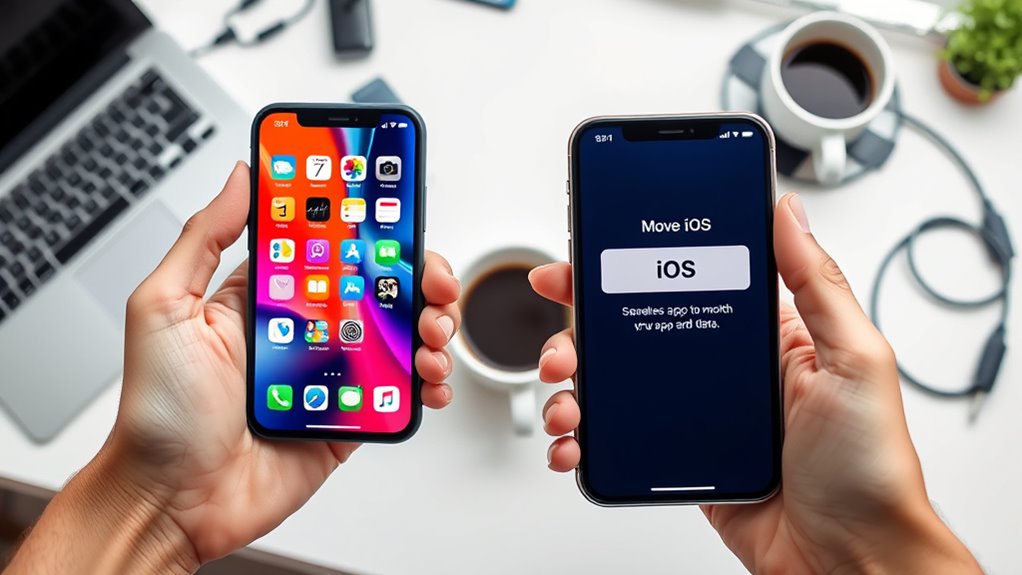
When setting up your new iPhone for the first time, Apple’s Move to iOS app offers a straightforward way to transfer your data from Android. To get started, confirm both devices are connected to the same Wi-Fi network. The app simplifies the process with these steps:
Set up your new iPhone easily with Move to iOS from Android over Wi-Fi.
- Download and open Move to iOS on your Android device.
- Tap “Continue” on both devices and agree to the terms.
- Enter the code displayed on your iPhone into the Android app.
- Select the data you want to transfer, such as contacts, messages, photos, or bookmarks. Ensuring your data security during this process is vital to protect your personal information. Additionally, using encryption protocols helps safeguard your data throughout the transfer.
Once the transfer begins, it may take some time depending on the amount of data. After completion, finalize your iPhone setup, and your data will be ready to use. Additionally, understanding user data management can help you optimize your transition, including how data privacy is handled during the transfer process. Being aware of data encryption standards ensures your information remains secure during the transfer.
Transferring Contacts and Calendars With Google Sync or VCF Files
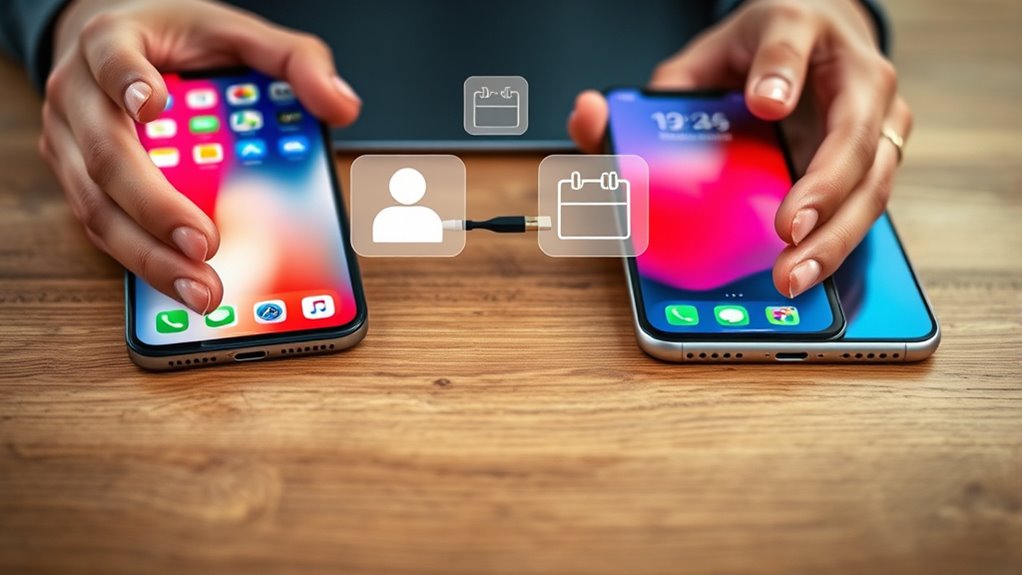
You can easily transfer your contacts and calendars by syncing your Google account, which keeps everything updated across devices. Alternatively, exporting VCF files from your Android and importing them to your iPhone offers a straightforward manual method. If you prefer, you can also transfer contacts manually, but it’s best to choose the method that fits your needs and tech comfort level. Be aware that understanding affiliate disclosure and privacy policies can help you make more informed decisions about your data during the transfer process.
Sync via Google Account
Transferring your contacts and calendars via Google Account offers a convenient way to move data from Android to iPhone. To do this effectively, follow these steps:
- Make sure your Android device is syncing contacts and calendars with your Google Account.
- On your iPhone, add the same Google Account in Settings > Mail > Accounts.
- Enable Contacts and Calendars sync for that account.
- Wait for your contacts and calendar events to automatically download to your iPhone.
This method keeps your data synchronized across devices without manual exporting. It’s quick, reliable, and requires only an internet connection. Keep in mind, this sync works best if your Google account is already up-to-date on your Android device. Once set, your contacts and calendars stay current on your iPhone.
Exporting VCF Files
Ever wonder how to move your contacts and calendars from Android to iPhone using VCF files? Exporting VCF files is straightforward. On Android, open your Contacts app, select Export, and save the VCF file. You can then email this file to yourself or upload it to a cloud service. On your iPhone, open the email or cloud app, tap the VCF file, and choose “Add All Contacts.” For calendars, export your ICS file from your calendar app and import it into iCloud or Google Calendar. Here’s a quick overview:
| Step | Action | Result |
|---|---|---|
| 1 | Export VCF from Android | Contacts saved as VCF file |
| 2 | Send VCF via email/cloud | Transfer to iPhone |
| 3 | Open VCF on iPhone | Contacts imported automatically |
| 4 | Export ICS file from calendar | Calendar data saved |
| 5 | Import ICS into iCloud | Calendars synced with iPhone |
Manual Contact Transfer
Manual contact and calendar transfer offers a straightforward alternative when the Move to iOS app isn’t an option, such as after setting up your new iPhone. You can use Google Sync or VCF files to move your data efficiently. Here’s how:
- Export contacts from Android as a VCF file and email or upload it to your iPhone.
- Sync your Google account on both devices to automatically update contacts and calendars.
- Use third-party apps like Syncios for bulk transfer, minimizing data loss.
- For small lists, scan QR codes or manually copy contacts via Bluetooth or email.
- Remember to enable necessary cookies on your devices to ensure smooth synchronization and transfer processes.
These methods give you control over your data transfer, ensuring your contacts and calendars move smoothly without relying solely on initial setup tools.
Moving Photos and Videos via Cloud Services or Direct Connection
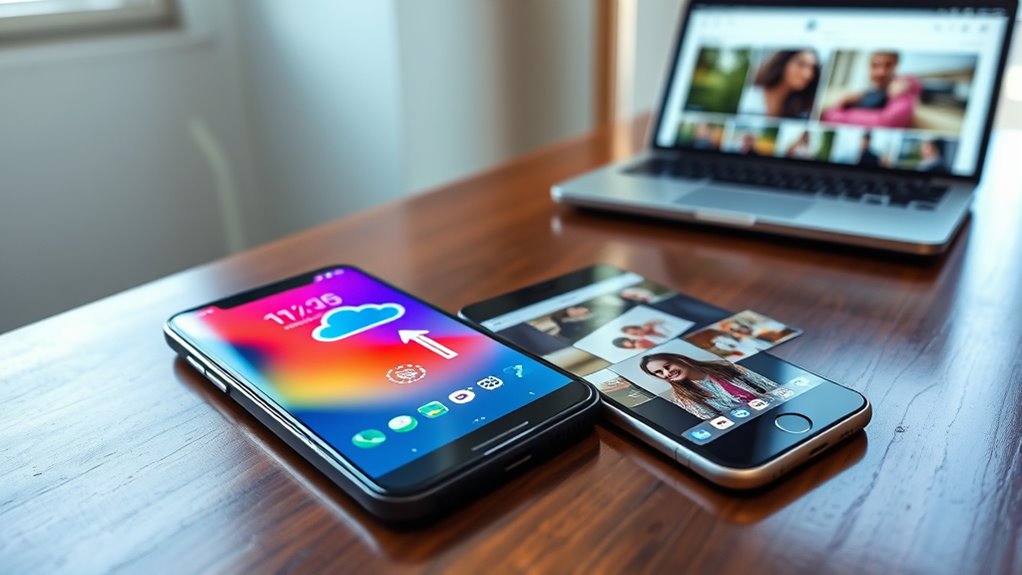
You can move your photos and videos using cloud services like Google Photos or Google Drive, which sync files across devices over the internet. Alternatively, connecting your Android and iPhone directly with cables or adapters offers a faster, wired transfer. Choosing the right method depends on your file sizes, internet speed, and whether you prefer wireless or direct connections. Also, considering smart tweaks in your transfer process can help optimize speed and security.
Cloud Storage Options
Moving photos and videos from Android to iPhone using cloud storage offers a convenient and flexible solution, especially if you already use services like Google Photos or Google Drive. You can upload your media from Android and then access it on your new iPhone. Here’s how to make it work smoothly:
- Upload your photos and videos to Google Photos or Drive on your Android device.
- Confirm your uploads are complete and synced.
- Download the Google Photos or Drive app on your iPhone.
- Sign in with the same account to access your files.
This method lets you transfer large media collections without cables or initial setup constraints. However, keep in mind that upload and download speeds depend on your internet connection, and some compression may occur if storage limits are exceeded.
Connecting Devices Directly
Connecting your devices directly offers a faster, more reliable way to transfer photos and videos between Android and iPhone without relying solely on internet speeds. Using a USB-C or USB-A to Lightning cable creates a direct link, enabling quick data transfer. Some third-party apps support this method, allowing you to move media, contacts, and messages efficiently. Both devices need to be properly connected and powered to avoid interruptions. This approach generally outperforms wireless methods in speed and stability, especially for large files. Keep in mind, not all file types are compatible, and some transfers might require specific apps or software. Using a direct connection minimizes security risks and ensures your data stays private during the transfer process. Additionally, understanding device compatibility can help prevent potential transfer issues.
Sharing Files and Media With Wireless Transfer Tools
Wireless transfer tools have made it easier to share files and media between Android and iPhone without the need for cables or complicated setups. These apps simplify the process and save time. Here’s how you can maximize their use:
Wireless transfer tools simplify sharing files between Android and iPhone effortlessly.
- Use third-party apps like MobileTrans, which support transferring photos, videos, contacts, and more.
- Scan QR codes for quick, secure device pairing without manual setup.
- Transfer multiple files simultaneously to handle large collections efficiently.
- Some tools require installation on both devices and may need a computer for advanced options.
- Understanding breast cancer symptoms can be important for health awareness, although it’s unrelated to device transfer methods.
Most tools offer encryption, ensuring your data stays safe during transfer. With these methods, switching devices becomes faster and more convenient.
Managing App Transfers and Reinstalling Paid Apps
Transferring paid apps from Android to iPhone isn’t automatic, so you’ll need to manage licenses and reinstallation manually. You might have to purchase some apps again if they aren’t available on iOS or if licenses don’t transfer. Be prepared to reinstall your apps individually and check if app data can be moved or restored. Additionally, consider local app availability in your new location, especially if you’re moving to a different state or country, as some apps may be region-specific.
Transferring Paid App Licenses
Have you wondered how to handle paid app licenses when switching from Android to iPhone? Moving your apps isn’t as simple as re-downloading; licenses often don’t transfer automatically. To manage this:
- Check if the app supports cross-platform licensing—some developers allow it.
- Use the app’s official website or support to verify license transfer options.
- Sign in with the same account you used on Android; some apps link licenses to your account.
- Contact app support if licenses aren’t recognized; they might manually transfer or provide a new license.
- Remember that piercings and other body modifications require careful aftercare and hygiene to prevent infections during the transition between devices, similar to how proper piercing care ensures healing and reduces risks.
Reinstalling Apps Manually
After confirming your data is safely moved or backed up, you’ll need to manually reinstall your apps on your new iPhone. Open the App Store and tap your profile icon. From there, select “Purchased” to see all apps you’ve previously downloaded, including free and paid ones. You can choose to re-download apps individually or tap “Not on this iPhone” to see only those not currently installed. Be aware that paid apps won’t automatically transfer licenses; you’ll need to re-enter your Apple ID password or use your existing credentials. Some apps may require additional sign-in or setup steps. If you’ve purchased apps on Android, they won’t carry over, so you’ll need to buy them again through the App Store if necessary. This process ensures you have all your essential apps on your new iPhone.
Managing App Data Transfer
Managing app data transfer can be challenging because most apps don’t automatically migrate their data when switching from Android to iPhone. To facilitate a smooth transition, consider these options:
- Use third-party tools like MobileTrans for wireless or cable-based app and data transfers.
- Reinstall paid apps manually from the App Store, since purchases aren’t shared across platforms.
- Check if the app offers its own cloud sync or backup feature to restore data on iPhone.
- For free apps, download them again from the App Store, but be aware that in-app data may not transfer unless supported.
Always verify if your app supports cloud backups or in-app syncing before switching. This helps preserve your data and minimizes disruption.
Transferring Messages and Call History Securely
Transferring your messages and call history securely from Android to iPhone requires careful handling to safeguard your privacy and guarantee data integrity. The best method is using Apple’s Move to iOS app during initial setup, which encrypts your data during transfer. Make certain both devices are connected to a private Wi-Fi network to prevent interception. If you’ve already set up your iPhone, third-party tools like MobileTrans can help transfer your call history and messages securely via encrypted transfers, often with a computer acting as a buffer. Always verify the app’s security features before use. Avoid public Wi-Fi networks, and back up your data beforehand. This ensures your sensitive information remains protected throughout the process, minimizing risks of data loss or exposure.
Handling Email Accounts and Bookmarks During the Switch

When switching from Android to iPhone, handling your email accounts and bookmarks efficiently is vital to guarantee a smooth transition. To do this effectively, consider these steps:
- Add your email accounts manually using the iPhone’s Mail app, entering server details if needed.
- Sync your email contacts through your email provider’s app or settings to retain contact info.
- Export bookmarks from your Android browser as an HTML file, then import them into Safari or Chrome on your iPhone.
- Use cloud services like Google or iCloud to sync bookmarks and emails seamlessly across devices.
This approach ensures your important emails and bookmarks are accessible on your new iPhone without hassle or data loss.
Best Practices for Data Security and Privacy

Ensuring your data remains secure and private during your switch from Android to iPhone is essential, especially when handling sensitive information like emails, contacts, and bookmarks. Use official tools like Apple’s Move to iOS app or trusted third-party apps that offer encryption to protect your data during transfer. Avoid public Wi-Fi networks; instead, connect both devices to a secure, private Wi-Fi or use a cable for direct transfer. Before starting, back up your Android data to a secure cloud or local storage. Disable automatic sync features and sign out of accounts on your Android device to prevent unauthorized access. Also, review permissions and privacy settings on your new iPhone, ensuring only trusted apps have access to your information. Additionally, data encryption is a crucial aspect of safeguarding your personal information during the transfer process. Implementing secure transfer methods can further prevent potential interception of your data. Considering the importance of privacy protection, following these steps helps safeguard your privacy throughout the process.
Tips for Post-Transfer Optimization and Troubleshooting

After completing your data transfer, take time to optimize your new iPhone for smooth performance and ease of use. Here are four key tips:
- Update iOS: Make sure your device runs the latest iOS version for security patches and new features.
- Check App Compatibility: Reinstall essential apps and verify their data and permissions.
- Reconfigure Settings: Customize notifications, privacy options, and display preferences to suit your workflow.
- Troubleshoot Sync Issues: If contacts, calendars, or media aren’t syncing properly, re-login to your accounts or reset network settings. Paying attention to air quality can also improve overall device performance and longevity.
Frequently Asked Questions
Can I Transfer My App Data and Settings Between Android and Ios?
You can’t directly transfer app data and settings between Android and iOS because of platform differences. However, some apps offer cloud backups or sync features that let you restore data on your new device. For example, Google Drive or app-specific cloud services can help you access your data, but many app settings and app-specific data won’t transfer automatically. You might need to manually set up or reconfigure some apps after switching.
Is It Possible to Transfer Data After Initial Device Setup?
No, you can’t transfer data after your device setup is complete using the Move to iOS app. It only works during the initial setup of your iPhone or Android device. If you missed that window, you’ll need to use alternative methods like third-party transfer apps, cloud services like Google Drive or iCloud, or manual transfer options such as exporting contacts and files. These methods can help you move data post-setup.
How Do I Transfer Large Files Quickly Without Internet?
You can transfer large files quickly without internet by using a cable or direct connection between your Android and iPhone. USB-C or USB-A to Lightning cables enable fast, reliable transfers of videos, photos, and contacts. Just connect both devices properly, use compatible transfer apps, and avoid Wi-Fi issues. This method is faster than wireless options and doesn’t rely on internet speed, making it ideal for large file transfers.
Are Paid Apps and In-App Purchases Transferable Between Platforms?
Paid apps and in-app purchases usually don’t transfer between Android and iPhone. You’ll need to repurchase apps on your new device, and in-app purchases often aren’t shared across platforms. Some app developers support cross-platform purchases or provide accounts that sync your progress, but most of the time, you’ll have to buy again. To avoid losing access, check each app’s support info before switching.
What Are the Best Security Practices During Wireless Transfer?
Beware, your data’s safety hinges on your security practices. During wireless transfer, always connect to a secure, private Wi-Fi network—not public ones that could expose your info. Enable encryption if your app offers it, and avoid sharing sensitive data over untrusted networks. Keep your devices updated with the latest security patches, and consider using trusted third-party apps with strong encryption. These precautions guard your valuable information from potential threats.
Conclusion
Your device switch is more than just a transfer; it’s a new chapter, like turning a page in a book. As you move your data, think of it as planting seeds for fresh experiences and seamless connections. Embrace the journey with confidence, knowing each step helps you craft a smooth progression. Soon, your new device will be a trusted companion, ready to guide you into the next adventure with clarity and ease.