
Understanding computer specs helps you choose the right device and optimize performance. The CPU is the “brain” that processes instructions, while RAM affects multitasking. Storage options like SSDs and HDDs determine speed and durability. The graphics card impacts visuals, especially in gaming or design. Display resolution and size influence clarity and workspace. Power and compatibility matter for laptops. If you keep exploring, you’ll better grasp what these specs mean for your needs.

Get the latest gadgets delivered free with Prime
- Fast, free delivery on millions of items
- Prime Video, Amazon Music and more included
- Member-only deals all year
Key Takeaways
- CPU speed (GHz), cores, and architecture determine processing power and multitasking capabilities.
- RAM size and speed affect system responsiveness and ability to handle multiple applications simultaneously.
- Storage type (HDD vs. SSD) influences data access speed, durability, and overall system performance.
- Graphics card features, including VRAM and processing power, impact visual quality and gaming or creative work.
- Display resolution, size, and input/output ports define visual clarity, usability, and connectivity options.
What Is the Central Processing Unit (CPU)?
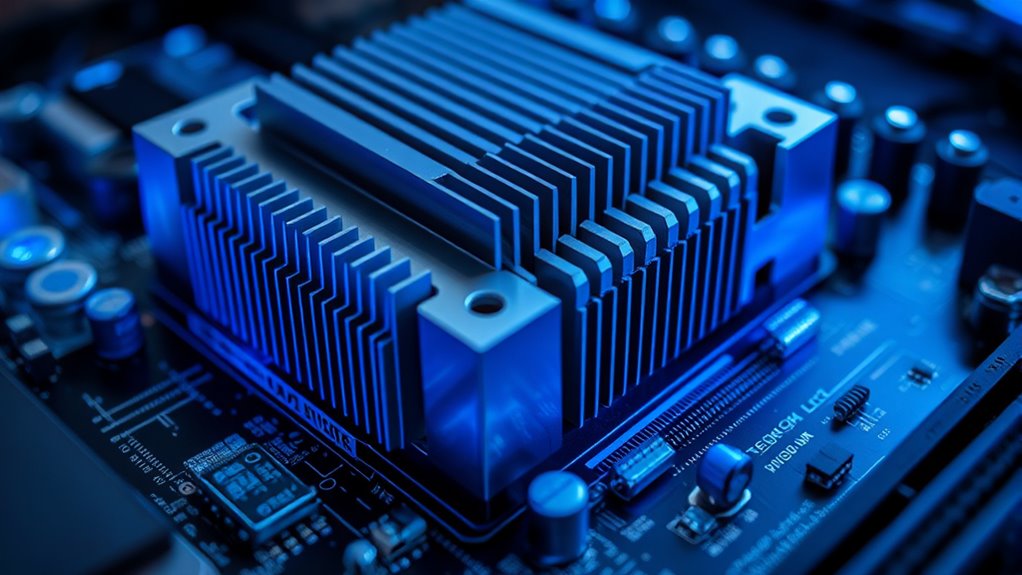
Have you ever wondered what makes your computer run? It’s the Central Processing Unit, or CPU, that handles all the instructions and calculations needed for your device to function. Think of it as the brain of your computer, executing tasks, managing data, and coordinating between hardware components. The CPU processes commands from software applications, making everything from browsing the internet to running games possible. Its speed is determined by its clock rate, measured in gigahertz (GHz), which indicates how many instructions it can process per second. A more powerful CPU can handle complex tasks quicker and run multiple applications smoothly. Additionally, the CPU’s architecture influences its efficiency and compatibility with other hardware components. The manufacturing process of a CPU also affects its energy efficiency and thermal performance, contributing to the overall sustainability of the device. Modern CPUs often incorporate multi-core processors, which enable them to perform multiple tasks simultaneously, greatly enhancing performance for multitasking and demanding applications. Practically, the CPU’s performance directly impacts how fast and responsive your computer feels during everyday use.
How Memory (RAM) Affects Your Computer’s Performance

Your computer’s RAM determines how smoothly you can run multiple applications at once. More RAM means faster speeds and less lag, especially when multitasking. Choosing the right amount and type of RAM is key to optimizing your system’s performance. Additionally, understanding simple organizing strategies can help you keep your workspace clutter-free, which can also improve your overall computer use experience. Properly managing your computer specifications can enhance both performance and longevity of your device, and awareness of quality assurance practices can help ensure that your hardware and software function reliably over time. Being familiar with hardware compatibility can prevent issues when upgrading or adding new components to your system.
RAM and Multitasking
When you run multiple applications at the same time, the amount of RAM in your computer plays a crucial role in how smoothly everything operates. Sufficient RAM allows your system to hold more data from open programs, reducing the need to constantly swap information with the slower hard drive. If you have limited RAM, your computer will struggle to keep multiple apps active, causing lag, delays, or freezing. With more RAM, you can switch between tasks seamlessly, run demanding programs without slowdown, and work more efficiently. Upgrading RAM is one of the easiest ways to improve multitasking performance. Additionally, having adequate RAM supports connected fitness devices and apps that rely on real-time data, ensuring a smooth integration of your smart home gym setup. The ability to manage memory resources effectively can help prevent system crashes and improve overall responsiveness. Understanding memory capacity and its impact can help you optimize your system for both everyday use and specialized tasks. Keep in mind that the right amount of memory depends on your typical workload and the types of applications you use most often.
Impact on Speed
Ever wonder why some computers run faster than others? The amount and speed of your RAM directly impact performance. When you open applications or switch between tasks, your computer temporarily stores data in RAM for quick access. If your RAM is limited or slow, it struggles to keep up, causing delays and sluggish responses. More RAM allows your system to handle multiple programs simultaneously without slowing down. Faster RAM improves data transfer rates, reducing wait times for memory access. This means smoother multitasking and quicker load times. However, even high-speed RAM won’t boost performance if your system doesn’t have enough capacity. Ultimately, the right combination of ample and fast RAM keeps your computer responsive, especially during demanding tasks.
Choosing the Right RAM
Choosing the right RAM is essential for maximizing your computer’s performance, especially during demanding tasks. The amount of RAM determines how much data your system can handle simultaneously. If you run multiple applications or work with large files, more RAM helps keep everything running smoothly without slowdowns. Speed also matters; faster RAM means quicker data transfer between memory and processor, reducing lag. When selecting RAM, check your motherboard’s compatible types and maximum capacity. Dual-channel configurations improve performance by allowing simultaneous data flow. Keep in mind that upgrading RAM is often one of the most cost-effective ways to boost your system’s responsiveness. Trusted resources can help you identify compatible and reliable RAM options. By choosing appropriate capacity and speed, you’ll experience smoother multitasking, faster load times, and overall improved performance.
Understanding Storage Options: HDD vs. SSD

When choosing between HDDs and SSDs, you’ll notice that SSDs offer much faster read and write speeds, which can considerably improve your overall experience. Additionally, SSDs are more durable because they have no moving parts, making them less prone to damage from drops or bumps. Understanding these differences helps you pick the right storage option for your needs. Incorporating Best Modern Toilet in your home can also enhance durability and reliability in challenging environments.
Speed Differences
Have you noticed how quickly your computer can start up or open files? That speed largely depends on your storage device. Hard Disk Drives (HDDs) use spinning disks and read/write heads, which take more time to access data. Solid State Drives (SSDs), on the other hand, use flash memory, allowing for much faster data retrieval. This difference means SSDs can boot your system in seconds and load applications almost instantly. With HDDs, you’ll likely experience longer wait times. Speed also affects how smoothly you can multitask; faster storage minimizes delays when switching between programs. If speed matters to you, opting for an SSD makes a noticeable difference in overall performance. It’s a key factor in making your computer feel more responsive and efficient. Additionally, understanding storage options can help you choose the best setup for your needs. Choosing the right storage can also impact your device’s long-term reliability and maintenance needs, ensuring your investment lasts longer.
Storage Durability
Storage durability determines how well your drive can withstand daily use and potential damage. When choosing between HDDs and SSDs, durability is a key factor. HDDs, with moving parts like spinning disks and read/write heads, are more susceptible to physical shocks, drops, and vibrations. This increases the risk of data loss or drive failure if mishandled. SSDs, on the other hand, have no moving parts; they use flash memory, making them more resistant to physical damage. They can endure more rough handling and are less likely to fail from bumps or drops. If you need a drive that can handle frequent transport or rough environments, an SSD offers better durability. Additionally, advancements in flash memory have improved SSD longevity and robustness, further enhancing their suitability for demanding conditions. It’s important to consider storage technology and the specific usage environment when making your choice. While SSDs can wear out over time due to limited write cycles, for most users, their durability surpasses that of HDDs.
Graphics Card Basics and Their Impact on Visuals
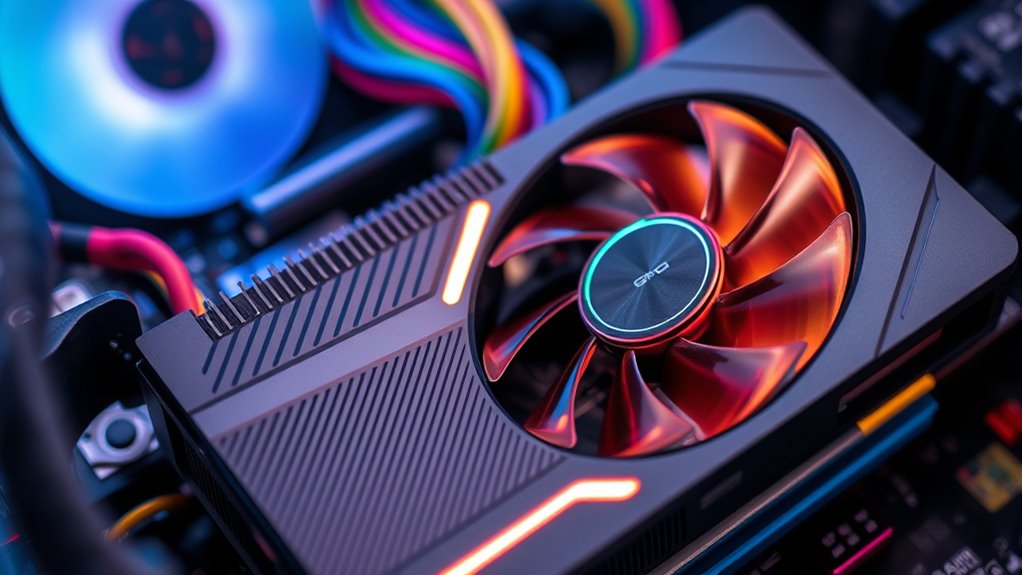
Ever wondered how a graphics card influences the visuals you see on your screen? Your graphics card processes image data and renders everything you see, from games to videos. A more powerful card delivers sharper images, smoother motion, and richer colors. Here’s how it impacts visuals:
A graphics card enhances image quality, motion smoothness, and color richness for a better viewing experience.
- Rendering Power: Determines how detailed and complex graphics can be, affecting realism. This capability is especially crucial for AI graphics processing, which enhances visual effects through intelligent algorithms.
- Memory Capacity: Larger VRAM allows for higher resolutions and better textures.
- Output Quality: Supports various display connections and enhancements like anti-aliasing for smoother edges. Additionally, a graphics card’s digital creativity and innovation skills can enhance your ability to produce visual content and explore creative projects.
- Compatibility and Updates: Ensuring your graphics card is compatible with your system and receives regular driver updates can optimize performance and stability for visual fidelity and overall experience.
Choosing the right graphics card depends on your needs—gaming, creative work, or casual browsing. It’s a key component for visual fidelity, directly shaping your viewing experience.
The Significance of Display Resolution and Size

Your display resolution and size directly affect how clear and detailed everything appears on your screen. A larger, higher-resolution screen gives you more workspace and better visuals, whether you’re working or gaming. Understanding these factors helps you choose a display that fits your needs and enhances your overall experience. Additionally, considering factors like screen technology can improve color accuracy and viewing comfort. Being aware of display specifications ensures you select a monitor that is both reliable and suitable for your specific tasks.
Screen Clarity and Details
Have you ever noticed how crisp and clear images look on certain screens? That’s because of display resolution and size working together to enhance your viewing experience. Higher resolution means more pixels, resulting in sharper images and text. A larger screen provides more space for detail, but if the resolution is low, images may appear pixelated. To understand better:
- Resolution: Higher numbers (like 1920×1080 or 4K) deliver sharper visuals.
- Screen Size: Larger screens offer more immersive viewing but need higher resolution for clarity.
- Pixel Density: Measured in pixels per inch (PPI), higher PPI means crisper images on smaller screens.
Choosing the right combination depends on your needs, whether for work, gaming, or media consumption.
Workspace and Portability
When choosing a laptop or portable device, display resolution and size play a crucial role in balancing workspace and portability. A larger screen offers more room to work, making multitasking easier and reducing eye strain, but it can make the device bulkier and less portable. Conversely, smaller screens enhance portability, fitting easily into bags and reducing weight, but may limit workspace and strain your eyes over time. Resolution impacts how much detail you can see; higher resolutions provide sharper images and more working space on the screen, especially on larger displays. Consider your typical tasks—if you need detailed graphics or multiple windows open at once, a bigger, high-resolution screen may suit you best. If you prioritize mobility, a compact, moderate-resolution display could be more practical.
Visual Experience Quality
Why does display resolution and size matter so much for your visual experience? Higher resolution means sharper images and clearer text, making your tasks more comfortable and enjoyable. A larger display provides more workspace and enhances immersion, especially for gaming or multimedia. When choosing a screen, consider these key aspects:
- Resolution: Higher resolutions like 1080p or 4K deliver crisp visuals and finer details.
- Size: Bigger screens offer better viewing comfort and multitasking capabilities.
- Balance: Find a sweet spot between resolution and size based on your activities and workspace constraints.
Both resolution and size directly impact how you perceive visuals, influencing clarity, immersion, and overall satisfaction with your computer experience.
Exploring Input and Output Ports and Connectivity
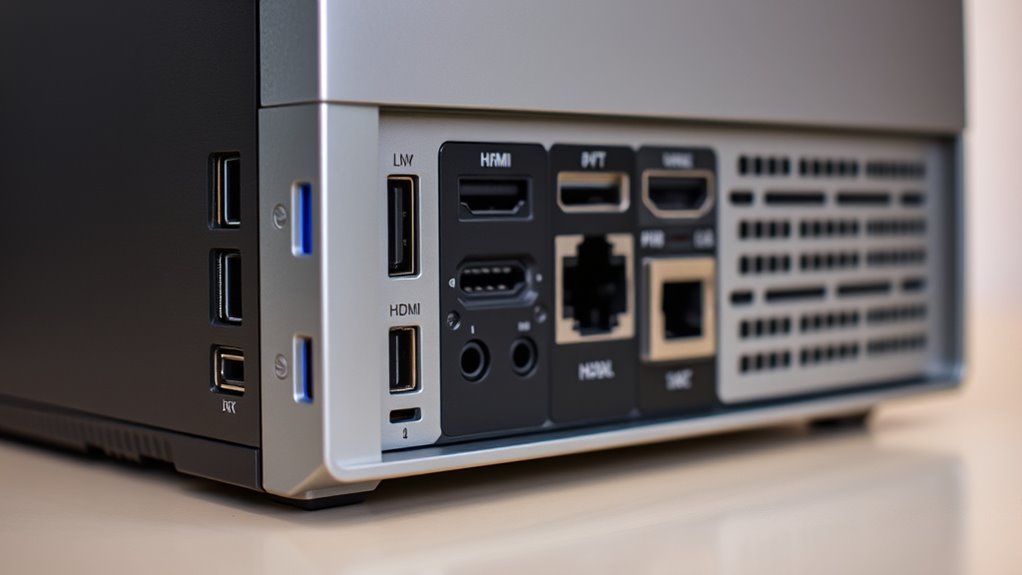
Input and output ports serve as the essential links that connect your computer to other devices, allowing data to flow in and out seamlessly. These ports enable you to connect peripherals like keyboards, mice, printers, external drives, and displays, expanding your computer’s capabilities. Common input ports include USB ports, which support various devices, and audio jacks for headphones and microphones. Output ports include HDMI, DisplayPort, and VGA, which transmit video signals to monitors or projectors. Some computers feature SD card slots for quick data transfer from cameras or devices. Connectivity options like Ethernet ports provide wired internet access, while Wi-Fi and Bluetooth support wireless connections. Understanding these ports helps you optimize your device’s functionality and guarantee compatibility with your peripherals.
Battery Life and Power Specifications for Laptops

Ever wondered how long your laptop can run on a single charge? Battery life varies based on usage, battery capacity, and hardware efficiency. To understand this better, consider these key points:
- Battery Capacity (mAh or Wh): A higher capacity means more energy storage, extending usage time.
- Power Consumption: Lighter tasks like browsing use less power, while gaming or video editing drain the battery faster.
- Manufacturer’s Estimated Runtime: Most laptops list a typical usage duration, but actual time depends on your activities and settings.
Knowing these specs helps you choose a device suited to your needs. Keep in mind, real-world battery life often differs from manufacturer estimates, so consider your daily usage patterns.
Operating System and Software Compatibility
Have you ever considered how your choice of operating system impacts the software you can run? Your OS determines which applications are compatible and available. Windows, macOS, and Linux each support different programs, so your selection influences your workflow and entertainment options. Some software is exclusive to certain platforms, meaning you might need to switch OS or find alternatives. Compatibility also affects updates and security patches, making sure your system stays protected. Additionally, hardware drivers are tailored for specific operating systems, impacting performance and stability. Before purchasing, check if your essential apps work on your chosen OS. Understanding these compatibility considerations helps you avoid frustration and ensures your system supports your daily tasks, whether for work, gaming, or creative projects.
The Role of Build Quality and Materials
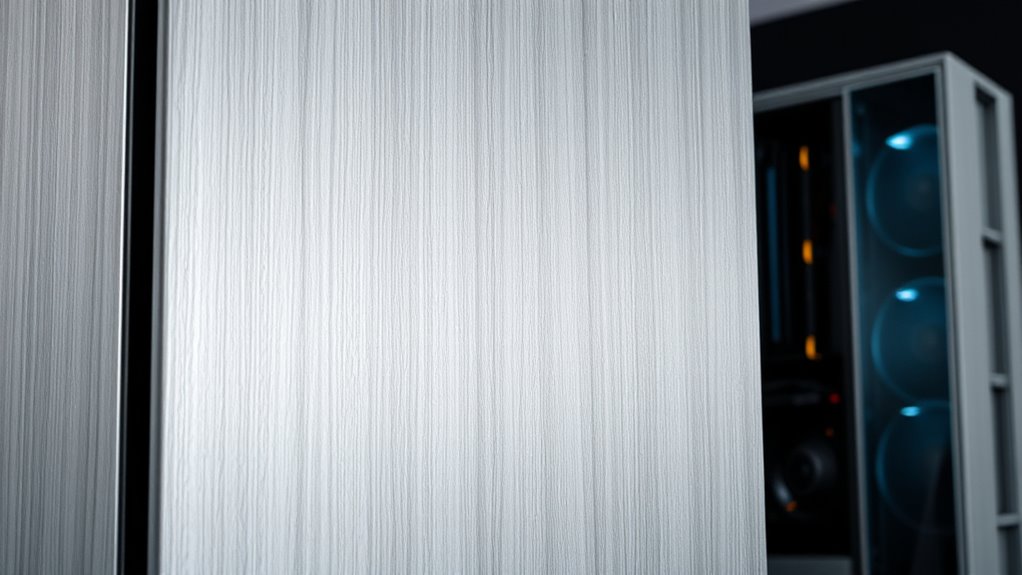
The build quality and materials of a computer considerably influence its durability, performance, and overall user experience. A sturdy chassis, quality hinges, and well-designed components ensure your device withstands daily use and transport. Good materials, like aluminum or magnesium, help dissipate heat better and reduce flexing. When evaluating a laptop or desktop, consider these key factors:
A solid build with quality materials ensures durability, better heat dissipation, and a satisfying user experience.
- Material strength – Durable metals or high-quality plastics prevent cracks and warping.
- Structural design – Tight-fitting parts and reinforced hinges improve longevity.
- Thermal management – Materials that aid heat dissipation keep components cooler, enhancing performance and lifespan.
Focusing on build quality helps you choose a device that lasts longer, performs reliably, and offers a satisfying user experience.
How to Read and Compare Computer Benchmarks

Understanding how to read and compare computer benchmarks is essential for making informed decisions about performance. Benchmarks provide standardized tests that measure how well a computer handles tasks like gaming, video editing, or multitasking. When reviewing benchmarks, look at the specific tests used—some focus on CPU speed, others on graphics or storage. Compare scores across similar systems to identify which performs better in your priority areas. Keep in mind that numbers alone don’t tell the whole story; consider real-world performance, reviews, and your needs. Be cautious of inflated or misleading scores, and always check the context of each benchmark. By understanding these metrics, you can make smarter choices and select a computer that truly meets your performance expectations.
Frequently Asked Questions
How Do I Choose the Right Processor for My Needs?
You should choose a processor based on what you plan to do. If you mainly browse the web, stream videos, or use basic apps, a mid-range or budget processor works fine. For gaming, video editing, or demanding tasks, go for a high-performance processor with more cores and higher clock speeds. Also, consider compatibility with your motherboard and your budget to find the best balance for your needs.
What Does It Mean When a Computer Has a Higher TDP?
Think of TDP like a car’s horsepower—it indicates how much heat your processor generates under full load. When a computer has a higher TDP, it means the CPU consumes more power and produces more heat, requiring better cooling solutions. You’ll need a more robust cooling system to keep it running smoothly. A higher TDP often signals a powerful processor, but also means increased energy use and potential noise from cooling fans.
How Important Is the Motherboard When Considering Specs?
The motherboard is essential when considering specs because it determines what components you can use and how well they communicate. It affects compatibility, upgrade options, and overall performance. If you choose a motherboard that doesn’t support your CPU, RAM, or GPU, your system won’t run efficiently. So, you want a motherboard that matches your needs and future plans, ensuring all parts work together seamlessly.
What Are the Differences Between Integrated and Dedicated Graphics?
Integrated graphics are built into your CPU or motherboard, sharing memory with your system, making them ideal for everyday tasks and light gaming. Dedicated graphics cards are separate components with their own memory, offering much higher performance for gaming, video editing, and 3D rendering. If you need better visuals and faster processing, go for a dedicated GPU. For basic use, integrated graphics are sufficient and cost-effective.
How Can I Tell if a Laptop’s Battery Life Is Sufficient for Everyday Use?
You can ascertain if a laptop’s battery life suits your daily needs by checking its advertised battery hours, but real-world use varies. Look for reviews or user reports that reflect typical usage, and consider your daily activities. If you need all-day power, aim for a laptop with at least 8-10 hours of battery life. Also, consider battery health and how long it holds a charge over time to ensure lasting performance.
Conclusion
Think of computer specs like a recipe—each ingredient from the CPU to storage plays a vital role. When you understand what each part does, you can pick the perfect machine for your needs. It’s like assembling a custom meal; knowing the flavors helps you create something that truly satisfies. So, delve into the details, compare wisely, and find your ideal tech partner that keeps your digital journey running smoothly.
Halloween Picks
halloween
As an affiliate, we earn on qualifying purchases.