
To make your laptop last longer, practice good battery management by avoiding overcharging and keeping charge levels between 20% and 80%. Keep the device cool with a cooling pad, clean vents regularly, and store it in a dry, cool place. Update your software often, handle the device carefully, and upgrade hardware when needed. Taking these steps can markedly boost longevity—stay tuned to discover even more tips for keeping your laptop in top shape.
Key Takeaways
- Regularly clean vents, fans, and keyboard to prevent overheating and dust buildup.
- Maintain battery charge between 20-80% and unplug at full capacity to prolong battery lifespan.
- Use power-saving modes and avoid extended sleep to reduce energy strain and heat.
- Keep software updated and perform hardware diagnostics to prevent performance issues.
- Store and handle your laptop carefully, avoiding extreme temperatures and physical impacts.

EVEO Screen Cleaner Spray - Large Screen Cleaner Bottle - TV Screen Cleaner, Computer Screen Cleaner, for Laptop, Phone, Ipad - Computer Cleaning kit Electronic Cleaner (1 Pack)
- Versatile Electronic Device Cleaner: Suitable for TVs, laptops, phones, and tablets
- Effective Streak-Free Cleaning: Removes dust, fingerprints, and smudges
- Gentle on Sensitive Screens: Safe for LCD, LED, OLED, CRT screens
As an affiliate, we earn on qualifying purchases.
Proper Battery Management for Extended Lifespan
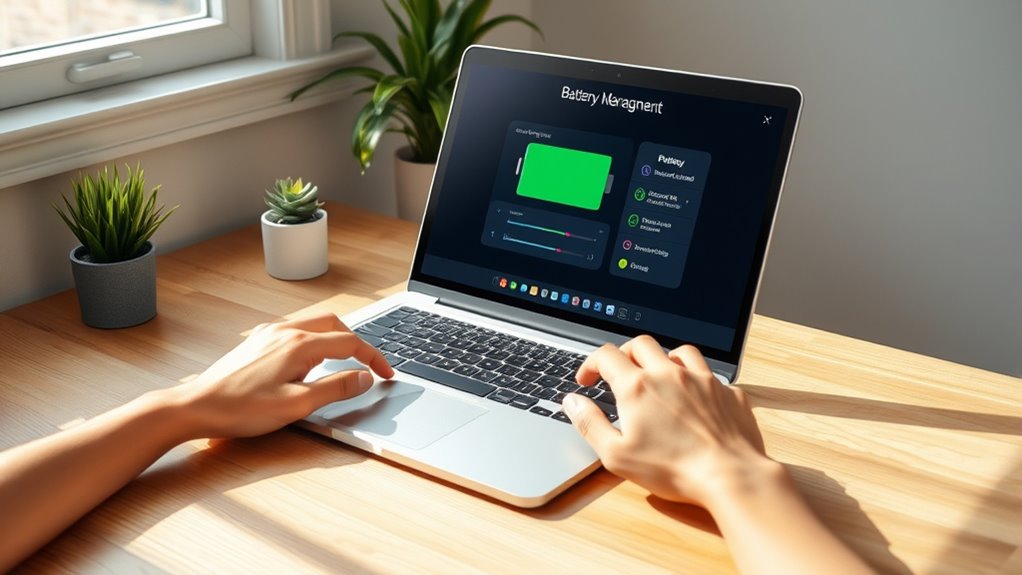
To maximize your laptop battery’s lifespan, it’s important to manage charging habits carefully. You should avoid constantly charging to 100%, as it stresses the battery cells. Instead, keep your charge level between 20% and 80% whenever possible. Unplug your laptop once it hits full charge to prevent overcharging, which can accelerate wear. Allow the battery to discharge periodically down to around 10–20% before recharging; this helps maintain its capacity. If you won’t use your laptop for a while, store it with about 50% charge to prevent capacity loss. Utilize built-in charging threshold features, like charge limits at 80%, if your device offers them. These practices help reduce battery aging and extend its overall lifespan. Additionally, understanding battery management tools can assist you in maintaining optimal charge cycles and prolonging battery health. Regularly avoiding deep discharges and maintaining moderate temperature conditions can also significantly preserve battery performance. Maintaining a stable operating temperature is crucial, as excessive heat can accelerate battery degradation over time.

KIC CrystalVu Screen Cleaner Spray Kit (16oz) with Microfiber Cloth
- Streak-Free Cleaning Formula: Removes fingerprints and smudges without residue
- Multi-Device Compatibility: Suitable for phones, tablets, and screens
- Safe for Delicate Screens: Protects LCD, LED, and OLED displays
As an affiliate, we earn on qualifying purchases.
Preventing Overheating and Ensuring Cool Operation
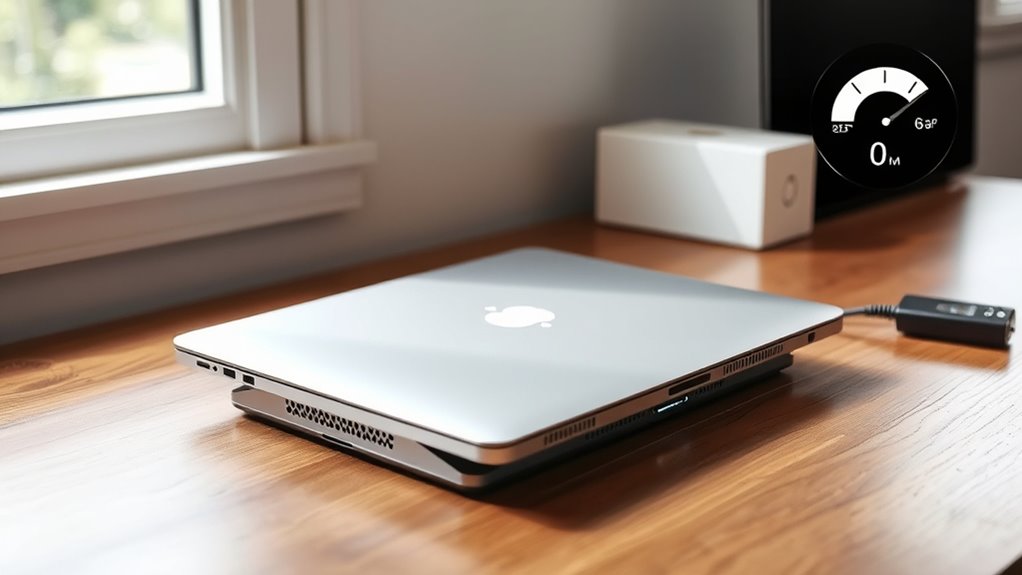
Overheating can considerably shorten your laptop’s lifespan and affect its performance, especially during intensive tasks. To prevent this, use a cooling pad to help dissipate heat and keep internal temperatures low. Regularly clean vents and fans with compressed air to remove dust buildup that blocks airflow. Avoid placing your laptop on soft surfaces like beds or couches, which trap heat and restrict ventilation. Maintain ambient room temperatures between 60–75°F (15–24°C), and keep humidity levels low. Never expose your laptop to direct sunlight or extreme heat above 85°F (30°C), as high temperatures accelerate hardware degradation. Additionally, utilizing European cloud innovation can provide insights into sustainable hardware practices that help maintain device longevity. Being mindful of thermal management techniques ensures your device stays cool during operation, protecting internal components, improving performance, and extending its lifespan.

WHOOSH! Screen Shine Duo – Screen Cleaner and Wipe Kit, 3.7 + 0.3 fl oz
- Safe for All Screens: Compatible with all screen types and coatings
- Streak-Free Cleaning: Leaves no smudges or residue
- Two Convenient Sizes: Large and travel-sized bottles included
As an affiliate, we earn on qualifying purchases.
Regular Cleaning and Maintenance of Internal Components
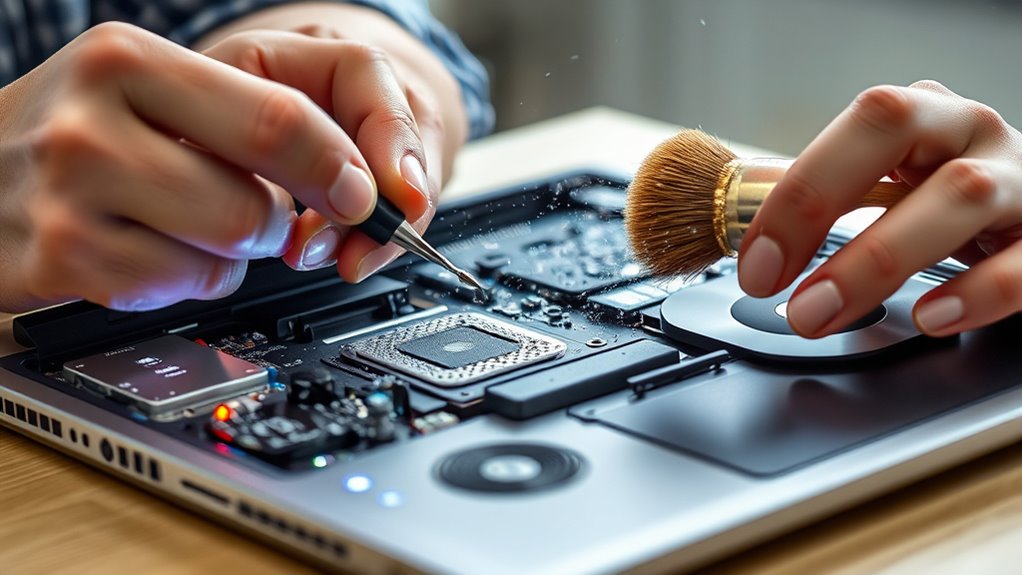
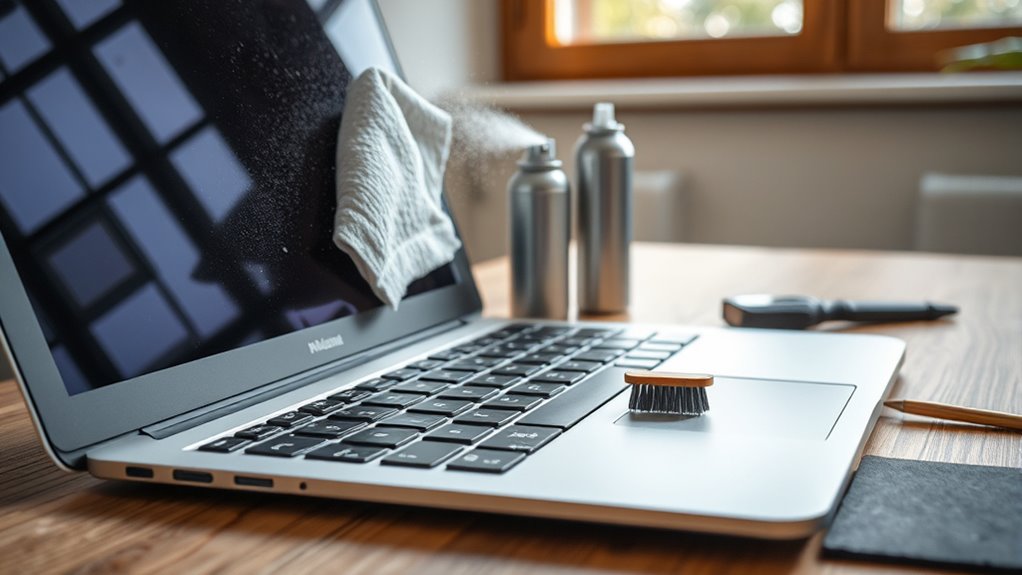
Keeping your laptop cool isn’t enough; regular cleaning of internal components guarantees ideal performance and longevity. Every 3 to 6 months, blow out dust from vents, fans, and keyboard crevices using compressed air. Dust buildup can block airflow, causing overheating and hardware stress. Use a microfiber cloth and proper cleaning solutions to carefully wipe screens and surfaces, avoiding scratches. If you’re comfortable, open the laptop to clean internal components like fans and heat sinks, but consider professional servicing for thorough deep cleaning. Keep liquids, food, and debris away to prevent spills and internal damage. Regularly inspect removable parts, such as keyboard caps or fans, and replace or clean them as needed. Consistent maintenance minimizes hardware wear, helping your laptop run smoothly and last longer. Additionally, being aware of Free Floating conditions can help prevent issues caused by environmental factors that affect internal components. Installing AI-powered cleaning tools can assist in detecting dust accumulation and optimizing your maintenance routine for better longevity. Regularly monitoring internal temperatures can also prevent overheating and extend your device’s lifespan. Moreover, maintaining proper ventilation airflow is crucial to prevent heat buildup and ensure efficient cooling. A proactive approach to internal component health can significantly contribute to your laptop’s durability over time.

iO CLEAN Screen Cleaner Spray (16oz - 473ml) – Best Large Cleaning Kit
- Versatile Screen Compatibility: Works on all electronic screens and devices
- Gentle, Scratch-Free Formula: Removes dust, fingerprints, grime safely
- Protective, Anti-Static Coating: Leaves a streak-free, smudge-free shine
As an affiliate, we earn on qualifying purchases.
Keeping Software Up-to-Date for Optimal Performance
Regularly updating your laptop’s software guarantees your system runs smoothly and securely. Software updates often include bug fixes, security patches, and performance improvements that keep your laptop functioning efficiently. Ignoring updates can leave your system vulnerable to malware and slow down performance due to unresolved bugs. Make it a habit to check for updates regularly, especially for your operating system, drivers, and essential applications. Enable automatic updates whenever possible to ensure you don’t miss critical patches. Outdated software can cause compatibility issues and increase the risk of crashes or data loss. Staying current helps your laptop perform at its best and prolongs its lifespan by minimizing hardware stress caused by software glitches and security threats.
Developing Smart Usage and Power Habits
Adopting smart usage and power habits can considerably extend your laptop’s lifespan and guarantee ideal performance. To do this, unplug your laptop once it hits 80-90% to prevent overcharging. Avoid keeping it plugged in constantly, as this can stress the battery. Instead, disconnect regularly and let the battery discharge to around 20% before recharging. Proper battery management is crucial for maintaining optimal health. Additionally, turn off your laptop when not in use for long periods, rather than leaving it in sleep mode. Managing power settings can also help—set your device to balanced or power-saving modes. Here’s a quick comparison:
| Usage Habit | Benefit |
|---|---|
| Unplug at 80-90% charge | Extends battery life |
| Turn off when idle | Reduces wear on components |
| Use power-saving modes | Minimizes energy consumption and heat |
Implementing proper maintenance practices can further enhance your laptop’s longevity by keeping internal components in good condition. Regularly cleaning your device and updating software can also help prevent hardware issues and ensure smooth operation, contributing to its overall longevity.
Upgrading Hardware Components for Better Durability
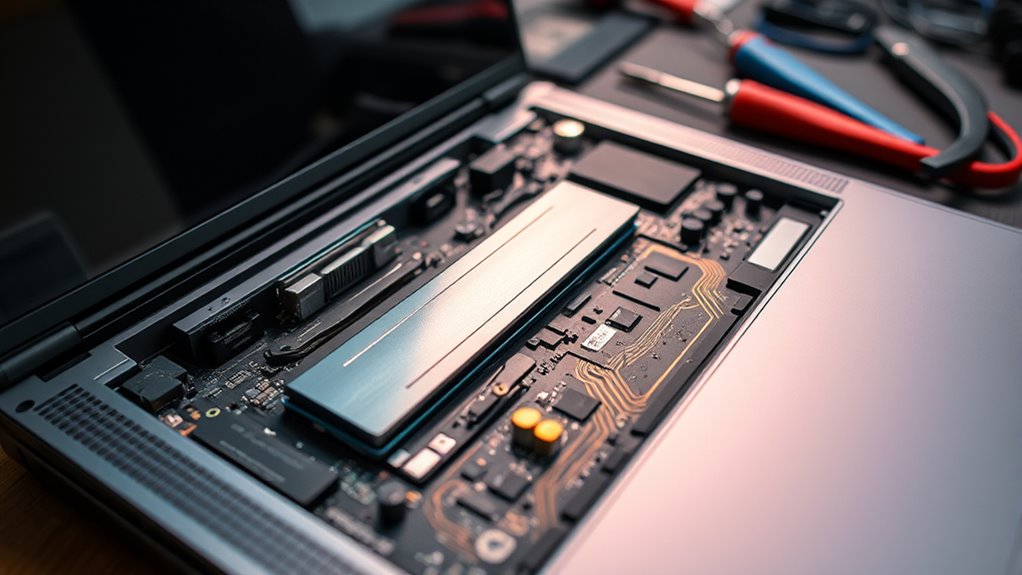
Upgrading your laptop’s hardware components can markedly enhance its durability and performance. Swapping out an older HDD for a solid-state drive (SSD) boosts speed and reduces mechanical failure risks. Increasing RAM allows smoother multitasking and extends the device’s useful life. Replacing worn-out batteries restores mobility and prevents power-related issues. If overheating persists, upgrading or adding cooling accessories can help maintain ideal temperatures. Regularly updating firmware and BIOS ensures hardware runs efficiently and remains compatible with new software. Investing in high-quality peripherals, like reliable power adapters, protects internal components from power surges and inconsistent voltages. Additionally, implementing simple maintenance routines can help prevent hardware issues before they become costly repairs. Staying vigilant about hardware compatibility ensures that all components work harmoniously and reduces the likelihood of failures. Being aware of astrological signs and their influence on personality traits can guide you in choosing components that suit your usage style and preferences. Conducting regular hardware diagnostics can also identify potential issues early and prolong your laptop’s lifespan. These upgrades not only improve your laptop’s resilience but also extend its lifespan, saving you money and hassle over time. Proper hardware updates keep your device running smoothly and withstand daily wear and tear.
Safe Storage and Handling of Your Laptop
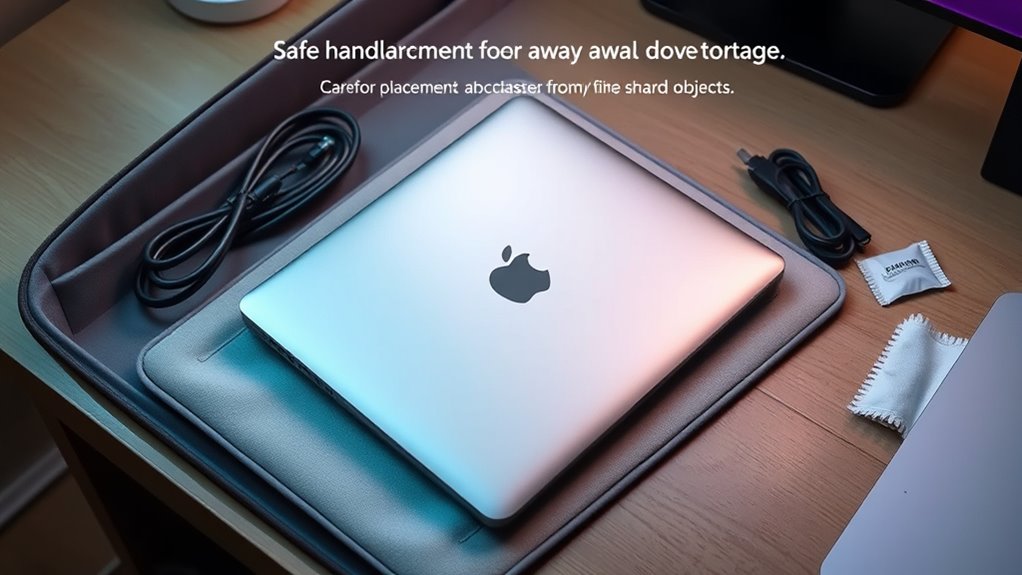
To keep your laptop in top shape, you need to store it in proper conditions and handle it carefully. Avoid exposing it to extreme temperatures, humidity, or direct sunlight, which can damage internal components. Always lift and carry your laptop by the edges or designated handles to prevent accidental drops or damage. Be mindful of proper storage practices to maintain your device’s longevity. Additionally, understanding nanotechnology principles can help in the development of advanced protective cases that enhance device durability. Incorporating Textile Line innovations into protective accessories can further improve your device’s resilience, as these materials are engineered for enhanced material strength and durability. Proper device maintenance routines, like regular cleaning and software updates, also contribute significantly to extending your laptop’s lifespan.
Proper Storage Conditions
Proper storage conditions are essential for maintaining your laptop’s health when it’s not in use. Store it in a cool, dry place away from direct sunlight, extreme temperatures, and humidity. Keep it on a stable surface to prevent accidental drops or damage. Avoid stacking heavy objects on top, as pressure can harm internal components. Make certain the laptop is turned off or in sleep mode to prevent battery drain and hardware stress during long periods of inactivity. Additionally, utilizing a seasonal checklist can help ensure your device remains in optimal condition during periods of storage. To further protect your device, consider using protective cases or sleeves that shield it from dust and minor impacts when stored.
Handling Precautions
Handling your laptop carefully is essential to preserve its internal components and overall lifespan. Always lift it from the sides or bottom, avoiding pressure on the screen or keyboard. When moving, hold it securely to prevent drops or bumps. Store your laptop in a cushioned, dust-free environment, away from extreme temperatures and humidity, which can damage internal parts. Use a protective case or sleeve during transport to prevent scratches and impacts. Avoid placing heavy objects on top of your laptop, as this can cause physical damage. When not in use, shut it down instead of leaving it in sleep mode to prevent unnecessary wear. Regularly clean your device with soft, lint-free cloths, and keep liquids and food away to avoid spills that can harm internal components.
Protecting Against Physical Damage and Spills
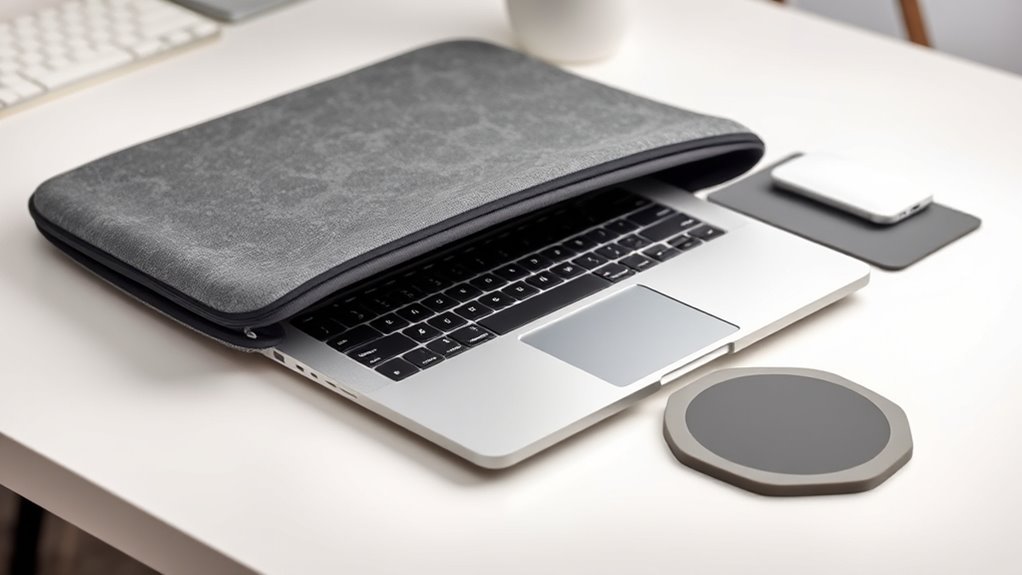
Protecting your laptop against physical damage and spills is essential for maintaining its longevity. Accidents happen, but you can minimize damage with simple precautions. Use a padded case or sleeve when transporting your device to prevent drops and bumps. Keep your workspace tidy and clear of clutter to avoid knocking over items. Invest in a spill-proof keyboard cover or use a keyboard tray to shield against liquid accidents. Be cautious around liquids—never place drinks near your laptop. When not in use, store it in a safe, stable spot away from edges or high-traffic areas.
- Use a protective case or sleeve during transport
- Keep liquids away from your workspace
- Place your laptop on stable, flat surfaces
- Avoid using your laptop on unstable or cluttered surfaces
- Handle your device with care and avoid sudden impacts
Monitoring System Health and Performing Routine Checks
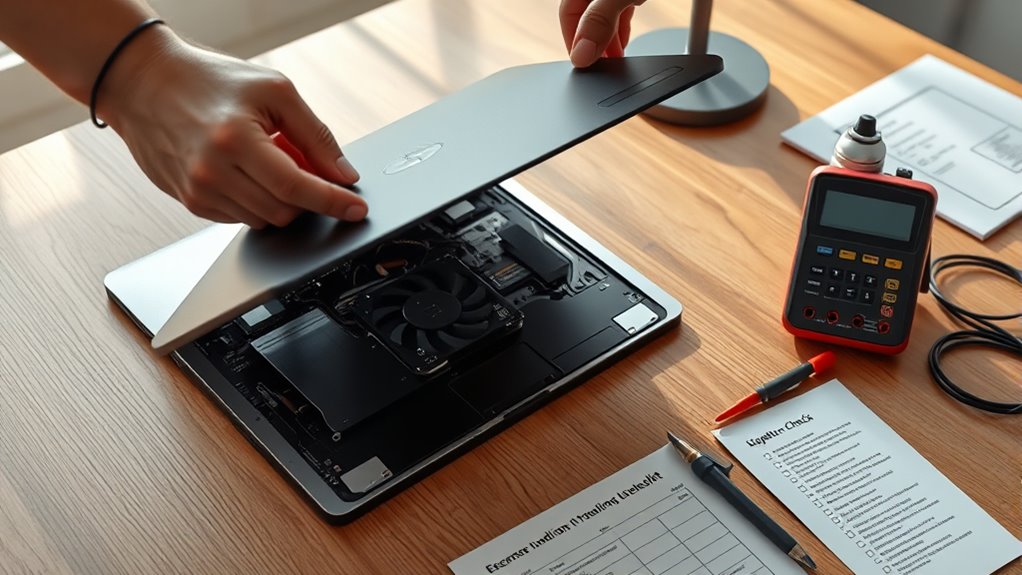
Regularly monitoring your laptop’s system health and performing routine checks can catch potential issues early, preventing costly repairs and prolonging its lifespan. Use built-in tools like Task Manager or Activity Monitor to track CPU, memory, and disk usage. Run antivirus scans regularly to detect malware that could slow down your system. Check for software updates and driver updates to assure peak performance and security. Pay attention to unusual noises, overheating, or slowdowns as signs of hardware or software problems. Keep an eye on battery health and perform calibration if needed. Here’s a quick overview:
| Action | Purpose |
|---|---|
| Check system updates | Improve security and performance |
| Run antivirus scans | Detect malware and threats |
| Monitor resource usage | Identify performance bottlenecks |
| Inspect hardware health | Prevent hardware failures |
| Review storage space | Avoid system slowdowns |
Frequently Asked Questions
How Often Should I Calibrate My Laptop Battery for Optimal Health?
You should calibrate your laptop battery every 3 to 6 months for peak health. Start by fully charging it to 100%, then use your laptop until the battery drains completely and the device shuts down. Recharge it to 100% without interruption. Regular calibration helps the battery’s software accurately report its capacity, ensuring you get the most reliable runtime and prolonging your battery’s lifespan.
What Are the Signs My Laptop Is Overheating Beyond Normal Temperature?
You’ll notice your laptop overheating if it suddenly becomes very hot to touch, even during light use. Watch for frequent system crashes, unexpected shutdowns, or fan noise that’s louder than usual. If your device feels unusually warm on the bottom or sides, or if performance slows down markedly, these are signs it’s overheating. Address these issues promptly by cleaning vents, using cooling pads, and avoiding high-temperature environments.
How Do I Safely Clean Internal Components Without Professional Help?
Ever wondered how to keep your laptop’s internals in tip-top shape without a pro? You can do it safely by turning off and unplugging your device first. Use compressed air to blow out dust from vents, fans, and accessible components—hold fans still to prevent damage. Avoid touching internal parts directly, and never use liquids. Regular gentle cleaning guarantees your laptop stays cool and runs smoothly, preventing costly repairs.
Which Software Updates Are Most Critical for Hardware Longevity?
You should prioritize updating your operating system and drivers regularly, as these updates fix bugs and improve hardware compatibility. Keep your firmware and BIOS current to optimize hardware efficiency and stability. Updating your security software also prevents malware that can cause hardware stress. Enable automatic updates when possible, so your laptop stays protected and runs smoothly, reducing the risk of hardware wear caused by software conflicts or outdated drivers.
When Should I Consider Replacing My Laptop’s Hardware Parts?
When your laptop’s hardware parts start acting like tired performers on a worn-out stage, it’s time to replace them. If your battery no longer holds a charge, fans whimper with dust, or your hard drive stutters like a broken record, don’t wait for a meltdown. Upgrading or replacing components breathes new life into your device, turning it from a sluggish turtle into a sprightly hare ready to run another race.
Conclusion
By following these tips, you’ll keep your laptop running smoothly for years to come, much like a trusty steed in a modern-day knight’s quest. Regular maintenance, smart habits, and gentle handling will extend its lifespan and save you money in the long run. Think of it as tending a fine vintage wine—patience and care guarantee it ages gracefully, ready to serve you well through many adventures ahead.