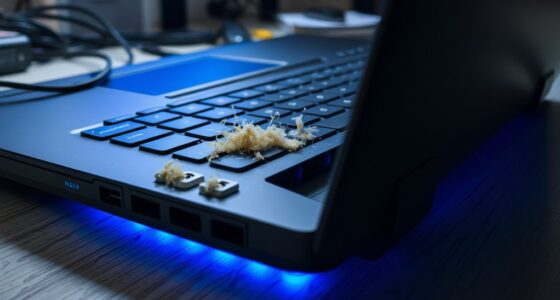

When your good computer starts freezing or crashing unexpectedly, it’s often due to overheating, insufficient RAM, or software conflicts. Check your system’s temperature during heavy tasks and manage background programs to free up resources. Run hardware diagnostics to spot issues with RAM or storage, and keep your OS and drivers updated. If problems persist, rule out malware and inspect hardware for damage. Stay alert to these signs, and you’ll uncover more ways to fix the problem.
Key Takeaways
- Check for overheating by monitoring CPU/GPU temperatures and cleaning dust from vents to prevent thermal throttling.
- Test RAM stability with diagnostic tools like Windows Memory Diagnostic to identify memory-related crashes.
- Update your operating system and drivers regularly to fix bugs and ensure compatibility.
- Scan for malware and unwanted software that may cause system instability and resource conflicts.
- Inspect hardware components, reseat connections, and perform disk and hardware health checks to rule out physical issues.

EVEO Screen Cleaner Spray - Large Screen Cleaner Bottle - TV Screen Cleaner, Computer Screen Cleaner, for Laptop, Phone, Ipad - Computer Cleaning kit Electronic Cleaner (1 Pack)
- Versatile Electronic Device Cleaner: Suitable for TVs, laptops, phones, and tablets
- Effective Streak-Free Cleaning: Removes dust, fingerprints, and smudges
- Gentle on Sensitive Screens: Safe for LCD, LED, OLED, CRT screens
As an affiliate, we earn on qualifying purchases.
Identifying Signs of Hardware Overload
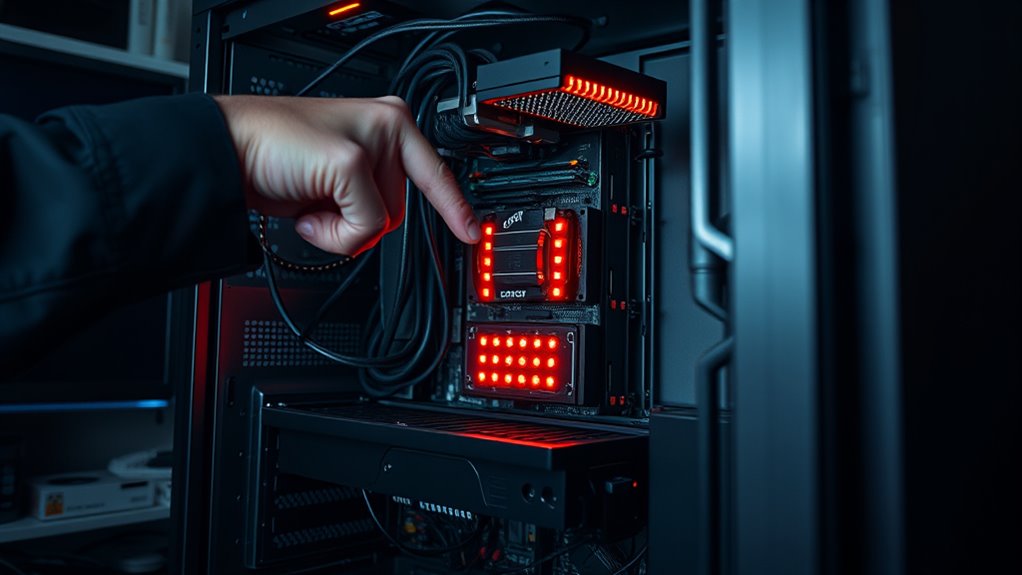
If your computer frequently freezes, crashes, or slows down suddenly, it could be a sign that your hardware is overloaded. One common indicator is persistent slow performance despite minimal activity, especially when opening programs or files. Notice if your system becomes unresponsive or if applications take longer to load. Excessive fan noise, frequent restarts, or unusual vibrations may also point to hardware stress. Additionally, if you see error messages like the blue screen of death or system hangs during routine tasks, your hardware might be struggling to keep up. Keep an eye on resource usage—if CPU, RAM, or disk activity remains high even when you’re not running many programs, it suggests overload. Recognizing these signs early can help you prevent further damage or data loss. Monitoring system resources can help identify overload conditions before they cause serious issues. Regular hardware checks and system diagnostics, including hardware stress testing, can further aid in detecting underlying problems early. Being proactive in hardware troubleshooting can save you time and avoid costly repairs.

iO CLEAN Screen Cleaner Spray (16oz - 473ml) – Best Large Cleaning Kit
- Versatile Screen Compatibility: Works on all electronic screens and devices
- Gentle, Scratch-Free Formula: Removes dust, fingerprints, grime safely
- Protective, Anti-Static Coating: Leaves a streak-free, smudge-free shine
As an affiliate, we earn on qualifying purchases.
Checking for Overheating and Temperature Issues
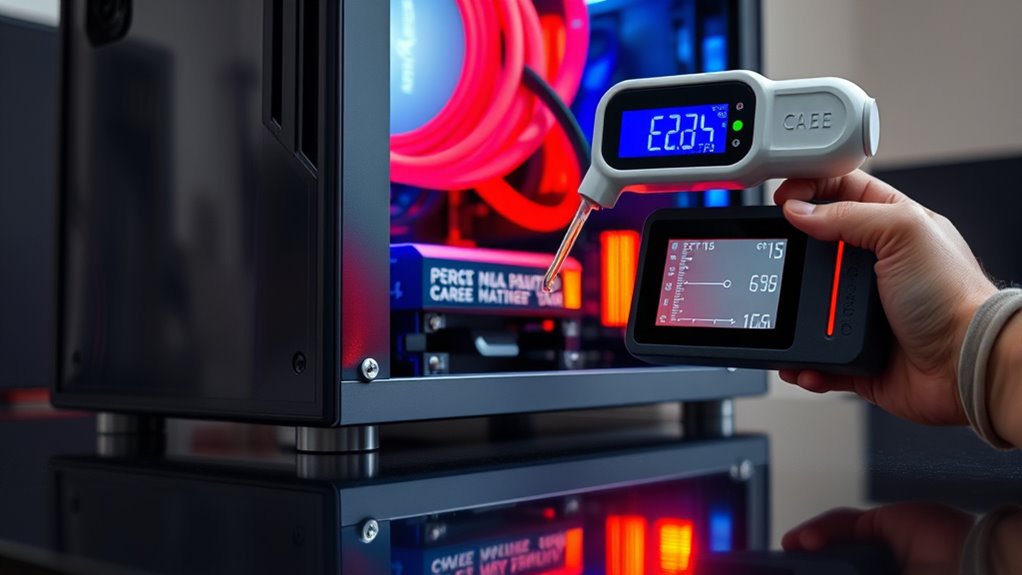
To prevent overheating, you should regularly monitor your computer’s temperature levels using specialized software. Look out for signs like loud fan noise, frequent restarts, or sluggish performance, which can indicate overheating. Addressing these issues early can help keep your system stable and avoid unexpected crashes. Utilizing advanced technology in cooling systems can further improve heat dissipation and system reliability. Additionally, incorporating natural cooling methods such as proper ventilation and avoiding direct sunlight can contribute to maintaining optimal temperatures. Ensuring your system has proper airflow is also crucial for effective heat management, and staying aware of modern cooling solutions can provide additional safeguards against overheating.
Monitoring Temperature Levels
Monitoring temperature levels is essential for diagnosing overheating issues that can cause system freezes and crashes. You should regularly check your CPU and GPU temperatures using reliable monitoring tools like HWMonitor or SpeedFan. High temperatures, especially above manufacturer recommendations, can lead to thermal throttling, reduced performance, or hardware damage. Keep an eye on fan speeds and temperature spikes during intensive tasks, such as gaming or video editing. If temperatures are abnormally high, consider cleaning dust from vents and heatsinks or replacing thermal paste. Make sure your cooling setup is adequate for your hardware. Proper airflow within your case helps dissipate heat effectively and prevents hotspots that can trigger system instability. Ensuring regular maintenance of your cooling system helps prevent dust buildup that impairs heat dissipation. Consistent monitoring helps you catch overheating early, preventing damage and system instability that often result in freezes, crashes, or slowdowns. Staying vigilant about temperature levels keeps your computer running smoothly. Additionally, ensuring your hardware components are within recommended operating temperatures can extend hardware lifespan and maintain optimal performance over time. Regularly checking for thermal performance issues can also help identify cooling failures before they cause critical damage. Awareness of component temperature thresholds enables proactive measures to protect your system’s health.
Recognizing Overheating Signs
Recognizing overheating signs early can save your system from serious damage and frequent freezes. Keep an eye on your computer’s behavior: if you notice increased fan noise, it’s a clear sign the system is working harder to cool down. Sluggish performance, sudden shutdowns, or restarts often indicate overheating issues. You might also experience graphical glitches or screen artifacts if the GPU gets too hot. Pay attention to warmth around the vents or touch the case; if it feels unusually hot, overheating could be the cause. Using temperature monitoring tools helps confirm if internal components are running above normal levels. Proper cooling systems are essential to prevent overheating and maintain system stability. Ensuring your cooling setup includes effective heat dissipation can significantly reduce the risk of hardware damage. Regularly cleaning your computer vents and fans can also prevent dust buildup that hampers heat removal. Addressing these signs promptly prevents hardware damage and reduces system instability, improving overall performance and longevity.

Screen Cleaner Spray 16oz (4oz x 4 Pack) - TV & Computer Screen Cleaner with 2 Microfiber Cloths for Multiple Devices
- Kit Includes: 4 screen cleaner bottles and 2 microfiber cloths
- Effective Cleaning: Removes dust, fingerprints, and smudges
- Gentle and Safe: Deep cleans without scratching surfaces
As an affiliate, we earn on qualifying purchases.
Diagnosing Insufficient RAM and Memory Shortages
When your computer slows down or freezes unexpectedly, insufficient RAM might be the culprit. To diagnose this, check your system’s memory usage during the issue. Use tools like Task Manager (Windows) or Activity Monitor (Mac). Look for high memory consumption and processes that consume excessive resources. If your RAM is nearly maxed out, your system struggles to handle active programs, causing freezes or crashes. Proper RAM management can help prevent these problems and improve overall system stability. Additionally, understanding cryptid mysteries and their folklore can be a fun way to explore mysterious phenomena beyond technical issues.

KIC CrystalVu Screen Cleaner Spray Kit (16oz) with Microfiber Cloth
- Streak-Free Cleaning Formula: Removes fingerprints and smudges without residue
- Multi-Device Compatibility: Suitable for phones, tablets, and screens
- Safe for Delicate Screens: Protects LCD, LED, and OLED displays
As an affiliate, we earn on qualifying purchases.
Detecting Malware and Unwanted Software Interference

High memory usage can sometimes be caused by malware or unwanted software running silently in the background. These programs often consume system resources without your knowledge, leading to freezes and crashes. To detect them, start by running a reputable antivirus or anti-malware scan. Use built-in tools like Windows Defender or third-party security software to identify threats. Check your task manager for unfamiliar processes or high CPU and memory usage. Look for suspicious filenames or processes that you don’t recognize. Review startup programs and disable anything unnecessary to reduce background activity. Also, keep your software updated, as malware often exploits outdated security flaws. Regularly scanning your system and monitoring resource usage helps you catch unwanted interference before it causes serious stability issues. Incorporating antimicrobial properties in your system checks can also prevent infections that might contribute to instability. Additionally, staying informed about the latest threat detection techniques can enhance your ability to safeguard your system effectively. Being aware of system vulnerabilities helps in prioritizing security updates and patches to prevent future issues. Performing periodic system audits can further help identify potential security gaps and improve overall system health. Recognizing signs of unauthorized access can also alert you to ongoing security breaches that impact system stability.
Resolving Operating System and Software Conflicts

To fix operating system and software conflicts, start by keeping your system updated regularly, which patches security holes and fixes bugs. Next, repair any corrupted files using built-in tools to restore stability, and identify software conflicts by managing startup programs and recent installations. Addressing these issues promptly can prevent freezes and crashes before they disrupt your workflow. Additionally, avoiding software conflicts related to incompatible programs can help maintain a stable system environment.
Update System Regularly
Regularly updating your operating system is essential for maintaining system stability and preventing crashes caused by software conflicts. Updates fix bugs, patch security vulnerabilities, and improve compatibility with new hardware and software. Skipping updates leaves your system vulnerable and more prone to freezes.
| Outdated Software | Security Risks | System Crashes |
|---|---|---|
| Vulnerability to malware | Data loss | Performance issues |
| Compatibility problems | Identity theft | Unexpected shutdowns |
| Increased hacking risk | System instability | Application errors |
| Missing features | Privacy breaches | File corruption |
| Reduced support | Increased attack surface | System crashes |
Keeping your OS current ensures smoother operation, minimizes conflicts, and protects your data. Regular updates are your first line of defense against unpredictable freezes and crashes.
Repair Corrupted Files
Corrupted system files are a common cause of computer freezes and crashes, often resulting from incomplete updates, interrupted installations, or malware infections. To fix this, start by running built-in repair tools like the System File Checker (SFC) on Windows. Open Command Prompt as an administrator, then type “sfc /scannow” and hit Enter. This scans and repairs damaged or missing system files automatically. You can also use Deployment Image Servicing and Management (DISM) tools to fix deeper issues. On macOS, running Disk Utility’s First Aid can repair corrupted system files. Regularly updating your operating system guarantees files stay intact and compatible. If problems persist, consider restoring your system to a previous stable point or reinstalling the OS to replace corrupted files completely. Ensuring your system has the latest updates and security patches can help prevent file corruption in the future.
Manage Software Conflicts
Software conflicts often cause system freezes and crashes because incompatible or faulty programs interfere with the operating system’s normal operations. To manage these conflicts, start by updating your OS and software to the latest versions, which often fix bugs and improve compatibility. Next, review recently installed programs; uninstall any that might be causing issues. Use tools like System File Checker or DISM to repair corrupted system files. Check for conflicting startup programs and disable unnecessary ones through Task Manager. If problems persist, consider booting into Safe Mode to isolate problematic software. Running a malware scan helps eliminate malicious conflicts. Finally, keep your drivers updated, especially graphics and chipset drivers, to prevent incompatibility issues that could lead to crashes or freezes.
Managing Background Processes and Bloatware
Background processes and bloatware can markedly slow down your computer if left unchecked. These unnecessary programs run silently in the background, consuming CPU cycles, RAM, and network resources, which reduces performance and can cause freezes. To manage them, open your Task Manager or Activity Monitor and identify programs that aren’t essential. Disable auto-start applications that aren’t needed immediately, and uninstall bloatware or trialware from your system. Be cautious not to remove critical system processes. Regularly review background activity, especially after installing new software, to prevent resource drain. Keeping only necessary programs active ensures your system has sufficient resources for your primary tasks, helping to reduce lag, freezes, and crashes caused by background overload.
Inspecting Hardware Components and Storage Devices

To troubleshoot hardware-related freezes and crashes, start by inspecting your computer’s physical components and storage devices. You want to verify everything is functioning properly and securely connected. Here’s what to check:
- Examine RAM sticks for signs of damage or looseness; reseat or replace if needed.
- Inspect the motherboard and power supply connections for loose or corroded cables.
- Run diagnostic tools on storage devices to identify bad sectors or failing drives.
- Check for overheating or dust buildup that could hinder airflow and damage components.
Make sure your hardware is clean, properly seated, and free of physical damage. Faulty or overheating hardware often causes system instability, so addressing these issues can substantially reduce freezes and crashes.
Performing System Updates and File Repairs
Keeping your system up to date is essential for stability and security, so make sure you update Windows safely using official tools. Running disk repairs can fix corrupted files and prevent crashes, while restoring system files helps fix issues caused by missing or damaged data. Regularly performing these steps can markedly reduce freezes and crashes, ensuring smoother operation.
Updating Windows Safely
Regularly updating Windows is essential for maintaining system stability and security. To do it safely, follow these steps:
- Back up your important files before starting updates to prevent data loss.
- Ensure your device is plugged into a power source or has sufficient battery life.
- Connect to a reliable internet connection to avoid interrupted downloads.
- Use Windows Update in the Settings app or Windows Update Assistant for a controlled process.
Avoid rushing updates during heavy computer use, and never force shutdowns during installation. Once updates are complete, restart your system to finalize changes. Running updates carefully helps patch security flaws, fix bugs, and improve system performance, reducing the chances of freezes and crashes.
Running Disk Repairs
Running disk repairs is essential when your system shows signs of instability, such as frequent freezes or crashes. Over time, your hard drive or SSD can develop bad sectors, corrupted files, or fragmented data that slow performance or cause errors. To address this, use built-in tools like Windows’ Check Disk (chkdsk) or third-party utilities to scan and repair your storage device. These tools identify and fix file system errors, recover lost clusters, and mark bad sectors to prevent data corruption. Running disk repairs can improve system stability and responsiveness, especially if disk issues are underlying causes of freezes. Make sure to back up important files before starting repairs, as some processes may alter or move data during the repair. Regular maintenance keeps your storage healthy and your system reliable.
Restoring System Files
System file corruption or incomplete updates are common causes of system instability that can lead to freezes and crashes. To restore stability, you need to repair or update your system files. Here’s what you should do:
- Run System File Checker (SFC): Use this tool to scan and repair corrupted Windows files.
- Use Deployment Image Servicing and Management (DISM): Fix underlying image issues that SFC can’t handle.
- Check for Windows updates: Keep your OS current to ensure all system components are patched and secure.
- Reinstall problematic software: If crashes coincide with specific programs, reinstall or update them to resolve conflicts.
Following these steps helps restore system file integrity, reducing freezes and crashes, and improving overall stability.
Utilizing Diagnostic Tools for System Stability

Diagnostic tools are essential for pinpointing the root causes of system freezes and crashes. They help you identify hardware failures, overheating issues, malware infections, or software conflicts that could be destabilizing your system. Use built-in utilities like Windows Memory Diagnostic to test RAM, or run CPU and GPU stress tests to check for overheating or hardware faults. Monitoring tools such as HWMonitor or SpeedFan reveal temperature spikes or voltage irregularities. Disk health tools like CrystalDiskInfo can spot failing storage devices. Additionally, malware scanners like Windows Defender or Malwarebytes detect malicious software that might cause instability. Regularly running these tools provides valuable insights, enabling you to address issues proactively and maintain system stability.
Implementing Preventative Maintenance and Best Practices
Proactively maintaining your computer can substantially reduce the chances of freezes and crashes by preventing common issues before they occur. Regular upkeep keeps hardware and software running smoothly. Here are four best practices:
- Clean your hardware regularly to remove dust, especially from fans and vents, to prevent overheating.
- Update your operating system and software promptly to fix bugs and security vulnerabilities.
- Manage startup programs by disabling unnecessary background apps to free up RAM and processor resources.
- Run periodic disk checks and memory tests to identify and fix potential hardware problems early.
Sticking to these practices minimizes system strain, maintains stability, and prolongs your computer’s lifespan. Consistent preventative care is key to avoiding unexpected freezes and crashes.
Frequently Asked Questions
How Can I Tell if My Power Supply Is Causing System Freezes?
You can tell if your power supply is causing freezes by checking for sudden shutdowns or restarts without warning. Listen for unusual noises like clicking or buzzing, and look for inconsistent performance or hardware issues. Use a hardware monitoring tool to check voltage levels, ensuring they remain stable. If you notice these signs, consider testing with a different power supply or consulting a professional to diagnose the problem accurately.
What Are the Signs of Damaged RAM Beyond Freezing?
You might notice corrupted or missing files, frequent application errors, or unexpected blue screens, which suggest damaged RAM. Running memory diagnostics can confirm this; if errors appear consistently, your RAM likely needs replacing. Also, watch for random reboots or system instability during intensive tasks. Over time, physical damage like cracks or burn marks on RAM sticks indicates deterioration, making it essential to test and replace faulty modules promptly.
Can Outdated Drivers Cause Random Crashes Even if Hardware Seems Fine?
Yes, outdated drivers can cause random crashes even if your hardware looks fine. When drivers aren’t updated, they might not work properly with your operating system or other software, leading to conflicts, system errors, or kernel panics. You should regularly check for driver updates from your device manufacturer or use automatic update tools. Keeping drivers current helps guarantee compatibility and stability, reducing the chances of unexpected crashes.
How Do I Identify Hidden Background Apps Consuming Excessive Resources?
To identify hidden background apps hogging resources, open Task Manager by pressing Ctrl + Shift + Esc. Check the Processes tab for apps with high CPU, memory, or disk usage. Look for unfamiliar or unnecessary programs running in the background. End those processes by right-clicking and selecting “End Task” to free up resources. Regularly monitor these to prevent system slowdowns and guarantee your computer runs smoothly.
What Are the Best Methods to Prevent Overheating During Intensive Tasks?
To prevent overheating during intensive tasks, you should ensure proper airflow by cleaning dust from vents and fans regularly. Use cooling pads or external fans if necessary, and avoid blocking air intake areas. Keep your software updated to maximize performance, and monitor temperatures with tools to catch overheating early. Additionally, avoid overclocking your components and ensure your room stays cool to maintain ideal operating temperatures.
Conclusion
Now that you know the signs and solutions, you’re better equipped to handle those unexpected freezes and crashes. Think of your computer as a delicate garden—tend to it regularly, and it’ll flourish. Don’t let frustration take root; instead, nurture your system with maintenance and care. With patience and proactive steps, you’ll keep your digital world running smoothly, turning chaos into harmony like a symphony that never misses a beat.