A Chromebook can handle your basic tasks like web browsing, streaming, and document editing, thanks to its simple interface and long battery life. However, if you need to run specialized software, use offline files extensively, or require high performance, a traditional laptop may be a better fit. To understand which device suits your needs best and explore their strengths, keep exploring the key differences and future developments.
Key Takeaways
- Chromebooks excel in portability, long battery life, and fast updates, ideal for web-based and casual tasks.
- Traditional laptops support a wider range of software, including heavy desktop applications and offline productivity tools.
- Hardware differences mean Chromebooks are suitable for light tasks, while laptops handle demanding activities like gaming and video editing.
- Storage limitations in Chromebooks rely on cloud services, whereas laptops offer extensive local storage for offline work.
- Security features and maintenance are easier on Chromebooks, but laptops provide more flexibility for offline and specialized software needs.
best Chromebook for web browsing
As an affiliate, we earn on qualifying purchases.
As an affiliate, we earn on qualifying purchases.
Operating System and Software Compatibility
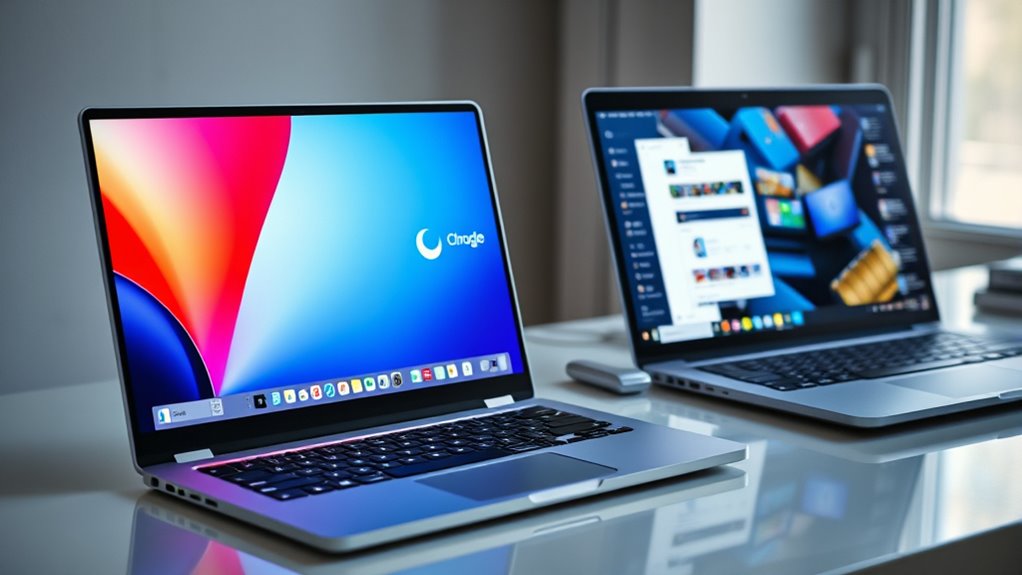
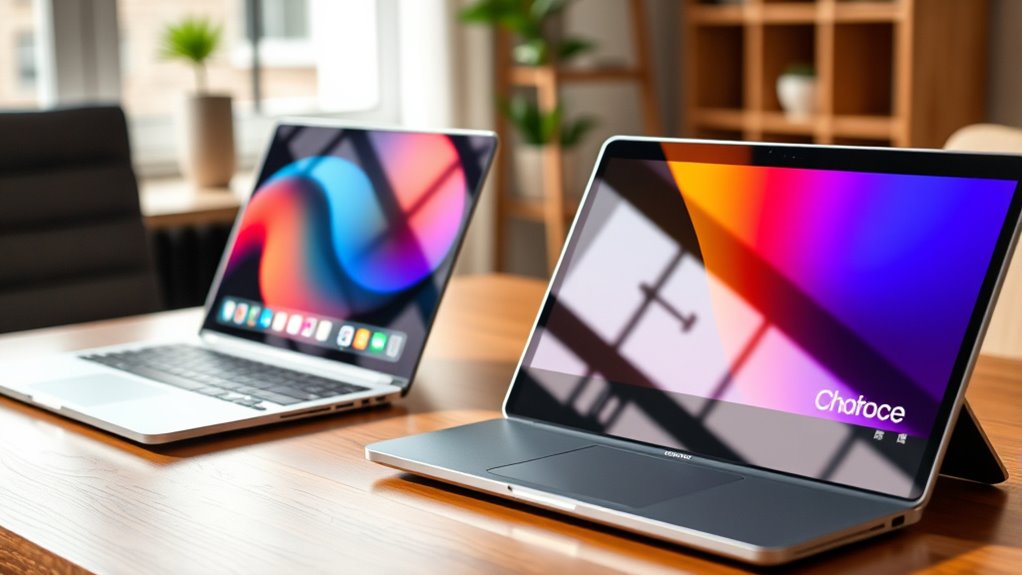
When choosing between a Chromebook and a traditional laptop, operating system and software compatibility are key factors to contemplate. Chromebooks run Chrome OS, a lightweight system based on Linux, optimized for browsing and cloud-based apps. They mainly support web applications and Android apps, which limits offline use and specialized software. In contrast, traditional laptops operate on Windows, macOS, or full Linux distributions, supporting a broader range of desktop programs. If you rely on professional software like Adobe Creative Suite, CAD, or gaming applications, a traditional laptop is usually necessary. Chromebooks handle 90-95% of web-based tasks easily but may struggle with heavy desktop applications or software that requires specific operating systems. Your choice depends on whether your work needs offline and specialized software or primarily web-based tools. Additionally, cloud-based infrastructure offered by European cloud providers can enhance the security and sustainability of your computing environment, especially when considering operating system compatibility and software requirements. It’s important to evaluate whether the available software ecosystem aligns with your workflow needs. Furthermore, understanding the hardware specifications can influence performance and longevity based on your intended usage.
As an affiliate, we earn on qualifying purchases.
Hardware Performance and Specifications
Hardware performance and specifications vary considerably between Chromebooks and traditional laptops, directly impacting their suitability for different tasks. Chromebooks typically feature lower-end hardware, such as basic CPUs, integrated graphics, and eMMC storage, optimized for light browsing and document editing. They usually have less RAM, which can limit multitasking and handling large files. In contrast, traditional laptops offer a broad range of hardware options, including high-speed NVMe SSDs, powerful processors, and dedicated GPUs, enabling performance-intensive activities like gaming, video editing, and CAD work. Many laptops also support more RAM and expandability. While Chromebooks focus on efficiency and portability with modest specs, traditional laptops cater to users demanding higher processing power and versatility for complex or resource-heavy tasks. Additionally, navigation and mapping capabilities in some laptops enhance productivity for tasks that require precise control and setup. For users needing advanced hardware, traditional laptops are often the better choice to meet more demanding requirements.
As an affiliate, we earn on qualifying purchases.
Storage Capacity and Data Management

Chromebooks typically have limited internal storage, often ranging from 32GB to 128GB, because they rely heavily on cloud services like Google Drive for data management. This setup means you don’t need large internal drives for most daily tasks. However, offline access becomes more challenging if you work with large files or lack internet connectivity. You can expand storage with SD cards or external drives, but this adds extra steps. Unlike traditional laptops with 256GB or more, Chromebooks prioritize quick, cloud-based access over extensive local storage. If you handle many large media files or install substantial offline applications, their limited storage could hinder your workflow. Ultimately, your storage needs will influence whether a Chromebook fits your data management style or if a traditional laptop is a better choice. Additionally, understanding internal storage capacity and its limitations can help you decide if a Chromebook will meet your specific data needs.
high performance traditional laptop
As an affiliate, we earn on qualifying purchases.
As an affiliate, we earn on qualifying purchases.
Battery Life and Portability
Thanks to their energy-efficient components and lightweight design, Chromebooks often deliver superior battery life compared to traditional laptops. You can expect around 9 to 17 hours of use on a single charge, making them ideal for all-day mobility. Their slim, compact build also enhances portability, so you won’t struggle to carry them around campus, work, or travel. In contrast, many budget Windows laptops last about 6 to 8 hours, while premium ultrabooks can exceed 15 hours but come at a higher price. Chromebooks’ lightweight, thin profile makes them easier to slip into bags or backpacks, reducing fatigue during extended use. Overall, if portability and long battery life are priorities, Chromebooks offer a compelling, budget-friendly option for staying connected on the go. Design and portability are key factors that make Chromebooks particularly suitable for creative professionals on the move.
User Interface and User Experience
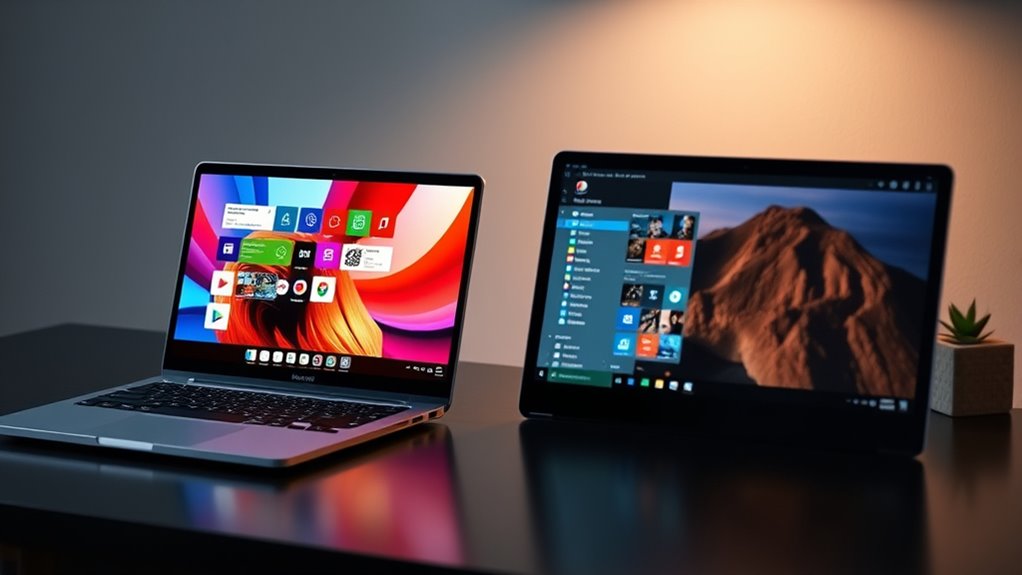
The user interface and overall experience differ markedly between Chromebooks and traditional laptops, shaping how you interact with your device daily. Chromebooks feature a simple, minimalistic interface centered on Chrome OS, making navigation easy for beginners. Boot times are quick, and resuming from sleep feels instant. In contrast, traditional laptops run mature OSes like Windows or macOS, offering extensive customization and advanced controls. You’ll find a wider array of input/output options and multitasking capabilities on these devices. Additionally, the user interface design plays a significant role in how intuitive and efficient your workflow feels on each device. The operating system also influences how users manage updates, security, and app compatibility, which can impact your overall experience. Furthermore, the support for applications differs, affecting whether you can run specialized or legacy software necessary for your tasks. A software ecosystem is also a key factor, as it determines the availability of tools and applications most relevant to your needs.
Pricing and Overall Value
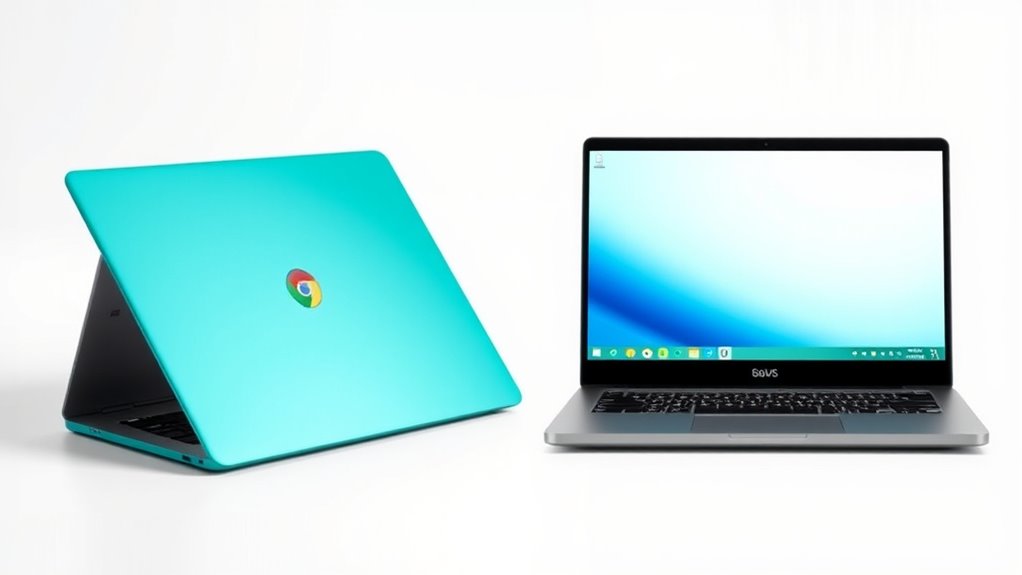
When comparing pricing and overall value, it’s clear that Chromebooks offer a budget-friendly option for users with basic needs. Most models fall between $150 and $300, making them accessible for students, casual users, or those on a tight budget. Traditional laptops start around $400 and can go much higher, especially for premium features. While Chromebooks save you money upfront, they come with trade-offs like limited storage, less powerful hardware, and software restrictions. If your tasks are mainly web browsing, document editing, and cloud-based work, a Chromebook provides excellent value. However, if you need heavy multitasking, offline storage, or specialized software, investing in a traditional laptop might give you better long-term value. Considering the overall quality and durability of a device can also influence your decision. Before choosing, consider your specific needs to ensure the device aligns with your usage.
Best Uses and Suitable User Profiles

Chromebooks excel for users who primarily need easy access to web-based applications, such as students, casual users, and those working mostly in cloud environments. If your tasks revolve around browsing, email, document editing, and streaming, a Chromebook offers simplicity and efficiency. It’s ideal for educational settings, remote work, or light daily use. However, if your work involves specialized software or offline tasks, a traditional laptop might be better suited. Consider whether your typical activities include:
Chromebooks are perfect for web-based tasks, streaming, and casual use but may fall short for offline or specialized software needs.
- Using cloud-based productivity suites like Google Workspace
- Streaming videos or browsing social media
- Working on basic photo editing or light multimedia tasks
- Accessing Android apps or web apps in a portable device
- Offline software compatibility is crucial for troubleshooting and ensuring software quality, which might be a limitation if your work requires intensive offline or specialized software use. Additionally, software flexibility tends to be more extensive on traditional laptops, making them preferable for complex or resource-intensive applications. For example, native desktop applications are often unavailable or limited on Chromebooks, which can impact productivity for certain professional or creative workflows.
These profiles highlight where Chromebooks shine and help you determine if they meet your needs.
Offline Capabilities and Cloud Dependence
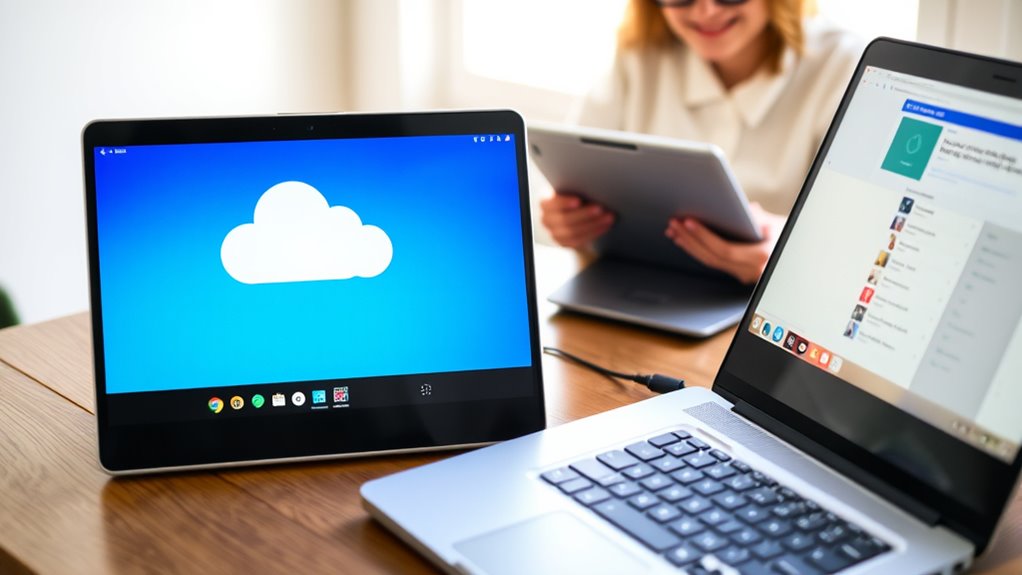
Since you’re relying heavily on internet access for your work, consider how well your device handles offline tasks. Chromebooks primarily use cloud storage and web apps, which can limit functionality without an internet connection. Traditional laptops, on the other hand, allow you to work offline with desktop applications and local files.
Offline App Usage
Offline app usage is a key area where traditional laptops hold an advantage over Chromebooks. With a traditional laptop, you can run full desktop applications without an internet connection, making it ideal for work in remote areas or on the go. You can also install specialized software like Microsoft Office, Adobe Creative Suite, or CAD programs, which often lack offline support on Chromebooks. Additionally, local storage ensures your files and media are accessible anytime, regardless of connectivity. Here are some key points:
- Support for full desktop applications like Photoshop or AutoCAD
- Local storage for large files and media
- No dependency on internet for core functions
- Seamless offline multitasking and file management
This independence from the cloud makes traditional laptops more versatile for offline work needs.
Cloud Storage Reliance
Traditional laptops excel in offline capabilities because they store files locally and run full desktop applications without needing an internet connection. This means you can access documents, edit photos, or run specialized software anytime, regardless of connectivity. In contrast, Chromebooks depend heavily on cloud storage and web-based apps, making offline access limited. While some files can be saved locally, many features and services require an internet connection to function properly. If you work with large media files, use professional software, or travel to areas with unreliable internet, a Chromebook’s cloud reliance can be a hindrance. You’ll need to plan ahead, syncing files locally when possible, but offline productivity can be less seamless compared to traditional laptops.
Security Features and Maintenance
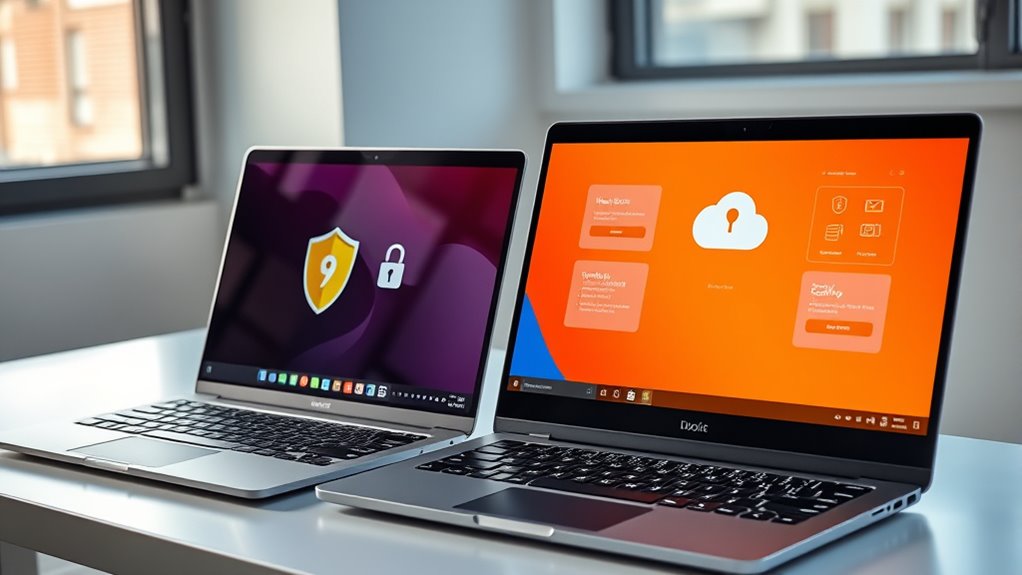
Chromebooks are designed with security in mind and incorporate multiple layers of protection to keep your data safe. You benefit from automatic updates that patch vulnerabilities without your intervention, reducing the risk of malware. The system sandboxing isolates apps and processes, preventing malware from spreading. Verified Boot checks for tampering during startup, ensuring system integrity. Additionally, data encryption protects your information both at rest and in transit. These security features are complemented by hardware components, such as secure chips, that further enhance protection. You also enjoy simple maintenance with minimal user intervention. For example:
- Regular automatic updates improve security with no effort on your part
- Built-in sandboxing limits malware impact
- Verified Boot detects tampering during startup
- Data encryption safeguards your information automatically
- Hardware security modules provide an extra layer of defense against sophisticated threats
Furthermore, hardware security measures like trusted platform modules help ensure the integrity of the device from the hardware level. Incorporating automated security updates aligns with current trends to reduce manual oversight and enhance device resilience. Implementing automatic security updates helps keep the system resilient against emerging threats, reducing the need for manual intervention. These features make security straightforward, requiring less hands-on management than traditional laptops.
Future Prospects and Technological Developments
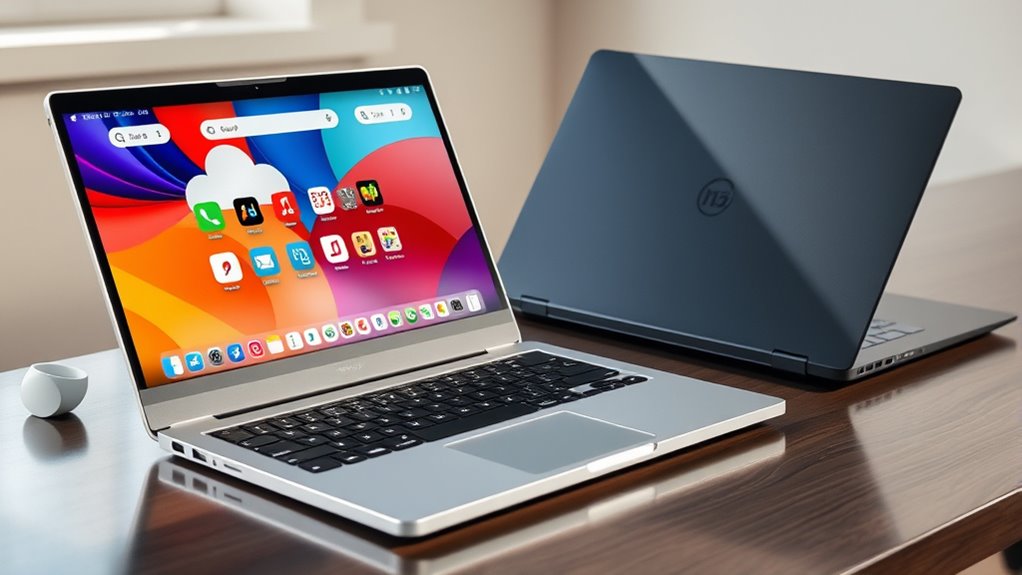
As technology continues to evolve rapidly, future developments in Chromebooks and laptops are poised to blur the lines between lightweight cloud-based devices and powerful traditional machines. You can expect Chromebooks to gain more hardware power, with faster processors and better graphics, narrowing performance gaps. Meanwhile, laptops will become more integrated with cloud services, improving portability and energy efficiency. Advancements in AI and machine learning will enhance user experiences across both device types, offering smarter multitasking and personalized workflows. Additionally, improvements in device security will help protect user data as devices become more connected and feature-rich.
Frequently Asked Questions
Can Chromebooks Run Specialized Professional Software Effectively?
No, Chromebooks generally can’t run specialized professional software effectively. They rely on Chrome OS, which is optimized for web and Android apps, not full desktop programs like Adobe Creative Suite, CAD, or advanced video editing tools. If your work depends on such software, you’ll need a traditional laptop with Windows, macOS, or Linux, offering broader compatibility, higher performance, and offline capabilities for professional tasks.
How Well Do Chromebooks Handle Multitasking With Multiple Browser Tabs?
Did you know most users have over 20 browser tabs open at once? When it comes to multitasking, Chromebooks handle multiple tabs reasonably well, thanks to their lightweight Chrome OS optimized for web browsing. However, with lower RAM and processing power, you might experience lag or slowdowns if you’re juggling many heavy tabs or apps simultaneously. For light multitasking, they perform adequately; for more intensive tasks, a traditional laptop is better.
Are There Any Gaming Options Available on Chromebooks?
There are limited gaming options on Chromebooks, but you can enjoy casual and browser-based games easily. Many Chromebooks support Android apps from the Google Play Store, opening up some mobile games. Additionally, you can play cloud gaming services like Google Stadia or Xbox Cloud Gaming if you have a strong internet connection. However, for high-end or graphically demanding games, a traditional laptop with better hardware is usually necessary.
What Are the Repair and Upgrade Options for Chromebooks?
You can’t easily repair or upgrade a Chromebook like a traditional laptop. Most models have sealed designs, making component replacements difficult or impossible without professional help. RAM and storage are often soldered onto the motherboard, limiting upgrades. If you want a device that’s easily repairable and upgradable, a traditional laptop with user-accessible parts is a better choice. Chromebooks are designed for simplicity and minimal maintenance, not DIY repairs or upgrades.
Do Chromebooks Support External Peripherals Like Printers and External Displays?
Yes, Chromebooks support external peripherals like printers and displays. You can connect printers via USB or Wi-Fi, and many models automatically detect network printers. For external displays, Chromebooks typically support HDMI or USB-C connections, allowing you to extend or mirror your screen. Just verify your device has the necessary ports and that your peripherals are compatible with Chrome OS. This makes it easy to expand your workspace when needed.
Conclusion
Ultimately, choosing between a Chromebook and a traditional laptop depends on your needs. Will you rely on cloud apps or crave powerful software? Imagine a device seamlessly fitting into your daily routine—light, fast, and secure. But what if your work demands offline access or specialized programs? The decision isn’t just about specs; it’s about envisioning the future you want to build. Are you ready to take the leap into the next chapter?