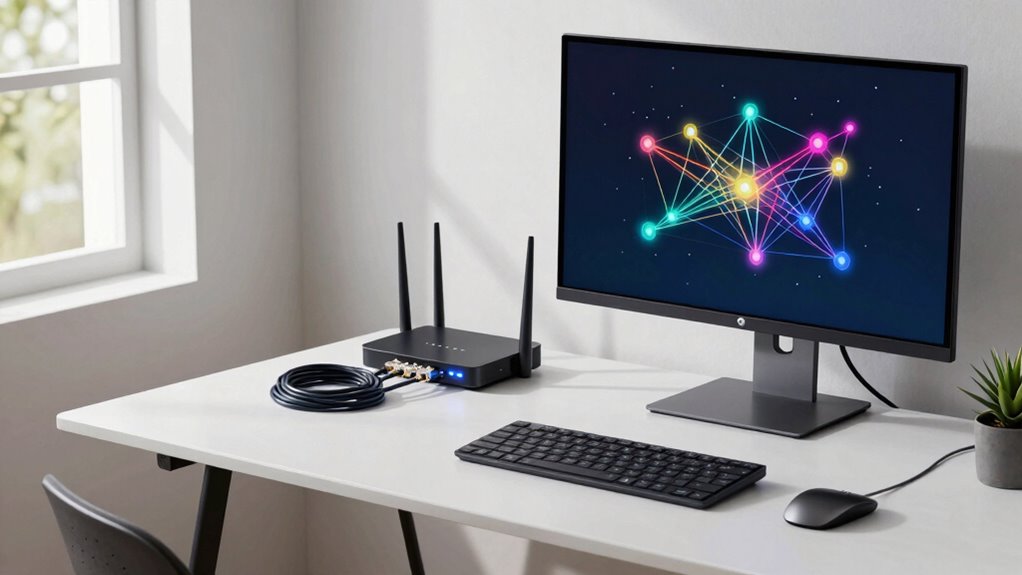

To set up a simple, secure home network, start by choosing a router that supports WPA3 encryption and place it centrally to guarantee good coverage. Use a strong, unique password and enable network encryption. Manage your devices with the admin panel, prioritize bandwidth, and set up guest networks for visitors. Keep your router firmware updated, enable firewalls, and monitor activity regularly. If you continue, you’ll discover more tips to keep your network safe and running smoothly.
Key Takeaways
- Choose a secure, modern router with WPA3 encryption and position it centrally for optimal coverage.
- Set a strong, unique password and enable network encryption to prevent unauthorized access.
- Regularly update router firmware and device security software to protect against vulnerabilities.
- Manage connected devices and bandwidth via the admin panel to prevent congestion and overloads.
- Troubleshoot connectivity issues by restarting devices, checking interference, and monitoring network activity.
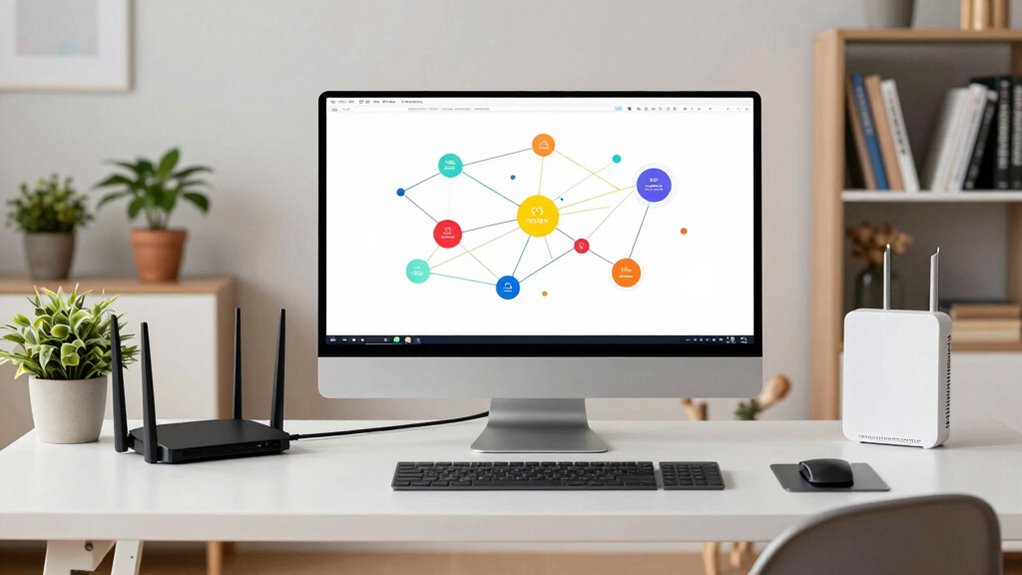
Are you looking to set up a reliable home network that keeps all your devices connected smoothly? If so, you’re in the right place. Building a solid network might seem complicated at first, but once you understand the basics, it becomes straightforward. Your first step is choosing the right router. Look for one that offers strong wireless security features, like WPA3 encryption, to protect your data from hackers. A good router not only provides fast internet but also keeps your network safe from potential threats. Remember, security isn’t just about passwords; it’s about creating a secure environment for all your devices.
Once you have your router, setting up your Wi-Fi network is next. Use a unique, strong password instead of default ones, and enable network encryption to prevent unauthorized access. Position your router centrally in your home to improve coverage, and avoid placing it near metal objects or electronics that might cause interference. This ensures a stable connection throughout your space. If you experience slow speeds or dropped connections, don’t panic. Network troubleshooting is part of the process. Check your device’s connection settings, restart your router, or update its firmware to fix common issues. Keeping your firmware up-to-date is crucial because it patches security vulnerabilities and improves performance. Additionally, understanding your network’s bandwidth management helps optimize device performance and avoid congestion. Being aware of your network’s layout and managing traffic effectively can greatly enhance your overall experience.
As your network grows, managing multiple devices can become tricky. This is where understanding your network’s layout helps. Use your router’s admin panel to prioritize bandwidth for essential devices and set up guest networks for visitors, so your main network stays secure. Regularly monitor your network activity to spot unusual behavior that might indicate security breaches. Wireless security is essential, especially with so many devices connected. Enable firewalls, change default passwords, and disable remote management features if you don’t need them. In addition, considering the increasing number of connected devices, understanding network capacity can help prevent overloads and ensure smooth operation. Incorporating network monitoring tools can also help you keep track of your network’s health and security in real-time.
Another key aspect is ensuring your devices are protected from malware and unauthorized access. Use reputable security software on your computers and keep all your devices updated. If you encounter persistent network issues, perform network troubleshooting steps like resetting your router or checking for interference from other wireless networks nearby. Sometimes, a simple reboot can resolve many problems. Understanding emerging trends in digital technology can also help you stay ahead in maintaining a secure and efficient home network.
Frequently Asked Questions
How Do I Change My Wi-Fi Password?
To change your Wi-Fi password, log into your router’s admin panel through a web browser. Find the wireless or Wi-Fi settings, then locate the password or security key field. Update your password with a strong, unique one, ensuring network encryption is enabled for password security. Save the changes, and reconnect your devices using the new password. Regularly updating your Wi-Fi password helps protect your network from unauthorized access.
What Is the Best Router for Beginners?
You’ll want a router that feels like your trusty sidekick in Wi-Fi security and network troubleshooting. The TP-Link Archer A7 is perfect—it’s incredibly easy to set up, offers strong coverage, and keeps your network safe from threats. Its user-friendly interface makes troubleshooting a breeze, even if you’re new to home networking. With this router, you’ll feel empowered, confident, and ready to conquer any Wi-Fi challenge that comes your way.
How Can I Improve My Wi-Fi Signal?
To improve your Wi-Fi signal, start by reducing Wi-Fi interference from other devices like microwaves or cordless phones. Position your router centrally and elevate it for better coverage. Consider using signal boosters or range extenders to strengthen weak spots. Also, switch to a less congested Wi-Fi channel if you experience interference. These steps can markedly boost your Wi-Fi signal, making your internet faster and more reliable throughout your home.
Do I Need a Modem and Router Separately?
Think of a modem and router as a team, each with a unique role. You don’t always need separate devices; many ISPs provide a combo unit, simplifying setup. However, if you want better network security, customizing settings, or boosting coverage, a separate router might be better. Make certain your modem and router are compatible with your ISP, and remember, a good device helps protect your network from threats.
How Do I Set up a Guest Wi-Fi Network?
To set up a guest Wi-Fi network, access your router’s admin panel, usually through a web browser. Look for the “guest network” or “guest Wi-Fi” section, then enable it. Use router configuration tips like setting a unique network name and password for your guests. This keeps your main network secure while allowing visitors to connect easily. Save your settings, and your guest network is ready to use.
Conclusion
By mastering the basics of home networking, you’re not just connecting devices—you’re building the digital backbone of your entire household. With this knowledge, you’ll outsmart tech giants and tame the wildest Wi-Fi dragons, transforming your home into a high-speed fortress of connectivity. No more dead zones, no more buffering—just seamless streaming and lightning-fast downloads. Congratulations, you’re now a home networking hero, wielding the power to conquer the digital universe from your very own living room!