The easiest way to transfer photos from your phone to your computer depends on your setup. You can connect your phone with a USB cable for quick, reliable transfers, or use cloud services like Google Photos or iCloud for automatic backup and easy access. Wireless options, such as Bluetooth, Wi-Fi transfer apps, or email, work well for smaller batches or quick sharing. If you want more tips, keep exploring the best methods to suit your needs.
Key Takeaways
- Use a USB cable and select “File Transfer” mode for quick, reliable wired photo transfer.
- Transfer photos via Bluetooth for small batches, though it’s slower than other methods.
- Utilize Wi-Fi-based apps like AirDroid or SHAREit for fast wireless transfers on the same network.
- Sync photos automatically to cloud services like Google Photos or iCloud for seamless access across devices.
- Move photos using SD cards or OTG drives for offline, high-speed transfer without internet dependency.
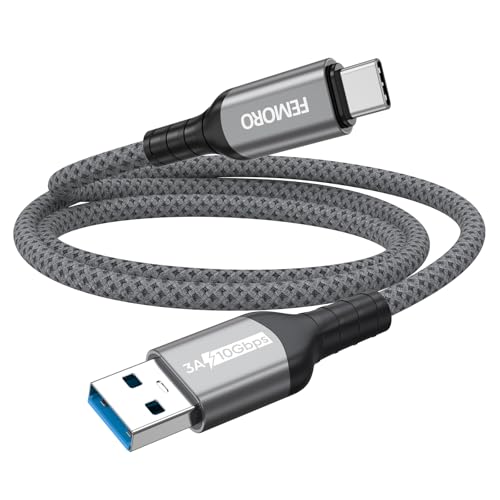
USB A to USB C Data Cable 3ft, 10Gbps High Speed Transfer & 3A Charging
- Full Speed Requirement: Requires USB 3.2 Gen 2 ports for 10 Gbps
- High-Speed Data Transfer: Up to 10 Gbps (1050 MB/s) transfer rate
- Fast Charging Support: Supports up to 3A charging
As an affiliate, we earn on qualifying purchases.
As an affiliate, we earn on qualifying purchases.
Using a USB Cable for Fast and Reliable Transfers

Using a USB cable is often the easiest and most dependable way to transfer photos from your phone to your computer. Simply connect your phone with a compatible cable—USB-C, Lightning, or Micro USB—depending on your device. Once connected, activate your phone and select “File Transfer” or “Media Transfer” mode; this enables your computer to access your phone’s storage. Photos are usually stored in the DCIM folder, which you can find through File Explorer on Windows or Finder on Mac. High transfer speeds, especially with USB 3.0 or newer cables, make it ideal for large batches of photos. The process is straightforward, reliable, and doesn’t depend on internet connection, ensuring your photos are transferred quickly and safely. High transfer speeds are essential for efficiently handling large photo collections and local data transfer enhances privacy and security. Additionally, choosing a compatible cable ensures optimal connection quality and transfer efficiency, which is especially important for energy-efficient data transfers in modern devices.

TP-Link USB Bluetooth Adapter for PC – Bluetooth 5.4 USB Dongle Receiver
- Bluetooth Version: Bluetooth 5.4 with backward compatibility
- Data Transfer Speed: Up to 2x faster transfers
- Wireless Range: Four times broader coverage
As an affiliate, we earn on qualifying purchases.
As an affiliate, we earn on qualifying purchases.
Transferring Photos via Bluetooth for Small Batches

To transfer small batches of photos via Bluetooth, you’ll need to pair your phone with your computer first—just follow the device prompts. Keep in mind that Bluetooth transfer speeds are slower, so it’s best for a few photos rather than large collections. To guarantee a smooth process, make sure your devices stay within close range and maintain a stable connection throughout. Additionally, Free Floating concepts like wireless connections can help you avoid cluttered cables during your transfer process.
Pairing Process Steps
Pairing your phone with your computer via Bluetooth is a simple process that guarantees a smooth transfer of small photo batches. First, turn on Bluetooth on both devices. On your phone, go to Settings > Bluetooth and enable it. On your computer, open the Bluetooth settings—on Windows, search for Bluetooth in the Start menu, and on Mac, access System Preferences > Bluetooth. Make sure your computer is discoverable. Then, select your phone from the list of available devices on your computer or vice versa. Confirm any pairing prompts or codes that appear on both screens. Once paired, your devices will remember the connection for future transfers. Connecting devices securely ensures a safe and reliable pairing process. Additionally, having compatible Bluetooth profiles can facilitate smoother data exchange. Establishing a secure connection is essential to prevent unauthorized access during transfers. Properly device pairing not only enhances security but also streamlines future data transfers, saving you time. You’re now ready to send photos via Bluetooth, ensuring a quick and cable-free method for small batches.
Transfer Speed Limitations
Although Bluetooth offers a convenient way to transfer small batches of photos wirelessly, its transfer speeds are generally slow and can be a limiting factor. You might find that sending even a few photos takes several minutes, especially if the files are high-resolution. Bluetooth’s transfer rate typically ranges from 1 to 3 Mbps, which is much slower than wired options. This means large photo batches can become tedious to move via Bluetooth, leading to frustration and delays. Connection interruptions and pairing issues can also further slow down the process. If you’re transferring many photos, Bluetooth isn’t the best choice. Instead, consider faster methods like USB cables or wireless options with higher speeds to save time and avoid frustration. Additionally, wireless transfer limitations can help you understand why some methods are slower than others. Knowing about alternative transfer methods that offer faster speeds can significantly improve your experience. It’s also helpful to remember that best modern transfer options prioritize both speed and reliability for everyday use. Furthermore, exploring the advantages of wired connections can provide more consistent transfer speeds compared to wireless options.
Connection Stability Tips
Ensuring a stable Bluetooth connection is key to successfully transferring small batches of photos. First, keep both devices close together, ideally within a few feet, to minimize interference. Make sure Bluetooth is enabled on both devices and that they are discoverable. Before transferring, turn off other Bluetooth devices nearby to reduce signal congestion. Pair your phone and computer properly—sometimes re-pairing helps resolve connection issues. Keep devices awake and avoid moving them during the transfer. Confirm your phone has enough battery life, as low power can cause interruptions. If you experience frequent disconnections, restart both devices and try again. Using the latest Bluetooth versions on compatible devices also improves stability. Following these tips will help you transfer small batches smoothly.

TP-Link AC600 USB WiFi Adapter for Desktop PC – USB Wireless Adapter for PC
- Long-Range USB Wi-Fi Adapter: Provides extended, lag-free connections
- High-Speed Dual Band: Up to 200 Mbps on 2.4GHz, 433 Mbps on 5GHz
- Supports Latest Wi-Fi Standards: Upgrades to 802.11ac for faster speeds
As an affiliate, we earn on qualifying purchases.
As an affiliate, we earn on qualifying purchases.

Quick Share is a fast and efficient way to transfer photos between compatible Android devices without using cables or the internet. It leverages Bluetooth and Wi-Fi Direct to send files quickly, often reaching speeds up to 250 Mbps. To use it, simply activate Quick Share on both devices, select the photos you want to share, and choose the recipient device from the list. The transfer happens directly between the devices, bypassing the need for Wi-Fi networks or data connections. This method is ideal for quick, small-to-medium batches of photos and offers a seamless, wireless experience. Just guarantee both devices support Quick Share, and keep them close enough for a stable connection. It’s perfect for sharing photos on the go without extra setup or accessories. Understanding device compatibility can help ensure a smooth transfer process, especially since device specifications may impact transfer speeds and reliability. Being aware of file size limitations can also prevent interruptions during the transfer. Additionally, transfer speed can vary depending on the hardware and network conditions, so keeping devices within range enhances the experience. Moreover, power settings can influence transfer stability, so ensure both devices have sufficient battery life during the process.

15.6" Digital Calendar Wall Touch Screen, Chore Chart, Photo Frame, Refills
- Package Includes: 40 packs, 40 total items
As an affiliate, we earn on qualifying purchases.
As an affiliate, we earn on qualifying purchases.
Syncing Photos With Cloud Storage Services

Syncing photos with cloud storage services makes it easy to automatically back up and access your images across devices. You’ll need to take into account storage limits and subscription plans, especially if you have a large photo library. Once set up, you can quickly view and download your photos on any device with an internet connection. Additionally, consider storage management options to optimize space and avoid additional costs. Utilizing cloud security features can also help protect your photos from unauthorized access. Be aware of wiring basics if you plan to set up your own network or devices for seamless syncing. Understanding device compatibility helps ensure your chosen services work smoothly across all your equipment, and staying informed about security protocols can further safeguard your data during transfer.
Automatic Backup Options
Using cloud storage services like Google Photos, iCloud, Dropbox, or OneDrive makes automatic photo backup effortless. Once set up, your phone uploads new photos automatically, keeping your library safe without manual effort. To visualize, consider this table:
| Service | Backup Method |
|---|---|
| Google Photos | Automatic uploads over Wi-Fi |
| iCloud | Continuous sync with Apple ID |
| Dropbox | Camera Uploads feature |
| OneDrive | Auto-save photos from camera roll |
| Others | Custom auto-sync options |
These services run in the background, ensuring your photos are stored securely online. You can access them from any device connected to the internet. This method simplifies keeping your photo collection up-to-date without needing cables or manual transfers. Automated backups help prevent data loss and ensure your memories are always protected.
Storage Limitations and Plans
Cloud storage services are convenient for backing up and accessing your photos anytime, but they come with storage limitations that can impact how much you can upload. Free plans often have caps, which can fill up quickly if you have a large photo library. To manage this, you might consider upgrading to paid plans that offer more space. Here are some key points:
- Free tiers generally include limited storage, like 15 GB on Google Photos or 5 GB on iCloud.
- Paid plans vary, with options for 100 GB, 1 TB, or more.
- Larger libraries may require multiple accounts or regular cleanups to stay within limits.
- Some services offer automatic photo compression or optimization to save space, but quality may reduce.
Choosing the right plan depends on your storage needs and budget.
Access Across Devices
Accessing your photos across multiple devices becomes simple when you leverage cloud storage services. You can automatically sync your photos from your phone to platforms like Google Photos, iCloud, Dropbox, or OneDrive, making them available on your computer without cables. Just upload or enable auto-sync, and your images are stored securely online. From there, you can access, organize, and download your photos anytime, anywhere with an internet connection. Keep in mind that upload speeds depend on your network, so large libraries may take time to sync completely. Many cloud services also offer built-in organization tools, helping you manage your photos more efficiently. Using these services eliminates the need for physical connections, making cross-device access quick and effortless.
Wireless Transfers With Phone Link and Similar Apps

Wireless transfers with Phone Link and similar apps offer a convenient way to move photos from your phone to your computer without cables or cloud services. You simply pair your device and use the app to transfer images directly over Wi-Fi. This method is ideal for quick, cable-free transfers. Here are the key points:
- Easy setup: Install the app, pair your phone and PC, and you’re ready to transfer.
- Batch or individual transfer: Select multiple photos or just one, depending on your needs.
- Speed varies: Transfer speeds depend on Wi-Fi quality and device proximity.
- Secure connection: These apps typically use encrypted connections, reducing security concerns.
This method balances simplicity and efficiency, especially if you prefer not to use cables or cloud storage.
Moving Photos With SD Cards and OTG Flash Drives

Using SD cards and OTG flash drives offers a fast, physical way to transfer photos from your phone to your computer. You’ll want to take into account the compatibility of your devices and the transfer speeds to ensure efficiency. These methods work best when your phone supports SD card slots or OTG functionality, which is common on most Android devices but less so on iPhones.
Using SD Card Readers
If you want a quick and reliable way to transfer photos from your phone, using an SD card reader or OTG flash drive can be an excellent choice. Simply remove the SD card from your phone, insert it into a card reader, and connect it to your computer. Alternatively, you can use an OTG flash drive to transfer files directly from your device. This method is fast, straightforward, and doesn’t rely on internet or cables. Here are some key points:
- Remove photos from your phone’s SD card.
- Insert the SD card into a compatible card reader.
- Connect the reader to your computer via USB.
- Copy and paste your photos directly onto your PC.
This approach works well for large batches and provides a secure, offline transfer.
Transfer Speed and Efficiency
Transfer speeds when moving photos with SD cards and OTG flash drives are especially fast, making them ideal for large batches. Using an SD card reader, you can quickly transfer hundreds of photos in just a few minutes, since the process involves copying files directly from the card to your computer’s storage. OTG flash drives also offer rapid transfer rates, often completing 100 photos in around 20-25 seconds, depending on the device and connection quality. These methods bypass network limitations, providing consistent and high-speed performance. They are especially efficient for large collections, saving you time compared to wireless options. Just confirm your phone supports OTG functionality and that you have a compatible SD card reader to maximize transfer efficiency.
Compatibility and Device Support
Are your devices compatible with SD cards and OTG flash drives? Compatibility depends on your phone’s hardware and operating system. Most modern Android phones support SD cards and OTG USB drives, making this a versatile transfer method. iPhones, however, generally don’t support SD cards or OTG drives directly. To help you, here are key points:
- Check your phone’s specifications to confirm SD card or OTG USB support.
- Ensure your device has the necessary ports or adapters, like a USB-C or micro-USB slot.
- Verify file system compatibility; most phones support FAT32 or exFAT formatted cards.
- Use compatible card readers or OTG cables to avoid connection issues.
This method is straightforward on Android but limited for iOS users.
Sending Photos Through Email or Direct Uploads

Sending photos through email or direct uploads offers a quick and straightforward way to share a few images without extra devices or setup. You can attach photos directly to an email or upload them to cloud services like Google Drive or Dropbox, then download on your computer. This method works well for small batches or urgent sharing. Keep in mind, email size limits usually restrict you to a few photos at a time, making it less ideal for large libraries. It’s simple, no special apps needed, and works anywhere with internet access. Use the table below to compare options:
| Method | Best For |
|---|---|
| Email attachments | Sending a few photos quickly |
| Direct uploads to cloud | Larger batches, cloud storage |
Transferring Photos Using a Shared Wi-Fi Network

Have you considered using your Wi-Fi network to move photos easily between your phone and computer? It’s a quick, cable-free way to transfer large batches without relying on cloud storage or third-party apps. Here’s how you can do it:
- Enable a file-sharing app like AirDroid, SHAREit, or Feem on both devices.
- Connect your phone and computer to the same Wi-Fi network.
- Open the app and follow the prompts to establish a connection.
- Select the photos you want to transfer and send them over the network.
This method offers fast transfer speeds and doesn’t require extra cables or internet uploads. Just make sure both devices are on the same Wi-Fi network, and you’re ready to share photos effortlessly.
Utilizing Third-Party Apps for Seamless Transfers

Utilizing third-party apps can simplify the process of transferring photos between your phone and computer by providing dedicated, user-friendly solutions. These apps often support both Android and iOS, making transfers quick and hassle-free. You just install the app on both devices, connect them via Wi-Fi or Bluetooth, and transfer your photos seamlessly. Many apps also offer automatic sync features, so your photos stay updated across devices. Here’s a quick overview:
| App Type | Key Features |
|---|---|
| Cloud Storage Apps | Automatic backup, access from any device |
| Transfer Apps | Direct device-to-device transfer, batch support |
Using these apps reduces the need for cables or manual uploads, streamlining your photo management.
Tips for Ensuring Smooth and Secure Photo Transfers

To guarantee your photo transfers go smoothly and securely, start by choosing the right method for your needs. Here are four tips to help you do that:
- Use trusted connections like USB cables or official apps to avoid security risks.
- Keep your devices updated with the latest software to ensure compatibility and security.
- Enable encryption or password protection when transferring over wireless networks, especially Bluetooth or Wi-Fi.
- Verify files after transfer to confirm all photos are complete and intact before deleting or organizing them.
Following these steps minimizes errors, protects your data, and ensures a seamless transfer experience. Always prioritize secure methods, especially when handling sensitive or valuable images.
Frequently Asked Questions
Can I Transfer Photos From an Iphone to a Windows PC Without Itunes?
Yes, you can transfer photos from your iPhone to a Windows PC without iTunes. You have several options, like using the Windows Photos app, which allows you to import photos via a USB cable effortlessly. You can also use iCloud to sync your photos wirelessly, or transfer via third-party apps like Dropbox or Google Drive. These methods don’t require iTunes and are straightforward for quick photo transfers.
What Is the Maximum File Size for Transferring Photos via Bluetooth?
Oh, the joys of Bluetooth—where size truly doesn’t matter… or does it? In reality, Bluetooth’s maximum file size for photos is around 3 to 8 MB per transfer. So, if you’re thinking of sending that high-res, 50 MB image, forget it. You’ll either need to compress your photos or opt for a faster, more reliable method. Bluetooth’s charm is in its simplicity, not its capacity.
Are Cloud Storage Services Free for Unlimited Photo Uploads?
No, most cloud storage services don’t offer free unlimited photo uploads. Google Photos, for example, used to provide unlimited storage but now counts high-quality uploads towards your limit. iCloud, Dropbox, and OneDrive also have free tiers with limited storage, requiring paid plans for large libraries. If you have many photos, you’ll likely need to purchase additional storage or consider alternative transfer methods to avoid extra costs.
Do OTG Flash Drives Support Iphones for Photo Transfer?
You’ll be surprised to learn that most OTG flash drives don’t support iPhones directly, as only Android devices typically support OTG functionality. Less than 5% of iPhones can connect via OTG drives without special adapters or apps. To transfer photos, you’ll need an Apple-compatible method like iCloud, AirDrop, or Lightning-compatible drives. These options guarantee smooth transfers without compatibility issues, especially when dealing with large photo libraries.
How Secure Are Photo Transfers Over Wi-Fi Networks?
Photo transfers over Wi-Fi networks are generally secure if you use trusted apps and secure connections, like WPA2 or WPA3 encryption. However, there’s still a risk of interception or unauthorized access if your network is open or poorly secured. To keep your photos safe, avoid public Wi-Fi networks, use strong passwords, and choose reputable transfer apps with built-in encryption. Regularly update your device and app software for added security.
Conclusion
Did you know that over 60% of smartphone users transfer photos regularly? Whether you prefer quick USB connections, cloud services, or wireless apps, there’s a simple method for you. By choosing the right transfer method, you can save time and keep your photos protected. Experiment with different options to find what works best. Remember, staying organized and cautious during transfers ensures your memories stay safe and easily accessible whenever you need them.