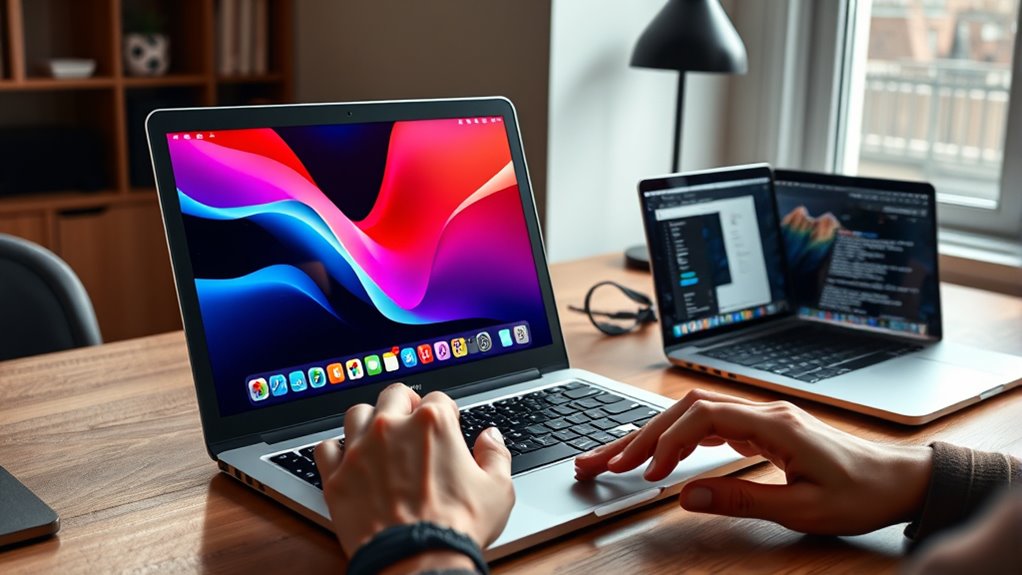

Switching from Windows to Mac becomes easier when you familiarize yourself with the macOS interface, like the menu bar, Dock, and Finder for managing files. Learning keyboard shortcuts and gestures can boost your efficiency. Customize your settings, such as appearance and workspace layout, to suit your needs. Don’t forget to explore support options like Apple’s resources and community forums—these tips will guide you through mastering your new Mac environment smoothly.
Key Takeaways
- Familiarize yourself with macOS interface, including the menu bar, Dock, Finder, and System Settings.
- Learn essential keyboard shortcuts like Command-C (copy) and Command-V (paste) for efficient navigation.
- Use Migration Assistant to transfer files, settings, and apps seamlessly from Windows.
- Customize your workspace with Dark Mode, Dock adjustments, and desktop wallpapers for comfort.
- Access Apple Support resources, Help menu, and forums for tutorials, troubleshooting, and tips.
Navigating the Macos Interface and Key Features
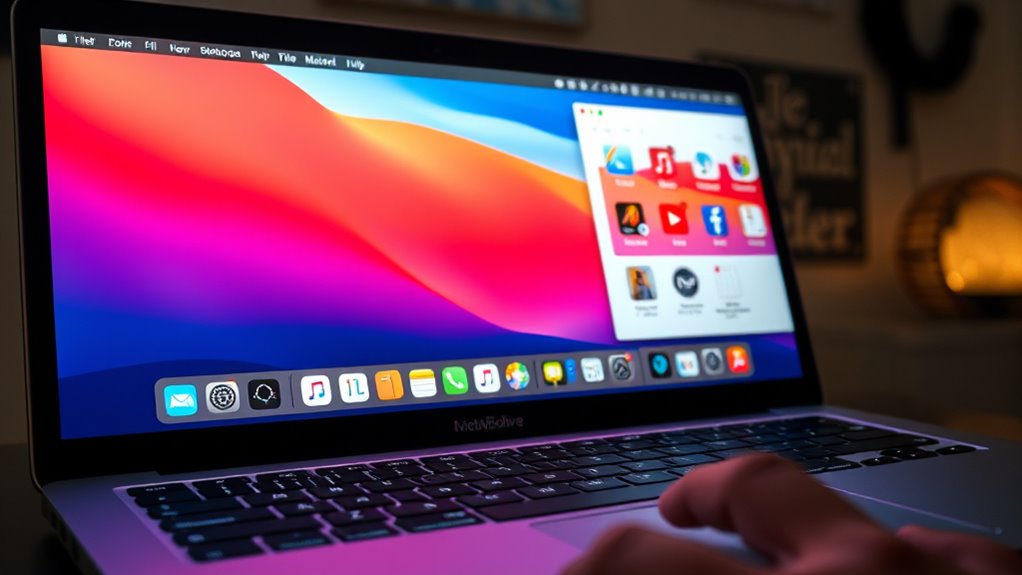
To effectively navigate macOS, you need to familiarize yourself with its key interface elements. At the top, you’ll find the menu bar, which displays app menus, system icons, and status indicators. The Dock at the bottom provides quick access to your favorite apps and open windows. The Finder is your main tool for managing files and folders, similar to Windows Explorer. You’ll also use System Settings to customize preferences and control system-wide options. Unlike Windows, macOS uses Mission Control and Spaces to help you organize multiple windows and desktops efficiently. These features streamline multitasking and improve your workflow. Additionally, understanding the contrast ratio behind macOS can enhance your appreciation of its display quality and visual performance. You might also want to explore automation features that can further optimize your productivity and ease of use. Getting comfortable with these core elements will make your *progression* smoother and help you work more naturally within the macOS environment.
Mastering Keyboard Shortcuts and Gestures

Mastering keyboard shortcuts and gestures can profoundly boost your efficiency and make traversing macOS more intuitive. You’ll find that familiar shortcuts save time and reduce reliance on menus. For example, Command-C copies, Command-V pastes, and Command-Q quits apps. Gestures on your trackpad, like pinch-to-zoom or three-finger swipe, enhance navigation. To help you get started, here’s a quick reference:
| Action | Shortcut or Gesture | Description |
|---|---|---|
| Switch between apps | Command-Tab | Cycle through open applications |
| Take a screenshot | Command-Shift-5 | Capture screen or record video |
| Open Spotlight search | Command-Space | Find files or apps quickly |
| Show desktop | F11 or pinch with thumb and three fingers | Minimize all windows |
Practice these to streamline your Mac experience.
Managing Files and Applications Effectively

Managing files and applications on macOS is straightforward once you get familiar with Finder and the Dock. Finder helps you view, organize, and locate your files quickly, while the Dock provides instant access to your most-used apps. To stay organized, consider these tips:
Getting comfortable with Finder and the Dock makes managing your macOS files and apps easy and efficient.
- Use tags to color-code and categorize files for easy retrieval.
- Keep frequently accessed folders in the Finder sidebar.
- Drag files directly into the Trash to delete or into folders to organize.
- Use Migration Assistant to transfer your files and settings smoothly from Windows.
Getting comfortable with these tools will streamline your workflow. Additionally, managing applications is simple—install via the Mac App Store or third-party sources, then uninstall by dragging apps to Trash.
Customizing Your Mac for Better Productivity
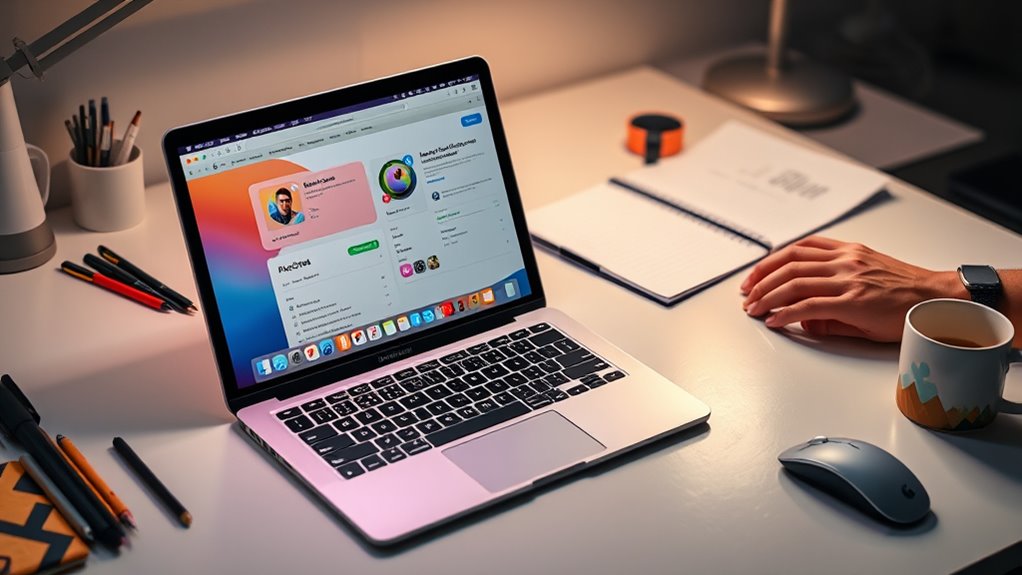
Customizing your Mac can considerably boost your productivity by tailoring the workspace to fit your workflow. You can adjust appearance modes, personalize the Dock, and organize your desktop for faster access. Use System Settings to select light or dark themes, change wallpaper, and customize widgets. Resize and reposition the Dock to suit your preference. Here’s a quick overview:
| Customization Area | Options | Tips |
|---|---|---|
| Appearance Mode | Light/Dark | Switch based on time of day |
| Dock | Size/Position | Keep it visible or auto-hide |
| Desktop & Screensaver | Wallpaper & screensaver | Use calming images for focus |
| Widgets & Icons | Add/remove widgets | Keep important info accessible |
Tailor these settings to streamline your tasks and create a workspace that keeps you focused.
Utilizing Resources and Support for a Smooth Switch

Switching to a new operating system can be challenging, but leveraging available resources and support makes the progression much smoother. Apple offers a wealth of tools to help you learn macOS quickly and confidently. Here are four ways to get assistance:
- Apple Support website provides detailed guides, tutorials, and troubleshooting tips for common issues.
- Built-in Help menu in macOS offers context-specific assistance and quick access to relevant topics.
- Community forums like Apple Discussions connect you with experienced users who can answer questions.
- Apple Store Genius Bar appointments give you personalized support and hands-on help.
Utilize these resources to troubleshoot problems, learn shortcuts, and customize your experience, making your transition seamless.
Frequently Asked Questions
How Do I Install Windows on My Mac?
To install Windows on your Mac, use Boot Camp Assistant, which is built into macOS. Open Boot Camp, follow the prompts to partition your drive, and select your Windows ISO file. The tool will guide you through the installation process. Once installed, restart your Mac and choose Windows during startup. Make sure your system meets the requirements and back up important data before starting.
Can I Transfer My Windows Programs to Macos?
You can’t directly transfer Windows programs to macOS because each OS runs different architectures. Imagine trying to fit a square peg into a round hole—that’s what transferring Windows apps to Mac feels like. Instead, look for Mac versions or compatible alternatives. You can also run Windows on your Mac using Boot Camp or virtualization software like Parallels, letting you access Windows programs without losing your Mac experience.
How Do I Troubleshoot Common Macos Issues?
To troubleshoot common macOS issues, start by restarting your Mac to resolve minor glitches. Use Safe Mode to diagnose problems, which disables unnecessary apps and extensions. Check for updates in System Settings to fix bugs, and use Disk Utility to repair your disk permissions. If apps crash, try reinstalling them or clearing cache files. For persistent problems, consult Apple Support or visit an Apple Store for expert help.
Are There Equivalents for Windows-Specific Apps on Mac?
Finding Mac equivalents for Windows apps is like matching puzzle pieces—you’ll discover similar options for most tasks. For instance, Microsoft Office works seamlessly on Mac, and alternatives like Apple’s Pages and Numbers cover your document needs. Adobe Photoshop and Chrome are available too. For specialized software, check the Mac App Store or explore compatible third-party options. Most apps have comparable features, making your shift smoother and ensuring your workflow stays uninterrupted.
How Do I Recover Deleted Files on Macos?
To recover deleted files on macOS, first check the Trash bin. If you find your files there, right-click and select “Put Back” to restore them. If they’re not in Trash, use Time Machine if you’ve set it up; open it from the menu bar, browse your backups, and restore the files you need. For more advanced recovery, consider third-party data recovery apps.
Conclusion
Switching to Mac might seem intimidating at first, but with a little patience, you’ll be up and running in no time. Embrace the learning curve and remember, every new tool has its quirks—it’s all part of the journey. Keep exploring the features, utilize available resources, and don’t be afraid to ask for help. Before you know it, you’ll be wondering why you didn’t switch sooner—sometimes, you’ve got to bite the bullet to enjoy smoother sailing.