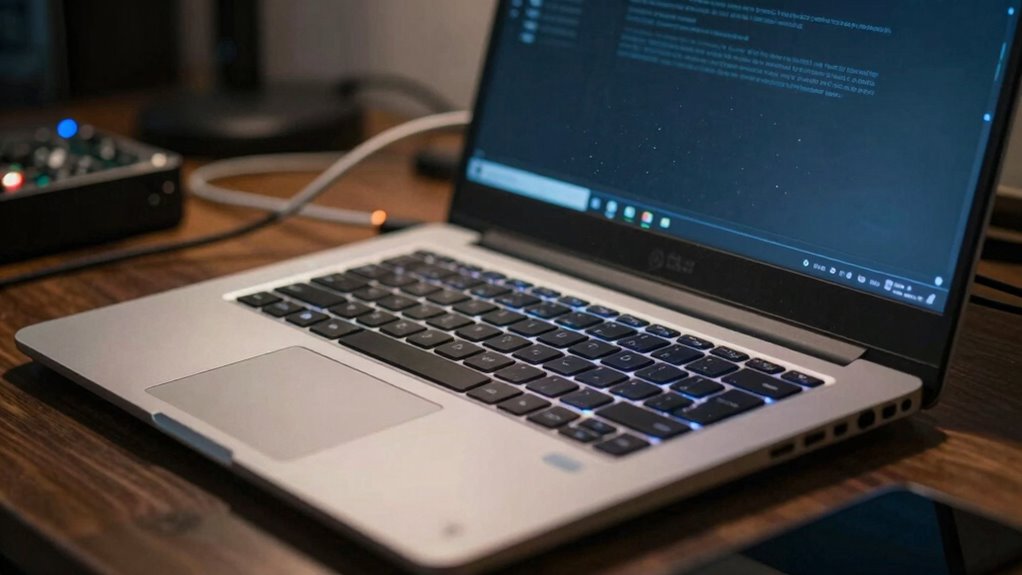

Unusual noises from your computer often indicate underlying hardware issues, like misaligned or worn components, loose screws, or failing hard drives. Cooling fans struggling with dust buildup can produce grinding or rattling sounds, which may cause vibrations that damage other parts. Ignoring these signs can lead to overheating, hardware damage, or data loss. Addressing these noises early helps prevent costly repairs. If you want to understand the causes and solutions better, keep exploring how to protect your system.

Get the latest gadgets delivered free — and shop member deals
- Fast, free delivery on millions of items
- Access to Prime Big Deal Days deals on October 6–7
- Prime Video, Amazon Music and more included
Key Takeaways
- Unusual noises often indicate misaligned, worn, or failing hardware components that need attention.
- Persistent sounds can be signs of dust buildup, causing cooling fan failure and overheating risks.
- Vibrations and rattling may signal loose screws or damaged parts, risking further hardware damage.
- High-pitched or grinding noises can point to failing hard drives or cooling systems, risking data loss.
- Addressing noises early prevents costly repairs and extends the computer’s lifespan by preventing hardware failure.
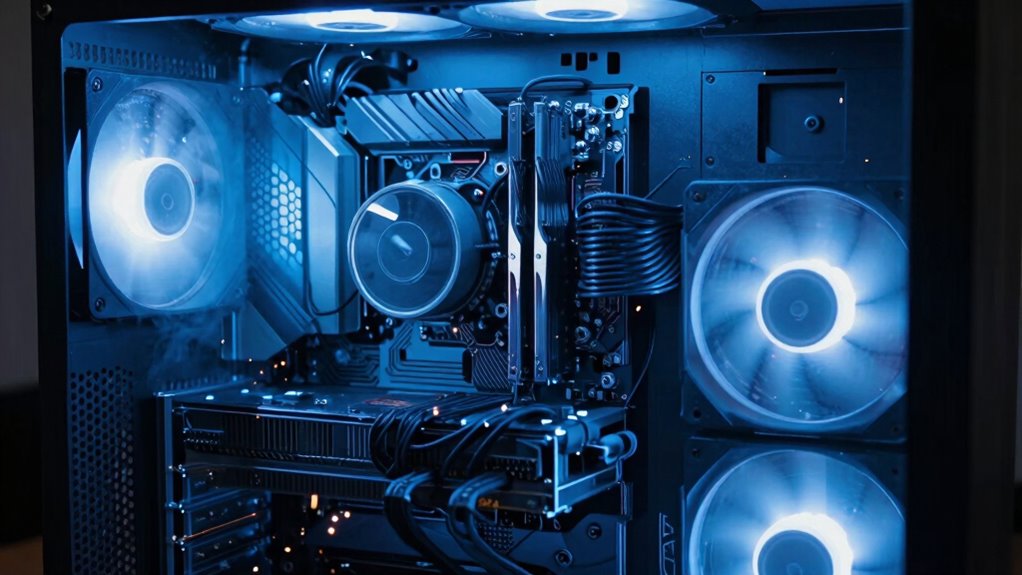
If your computer suddenly starts making unusual noises, it’s more than just an annoyance—those sounds can indicate serious issues lurking beneath the surface. One common cause is hardware vibrations. When internal components like the hard drive or fans begin to vibrate excessively, it’s often a sign that something is misaligned or wearing out. These vibrations can lead to further damage if not addressed promptly, potentially causing data loss or hardware failure. For example, a loose screw or a failing hard drive can generate rattling or grinding sounds. Ignoring these noises might seem harmless at first, but over time, the vibrations can loosen other components or cause physical damage inside the case.
Unusual noises often signal hardware issues like misaligned components or failing drives needing prompt attention.
Another frequent source of noise is the cooling system. Your computer’s fans work tirelessly to keep temperatures down, but when they malfunction or become clogged with dust, they can produce abnormal sounds. A fan that’s struggling to spin or wobbling due to debris can generate loud whirring or grinding noises. This is a clear signal that your cooling system isn’t functioning properly, which could lead to overheating. Overheating can cause your CPU or GPU to throttle performance or even shut down unexpectedly, risking permanent damage. If you notice your system is unusually loud, it’s worth checking the cooling system first. Clean out dust from the vents and fans, and listen carefully to identify which fan is making the noise. Additionally, understanding the role of cooling systems in maintaining optimal hardware performance can help you troubleshoot more effectively.
In many cases, these noises are interconnected. For instance, if dust clogging the cooling system causes the fans to spin harder or unevenly, it can create additional vibrations. These vibrations can then be transmitted to other parts, amplifying noise and accelerating wear. The key is to pay attention to the type and source of the sounds. Rattling, grinding, or high-pitched whines are often signs of hardware vibrations or cooling issues. Addressing these early can save you from costly repairs or data loss down the line. Moreover, regular maintenance of internal components can prevent such problems from developing, saving you time and money.
Paying attention to hardware vibrations and their sources can help you identify potential issues before they become critical. Additionally, understanding how cooling system malfunctions contribute to noise can guide more effective troubleshooting. Ultimately, persistent or unusual noises should never be ignored. They are your computer’s way of alerting you to underlying problems that need attention. Regular maintenance, such as cleaning dust from fans and checking for loose screws or damaged parts, helps prevent these noises from escalating into bigger issues. By staying attentive to these sounds and taking swift action, you can extend your computer’s lifespan and keep it running smoothly.
As an affiliate, we earn on qualifying purchases.
Frequently Asked Questions
Can Software Updates Cause Unusual Computer Noises?
Yes, software updates can sometimes cause unusual computer noises. When updates affect your system, they might trigger hardware malfunctions or alter cooling solutions, leading to increased fan activity or strange sounds. This usually happens if the update causes your CPU or GPU to work harder, requiring more cooling. If you notice persistent noise after updates, it’s a good idea to check your hardware and verify your cooling solutions are working properly.
How Often Should I Check for Hardware Issues Causing Noise?
Think of your computer as a car engine — it needs regular checkups to run smoothly. You should inspect for hardware issues causing noise every few months. Focus on fan maintenance to prevent overheating and guarantee fans aren’t clogged or damaged. Good cable management also minimizes vibrations that cause noise. Regularly checking these areas helps catch problems early, keeping your system quiet and efficient.
Are Loud Noises Always a Sign of Hardware Failure?
Loud noises aren’t always a sign of hardware failure; sometimes, a fan malfunction causes loud whirring or grinding sounds, which can be harmless if addressed promptly. However, if you hear hard drive clicking, it’s a warning sign of potential failure. You should investigate further, back up your data, and consider replacing the drive. Ignoring these noises may lead to bigger, more costly problems down the line.
Can Cleaning My Computer Reduce Noise Levels?
Cleaning your computer can definitely reduce noise levels. Think of dust accumulation as a heavy blanket smothering your fans, causing them to work harder and become noisy. Over time, fan deterioration worsens this effect. By gently removing dust and debris, you allow your fans to spin freely, decreasing noise and improving performance. Regular cleaning keeps your system running smoothly, preventing minor issues from turning into bigger, costly problems down the line.
Is It Safe to Ignore Minor Noises From My PC?
Ignoring minor noises from your PC isn’t safe, as they can indicate issues with fan speed or sound dampening. These sounds might seem harmless, but they could signal that your cooling system is struggling or that components are wearing out. Pay attention to unusual or persistent noises, and consider cleaning or replacing parts. Addressing minor noises early helps prevent bigger problems, keeping your PC running smoothly and quietly.
As an affiliate, we earn on qualifying purchases.
Conclusion
If your computer starts making strange noises, don’t ignore it—it’s practically screaming for help! What seems like a tiny squeak could be a warning sign of an impending disaster that might bring your entire digital world crashing down. Think of it as your computer’s way of waving a giant red flag. Pay attention now, or face the chaos of losing everything in a catastrophic meltdown. Trust me, those noises are not just sounds—they’re your computer’s urgent cry for rescue!
As an affiliate, we earn on qualifying purchases.
As an affiliate, we earn on qualifying purchases.
Fall Picks
fall essentials
As an affiliate, we earn on qualifying purchases.