
To set up your home network, start by choosing a reliable internet service provider and installing the right modem. Connect your router to the modem, secure its settings with strong passwords, and create a secure Wi-Fi network. Run Ethernet cables to stationary devices for stability, and position your router centrally to maximize coverage. Keep firmware updated and monitor your network regularly. More tips lie ahead to help you optimize your setup and keep it secure.
Key Takeaways
- Research and choose a reliable internet service provider, then set up and connect your modem to the incoming line.
- Connect your router to the modem via Ethernet, access its admin panel, and change default credentials for security.
- Configure Wi-Fi networks with strong passwords, enable WPA3/WPA2 encryption, and set separate bands for optimal performance.
- Install Ethernet cables where needed, run them through walls or ceilings, and test connections for stability.
- Secure your network with strong passwords, enable encryption, update firmware regularly, and monitor device activity for security.
Choosing the Right Internet Service Provider and Modem

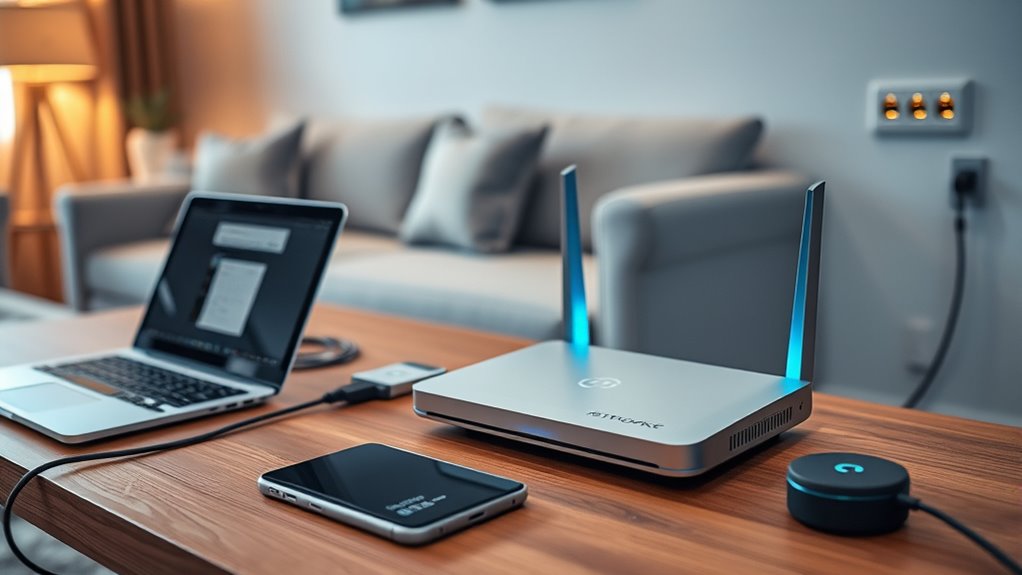
Choosing the right Internet Service Provider (ISP) is essential for reliable and fast home connectivity. You need an ISP that offers the speed, data limits, and service reliability your household requires. Research local providers and compare their plans, customer reviews, and support options. Once you’ve selected an ISP, connect the modem to the incoming line—whether cable, fiber, or DSL—and power it on. Wait for the indicator lights to stabilize before proceeding. Use an Ethernet cable to connect the modem’s WAN port to your router’s WAN port, enabling internet sharing throughout your home. Keep in mind that modems can be separate devices or integrated within the router, depending on your equipment and ISP requirements. Position the modem centrally for *ideal* signal distribution. Additionally, understanding the role of modems and routers in home networks can help optimize your setup for better performance and coverage. Incorporating modern, energy-efficient equipment can also contribute to a more sustainable home network. To further enhance your network, consider selecting equipment that supports latest Wi-Fi standards to improve your wireless experience and future-proof your setup.
Setting Up Your Router and Securing Your Wireless Network

Setting up your router and securing your wireless network is a critical step to guarantee fast, reliable, and safe internet access throughout your home. Begin by connecting your router to the modem using an Ethernet cable through the WAN port. Access the router’s admin panel via the default IP address, then change the default login credentials to strong, unique passwords. Set up your Wi-Fi network name (SSID) and choose a secure password. Enable WPA3 or WPA2 encryption to protect your network from unauthorized access. Use separate band settings, such as 2.4 GHz for wide coverage and 5 GHz for faster speeds. Regularly update your router’s firmware to patch vulnerabilities. These steps help guarantee your network remains secure, stable, and ready for your devices. Additionally, understanding the differences between various network security protocols can enhance your protection and prevent potential breaches. Incorporating proper network segmentation can further improve security by isolating different device groups within your network. Being aware of wireless interference sources can also help optimize your network’s performance and stability. Recognizing potential interference sources can assist in troubleshooting connectivity issues and maintaining optimal speeds. Moreover, considering the implementation of security zones within your network can help delineate different levels of access and improve overall security.
Planning and Installing Ethernet Cables for Wired Connections

After securing your wireless network, planning your Ethernet cabling guarantees a reliable and high-speed wired connection throughout your home. Begin by creating a detailed floor plan, marking device locations and potential cable routes. Choose the right cables—Cat5e, Cat6, or Cat6a—based on your speed requirements. Measure distances carefully to avoid excessive slack or tension. When installing, run cables through walls, ceilings, or floors, drilling access points as needed. Secure the cables with clips or staples to keep them organized and avoid damage. Terminate the ends with RJ45 plugs using crimping tools, and test each connection with a network tester to confirm proper functionality. Proper planning and installation minimize disruptions and optimize network performance. Understanding cable types and their specifications helps you select the best options for your needs, while awareness of network security practices can further protect your home setup. Additionally, considering proper cable management techniques can prevent future issues and make troubleshooting easier. Incorporating cable labeling during installation can also streamline future maintenance and upgrades. Including a comprehensive plan before starting ensures all devices are connected efficiently and effectively.
Connecting Devices to Your Network and Optimizing Coverage

Connecting your devices to the network is straightforward when you understand the options available. For stationary devices like desktop PCs or smart TVs, use Ethernet cables for a stable, high-speed connection. Run cables through walls or ceilings if needed, and test each connection with a network tester. Regularly checking the cabling connections can prevent connectivity issues. Incorporating network topology considerations can optimize layout and reduce signal interference. Wireless devices such as smartphones, laptops, and smart home gadgets can connect by selecting your Wi-Fi network name (SSID) and entering the password. To improve coverage, place your router centrally and consider adding mesh Wi-Fi systems or range extenders if signals weaken in certain areas. Ensuring devices are set to automatically join the network after restarts helps maintain a consistent connection. Regularly update device firmware and router software to enhance security and compatibility. Proper placement and device management optimize your network’s coverage and performance, especially with smart home technology that can integrate seamlessly for better automation and control. Additionally, understanding network security best practices can protect your devices from potential threats. Maintaining a secure Wi-Fi password and enabling network encryption methods like WPA3 can further safeguard your network from unauthorized access.
Maintaining and Securing Your Home Network for Reliable Performance

Regular maintenance and security measures keep your home network running smoothly and protect your devices from threats. To guarantee reliable performance, regularly restart your modem and router to clear glitches. Keep firmware and software up to date to patch vulnerabilities and improve stability. Monitor network activity to identify slowdowns or unauthorized access. Consider these key practices:
- Perform speed tests to verify your connection matches your ISP plan.
- Reposition routers or add mesh nodes to eliminate dead zones.
- Enable automatic updates for all connected devices and firmware.
- Set strong, unique passwords for your Wi-Fi and admin panels, and change them periodically.
- Understanding network security principles helps safeguard your devices from potential cyber threats.
- Regularly reviewing your security settings and staying informed about cryptocurrency market trends can further enhance your network’s protection against evolving threats.
- Educating yourself about network encryption methods can help prevent data breaches and unauthorized access.
- Incorporating device segmentation can further isolate sensitive parts of your network and improve overall security. Additionally, implementing regular backups ensures your data remains safe in case of an attack or failure.
Implementing these steps helps prevent disruptions, enhances security, and maintains excellent network performance for all your devices.
Frequently Asked Questions
How Can I Improve Wi-Fi Signal in Large or Multi-Story Homes?
To improve Wi-Fi signal in large or multi-story homes, you should position your router centrally and elevate it for better coverage. Consider adding mesh Wi-Fi systems or range extenders to eliminate dead zones. Use dual-band or tri-band routers to reduce interference, and connect high-demand devices via Ethernet for stability. Regularly update firmware and adjust your router’s placement based on signal strength tests to optimize coverage across your entire home.
What Are the Best Practices for Securing Smart Home Devices?
You should change default passwords on all smart home devices and use strong, unique ones. Enable WPA3 or WPA2 encryption on your Wi-Fi network for added protection. Keep device firmware updated regularly to fix security vulnerabilities. Segment your network with VLANs or guest networks to isolate smart devices from your main computers. Ultimately, disable remote access features unless necessary, and monitor device activity for any suspicious behavior.
How Do I Set up a Guest Network With Limited Access?
You should access your router’s admin panel using its IP address, then locate the guest network settings. Enable the guest network feature, assign it a distinct SSID, and set a strong password. Limit access permissions by restricting bandwidth and access to local devices. Finally, save your settings, and your guest network will be ready, providing visitors internet access without compromising your main network’s security or privacy.
What Should I Do if My Internet Speed Is Slower Than Expected?
If your internet’s slower than expected, don’t panic—first, run a speed test to verify. Then, check your modem and router placement; interference can cause issues. Restart your devices, and update firmware for peak performance. If problems persist, inspect Ethernet cables for damage or upgrade them if needed. Contact your ISP to ensure your plan matches your usage, and ask if there are outages or network congestion in your area.
How Can I Prioritize Bandwidth for Specific Devices or Applications?
To prioritize bandwidth for specific devices or applications, access your router’s admin panel and locate QoS (Quality of Service) settings. Enable QoS, then assign higher priority levels to the devices or apps you want to optimize, like streaming or gaming devices. Save your changes, and your router will automatically allocate bandwidth accordingly, ensuring your critical activities run smoothly without interruption.
Conclusion
Now that you’ve set up your home network, remember that a well-organized system is like a fortress—strong and secure. Keep your devices updated and protected, just as a knight shields their castle. With a solid foundation, your digital domain remains reliable and efficient. Stay vigilant and maintain your network, so it continues to serve you smoothly, much like the enduring strength of a timeless city that stands resilient through the ages.