
Upgrading to an SSD rather than an HDD gives you a big boost in performance. SSDs are much faster, with quicker startup times, faster file access, and smoother multitasking. They’re also more durable and energy-efficient, making them ideal for portability. HDDs are cheaper and offer more storage, but they lag behind in speed and responsiveness. To find out which option suits your needs best, keep exploring the key differences and benefits.
Key Takeaways
- SSDs offer significantly faster data transfer speeds and quicker file access compared to HDDs.
- SSDs reduce boot and load times, enhancing overall system responsiveness and multitasking efficiency.
- HDDs are more cost-effective for large storage but have slower performance due to mechanical parts.
- SSDs are more durable, shock-resistant, and suitable for portable or harsh environments.
- HDDs consume more power, generate more noise and heat, and are less ideal for performance-critical tasks.
Understanding the Basic Differences Between SSD and HDD
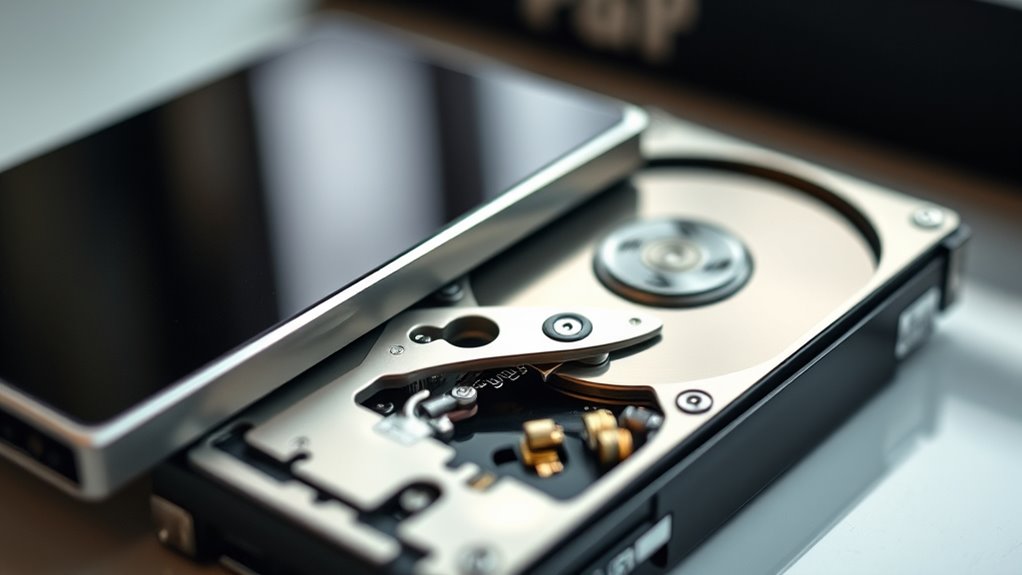
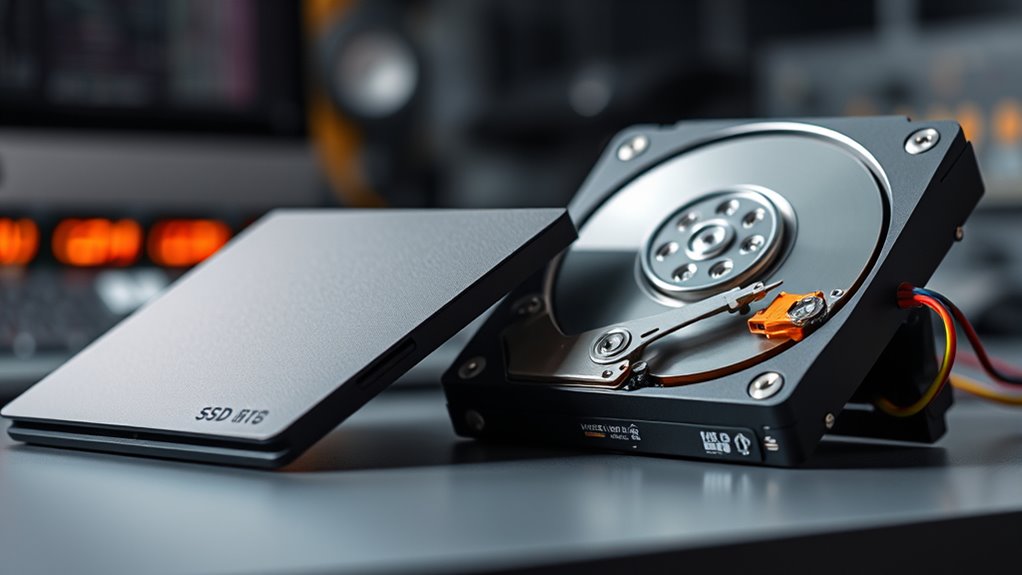
Understanding the basic differences between SSDs and HDDs is essential when choosing the right storage solution for your needs. SSDs, or Solid State Drives, use flash memory to store data, which means no moving parts. This makes them more durable, quieter, and less prone to physical damage. HDDs, or Hard Disk Drives, rely on spinning disks and read/write heads to access data. Because of these mechanical parts, HDDs tend to be bulkier, generate more noise, and are more vulnerable to shocks. Additionally, SSDs generally have faster access times, leading to quicker data retrieval. The key distinction lies in their construction: SSDs are electronic, with no moving components, while HDDs are mechanical devices. Understanding these differences helps you determine which storage type best fits your priorities. Reliance on cloud services highlighted in recent outages underscores the importance of reliable local storage options.
Speed and Performance: How They Compare
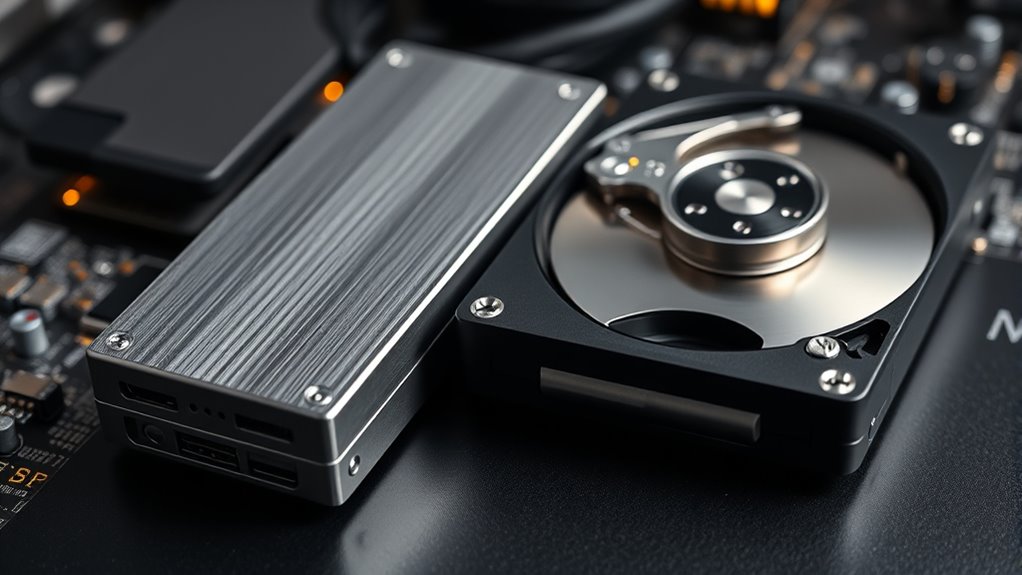
You’ll notice that SSDs offer much faster data transfer speeds and quicker boot and load times compared to HDDs. Files are accessed almost instantly on an SSD, reducing frustrating delays. This difference in file access latency substantially impacts overall system responsiveness and performance. Additionally, the connectivity standards and interfaces used by SSDs often enable even higher data transfer rates, further enhancing system performance. The technology behind SSDs, such as NAND flash memory, also contributes to their durability and reliability over traditional HDDs. Moreover, as exemplified by various successful tech entrepreneurs, embracing innovative storage solutions can lead to significant financial benefits in performance and efficiency. The use of advanced interface protocols like NVMe further amplifies these performance gains, making SSDs the preferred choice for high-speed data operations. Furthermore, understanding the hardware architecture of SSDs can help users optimize their systems for maximum speed and longevity.
Data Transfer Speeds
When comparing data transfer speeds, SSDs clearly outperform HDDs by a significant margin. This means your files move much faster, reducing wait times and increasing productivity. With an SSD, you’ll experience rapid read and write speeds, often in the range of several hundred MB/s to over a thousand MB/s. In contrast, HDDs typically transfer data at speeds between 80-160 MB/s. This difference impacts how quickly you can access large files, copy data, or run applications. Consider these points:
- SSDs deliver near-instant data access
- HDDs are slower due to mechanical parts
- Transfer speeds affect file transfer times
- Faster speeds improve overall system responsiveness
- Upgrading to SSDs reduces lag in data-heavy tasks
Additionally, the cost difference between SSDs and HDDs has become more affordable, making SSDs a viable upgrade option for many users. Understanding data transfer speeds can help you make more informed decisions about your storage options. Choosing an SSD means faster, more efficient data handling—crucial for demanding tasks. Additionally, system responsiveness is greatly improved with faster storage solutions, enhancing your overall user experience.
Furthermore, the presence of technological advancements in SSDs has contributed to their increased adoption across various computing environments.
Boot and Load Times
Switching from an HDD to an SSD dramatically reduces boot and load times, getting your system up and running faster. With an SSD, your computer can start in seconds, not minutes, because it accesses data instantly. Programs launch almost immediately, so you spend less time waiting for applications to open. Files load faster, making multitasking smoother and more efficient. This speed boost is especially noticeable when starting your system or opening large files and software. Unlike HDDs, which rely on spinning disks and mechanical arms, SSDs use flash memory for rapid data retrieval. As a result, your overall experience feels snappier, more responsive, and less frustrating, giving you a significant performance advantage during everyday tasks. Additionally, understanding field‑of‑view and imaging‑scale can help optimize your setup for better data management and efficiency. Incorporating connected storage options can further enhance your data access speeds and reliability, making your upgrade even more impactful. Exploring data transfer rates can also help you choose the right SSD for your specific needs, ensuring maximum performance.
File Access Latency
The speed at which your system accesses and retrieves data markedly impacts overall performance. File access latency measures how quickly data can be read from storage. SSDs excel here, offering near-instant access times, often under 0.1 milliseconds. In contrast, HDDs have higher latency, typically around 5 to 10 milliseconds, due to their mechanical parts. This difference means your system responds faster with an SSD, especially when opening files or running applications. Heat distribution in storage devices also influences their performance and longevity. – SSDs remove moving parts, reducing delays – HDDs rely on spinning disks and mechanical arms – Lower latency improves multitasking efficiency – Faster access benefits gaming and video editing – Reduced wait times enhance overall productivity. Additionally, mechanical limitations in HDDs contribute to their higher latency, making SSDs a more suitable choice for demanding tasks requiring quick data retrieval.
Reliability and Durability of Storage Devices

When it comes to reliability, your storage device’s resistance to physical damage is vital, especially if you move or transport your equipment often. Data retention stability also matters, ensuring your files stay safe over time without corruption or loss. Understanding these factors helps you choose a device that lasts and keeps your data secure. Additionally, considering the performance ratings of the device can provide insights into its overall durability and long-term dependability. For example, the build quality of the device plays a significant role in its ability to withstand everyday wear and tear, further impacting its reliability. Moreover, evaluating reliability metrics such as mean time between failures (MTBF) can help you predict the device’s lifespan and durability over time. Incorporating physical durability features into your evaluation can ensure the device is better suited for rigorous use and enhances its longevity, especially if it has shock resistance or other protective features designed to endure harsh conditions.
Resistance to Physical Damage
While both SSDs and HDDs are designed to withstand everyday use, SSDs generally offer better resistance to physical damage due to their solid-state construction. Without moving parts, SSDs are less vulnerable to shocks, drops, or vibrations. This inherent design makes SSDs particularly suitable for portable devices and environments with high movement. HDDs, on the other hand, contain spinning disks and mechanical components that can be easily damaged if dropped or jarred. To help you understand, here are key points:
- SSDs resist shocks and impacts better.
- HDDs are prone to damage from drops.
- SSDs have no moving parts, reducing wear.
- HDDs rely on delicate spinning disks.
- Both are built to handle daily use, but SSDs excel in durability under physical stress.
- Additionally, shock resistance is a critical factor when considering storage options for mobile use or rugged environments, highlighting the durability benefits of SSDs over HDDs.
- Furthermore, advancements in durability technologies continue to improve the resilience of SSDs in various conditions, including vibration resistance and extreme temperatures.
Data Retention Stability
Although SSDs and HDDs are both built to handle daily use, their ability to reliably retain data over time varies considerably. SSDs use NAND flash memory, which can lose data if not powered for extended periods, especially at high temperatures or after many write cycles. However, modern SSDs have improved data retention, often lasting years without power. HDDs store data magnetically on spinning disks, which are highly stable over long periods and less susceptible to data loss when unpowered. Still, physical factors like magnetic decay or damage can affect HDD longevity. Overall, SSDs provide fast, reliable data retention for everyday use, while HDDs excel in long-term storage stability. Your choice depends on balancing speed with durability requirements.
Cost Analysis: Price per Gigabyte and Overall Value

Generally, HDDs offer a lower price per gigabyte compared to SSDs, making them a more budget-friendly option for storing large amounts of data. You get more storage space for less money, which is ideal if you’re on a tight budget or need to store vast files. However, consider the overall value, including speed and durability, since SSDs may cost more upfront but offer better performance and longevity. When evaluating cost, keep these points in mind:
- SSDs have a higher cost per gigabyte but faster data access
- HDD prices are more stable and affordable for large capacities
- SSDs reduce time spent waiting on file transfers
- HDDs are better for bulk storage without frequent access
- Overall value depends on your needs for speed versus budget
Power Consumption and Energy Efficiency
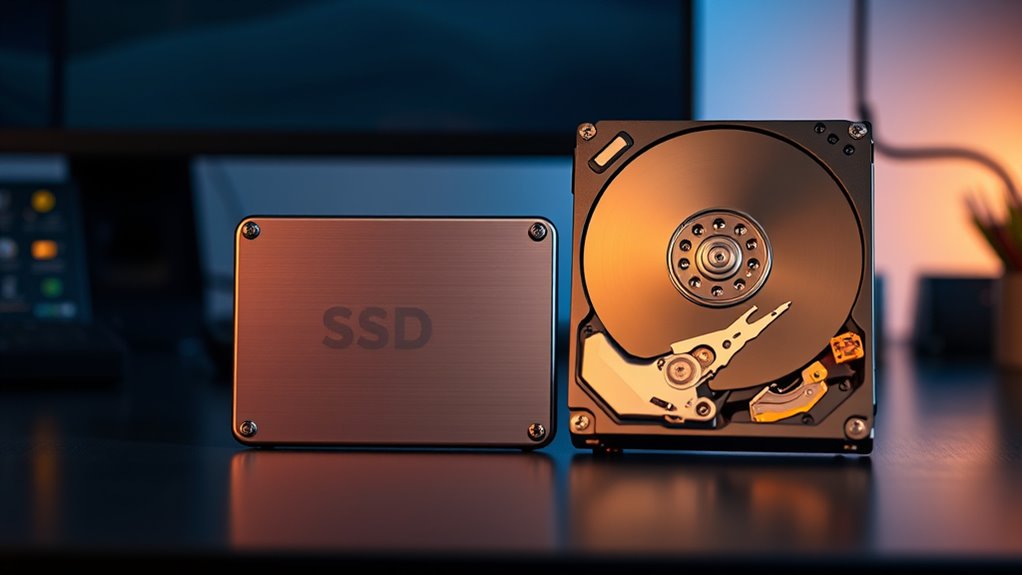
When comparing HDDs and SSDs, their power consumption plays a significant role in overall energy efficiency. SSDs typically use less power because they have no moving parts, which means they draw less energy during operation. This lower power demand results in longer battery life for laptops and reduced electricity costs for desktops. HDDs, with spinning disks and mechanical components, consume more energy, especially during read/write processes. If you’re aiming to build a more energy-efficient system or want to minimize power bills, SSDs are the better choice. They not only save energy but also generate less heat, contributing to a more sustainable setup. Overall, SSDs offer superior energy efficiency, making them ideal for users mindful of power consumption.
Noise Levels and Heat Generation
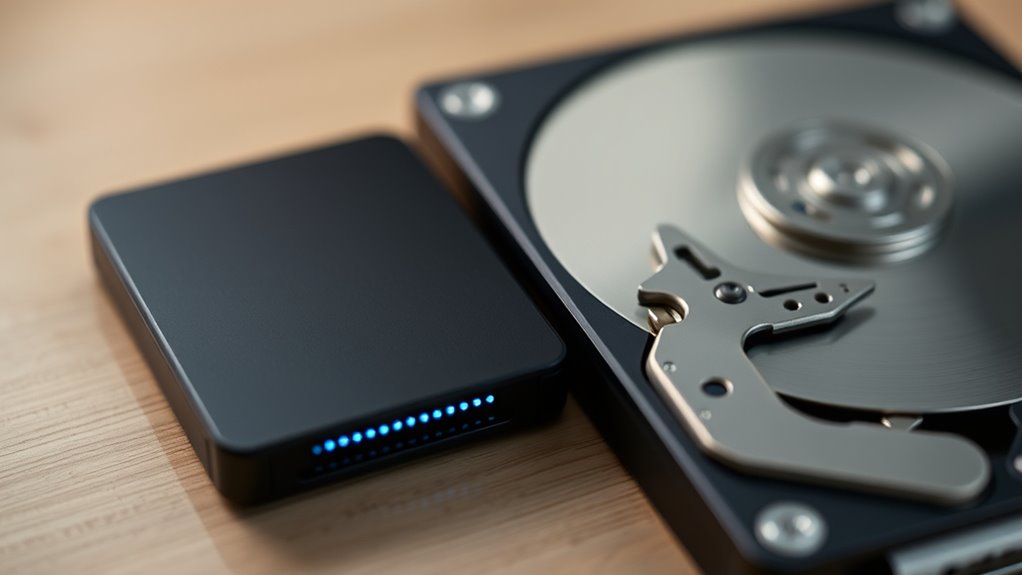
Since SSDs have no moving parts, they operate silently, unlike HDDs that produce noticeable noise from spinning disks and mechanical movements. HDDs can generate background noise during operation, which might be distracting in quiet environments. Additionally, HDDs tend to produce more heat because of their mechanical components, requiring better cooling. SSDs, on the other hand, generate minimal heat, helping keep your system cooler overall. This difference impacts your setup’s noise level and thermal management.
SSDs operate silently and generate less heat, ensuring a quieter, cooler, and more efficient system.
- HDDs create spinning and clicking sounds.
- SSDs run completely silent.
- HDDs generate more heat due to moving parts.
- SSDs produce negligible heat, reducing cooling needs.
- Lower noise and heat contribute to a quieter, more efficient system.
Compatibility and Installation Considerations

Choosing between an SSD and an HDD involves considering their compatibility with your system and the ease of installation. First, check your device’s available connections—most modern systems support SATA drives, but some newer models, especially ultrabooks or gaming laptops, may require M.2 or NVMe SSDs. Verify your motherboard has the appropriate slots or ports before purchasing. Also, confirm if your power supply can handle additional drives if you’re adding storage externally or internally. Installation can be straightforward if you’re comfortable opening your device; otherwise, professional help might be necessary. Keep in mind that SSDs are generally smaller and lighter, making them easier to install in compact systems. Overall, compatibility and ease of installation are vital factors to avoid surprises during your upgrade.
Which Storage Type Best Fits Different User Needs
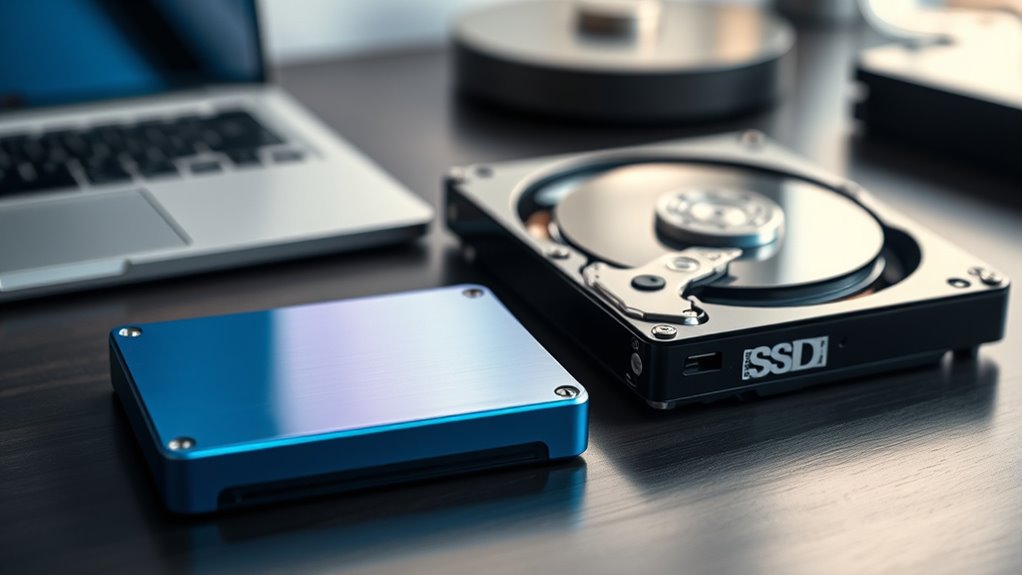
Different users have distinct storage needs, making it important to select the right type based on your specific use case. If you prioritize speed and responsiveness, an SSD is ideal for gaming, creative work, or running operating systems smoothly. For large data storage, backups, or budget-friendly solutions, an HDD offers more capacity at a lower cost.
Consider your needs:
- Gaming and multimedia editing: SSD for fast load times
- Heavy data storage and backups: HDD for affordability and capacity
- Professional workflows: SSD for quick data access
- Budget-conscious users: HDD for larger storage at lower prices
- Portability and durability: SSD for lightweight, shock-resistant drives
Matching your use case ensures suitable performance and value.
Frequently Asked Questions
How Do SSDS and HDDS Affect Overall Gaming Performance?
SSDs substantially boost your gaming performance by reducing load times, allowing games to start faster and levels to load smoothly. They also help decrease stuttering during gameplay caused by data streaming. HDDs, while cheaper, have longer load times and can cause lag during data-heavy moments. Upgrading to an SSD makes your gaming experience more seamless, responsive, and enjoyable, giving you a clear edge in both casual and competitive play.
Can Upgrading to an SSD Improve Boot Times Significantly?
Upgrading to an SSD can slash your boot times like slicing through butter. You’ll notice your system springs to life almost instantly, with startup processes happening in a blink. Unlike traditional HDDs, which are like slow-moving molasses, SSDs read and write data at lightning speed. This upgrade transforms your experience, making your computer feel more responsive and ready to go at a moment’s notice, saving you precious time every day.
Are There Specific Scenarios Where HDDS Outperform SSDS?
Yes, there are scenarios where HDDs outperform SSDs. If you’re working with large, sequential data transfers like copying massive files or streaming high-definition videos, HDDs can sometimes deliver better throughput at a lower cost. Additionally, for long-term storage of infrequently accessed data, HDDs are more cost-effective and offer higher capacities. So, if your priority is large storage at a lower price, HDDs might be the better choice.
How Do Storage Types Impact Data Transfer Speeds Over Networks?
Your storage type directly impacts data transfer speeds over networks. SSDs provide faster read/write speeds, meaning quicker data access and transfer, which improves network performance, especially for large files or multiple users. HDDs are slower, causing delays. If you need fast data sharing or frequent transfers, upgrading to an SSD will boost your network efficiency. Conversely, HDDs may suffice for less demanding tasks, but they won’t match SSD speeds.
What Are the Long-Term Maintenance Requirements for SSDS Versus HDDS?
Think of your storage like a garden. SSDs need less watering and pruning over time, requiring minimal maintenance due to no moving parts, which makes them more durable long-term. HDDs, like old-fashioned tools, need regular checks for errors and occasional defragmentation. You’ll need to update firmware occasionally for both, but SSDs generally demand less upkeep, helping you avoid frustrating downtime and prolonging their lifespan.
Conclusion
Choosing between SSD and HDD depends on your needs, but remember, “you get what you pay for.” If speed and reliability matter most, an SSD is your best bet for a performance boost. However, if budget is tight and storage capacity is key, an HDD still has its place. Weigh the pros and cons carefully—like a wise old saying, sometimes the slow and steady approach wins the race.