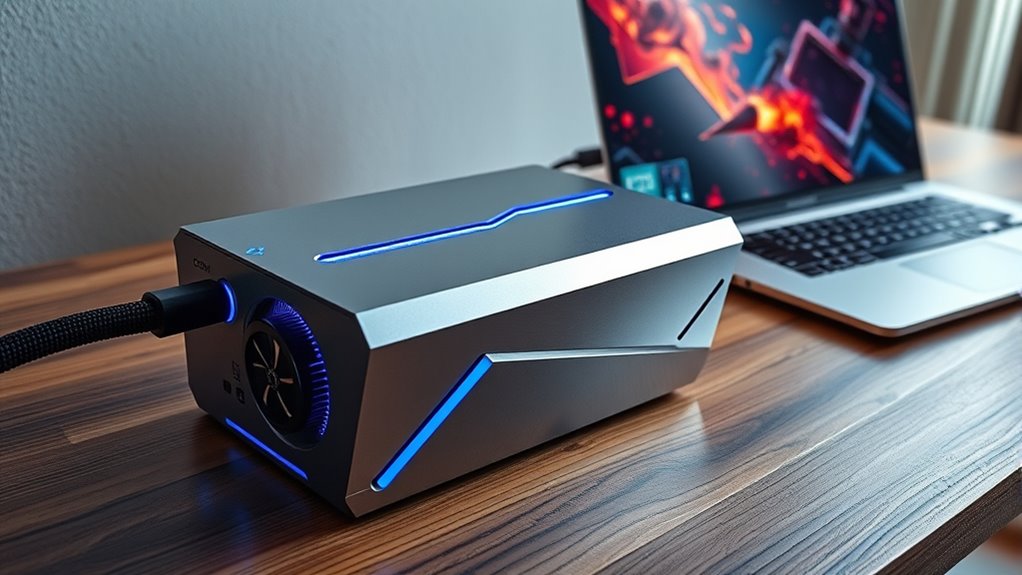

To turn your laptop into a gaming machine, you can plug in an external GPU (eGPU) using a Thunderbolt 3 or 4 port. Make sure your laptop supports Thunderbolt, has updated BIOS and drivers, and choose a compatible eGPU enclosure with a desktop GPU. Connecting directly to the eGPU’s ports reduces latency, boosting performance. If you want to learn more about setting up and optimizing your eGPU, keep going.
Key Takeaways
- External GPUs (eGPUs) can significantly boost gaming performance by providing desktop-class graphics to laptops.
- Ensure your laptop has a Thunderbolt 3 or 4 port with updated BIOS and drivers for proper eGPU compatibility.
- Choose a suitable eGPU enclosure and high-performance GPU for optimal gaming, considering future upgrade potential.
- Connect the eGPU directly to your laptop via Thunderbolt and link your display to the eGPU for minimized latency.
- Troubleshoot issues by updating firmware, adjusting BIOS settings, and verifying hardware compatibility for stable gaming.
Understanding Egpu Technology and How It Works
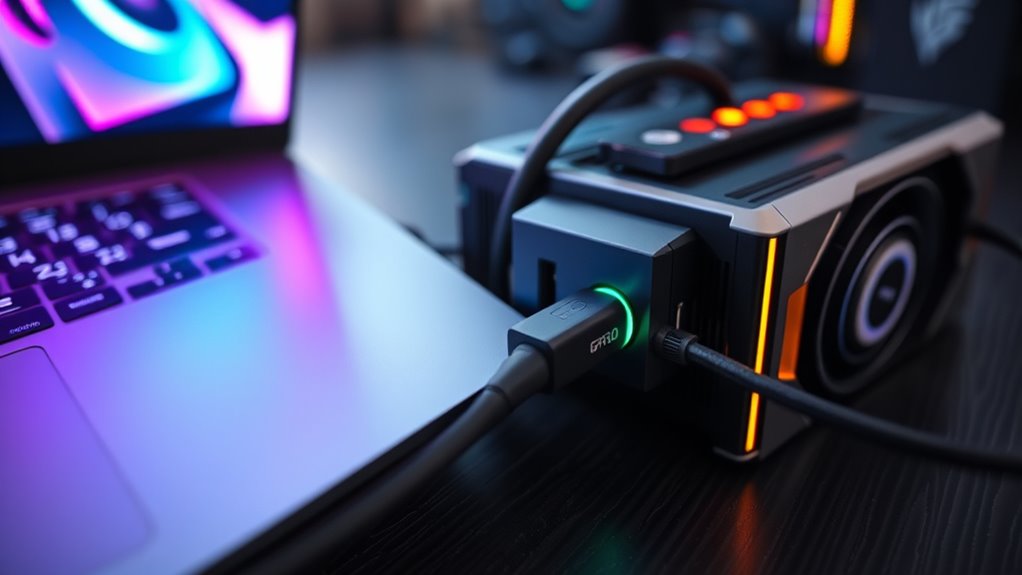
External GPUs (eGPUs) work by connecting a desktop-class graphics card to your laptop through a high-speed interface, typically Thunderbolt 3, 4, or 5. This connection allows you to transfer large data volumes rapidly, enabling the external GPU to process graphics-intensive tasks more efficiently. The eGPU enclosure houses the graphics card and supplies power, cooling, and connectivity. When you connect the eGPU, your laptop communicates with the GPU via Thunderbolt, which acts as a fast data highway. To maximize performance, it’s crucial to connect your display directly to the eGPU’s video outputs instead of the laptop’s built-in screen. This setup reduces latency and bandwidth bottlenecks, ensuring you get the best possible performance from your external graphics solution. European cloud innovation also plays a role in providing reliable, secure, and energy-efficient infrastructure to support high-performance eGPU setups. Additionally, understanding connectivity options helps optimize data transfer and overall gaming performance.
Key Compatibility Factors for Laptop Egpu Integration
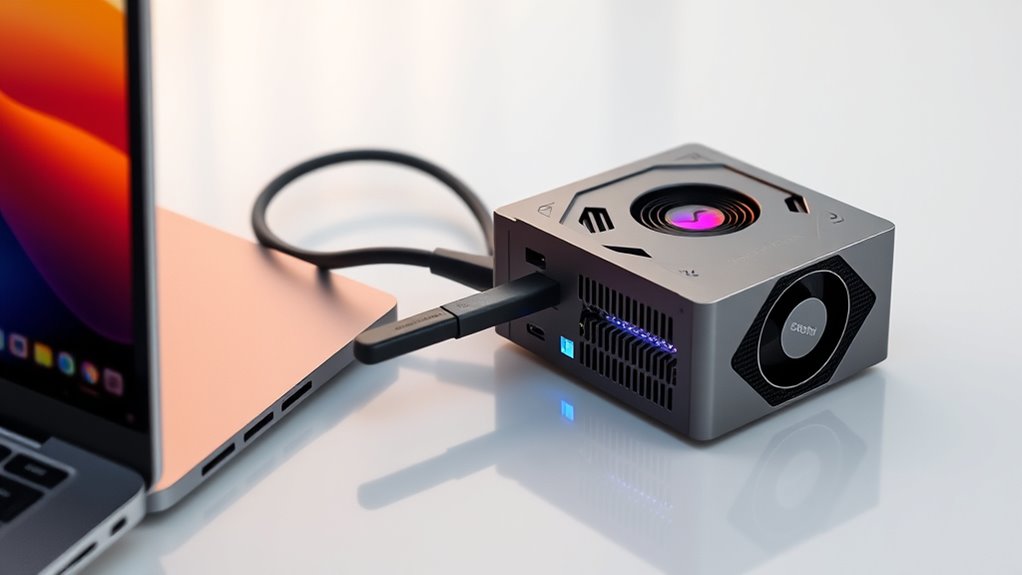
To guarantee your laptop works smoothly with an eGPU, you need to check if it has a Thunderbolt 3 or 4 port, as these provide the necessary high-speed connection. You’ll also want to make sure your BIOS and drivers are up to date, so the system recognizes and supports the external GPU properly. Without compatible hardware and current software, your eGPU setup might face performance issues or connection problems. Additionally, verifying that your laptop has a properly registered hardware configuration can help prevent compatibility issues with external GPU solutions. Ensuring your system is software optimized for external GPU use can also improve overall performance and stability. Regularly inspecting your system for infection risks and prevention can help maintain optimal operation during intensive tasks. Staying aware of system compatibility requirements ensures your eGPU will work seamlessly with your laptop. Moreover, choosing a compatible and well-maintained system helps maximize the benefits of an external GPU setup.
Thunderbolt Port Requirements
Having a compatible Thunderbolt port is essential for successfully connecting an eGPU to your laptop, as it is the primary data highway that enables high-speed transfer between the two devices. Ideally, your laptop should feature Thunderbolt 3, 4, or 5 ports, which support up to 40 Gbps bandwidth. This ensures minimal bottlenecks and maximum GPU performance. Check that the port supports Thunderbolt rather than just USB-C, as not all USB-C ports are compatible. Additionally, confirm that your laptop’s Thunderbolt port is enabled in BIOS and that you have the latest drivers installed. Some models may require firmware updates for full compatibility. Without a proper Thunderbolt port, connecting an external GPU becomes either impossible or severely limited, hampering your gaming and productivity potential. Understanding port compatibility is crucial to ensure your setup works smoothly, as port bandwidth directly impacts the performance of your external GPU. Be sure to verify the specific port version and its capabilities for optimal performance. Moreover, ensuring that your system supports Vetted – wave and wind compatibility can prevent potential issues with external GPU setups.
A thorough check of your system’s power delivery capabilities can also help prevent performance issues during intense gaming or rendering sessions.
BIOS and Driver Compatibility
Ensuring BIOS and driver compatibility is essential for a smooth eGPU setup on your laptop. You need to update your BIOS to support Thunderbolt and enable any security or I/O settings relevant to external GPU use. Outdated BIOS versions can prevent proper communication between your laptop and the eGPU, leading to connection issues or performance drops. Similarly, installing the latest Thunderbolt and GPU drivers is imperative. These updates ensure compatibility, stability, and peak performance. Make sure your operating system is up to date, as driver conflicts often stem from outdated software. Some laptops may require manual BIOS adjustments or specific driver configurations to recognize and prioritize the external GPU. Taking these steps helps prevent troubleshooting headaches and guarantees your eGPU functions correctly and efficiently. Free Floating
Selecting the Right Egpu Enclosure and Desktop GPU
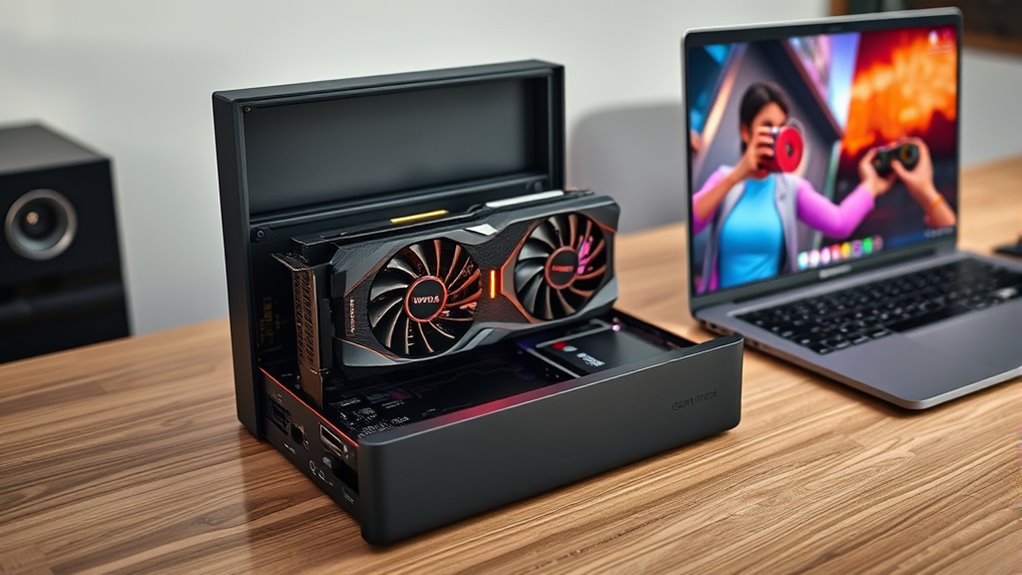
Choosing the right eGPU enclosure depends on its compatibility and size, ensuring it fits your setup and supports your chosen GPU. You’ll also want to evaluate the GPU’s performance and power requirements to get the best balance of speed and efficiency. Finally, think about cost and future-proofing to make a smart investment that stays relevant as your needs evolve.
Enclosure Compatibility and Size
Selecting the right eGPU enclosure is essential to maximizing performance and compatibility with your laptop and desktop GPU. You need an enclosure that fits your GPU’s size and power requirements, ensuring proper cooling and sufficient bandwidth. Compatibility with Thunderbolt ports is crucial to avoid connection issues. Consider enclosure dimensions, as larger GPUs might not fit smaller cases, and portability could be affected.
| Enclosure Size | GPU Compatibility | Cooling & Power |
|---|---|---|
| Compact | Mid-range GPUs | Adequate for daily use |
| Mid-sized | High-end GPUs | Good cooling capacity |
| Full Tower | Extreme GPUs | Best for prolonged loads |
| Portable | Smaller GPUs | Limited cooling |
Choosing the right size balances performance with portability, giving you a seamless gaming or creative experience.
GPU Performance and Power
Are you getting the most out of your eGPU setup? To unleash peak GPU performance, you need the right combination of enclosure and desktop GPU.
Consider these key points:
- Choose a high-tier GPU like NVIDIA RTX 40-series or AMD RX 7000-series for top-tier gaming and creative work.
- Ensure your enclosure supports full PCIe x16 bandwidth to maximize data transfer and avoid bottlenecks.
- Connect your display directly to the eGPU to reduce latency and get smoother performance.
- Update BIOS, Thunderbolt drivers, and OS to eliminate compatibility issues and optimize power delivery.
Matching a powerful GPU with an enclosure optimized for high performance ensures your laptop truly transforms into a gaming powerhouse.
Cost and Future Proofing
Investing in an eGPU setup involves balancing current performance needs with future-proofing considerations, as both enclosure costs and GPU upgrades can substantially impact your long-term value. EGPU enclosures typically range from $200 to $600, depending on features like Thunderbolt compatibility and cooling. Desktop GPUs, like NVIDIA RTX 40-series or AMD RX 7000-series, can cost $500+ but offer significant performance gains. To future-proof, choose enclosures with upgrade paths and support for newer GPUs. Consider your budget, performance goals, and compatibility before investing. Upgrading GPUs later is easier with open designs, but ensure the enclosure can handle future models. Proper planning minimizes costs and maximizes your eGPU’s lifespan.
| Enclosure Cost | GPU Cost | Future Upgrade Potential |
|---|---|---|
| $200-$300 | $500+ | High |
| $300-$400 | $300-$700 | Moderate to High |
| $400-$600 | $200-$500 | High |
| $600+ | $600+ | Excellent |
Setting up Your Egpu: Step-By-Step Guide
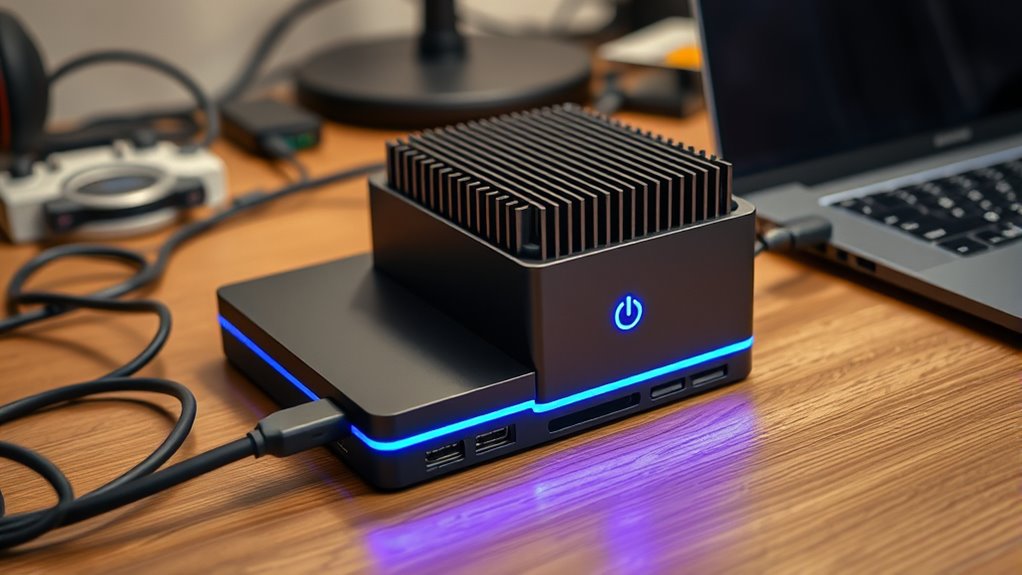
Setting up your eGPU can be straightforward if you follow the right steps, but it requires attention to compatibility and proper configuration. First, confirm your laptop has a Thunderbolt 3 or 4 port and update your BIOS, drivers, and OS for compatibility. Next, choose a compatible eGPU enclosure and a desktop-class GPU. Then, connect the eGPU to your laptop via Thunderbolt, making sure the connection is secure. Finally, connect your display directly to the eGPU’s video outputs for peak performance.
Here’s what you should do:
- Verify Thunderbolt port compatibility and update firmware.
- Install the latest drivers for both your laptop and GPU.
- Connect the eGPU enclosure securely via Thunderbolt.
- Connect your monitor directly to the eGPU for best results.
Optimizing Performance for Gaming and Creative Work
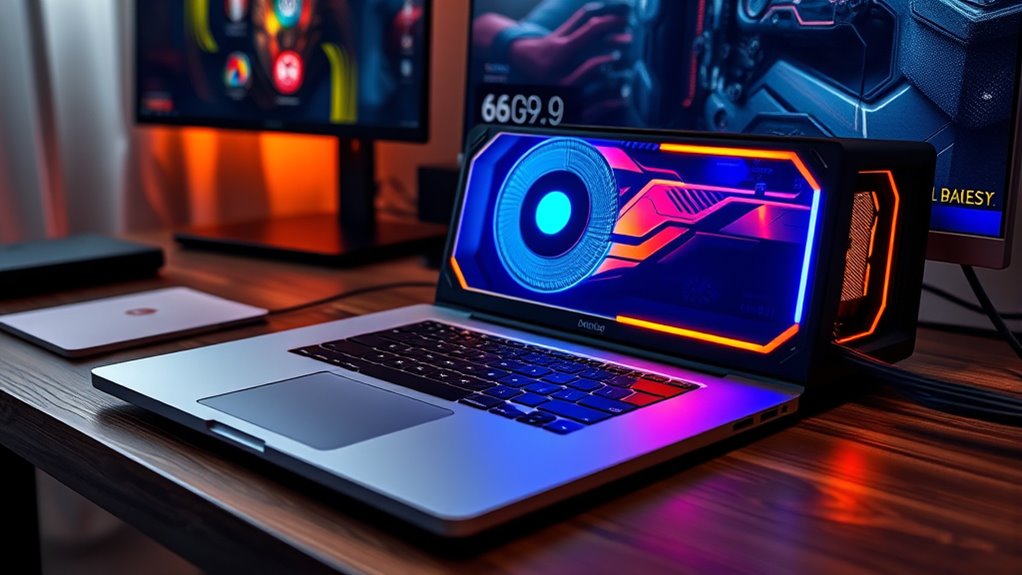
To get the most out of your eGPU for gaming and creative tasks, focus on maximizing bandwidth and minimizing latency. Connect your display directly to the eGPU’s video outputs, not the laptop, to reduce signal delays. Keep your system drivers, BIOS, and Thunderbolt firmware up to date for optimal compatibility and performance. Use high-quality Thunderbolt 3 or 4 ports that support full bandwidth, avoiding older or incompatible connections. Ensure your laptop’s cooling system and power supply can handle extended high-performance workloads, preventing thermal throttling. When configuring settings, disable the internal GPU if possible, and prioritize data transfer through the eGPU. Additionally, choosing compatible hardware can significantly improve overall performance. These steps help you unlock the full potential of your external GPU, delivering smoother gameplay and faster creative rendering. Incorporating optimized data transfer techniques] can further enhance performance and reduce bottlenecks.
Common Challenges and Troubleshooting Tips
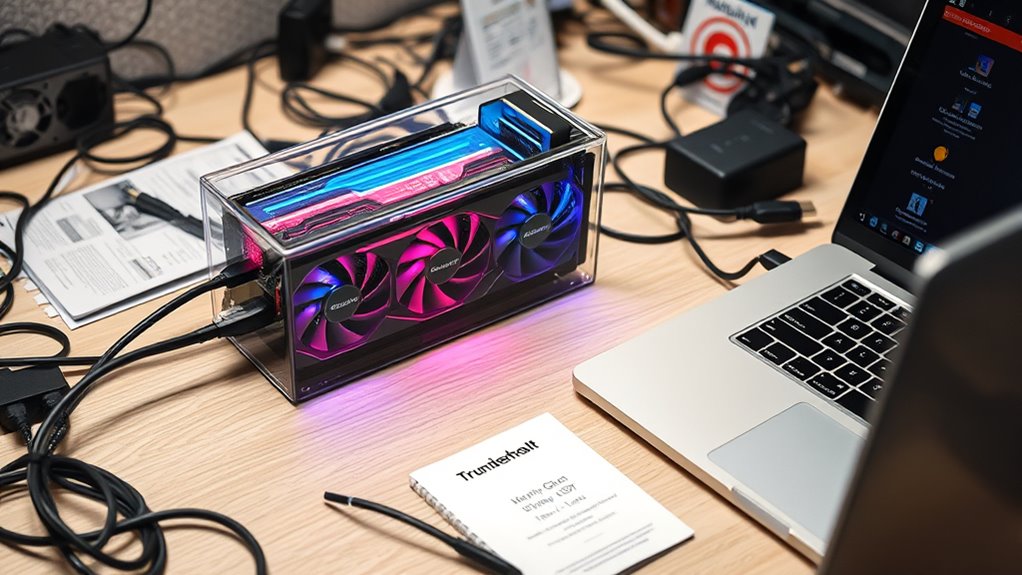
Many users encounter compatibility issues or performance hiccups when setting up an eGPU, often due to outdated drivers, BIOS settings, or firmware. These problems can be frustrating but are usually fixable. Ensuring your system supports the latest hardware features by updating firmware can resolve many of these issues.
Here are some troubleshooting tips to help you overcome common challenges:
- Update everything — BIOS, Thunderbolt drivers, GPU drivers, and OS to ensure compatibility.
- Check BIOS settings — Enable Thunderbolt security, disable fast startup, and adjust boot options for eGPU recognition. Also, verify that firmware is up to date to support the latest hardware features.
- Connect displays directly — Attach monitors to the eGPU’s outputs instead of the laptop to avoid bottlenecks. This can significantly improve graphics performance and reduce latency.
- Monitor power and heat — Ensure your setup has enough power and cooling, preventing throttling or shutdowns during intense use. Regularly monitor system temperatures to maintain optimal performance.
- Review compatibility with BIOS and firmware updates to ensure your system supports eGPU functionality optimally.
Addressing these issues will improve stability and performance, bringing your eGPU experience closer to seamless.
Maximizing Your Laptop’s Gaming Potential With External GPUS
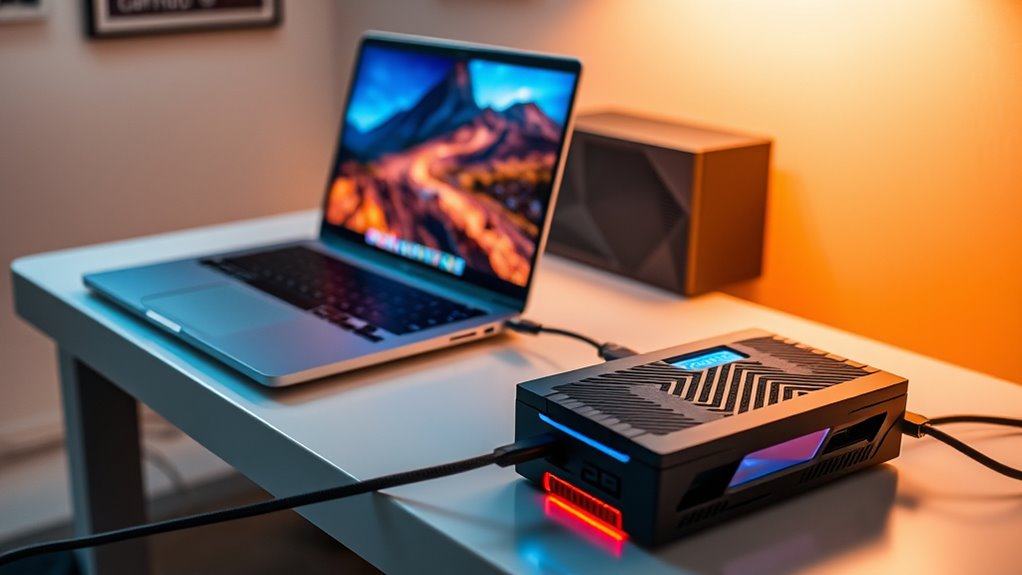
External GPUs can substantially boost your laptop’s gaming performance, but maximizing their potential requires careful setup and understanding of their limitations. First, connect your eGPU via Thunderbolt 3 or 4, and ensure your display is plugged directly into the eGPU’s video outputs. Update your BIOS, drivers, and OS to optimize compatibility. To improve gaming, lower in-game settings to reduce bandwidth strain, and disable the laptop’s internal GPU if possible. Consider the following setup tips:
| Tip | Action | Benefit |
|---|---|---|
| Use direct connection | Connect display to eGPU’s video outputs | Minimize latency and maximize FPS |
| Update firmware | Keep BIOS and Thunderbolt drivers current | Prevent compatibility issues |
| Optimize settings | Adjust game resolution and graphics | Achieve smoother gameplay |
Frequently Asked Questions
Can I Use Multiple External GPUS With One Laptop?
You can’t typically use multiple external GPUs with one laptop through a single Thunderbolt port. Thunderbolt 4 shares bandwidth among connected devices, limiting performance and making multi-GPU setups complex and unsupported. While some specialized configurations or docking stations claim to support multiple GPUs, they often face bandwidth, driver, and software compatibility issues. For peak performance, stick with one high-quality eGPU per Thunderbolt port.
How Does Egpu Performance Compare to Desktop GPUS?
Think of your eGPU as a powerful engine trying to keep pace with a desktop’s race car. While it boosts your laptop’s performance considerably, it’s still held back by Thunderbolt’s bandwidth limits and smaller data highways. You won’t get the same raw power and smoothness as a desktop GPU, but with a good eGPU setup, you’ll definitely notice faster rendering, smoother gaming, and better creative workflows—just not the full desktop horsepower.
Are Egpus Compatible With All Gaming Laptops?
Not all gaming laptops are compatible with eGPUs. You need a laptop with Thunderbolt 3 or 4 ports, as these provide the high-speed connection required for eGPU functionality. Compatibility also depends on your BIOS, drivers, and firmware being current. Laptops with built-in Thunderbolt support, like certain HP OMEN or XMG models, work best. Check your laptop’s specifications before investing in an eGPU to ensure seamless compatibility.
Does Using an Egpu Affect Laptop Battery Life?
Using an eGPU can substantially impact your laptop’s battery life. When connected, your system often uses more power due to the external GPU, leading to faster battery drain. Running demanding tasks like gaming or video editing increases this effect. To conserve battery, you might need to disconnect the eGPU when portability isn’t a priority, or adjust power settings. Keep in mind, the eGPU setup generally reduces overall battery longevity during intensive use.
What Are the Risks of Connecting an Egpu to My Laptop?
Connecting an eGPU to your laptop is like adding a turbocharger, but it comes with risks. You might face hardware compatibility issues, especially if your BIOS or drivers aren’t up to date. There’s also a chance of overheating, increased power consumption, and potential damage if not set up correctly. Always guarantee your laptop supports Thunderbolt, update firmware, and handle the setup carefully to avoid damaging your device or losing data.
Conclusion
So, who would’ve thought your humble laptop could become a gaming powerhouse with just an external GPU? It’s almost funny how a simple upgrade can breathe new life into your portable setup—turning it into the gaming machine you never knew it could be. Just remember, all that power might make your laptop jealous. But hey, at least now you can have your portable and powerful gaming experience—without sacrificing a desk full of hardware.